Taxes and Duties
The Taxes and duties page is where your store handles tax: the automatic tax service, the regions you collect tax in, duties and import taxes at checkout, customs information, and how tax is displayed and calculated.
On this page
The Taxes and duties page is where your store handles the tax it charges customers and the duties on international orders. It brings together the automatic tax calculation service, the regions where you collect tax, the option to collect duties and import taxes at checkout, the customs information used on international shipments, and the settings for how tax is displayed and calculated. You reach it under Settings, on the Taxes page. Tax is your responsibility, so as the page itself notes, if you are unsure about your obligations, consult a tax professional before you rely on any setting here.
What's on the page
| Section | What it covers |
|---|---|
| Tax calculation service | The service that calculates tax on your orders |
| Tax regions | The regions where you collect tax and the service used for each |
| Duties and import taxes | Collecting duties at checkout and the customs data for shipments |
| Tax display and calculation | Whether tax is included in prices, charged on shipping, and applied to digital goods |
Before you begin
- Your role includes General settings.
- Open Settings > Taxes in the admin.
The Taxes and duties page section by section
Open Taxes and duties
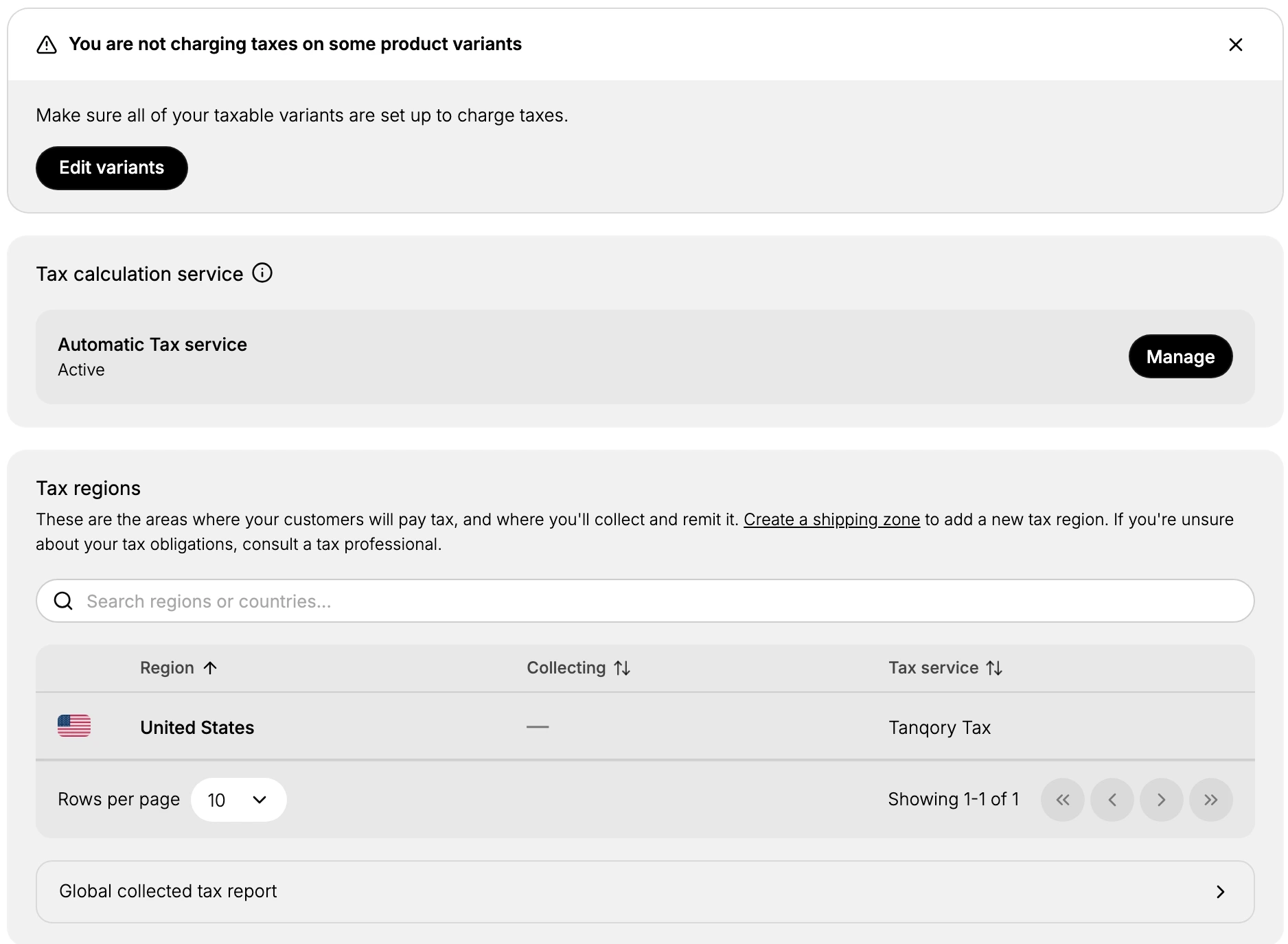
From the admin, open Settings, then Taxes. The page opens with its sections down the page. If some of your product variants are not set to charge tax, a notice at the top reads that you are not charging taxes on some product variants, with an Edit variants button to fix them. Clear this first so every taxable product actually charges tax.
Check the tax calculation service
The Tax calculation service section shows the service that works out tax on your orders. Here it is the Automatic Tax service, marked Active, with a Manage button to review its settings. An active automatic service keeps rates current for you, so confirm it is on and open Manage if you need to adjust how it works.
Review your tax regions
The Tax regions section lists the areas where your customers pay tax and where you collect and remit it. Each row shows the Region, whether you are Collecting, and the Tax service used. Here the one region is United States, served by Tanqory Tax. To add a new tax region you create a shipping zone, and a search box helps you find a region or country. The Global collected tax report link opens a report of the tax you have collected. Keep this list matching the places you are actually registered to collect tax.
Set up duties and import taxes
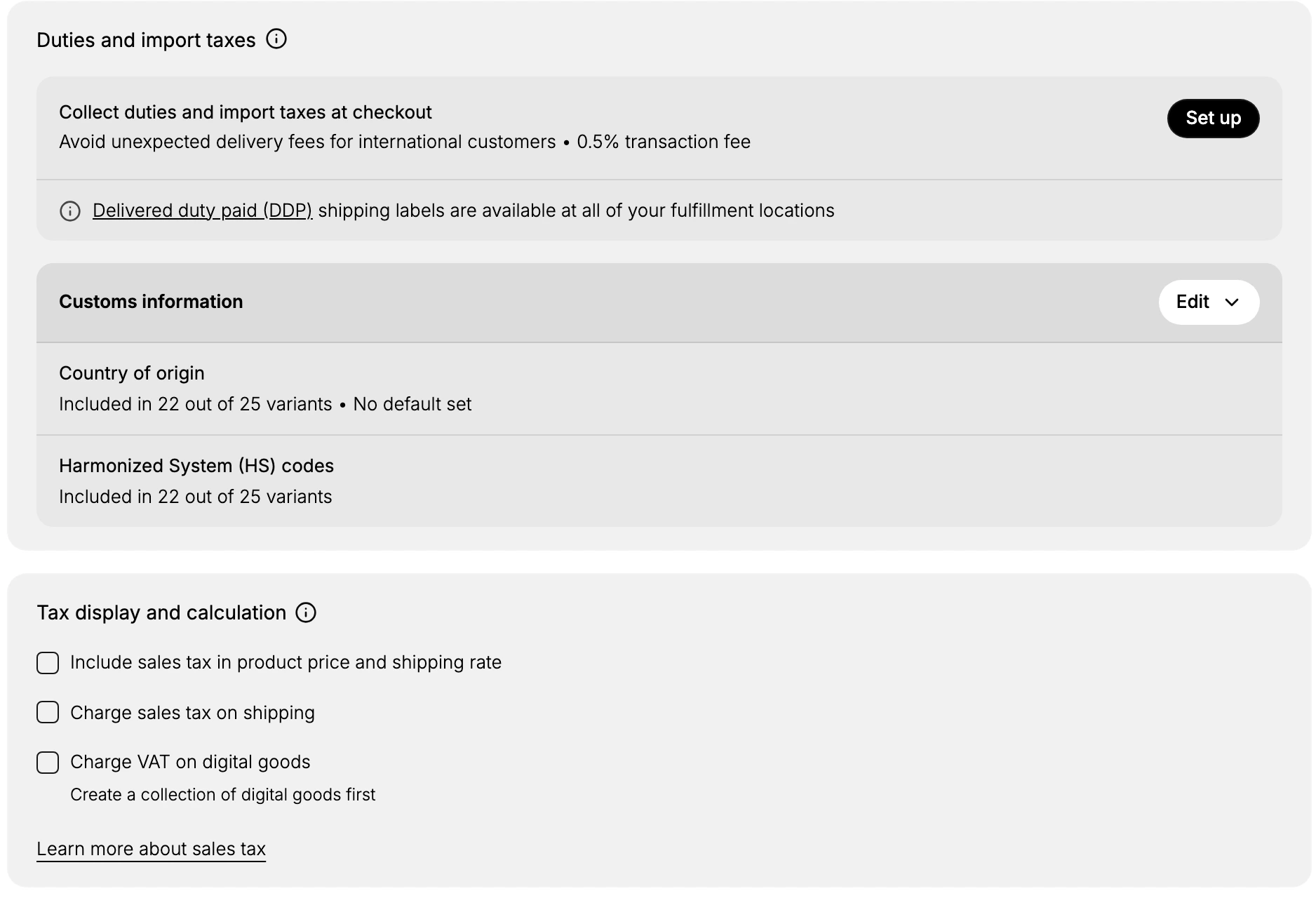
The Duties and import taxes section covers international orders. Collect duties and import taxes at checkout lets you charge these upfront so international customers avoid unexpected delivery fees, and it has a Set up button and a stated transaction fee. A note explains that delivered duty paid shipping labels are available at all of your fulfillment locations. Below, Customs information, with an Edit control, holds the data shipments need: the Country of origin and the Harmonized System (HS) codes, each showing how many of your variants include it. Complete these so international shipments clear customs smoothly.
Set tax display and calculation
The Tax display and calculation section has three checkboxes that decide how tax is applied. Include sales tax in product price and shipping rate shows prices with tax already included. Charge sales tax on shipping applies tax to shipping charges. Charge VAT on digital goods applies VAT to digital products, and the note explains you first create a collection of digital goods. All three are off here. Set these to match the expectations and rules of the markets you sell to.
Best practices
- Clear the variant warning first. If the top notice appears, use Edit variants so every taxable product actually charges tax.
- Keep your tax regions accurate. List only the places you are registered to collect tax in, and add regions as your registrations grow.
- Complete customs information for international sales. Country of origin and HS codes on your variants help shipments clear customs.
- Match tax display to each market. Some markets expect tax included in the price and others expect it added at checkout, so set the display accordingly.
- Consult a tax professional. As the page notes, tax is your responsibility, so confirm your obligations with an adviser.
If something goes wrong
- A product is not charging tax. The top notice and Edit variants show which variants are not set to charge tax.
- A customer's region is not taxed. Check the Tax regions list covers that region; you add one by creating a shipping zone.
- You cannot change a setting. Your role may not allow managing settings. Ask an owner or admin.
Next steps
Related articles
Still stuck?
- Ask Tanqory AIAsk in your own words. It answers from these articles and links the ones it used.
- Ask in your adminThe assistant in your Tanqory admin answers and makes the change for you once you confirm.
- Contact TanqoryWrite to our privacy, security or legal teams, or talk to sales about a plan or a move.