Staff Notifications
Staff notifications are the internal alerts your team receives about store events. You turn each type on or off and add the staff who receive them, from Settings, Notifications.
On this page
Staff notifications are the internal alerts your team receives when things happen in your store. On this page you turn each type of alert on or off and add the staff members who should receive them. Setting these up means the right people hear about new orders, returns, and other events without watching the admin all day. You reach it under Settings, in Notifications, then Staff notifications.
The staff notifications
| Notification | Sent |
|---|---|
| Store order summary | A recurring summary, here every Monday at 9:00 AM GMT+0 |
| New order | When a new order is placed |
| New return request | When a customer requests a return |
| Sales attribution edited | When sales attribution is changed |
| New draft order | When a new draft order is created |
Before you begin
- Your role includes General settings.
- Open Settings > Notifications to open the notifications hub.
Set up staff notifications
From the admin, open Settings, then Notifications, then Staff notifications. The page lists each notification with a toggle, and below the list a Recipients section for the staff who receive the enabled notifications.
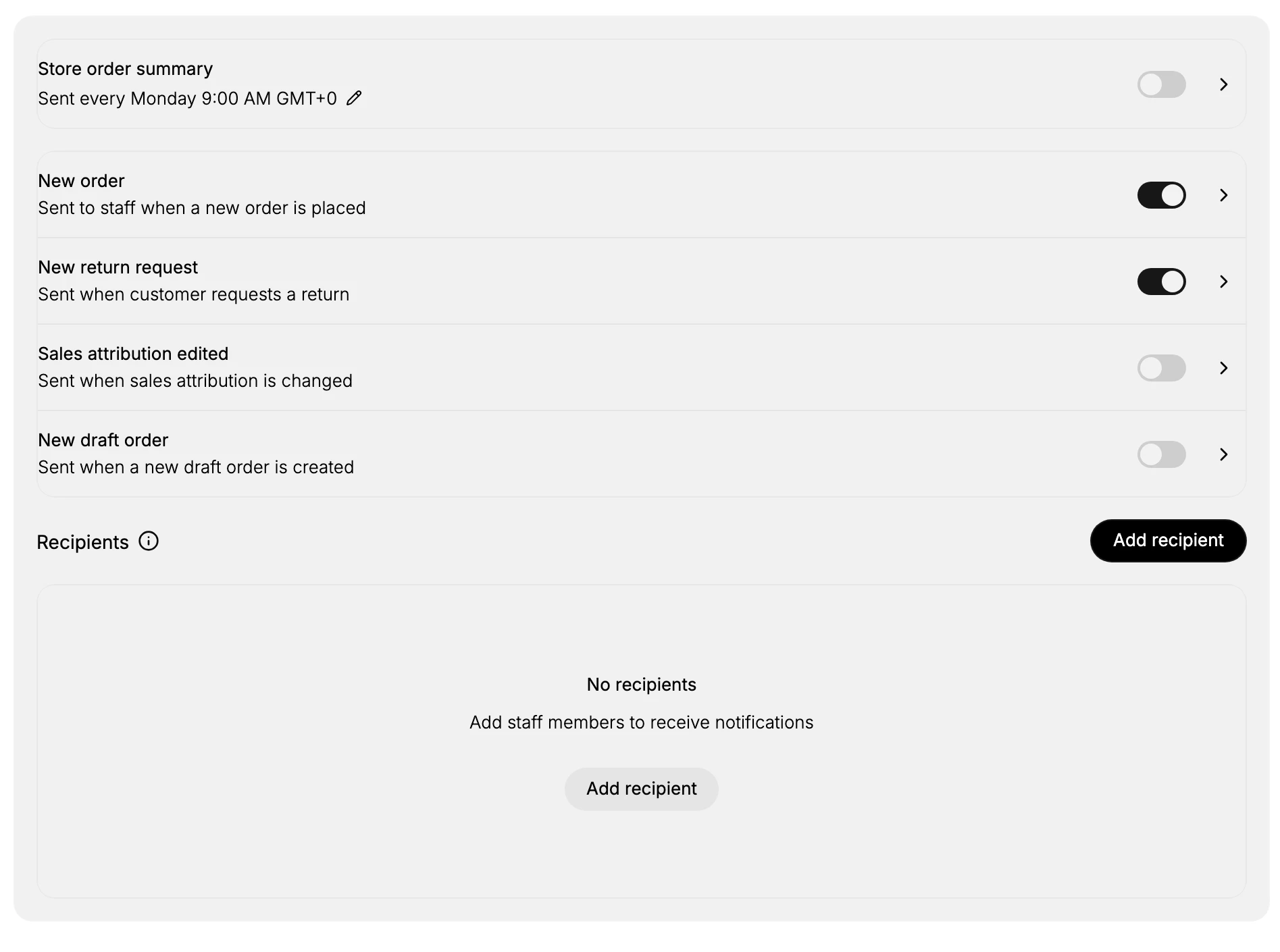
- Turn each notification on or off. Each row has a toggle that turns that alert on or off. On this store New order and New return request are on, while Store order summary, Sales attribution edited, and New draft order are off. Turn on the alerts your team needs to act on and leave the rest off, so people are not flooded with messages they will ignore.
- Set the schedule for the order summary. Store order summary is a recurring digest rather than a per-event alert. It shows when it is sent, here every Monday at 9:00 AM GMT+0, with an edit icon next to the schedule to change the day and time. Use this when your team prefers one regular summary over an alert for every order.
- Add recipients. The Recipients section lists the staff members who receive the notifications you have turned on. On this store it reads No recipients, so no one is set to receive them yet. Select Add recipient to add staff members. Add at least one, because an enabled notification only reaches the people listed here.
Best practices
- Turn on only the alerts your team acts on. Fewer, relevant alerts get read; too many get ignored.
- Always add at least one recipient. An enabled notification has nowhere to go until a staff member is listed under Recipients.
- Use the order summary for a regular digest. If per-order alerts are too much, the weekly summary gives one overview instead.
- Review recipients when staff change. Update the list so alerts do not keep going to someone who has left.
If something goes wrong
- Staff are not getting an alert. Check that the notification is toggled on and that recipients are listed under Recipients.
- The summary arrives at the wrong time. Change its schedule with the edit icon next to the Store order summary time.
- You cannot change the settings. Your role may not allow managing settings. Ask an owner or admin.
Next steps
Related articles
Still stuck?
- Ask Tanqory AIAsk in your own words. It answers from these articles and links the ones it used.
- Ask in your adminThe assistant in your Tanqory admin answers and makes the change for you once you confirm.
- Contact TanqoryWrite to our privacy, security or legal teams, or talk to sales about a plan or a move.