Store Details
Store details holds your store profile: the store name, contact email, and phone number that appear on your storefront and in customer messages. You edit them in one dialog from Settings, General.
On this page
Store details is where you set your store's public identity: its name, its contact email, and its phone number. This information may appear on your storefront and in messages to customers, so it should be accurate business information that reflects your brand. You edit it from Settings, then General, in the Store details section, by selecting Edit to open the Store profile dialog.
What you can edit
| Field | What it is for |
|---|---|
| Store name | Displayed on your storefront and in customer communications |
| Store email | The inbox that receives important messages about your store operations |
| Store phone | The main contact number for customer inquiries and support |
Before you begin
- Your role includes General settings.
- Open Settings > General in the admin sidebar. The Store details section is at the top of that page.
Edit your store details
From the admin, open Settings, then General. In the Store details section, select Edit. The Store profile dialog opens with a reminder that this information may appear publicly on your storefront, so you should use business details only. It holds the Store name field (1), the Store email field (2), the Store phone field (3), and a Save button (4).
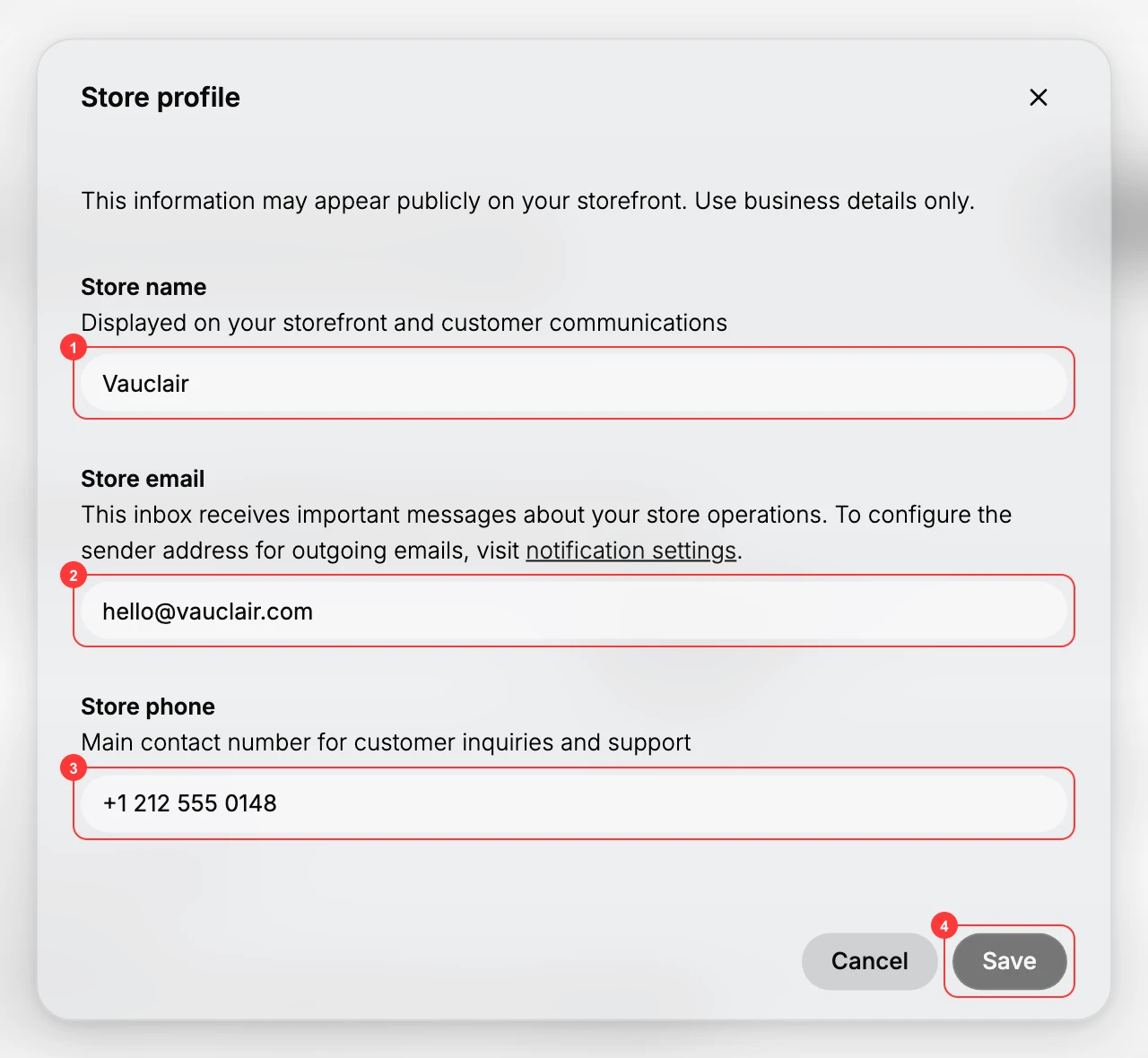
- Set the store name. The Store name field (1) is displayed on your storefront and in customer communications, so enter the name exactly as you want customers to see your brand. Here it is set to Vauclair. Getting this right matters because it is the name shoppers read on your storefront and in their emails.
- Set the store email. The Store email field (2) is the inbox that receives important messages about your store operations, so use an address your team monitors. This is not the same as the address customers see on outgoing email: to set the sender address for outgoing emails, follow the notification settings link in the dialog. Keeping these separate means store-operations alerts and customer-facing email are each handled by the right address.
- Set the store phone. The Store phone field (3) is the main contact number for customer inquiries and support, so enter a number someone actually answers. Here it is set to +1 212 555 0148. A working number reduces failed contact attempts when a customer needs help.
- Review and save. Check the three fields, then select Save (4) to apply the changes. Cancel or the close icon discards them, so use Save once the details are correct. The updated name, email, and phone then show in the Store details section on the General page.
Best practices
- Use a business email you monitor. The store email receives operational alerts, so it should reach someone on your team.
- Enter the store name exactly as your brand reads. It appears on your storefront and in customer emails, so consistency builds trust.
- Keep the phone number current. A number that is answered avoids frustrating customers who need support.
- Set the customer-facing sender separately. The address customers see on outgoing email is configured in notification settings, not in this dialog.
If something goes wrong
- Save does nothing. Check that each field is valid, for example that the email is a full address, then try again.
- Customer emails come from a different address. The sender is set in notification settings, not here. This dialog only sets the store's own contact email.
- You cannot edit the details. Your role may not allow managing settings. Ask an owner or admin to make the change.
Next steps
Related articles
Still stuck?
- Ask Tanqory AIAsk in your own words. It answers from these articles and links the ones it used.
- Ask in your adminThe assistant in your Tanqory admin answers and makes the change for you once you confirm.
- Contact TanqoryWrite to our privacy, security or legal teams, or talk to sales about a plan or a move.