Billing Preferences
Billing preferences are the business details that appear on your invoices, such as your company name, billing email, purchase order number, billing address, and tax ID. You set them so your invoices are accurate and meet tax requirements. Changes apply to future invoices only.
On this page
Billing preferences are the business details that appear on the invoices for your store, so your invoices carry the right company, contact, address, and tax information. Setting them keeps your invoices accurate and helps you meet tax and accounting requirements. As the page notes, changes apply to future invoices only, so past invoices are not altered. You reach it from the Billing page, in Quick links, under Billing preferences, or in Settings, under Billing.
What you can set
The Billing preferences page holds the fields that appear on your invoices.
| Field | What it is |
|---|---|
| Company name | The business name shown on your invoices |
| Billing email | The email address your billing documents are associated with |
| Purchase order (PO) number | A PO number to include on invoices, if your business uses one |
| Country/region | The country or region for your billing address |
| Billing address | The address fields for that country, such as street, city or locality, region, and postal code |
| Tax ID type | The kind of tax identifier you are providing |
| Tax ID number | Your tax identification number, so it appears on invoices |
After filling in the details, you save them with Save preferences, and they apply to invoices issued from then on.
Before you begin
- Your role includes Billing settings.
- You have your company details and tax identification ready.
- Open Settings > Billing in the admin sidebar, then open the billing preferences.
Set your billing preferences
In Billing, select Billing preferences (from the Quick links on the Billing page or from billing settings). The page notes these details keep your invoicing accurate and that changes apply to future invoices only.
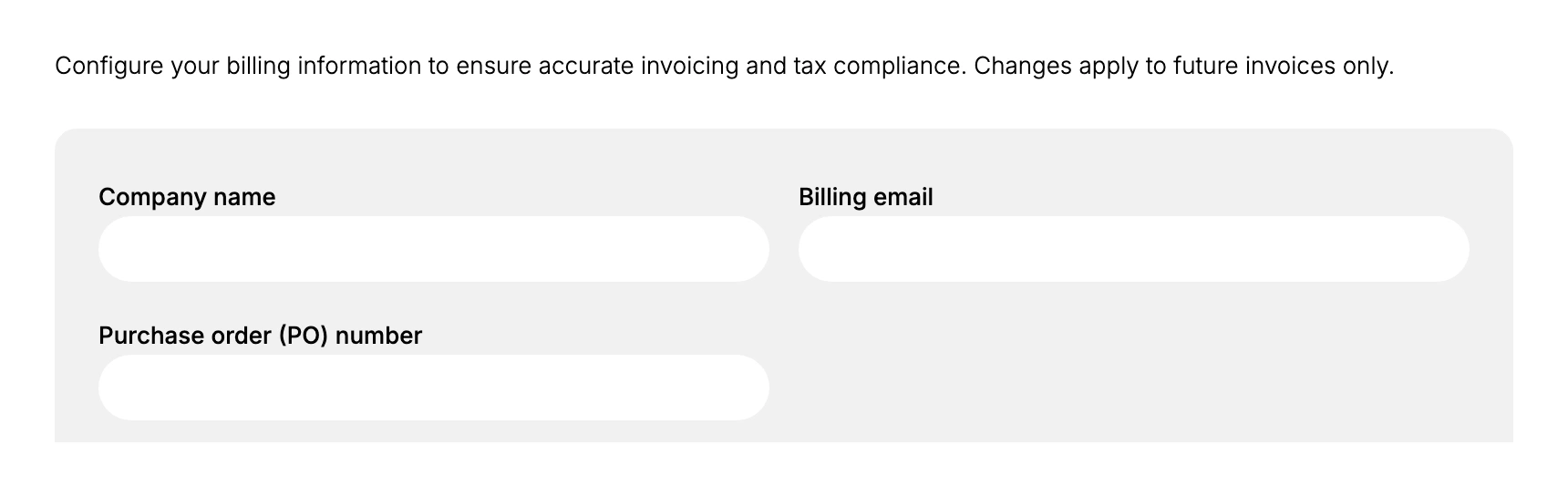
- Enter your company and contact details. Enter your Company name and Billing email so they appear on your invoices, and a Purchase order (PO) number if your business requires one on its invoices.
- Set your billing address. Choose your Country or region, then fill in the billing address fields for it, such as the street address, city or locality, region, and postal code. This is the address that appears on your invoices.
- Add your tax ID and save. Choose your Tax ID type and enter your Tax ID number so your tax identifier appears on invoices, then select Save preferences. The details apply to future invoices from that point on.
Best practices
- Keep the details current. Accurate company, address, and tax details make your invoices valid for accounting.
- Add your tax ID. Including it keeps invoices compliant where a tax number is required.
- Use a monitored billing email. Make sure the billing email reaches someone who handles finances.
- Set details before your next bill. Since changes apply to future invoices only, update them ahead of the next billing date.
If something goes wrong
- An old invoice is missing a detail. Changes apply to future invoices only, so a past invoice keeps the details it had when issued.
- Your tax ID is not on the invoice. Confirm the Tax ID type and number were entered and saved.
- You cannot change these settings. Your role may not allow managing billing. Ask an owner or admin.
Next steps
Related articles
Still stuck?
- Ask Tanqory AIAsk in your own words. It answers from these articles and links the ones it used.
- Ask in your adminThe assistant in your Tanqory admin answers and makes the change for you once you confirm.
- Contact TanqoryWrite to our privacy, security or legal teams, or talk to sales about a plan or a move.