Pick Your Plan
Choose or change the plan your store runs on. You start from Change plan on the Plan page, which opens the Compare plans page, then upgrade, downgrade, or switch between monthly and annual. You can also cancel and reactivate your plan from the same page.
On this page
Picking your plan is how you set, and later change, which plan your store runs on. You do it from your Plan & Billing page: Change plan opens the Compare plans page, where you move to a higher or a lower plan and choose monthly or annual billing. The same Plan page is where you cancel your plan or reactivate a cancellation. This article walks through each of those moves.
Before you begin
- You know which plan fits your business, and whether you want monthly or annual billing.
- Your role includes Billing settings.
- Open Settings and open Plan & Billing, then select Change plan, which opens the Compare plans page. You can also reach it from Settings > Billing.
Open the plan change
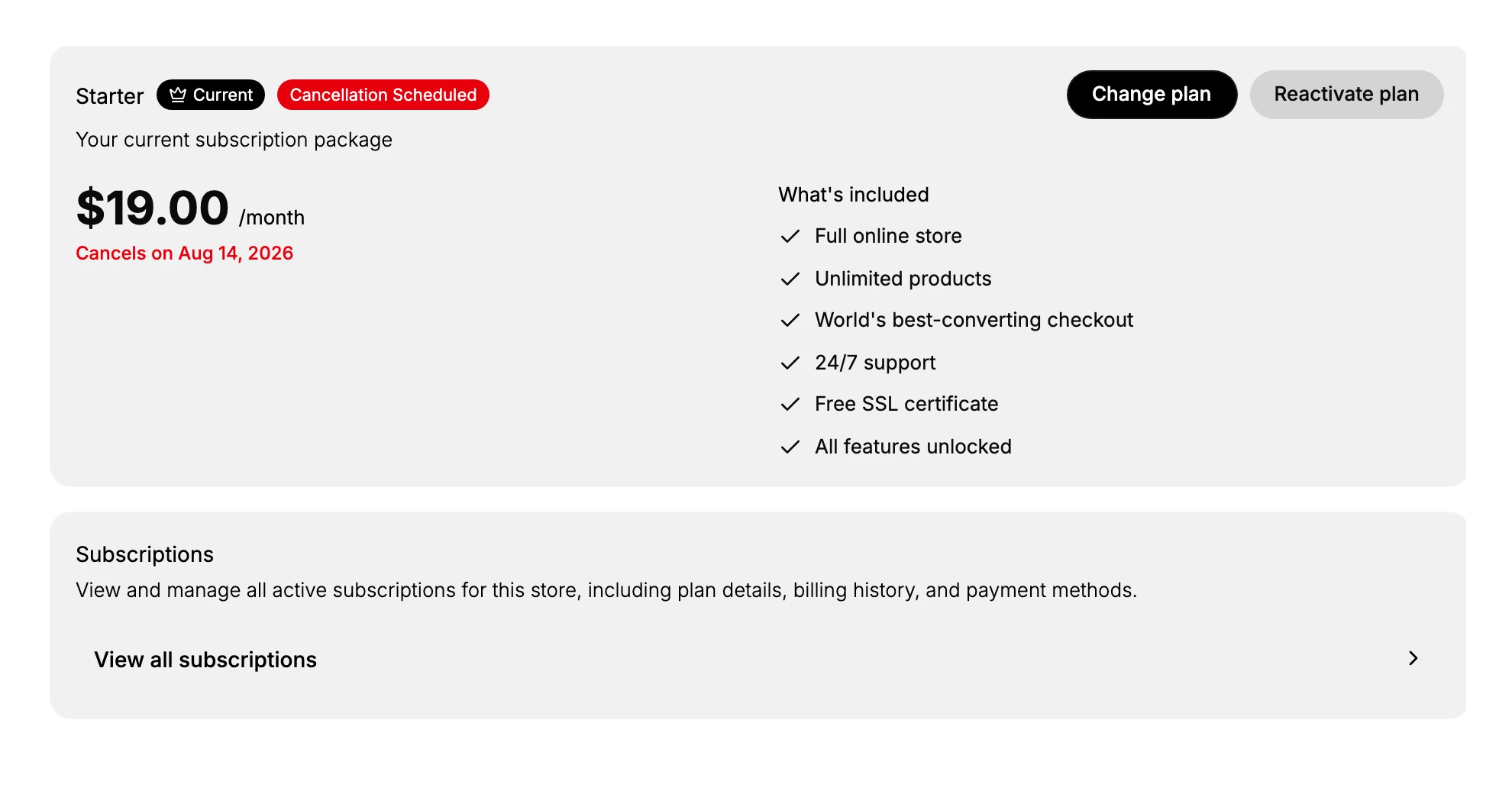
On the Plan & Billing page, your current plan is marked Current with its price and what it includes. Select Change plan to open the Compare plans page, which lays all five plans out side by side. This is the one place you move between plans; there is no separate plan-selection page. Compare Plans breaks down what each plan includes.
Choose monthly or annual
At the top of the plans is a Monthly billing and Annual billing toggle. Set it to the period you want to pay before you choose a plan, since it changes the price shown and the amount you commit to. Annual is billed once for the year and is cheaper per month; monthly is billed each cycle. When you are already on a plan and switch the toggle to annual, that plan shows a Switch to Annual action so you can change only the billing period without changing the plan.
Upgrade to a higher plan
Moving up a plan takes four steps on the Compare plans page.
- On your Plan & Billing page, select Change plan to open the Compare plans page.
- Set the Monthly billing or Annual billing toggle to the period you want to pay.
- On the plan you want, select its Upgrade to action, such as Upgrade to Growth or Upgrade to Business.
- Review the plan, its price, and the billing period, then confirm.
What you gain by upgrading. Upgrading gives your store more room and more capability. A higher plan does the following:
- Adds team members, so more people can help run the store, each with their own sign-in.
- Adds locations, the warehouses, shops, and pickup points you can stock and ship from.
- Lowers your transaction fee, the percentage Tanqory takes on each order, which can save money once your order volume is high.
- Unlocks advanced features, such as API access on Scale and above, and white label and BYOC on Enterprise.
You pay more for the higher plan, but nothing you already have is taken away, so an upgrade is the safe direction to move in. How the change affects your bill is covered in the What happens when you change section below.
Downgrade to a lower plan
Moving down works the same way, with one check first.
- Before you start, make sure your store fits the smaller plan, so you are not over its team-member, location, or feature limits. Reduce usage first if you need to.
- On your Plan & Billing page, select Change plan to open the Compare plans page.
- Select the lower plan you want to move to.
- Review the change, then confirm.
What changes when you downgrade. Downgrading is the opposite of upgrading, and it needs more care because it takes things away. A lower plan does the following:
- Reduces your team-member and location limits. If you are currently using more team members or locations than the smaller plan allows, you need to remove the extra ones first so your store fits, which is why the check comes before you start.
- Raises your transaction fee. Lower plans take a higher percentage on each order, so your per-order cost goes up.
- Removes higher-tier features. Anything that depends on a feature the smaller plan does not have, such as API access, stops working once you are on the lower plan.
Because fees are charged in advance and are not pro-rated, a downgrade does not refund the difference for the term you have already paid. You keep what you paid for until the end of the current billing period, so timing a downgrade near the end of that period wastes the least of what you have paid.
Note: Under the Tanqory Terms of Service, subscription fees are charged in advance and are generally non-refundable once a billing cycle has started, with access continuing to the end of the paid term without pro-rating. Changing near the end of your billing period means you are not paying for a term you stop using.
Cancel and reactivate
You cancel your plan from the Plan & Billing page. Once a cancellation is scheduled, the page shows a Cancellation Scheduled badge and a Cancels on date, and your plan keeps working until that date. To undo it before then, select Reactivate plan. Canceling ends the paid subscription and stops it renewing, so the plan and the features in its What's included list no longer apply after the cancellation date.
What happens when you change
- Your new plan and price take effect according to the plan and billing period you confirm, and your subscription renews automatically at the new price unless you cancel.
- Access continues to the end of the paid term you have already paid for, since fees are charged in advance and are not pro-rated on a mid-term change.
- Add-ons stay separate. AI Credits and a Shipping Balance are one-time purchases and are not changed by moving plans. See Compare Plans.
Best practices
- Pick the billing period first. Set Monthly or Annual before choosing, so the price shown is what you will pay.
- Match the plan to your stage. Move up as your team, locations, or order volume grow, and only down once your usage genuinely fits the smaller plan.
- Change near the end of your term. Because fees are not pro-rated, timing a change near your renewal wastes less of the term you have paid for.
- Review before you confirm. A plan change affects your bill, so check the plan, price, and period first.
If something goes wrong
- The price looks different than expected. Check whether Monthly or Annual billing is selected on the Compare plans page.
- A feature you need is not on your plan. Compare the plans and upgrade to one that includes it, such as API access on Scale and above.
- You canceled by mistake. Use Reactivate plan on the Plan & Billing page before the Cancels on date.
- You cannot change the plan. Your role may not allow managing billing. Ask an owner or admin.
Next steps
Related articles
Still stuck?
- Ask Tanqory AIAsk in your own words. It answers from these articles and links the ones it used.
- Ask in your adminThe assistant in your Tanqory admin answers and makes the change for you once you confirm.
- Contact TanqoryWrite to our privacy, security or legal teams, or talk to sales about a plan or a move.