Billing History
Billing history is the record of what Tanqory has charged your store, one row per bill, covering the past 12 months. Opening a bill shows what it was for, when it was paid, and an Export bill button for the copy your accountant needs.
On this page
Every charge Tanqory raises against your store leaves a bill behind, and billing history is where those bills are kept. It answers two different questions. Month to month it answers "has everything been paid", which takes one glance at a tab. At the end of a quarter it answers "what exactly was this charge for", which takes opening the bill itself.
The page holds the past 12 months. Older invoices and custom billing reports exist, but you get them by asking support rather than by scrolling further back, and the page says so above the list.
Reaching any of it needs a role that includes Billing settings, the permission covering what the store is charged and how it pays.
Getting to the page
Billing history is not on the main menu, and neither is the page that holds it, so it is worth walking the route once. If you would rather jump, Settings > Billing lands on the page directly above it.
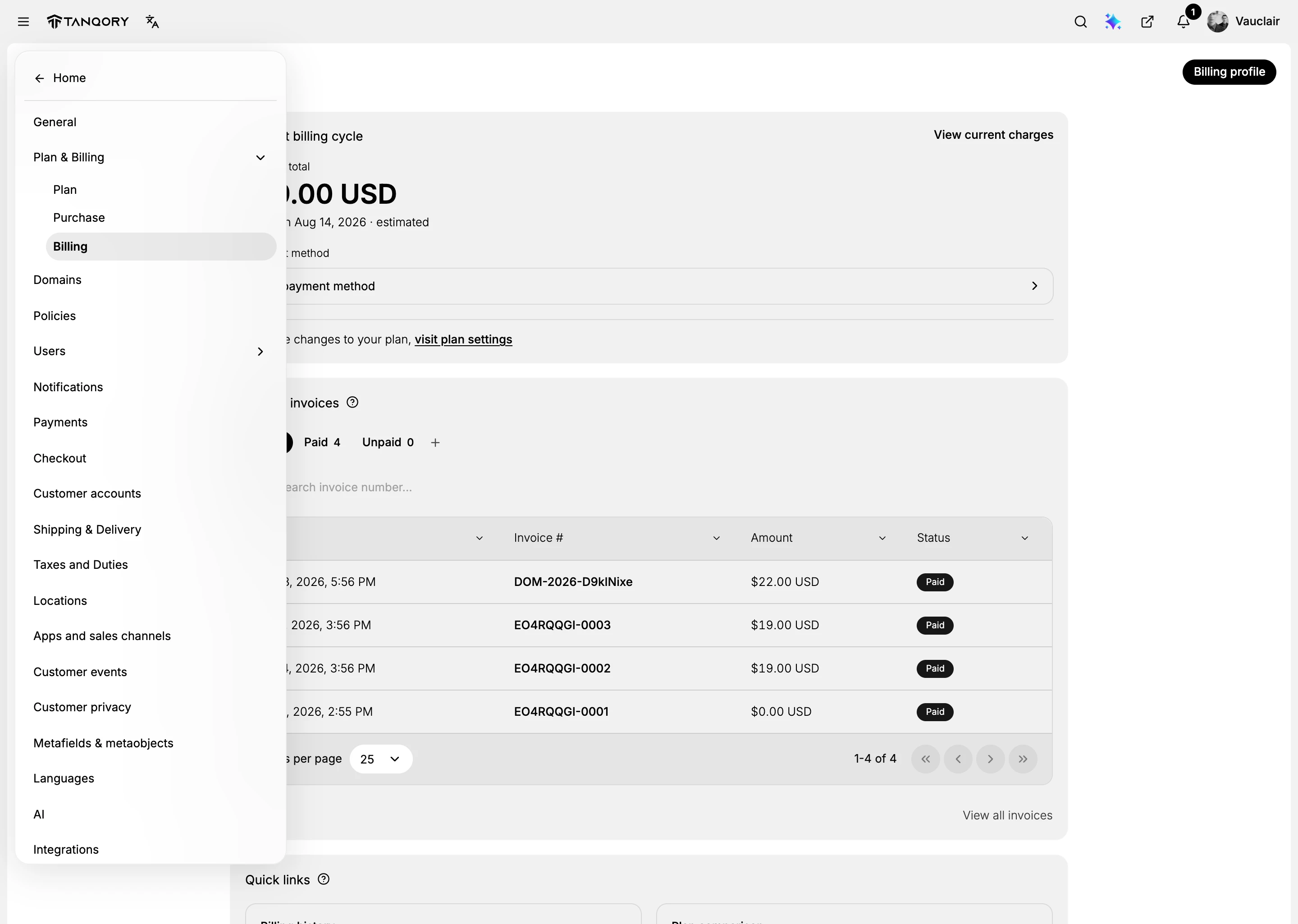
Select the menu button at the top left of the admin, then scroll to the bottom of the list that opens and choose Settings.
In the settings list, select Plan & Billing. It opens to show three entries underneath it, Plan, Purchase and Billing. Choose Billing.
The Billing page opens on your current billing cycle. Scroll past it and the recent invoices to the Quick links card at the foot of the page, then select Billing history, the entry described as viewing all past invoices and payment receipts.

A link reading Billing sits at the top left of the history page, and it is the way back up to the page you came from.
Reading the list
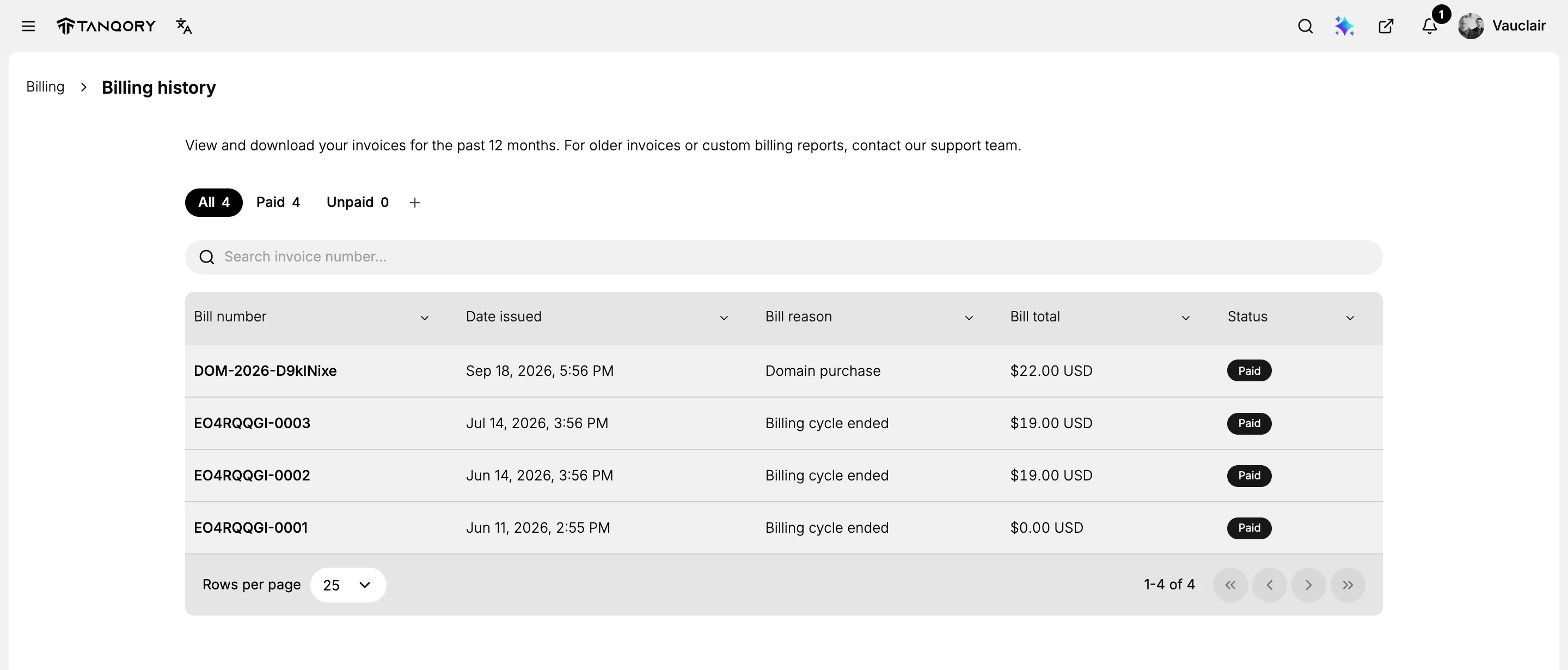
Each row is one bill, described by five columns.
| Column | What it holds |
|---|---|
| Bill number | The reference to quote if you ever query a charge |
| Date issued | When the bill was raised, to the minute |
| Bill reason | Why the bill exists at all |
| Bill total | The amount, with its currency |
| Status | Paid or unpaid |
Bill reason is the column worth reading first. A regular subscription renewal reads Billing cycle ended, meaning the period you had already paid for ran out and the next one was charged. A bill that reads anything else is a one-off charge, and a domain purchase is the clearest example: it arrives as its own bill with its own number rather than being folded into the subscription.
Everything else on the page is there to get you to the right row.
| Control | Where it is | What it is for |
|---|---|---|
| All, Paid, Unpaid | Above the table | Each carries a count, and a zero beside Unpaid answers the whole question of whether anything has been missed |
| Add view, the plus sign | After the last tab | Saves the filters you have applied as a tab of its own, named in up to 40 characters |
| Search | Under the tabs | Matches on the bill number, including a fragment of it |
| Column arrow | On every column header | Sort A to Z, Sort Z to A, Copy column and Hide column |
| Rows per page and arrows | Under the table | Paging, with the range of bills you are looking at |
Two of those are worth a sentence more. Copy column lifts a whole column of figures in one go, which is the short way into a spreadsheet at quarter end. While a search is running, trust the rows it leaves rather than the range underneath, which goes on reporting the unfiltered total.
Opening a bill
Select any row. The bill opens on its own page, and this is where the detail your accounting needs lives.
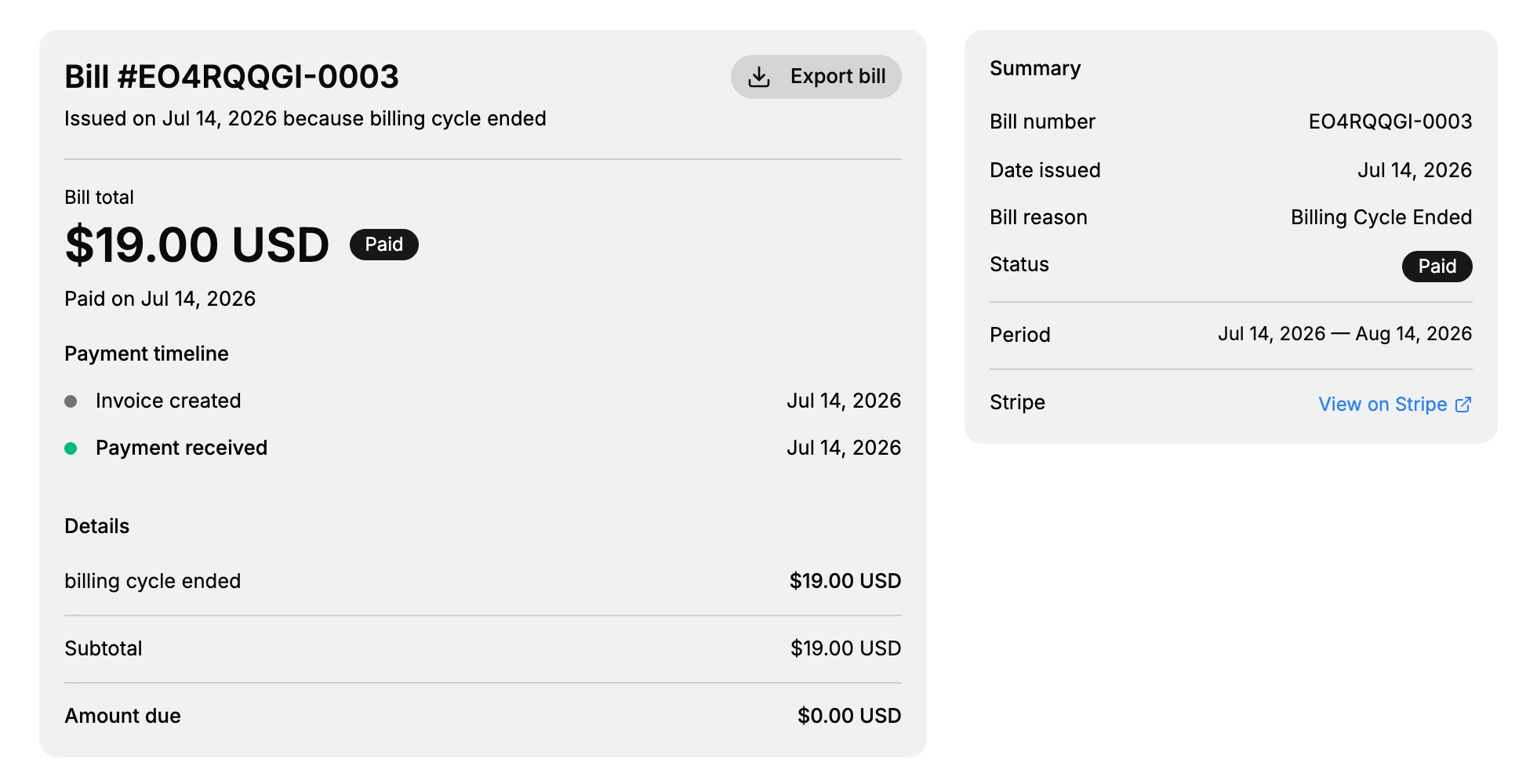
The heading repeats the bill number and gives the reason in a sentence, as in "Issued on Jul 14, 2026 because billing cycle ended". Below it the total carries its status, and the date it was paid.
Payment timeline lists what happened and when: the invoice being created, then the payment being received, each with its date. On a bill that has not been settled, this is where you look to see how far it got.
Details breaks the total into its lines, then Subtotal and Amount due. Amount due reads zero on a paid bill, so a figure other than zero here is the thing to act on.
Summary, in the panel on the right, gathers the bill's facts in one block and adds one the list does not show: Period, the stretch of time the bill covers. It also carries a link out to the payment processor's own record of the charge, which is where the card receipt lives.
Export bill, at the top of the page, is how you take a copy away. Do it as you go rather than at year end, for the reason the top of this article gives.
If something goes wrong
- A bill you remember is not listed. Check how old it is. Anything beyond 12 months is no longer on this page, and support can produce it.
- A charge does not match your plan price. Read the Bill reason column on that row. A one-off purchase is billed separately from the subscription and carries its own reason, so the amount is explained by what the bill was for.
- The Unpaid count is not zero. Find the row whose Status column does not read Paid, open it, and read its payment timeline to see how far the payment got. Then check that a payment method is on file, since a missing one stops the charge before it starts.
- You cannot open billing history at all. Your role may not include Billing settings. An owner or another admin with billing access can open it for you.
Next steps
- Billing for the page this one sits under, and what else it holds.
- Add a Payment Method for Subscription
- Billing Preferences
Related articles
- Compare Plans explains what the recurring amount on these bills is buying.
- Billing Overview
Still stuck?
- Ask Tanqory AIAsk in your own words. It answers from these articles and links the ones it used.
- Ask in your adminThe assistant in your Tanqory admin answers and makes the change for you once you confirm.
- Contact TanqoryWrite to our privacy, security or legal teams, or talk to sales about a plan or a move.