Billing Overview
The Billing page gathers your plan, next charge, payment methods, tax details, address, and past invoices in one place. Review it monthly to catch renewals and expiring cards early.
On this page
The Billing page is the single place in your Tanqory admin where every part of your subscription billing sits together. It holds the plan you are on, the amount of your next charge, the card that pays for it, your tax and address details, and the invoices you have already been billed.
Reading it top to bottom is the quickest way to confirm the account is healthy. Doing that once a month is what catches a renewal, an expiring card, or an unexpected charge while it is still small.
You open it from the Billing page in your store settings.
What's on the page
| Section | What it shows |
|---|---|
| Current plan | Your active tier, billing cycle, and next billing date, with Change plan |
| Upcoming bill | The amount and date of your next charge, with View bill |
| Payment methods | The cards on file, with Add payment method |
| Tax ID | Your VAT or tax number for invoices, with Add VAT number |
| Address and currency | The store address and billing currency, with Manage |
| Quick links | Shortcuts to Billing history, Billing preferences, and Plan comparison |
| Recent invoices | A searchable table of past invoices with date, number, amount, and status |
Before you begin
- Your role includes Billing settings. Some changes, such as changing the plan, need owner access.
- Open Settings > Billing in the admin sidebar, which is the page this article describes.
Steps
1. Open the Billing page
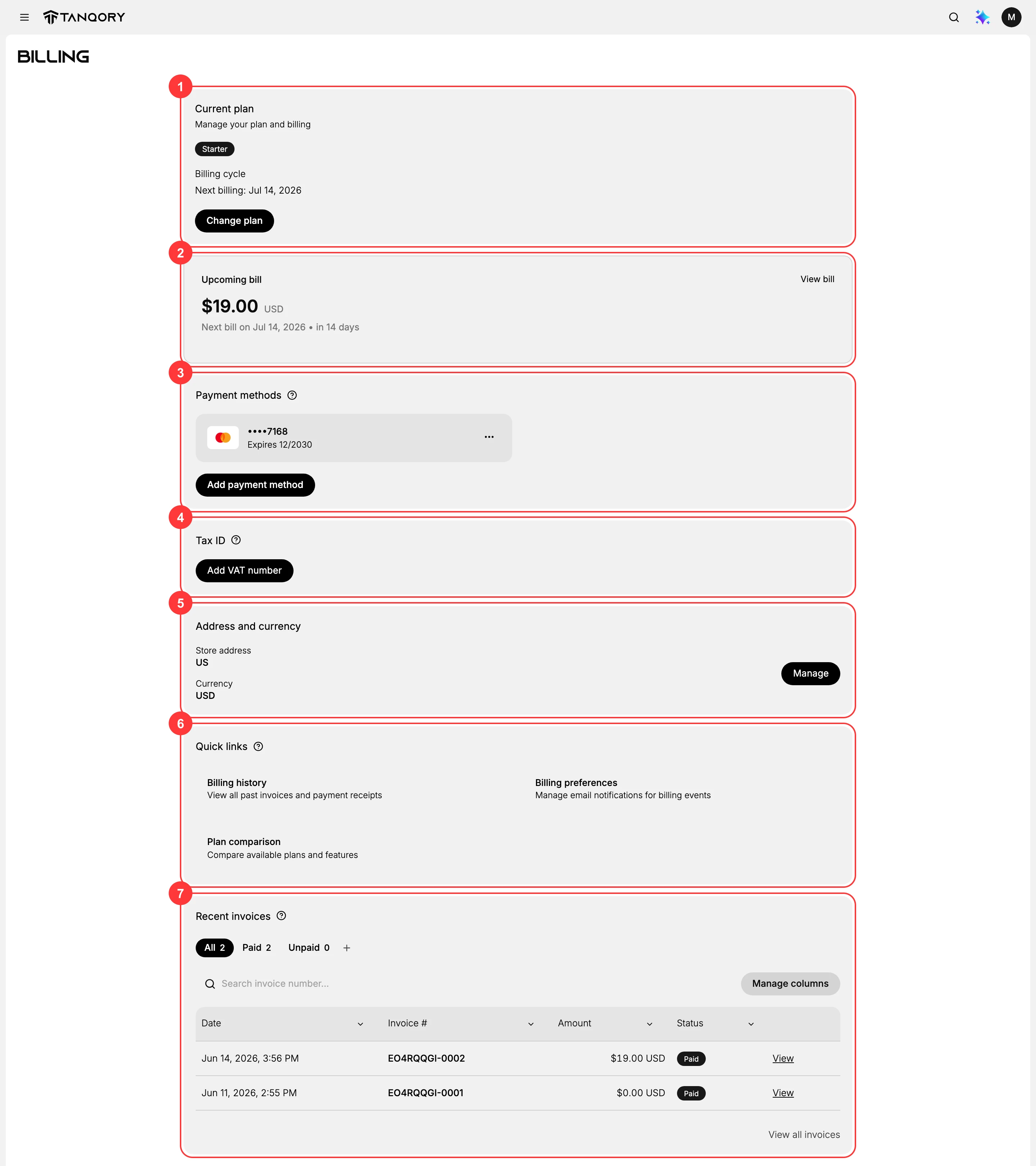
The Billing page opens as one scrollable summary, so you can read the whole state of your billing without opening anything else. From top to bottom it holds Current plan (1), Upcoming bill (2), Payment methods (3), Tax ID (4), Address and currency (5), Quick links (6), and Recent invoices (7).
2. Check your plan and next billing date
The Current plan card (1) answers what you are paying for and when the next payment falls.
- The tier, here Starter, is the plan you are actually being charged for.
- The billing cycle and next billing date, here Jul 14, 2026, say when the charge lands.
- Change plan opens the plan picker, for moving up or down.
Confirm the tier matches what your team expects. A plan someone chose months ago can quietly stop matching how the store is used, and this card is the only place that says what is actually active.
3. Preview your upcoming bill
The Upcoming bill card (2) shows the exact amount of your next charge, here $19.00 USD, and the day it will be taken, Jul 14, 2026.
View bill opens that charge in full if you want to see what makes it up.
This is the card that turns a renewal from a surprise into something you already knew about.
4. Confirm a payment method is on file
The Payment methods card (3) lists the cards that pay your invoices. Here one card ending 7168 is on file, expiring 12/2030.
Two things are worth checking each time you are here.
- At least one valid card is present. A missing card at renewal interrupts the subscription.
- No card is close to expiry. An expired card fails the same way as a missing one, but with less warning.
Add payment method adds another card, and the menu beside a card opens its options.
Tip: Keep a second card on file. A subscription that fails at renewal because the only card expired is a problem you find out about from your customers, not from your admin.
5. Add a Tax ID if your invoices need one
The Tax ID card (4) stores the VAT or tax number that appears on your invoices. Here none is set, which is why the card shows Add VAT number.
Add one if your business needs a tax number on its billing documents, for example to reclaim VAT. Every invoice issued after that carries it.
The number is worth getting right the first time, because a missing or wrong tax ID is something your accountant has to chase invoice by invoice.
6. Keep your address and currency current
The Address and currency card (5) shows the store address and billing currency used on your invoices, here a US address and USD. Confirm both are correct, because the address prints on your invoices and the currency is the one you are charged in. Manage opens these settings so you can update the address after a move or a company change.
7. Use the Quick links for history and preferences
The Quick links card (6) collects three shortcuts.
| Link | Where it takes you |
|---|---|
| Billing history | All past invoices and receipts, for records going further back than the recent list |
| Billing preferences | The email notifications sent for billing events, so the right people hear before a charge |
| Plan comparison | The available plans side by side, for deciding before you change plan |
8. Review your recent invoices
The Recent invoices card (7) lists what you have already been billed. Each row carries the date, the invoice number, the amount, and whether it is Paid or Unpaid, and the tabs above the table, All, Paid and Unpaid, filter by status.
In the capture two invoices are listed, both Paid:
- EO4RQQGI-0002, $19.00 USD, Jun 14, 2026
- EO4RQQGI-0001, $0.00 USD, Jun 11, 2026
View on a row opens that invoice, and View all invoices at the foot of the table opens the full history.
Read these rows against your bank statement rather than on their own. A charge that appears here and not there, or the reverse, is the kind of thing that is cheap to fix in the same month and awkward to unpick later.
Best practices
- Review the page once a month. Most billing surprises stop being surprises when you have checked the overview in the last 30 days.
- Keep a backup card on file. A second valid card means one expiry never blocks a renewal.
- Reconcile invoices against your bank statement. Matching the Recent invoices rows to your statement catches errors while they are still small.
- Keep your billing email and address current. Invoices carry the address, and billing notifications go to the email, so both need to be right when your company details change.
Common mistakes
- No backup payment method. If the only card expires, the next charge can fail and interrupt the subscription.
- A stale billing address or tax ID. Invoices then carry the wrong details, which slows down your accounting.
- Never opening the page. Without a review habit, a wrong plan or a failed charge can go unnoticed until it causes a problem.
If something goes wrong
- The upcoming charge looks wrong. Check the plan on the Current plan card first, since the charge follows the active tier.
- A recent invoice is missing. The newest invoice can take a short time to appear, so check again a little later or open Billing history for the full list.
- A card is close to expiry. Add a new card before the next billing date so the charge is not interrupted.
- You cannot see billing. Your role may not include billing access. Ask an owner to grant it.
Next steps
Related articles
Still stuck?
- Ask Tanqory AIAsk in your own words. It answers from these articles and links the ones it used.
- Ask in your adminThe assistant in your Tanqory admin answers and makes the change for you once you confirm.
- Contact TanqoryWrite to our privacy, security or legal teams, or talk to sales about a plan or a move.