Browse and Compare Plans
The Compare plans page is where you work out which plan fits before you commit to one. This covers reaching it, reading the three parts it is built from, and the two controls that change what you are looking at. The figures themselves are kept in one place, in Compare Plans.
On this page
Choosing a plan is a decision about two numbers you already know: how many people need to work in the store, and how many locations you stock. The Compare plans page exists to put those against a price. Everything else on it is detail you can skip until those two line up.
This article covers the page and how to read it. The prices, limits and features themselves live in Compare Plans, which is kept as the single place they are written down, so nothing here repeats a figure that could drift out of date.
Reaching the page needs a role that includes Billing settings. From Settings > Plan, select Change plan.
The page is built from three parts
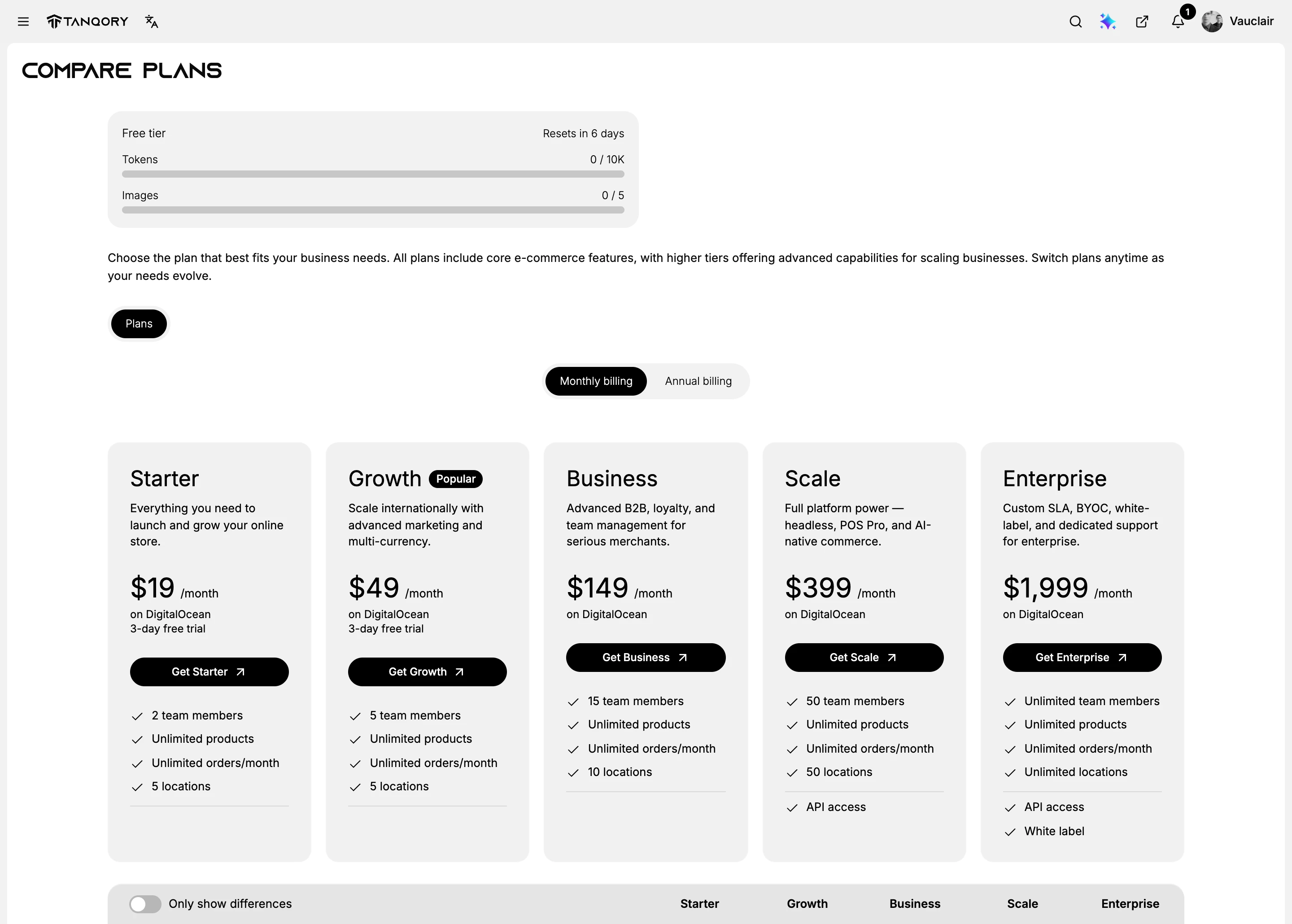
The plan cards run across the top, one for each of the five plans, from the smallest up to Enterprise. Each carries a price, a line saying who the plan is for, and the handful of limits that usually decide the choice. One card is marked Popular, and the two smallest note a free trial. The button at the foot of each card reads Get followed by the plan name, and selecting it begins the move to that plan.
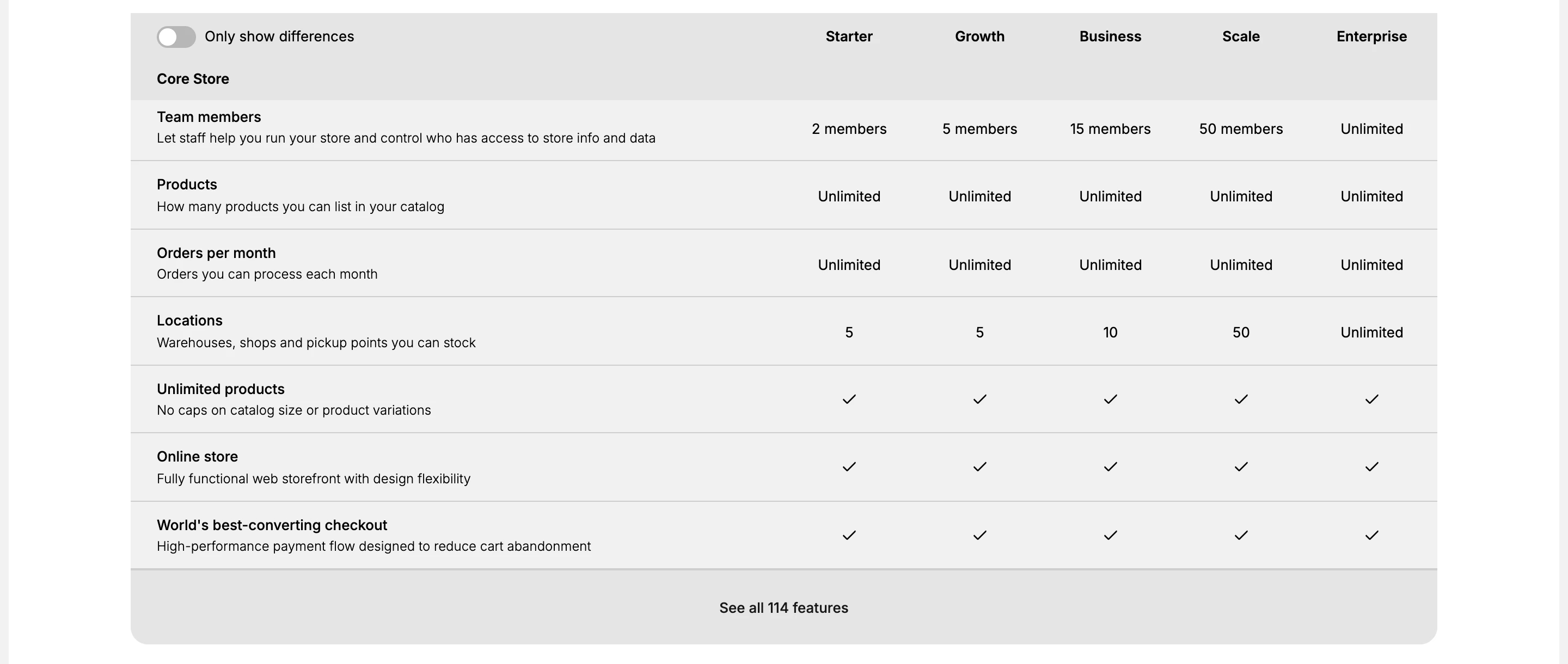
The comparison table sits below them and is the part worth slowing down for. It compares the plans row by row, grouped into sections, with a short explanation beside each row so you are not guessing what a term means.
The questions come last, under Frequently Asked Questions, and they are the part most people scroll past. They are worth a minute: this is where the page states what happens when you switch plans, whether there is a trial, what cancelling does, and how transaction fees work. Several of those answers are not written anywhere else in the admin.
Two controls change what you are comparing
Monthly billing and Annual billing, the toggle above the cards, switch every price on the page at once. Annual is the cheaper of the two per month, so if the decision is close, read it on both settings before you choose.
Only show differences, at the top left of the comparison table, hides every row where all five plans are the same. Most rows are the same, which is the point: turning it on leaves only the rows that could actually decide this for you, and the table gets short enough to read in one go.
Below the table, See all 114 features opens the full list for anyone who wants the long version.
Deciding, in the order that works
- Count what you need before you look at prices: how many people will sign in to the store, and how many locations you hold stock in. These two are the limits that differ most between plans.
- Turn on Only show differences and find those two rows. They will usually point at one or two plans.
- Switch the toggle to Annual billing to see what the same choice costs paid yearly.
- Read the questions at the foot of the page, particularly the one about switching plans later, so you know how reversible the decision is.
Nothing here is committing. The page charges nothing until you select a Get button and finish the checkout that follows.
If something goes wrong
- The page will not open. Your role may not include Billing settings. An owner, or an admin whose role carries it, can open it instead.
- The prices look different from what you remember. Check the billing toggle first, since the page shows monthly or annual depending on where it is set.
- The table is too long to read. Turn on Only show differences, which removes every row the plans agree on.
- You cannot tell which plan you need. Work from your own numbers rather than the feature lists: team members and locations are the limits that bite first.
Next steps
- Subscribe to a Plan and Complete Payment picks up from the Get button onwards.
Related articles
- View Your Current Plan for what you are on now, before comparing it with anything.
- Pick Your Plan covers upgrading, downgrading and cancelling once the decision is made.
Still stuck?
- Ask Tanqory AIAsk in your own words. It answers from these articles and links the ones it used.
- Ask in your adminThe assistant in your Tanqory admin answers and makes the change for you once you confirm.
- Contact TanqoryWrite to our privacy, security or legal teams, or talk to sales about a plan or a move.