Subscribe to a Plan and Complete Payment
Choosing a plan and paying for it are two different steps, and Tanqory puts a review screen between them. This covers what that screen tells you, what the payment page asks for, and where to look afterwards to confirm the plan took effect. The money moves at one identifiable moment, and this article names it.
On this page
Picking a plan does not charge you. Between the plan you select and the card you enter, Tanqory shows a review screen that states the amount today, the amount afterwards and the date the higher amount starts. Reading it takes a few seconds and is the last chance to catch a plan or a billing cycle you did not mean to choose.
This article follows that path from the plan cards to the confirmation, and ends where the charge is recorded.
Before you begin
- You know which plan you want and whether you want it billed monthly or annually. Both are chosen before the review screen, not on it.
- You have the card you intend to pay with, since the payment page asks for the number, the expiry, the security code and a billing address in one go.
- Your role includes Billing settings, the permission that covers what the store is charged and how it pays.
Choose the plan
Open Settings > Plan and select Change plan. The Compare plans page opens, with a card for each plan above a comparison table.
Set the Monthly billing and Annual billing toggle before anything else, because it changes every price on the page and the price you carry into checkout is the one showing when you choose.
Each card carries a button reading Get followed by the plan name, such as Get Growth. Selecting it does not buy anything; it opens the review screen.
Read the review screen
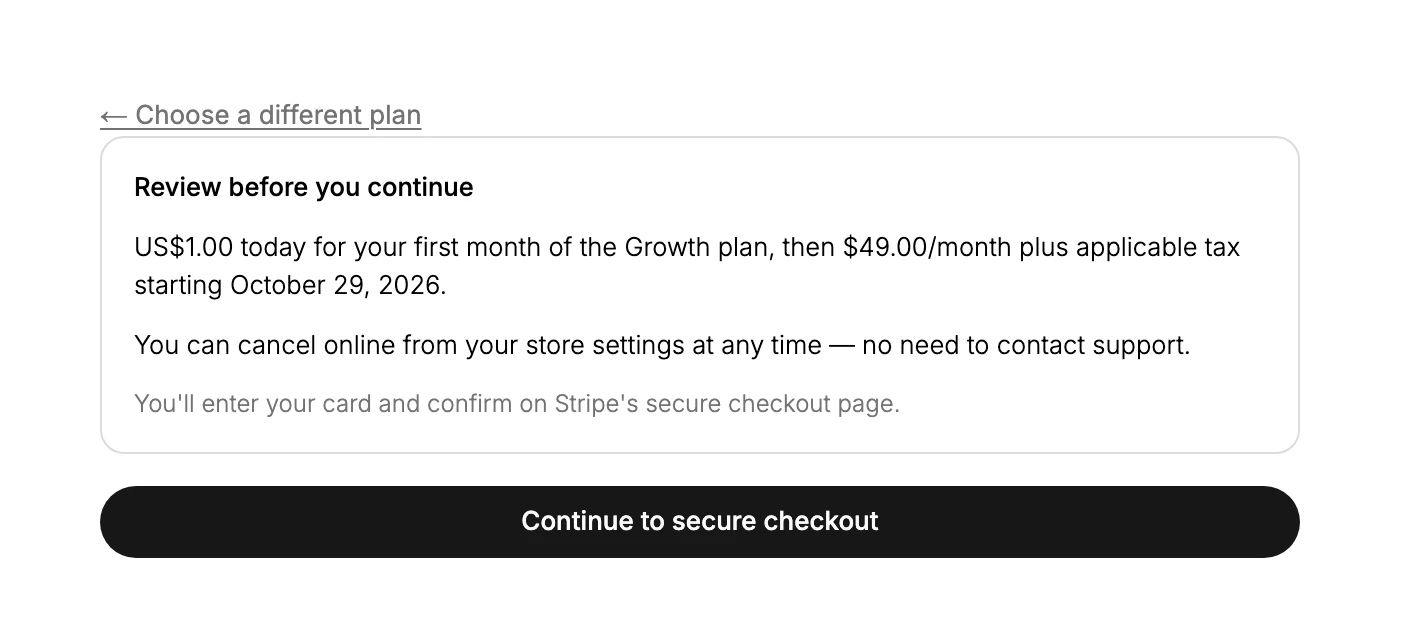
The screen is headed Choose your plan, and the card on it is headed Review before you continue. Three lines matter.
What you pay, and when it changes. The first line names the amount today, the plan it is for, the amount after that, and the date the second amount starts. On a store taking the launch offer this reads as $1.00 today for the first month, then the plan's monthly price plus applicable tax from a date a month out. That date is the one to write down, because it is when the real price begins.
How you get out. The second line says you can cancel online from your store settings at any time, without contacting support. Cancelling is covered in Pick Your Plan.
Where the card goes. The third line says the card is entered and confirmed on Stripe's secure checkout page rather than here. Stripe is the company that handles the payment, so the card details go to it rather than into your store.
If any of that is not what you meant, Choose a different plan at the top takes you back to the cards with nothing charged and nothing started. Otherwise the Continue button below the card takes you on to payment.
Enter the card
The payment page is hosted by Stripe on Tanqory's own address, so it looks different from the rest of the admin. It asks for one thing at a time down a single column:
- Your email address, already filled in with the one on your account.
- The card number, its expiry and its security code. The page lists the card types it takes, and names the security code as the three digits on the back.
- The name on the card.
- A billing address, with the country first and the rest of the fields following the country you pick.
There is also a checkbox to save the payment method for future charges and one to confirm you accept the terms.
The button at the foot of the page reads Save, and selecting it is the last action you take before the amount named on the review screen is charged. The page shows it as processing while it works, so give it a moment rather than selecting it twice.
Note: Save is the point where money moves. Everything before it can be abandoned by closing the page, and nothing is charged. After it, the amount the review screen named is taken, so read the plan name and the figure while you still can.
Confirm it took effect
Paying returns you to a confirmation, and the store is on the new plan from that moment. Two pages are worth opening straight afterwards.
The Plan page should now name the plan you paid for rather than the one you were on, and the trial wording should be gone.
Settings > Billing is the one that answers the question people actually have, which is when the card will be charged again. The current billing cycle card carries the running total and the date it will be billed on, and the payment method row names the card you entered.
If something goes wrong
- The review screen shows a plan you did not choose. Use Choose a different plan at the top. Nothing has been charged at that point.
- The amount is not what the cards showed. The billing toggle was set differently when you chose. Go back and set it before selecting the plan again.
- The payment page will not take your card. It lists the card types it accepts; a card outside that list is refused there rather than in the admin.
- You paid but the Plan page still shows the old plan. Give the page a moment and reload it rather than paying again, since a second attempt is what creates a duplicate.
Next steps
- Billing Overview covers the bill itself, before and after it is paid.
- Manage Subscriptions covers the subscription record once it exists.
Related articles
- Browse and Compare Plans covers reading the Compare plans page before you choose.
- View Your Current Plan is where the plan you are on is named.
- Subscription Overview ties the plan and billing sides together.
Still stuck?
- Ask Tanqory AIAsk in your own words. It answers from these articles and links the ones it used.
- Ask in your adminThe assistant in your Tanqory admin answers and makes the change for you once you confirm.
- Contact TanqoryWrite to our privacy, security or legal teams, or talk to sales about a plan or a move.