Manage Subscriptions
Once a plan is paid for, the subscription behind it has a record of its own: the plan, its status, the period it is in, the date it renews and every invoice it has raised. This covers reading that record, what its status words mean, and which changes are made here rather than on the Plan page.
On this page
The Plan page answers what you are on. The Subscriptions page answers what is happening to it: which period the subscription is in today, when it renews, what it has charged so far, and whether anything about it is mid-change. It is the page to open when a date or an amount needs checking rather than a decision needs making.
Reaching it needs a role that includes Billing settings. Open Settings > Plan and select View all subscriptions at the foot of the page. The page that opens is headed Active subscriptions.
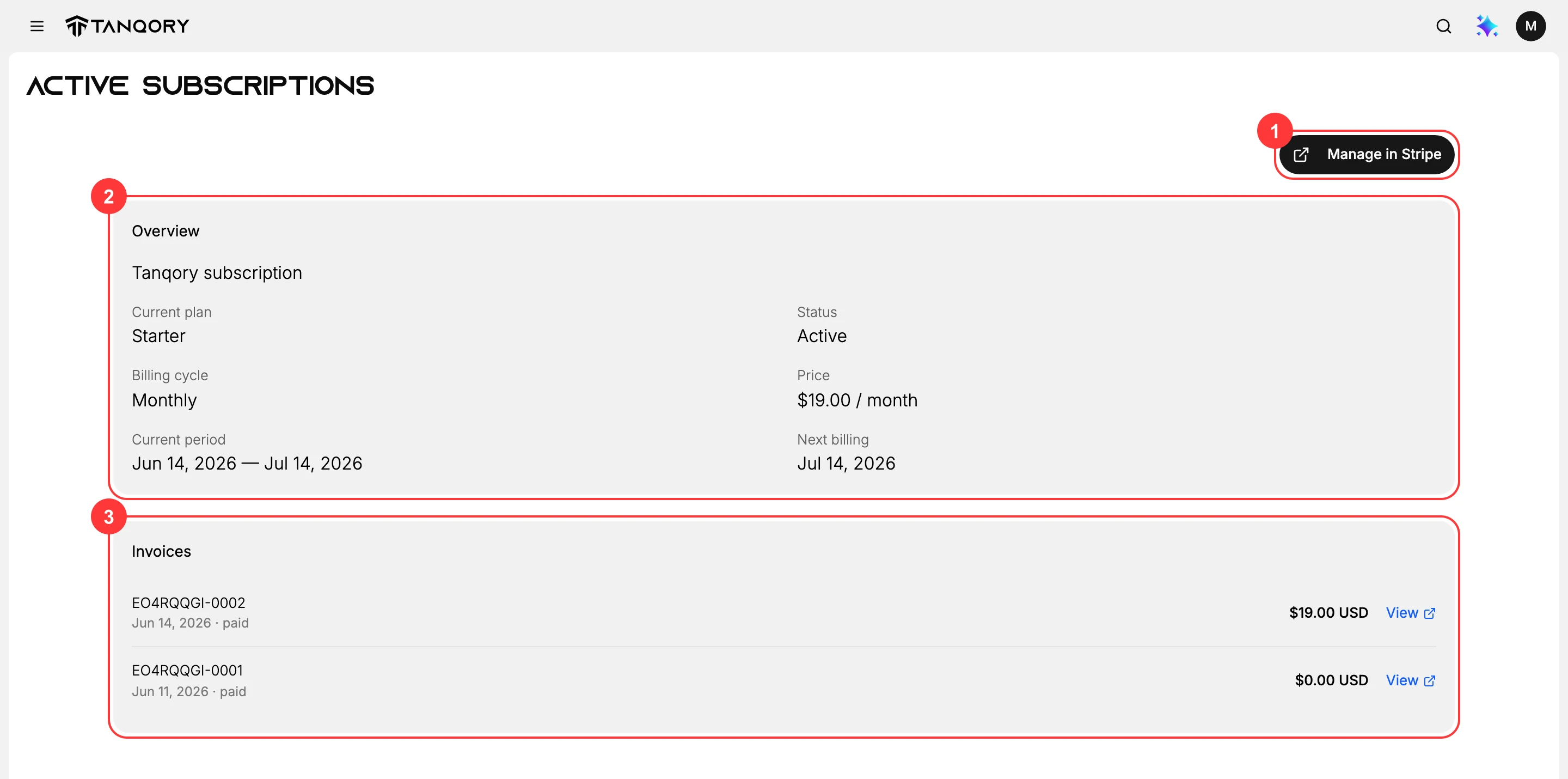
Reading the overview
The card is headed with the subscription's own name and holds six lines. Read them in pairs and the page tells a story rather than a list.
Current plan and Price are what you are paying for and what it costs, written as the plan name and an amount with its period beside it. If either surprises you, the Plan page is where a change is made.
Billing cycle says Monthly or Annual. It is the setting chosen before checkout, and it is what decides how often the next two lines move.
Current period is the stretch you have already paid for, given as a date range. Next billing is the day the following charge falls, which is the end of that range. A store part way through a paid month sees the same date twice, once as the end of the period and once as the next billing date.
Status is the line worth reading closely, because it is the only place the subscription says whether it is mid-change. It is written in capitals, so a subscription running normally reads as active, while one with a cancellation already scheduled reads as pending. A pending state means a decision has been taken and has not yet taken effect, so the plan still works and the date in Next billing is the one to watch.
The invoices below it
Underneath the overview sits every invoice this subscription has raised, newest first. Each row carries the invoice number, its date, whether it was paid, the amount, and a View link that opens it.
This list is narrower than the one in Billing History, and the difference matters when a figure does not add up. The list here holds invoices belonging to the subscription. Anything else the store has been billed for, a domain or a one-off purchase, is billed separately and appears in the billing history rather than here.
What is changed here, and what is not
Manage in Stripe, at the top of the page, hands you to a billing portal run by Stripe, the company that handles the payment. The card the subscription charges is kept there rather than in the admin, which is why changing it leads off the page.
Nothing else on this page is editable. Changing the plan, cancelling it or bringing it back are all on the Plan page, and Pick Your Plan takes those one at a time. What this page gives you is the record, which is the thing to read before and after any of them.
If something goes wrong
- The status does not say active. A pending status means a change is already scheduled. The Plan page names what it is and offers the way back.
- An amount here does not match a bill you received. Only the subscription's own invoices are listed here. A domain or a one-off purchase is billed separately and shows in your billing history.
- Next billing has passed and nothing happened. Check the payment method first, since a subscription with nothing to charge cannot renew on time.
- You cannot open the page. Your role may not include Billing settings. An owner, or an admin whose role carries it, can open it for you.
Next steps
- Billing for what the store is being charged this cycle.
- Billing History for every bill, not only this subscription's.
Related articles
- Subscribe to a Plan and Complete Payment covers how a subscription comes into existence.
- View Your Current Plan is the shorter read when all you need is the plan name.
- Subscription Overview ties the plan and billing sides together.
Still stuck?
- Ask Tanqory AIAsk in your own words. It answers from these articles and links the ones it used.
- Ask in your adminThe assistant in your Tanqory admin answers and makes the change for you once you confirm.
- Contact TanqoryWrite to our privacy, security or legal teams, or talk to sales about a plan or a move.