Billing
The Billing page answers one question, what the store is being charged right now, and hands the rest off. Three cards hold the running total for this cycle, the last few bills, and links onward, while the settings themselves live a step away on the Billing profile.
On this page
The Billing page is short by design. It tells you what is being charged this cycle and what was charged recently, and for anything you might want to change it sends you somewhere else. Reading it takes a few seconds, which is the point: it is meant to be glanced at rather than worked through.
Knowing that saves time. If you came to add a card, change a plan or set a tax number, none of those happen here.
Reaching it needs a role that includes Billing settings, the permission covering what the store is charged and how it pays. It sits at Settings > Billing, inside Plan & Billing.
What the page holds
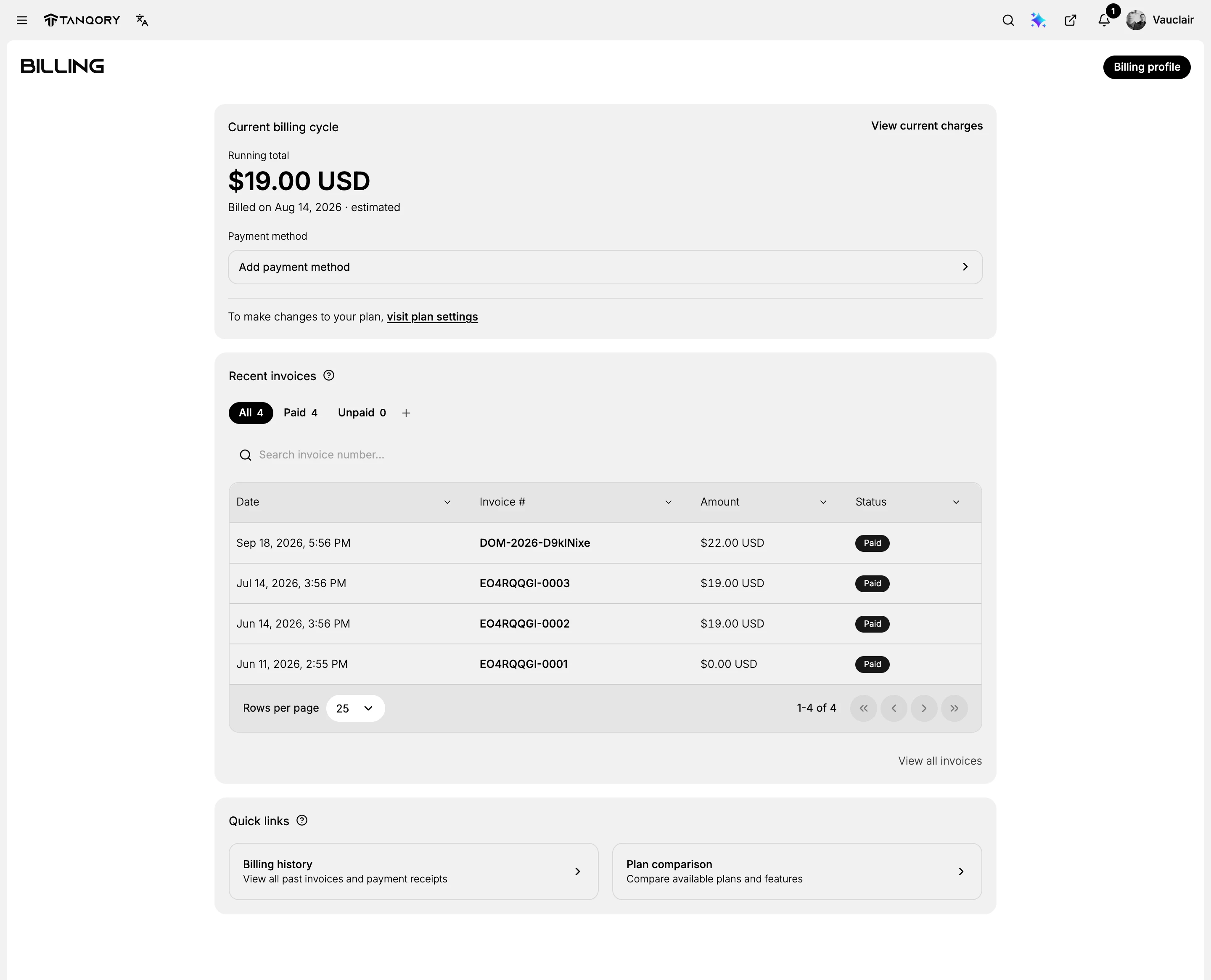
Three cards, in this order.
Current billing cycle carries the number most people came for: a Running total for the cycle you are in, with the date it will be billed on and the word estimated beside it. Estimated is doing real work there. The figure moves if anything is added to the store before the cycle closes, so it is a forecast of the next charge rather than a promise.
What moves it is that the charge is not only the plan. A domain bought mid-cycle, or an add-on taken from the Purchase page, is billed alongside the subscription, which is why a total sitting above your monthly plan price is usually correct rather than wrong.
Underneath it sits Payment method, naming what the charge will be taken from, or reading Add payment method when nothing is on file.
Recent invoices lists the last few bills over Date, Invoice #, Amount and Status, behind All, Paid and Unpaid tabs.
Quick links holds two entries, Billing history and Plan comparison.
Changing or cancelling the plan
Nothing on the Billing page changes what you are subscribed to. The link at the foot of the first card, visit plan settings, opens the Plan page, and that is where a plan is upgraded, downgraded, cancelled or brought back.
Two things about a plan change are worth knowing before you make one, because both decide what the Billing page will show you afterwards. A change lands at the start of your next billing cycle rather than part way through this one, so the running total you are looking at now will not move. And a cancellation does not cut your access off on the spot: the Plan page marks the subscription as scheduled to end, names the date it stops, and offers Reactivate plan.
Each of those four moves lands differently on the next bill, and Pick Your Plan takes them one at a time.
The payment method the charge goes to
Add payment method opens the Billing profile at the section that holds it. Tanqory accepts a credit or debit card, or a PayPal account, and the card form asks for the number, expiry date, security code, the name on the card and a billing address. A store with nothing saved here has nothing to charge, which makes this the first row to read when a bill has gone unpaid.
If there is nothing on file yet, start at Add a Payment Method for Subscription.
What appears on your invoices
The Billing profile button at the top right holds everything printed on a bill: your company details, your tax or VAT number, and the currency you are charged in.
One limit there catches people out: the currency is not a free choice, since the options offered are decided by your business country.
Note: Changes to your billing information reach future invoices only. Correcting a company name, address or tax number will not rewrite a bill that has already been issued, so make the change before the next one is raised.
Every field on that page, and what it changes on the printed bill, is explained in Billing Preferences.
Finding and keeping your bills
Recent invoices on this page is a preview, not the record. It shows the last few bills so you can see at a glance that they were paid, and View all invoices at its foot opens the full list, the same page the Billing history quick link opens.
The full history is where the detail lives: what each bill was for, when it was paid, and an export for your accounts. View current charges on the first card is the opposite view, looking forward rather than back, at the charge this cycle is building towards.
Reading a single bill line by line, and getting a copy out for your accounts, is what Billing History is for.
If something goes wrong
- A bill was not paid. Look at Payment method on the first card. If it reads Add payment method, there is no card on file and nothing could be charged.
- The running total is not what you expected. It is marked estimated because it is still moving. Open View current charges to see what is in it so far, and read the Bill reason column in the history for anything one-off that has already been billed.
- You want to change the plan and cannot find how. Nothing on this page changes a plan. Use the plan settings link on the first card.
- You changed plan and the running total did not move. The change lands on the next cycle, so this figure goes on describing the one you are already in.
- You want to add a tax number or change the billing address. Those are on the Billing profile, behind the button at the top right.
- The page will not open. Your role may not include Billing settings. An owner or another admin with billing access can open it for you.
Next steps
- Subscription Overview ties the Plan page and this one together, if you want the whole subscription in one read.
- Compare Plans sets out what each plan includes, and answers the questions stores ask most often about being charged.
Related articles
- Users for who else can see any of this, since it takes the Billing settings permission.
Still stuck?
- Ask Tanqory AIAsk in your own words. It answers from these articles and links the ones it used.
- Ask in your adminThe assistant in your Tanqory admin answers and makes the change for you once you confirm.
- Contact TanqoryWrite to our privacy, security or legal teams, or talk to sales about a plan or a move.