Two-Factor Authentication
Two-factor authentication asks for a second proof of identity on top of a password, so a stolen password alone will not get anyone into your store. Tanqory puts it in three separate places, and mistaking one for another is the usual source of confusion: a store-wide rule over the whole team, a toggle on the invite form, and the setting in your own account where a person actually chooses their second step. This article explains which is which.
On this page
Two-factor authentication is a log-in check that asks for a second proof of identity on top of a password. Instead of the password being the only thing standing between an account and your store, the person logging in must also complete a second step.
The reason it is worth the extra few seconds is that a password is only as safe as the least careful place you have ever typed it. People reuse the same password across many sites, and a break-in at any one of them can put yours in someone else's hands without your ever being told. A second step means that knowing the password is no longer enough to get in.
Three places, and only one of them sets a person up
Tanqory puts two-factor authentication in three separate places, and they are easy to mistake for one another because they carry almost the same words. The distinction that matters is not where each one lives but what each one can do. Two of them decide that people must use a second step. Only the third is where a person chooses what their second step will be.
| Where | What it decides | Who it affects |
|---|---|---|
| The store Security page, under Settings and Users | That everyone must use a second step | The whole team at once |
| The invite form, when you add a team member | That the people you are inviting must use one | Only those invitees |
| Your account's Security page, under Your profile | Which method your own second step uses | Only you |
Read down the third column and the pattern is easy to see. Neither of the first two offers any way to pick a method for somebody else, and the store Security page holds no control over individual people at all. The choice of method lives only on each person's own account page. That is why turning on the store-wide rule is not the end of the job: everyone it applies to still has to open their own account and set a method up.
Requiring it, store-wide
In Settings > Users, the Security page has an Authentication requirements section holding Enforce two-factor authentication. Turning it on requires all team members to use two-factor authentication, applying the rule to everyone at once. This is the setting to use when you want the second step to be standard rather than optional. Enable Two-Factor Authentication walks through turning it on.
Requiring it as you invite
The second place is on the invitation itself, and it is easy to miss because it is not a page you would think to look for. Open the Users page, the same one the Security page sits under, and select Add User at the top right. The form that opens is Add team members, and the Two-step authentication toggle is on it, below the email addresses and above the roles.
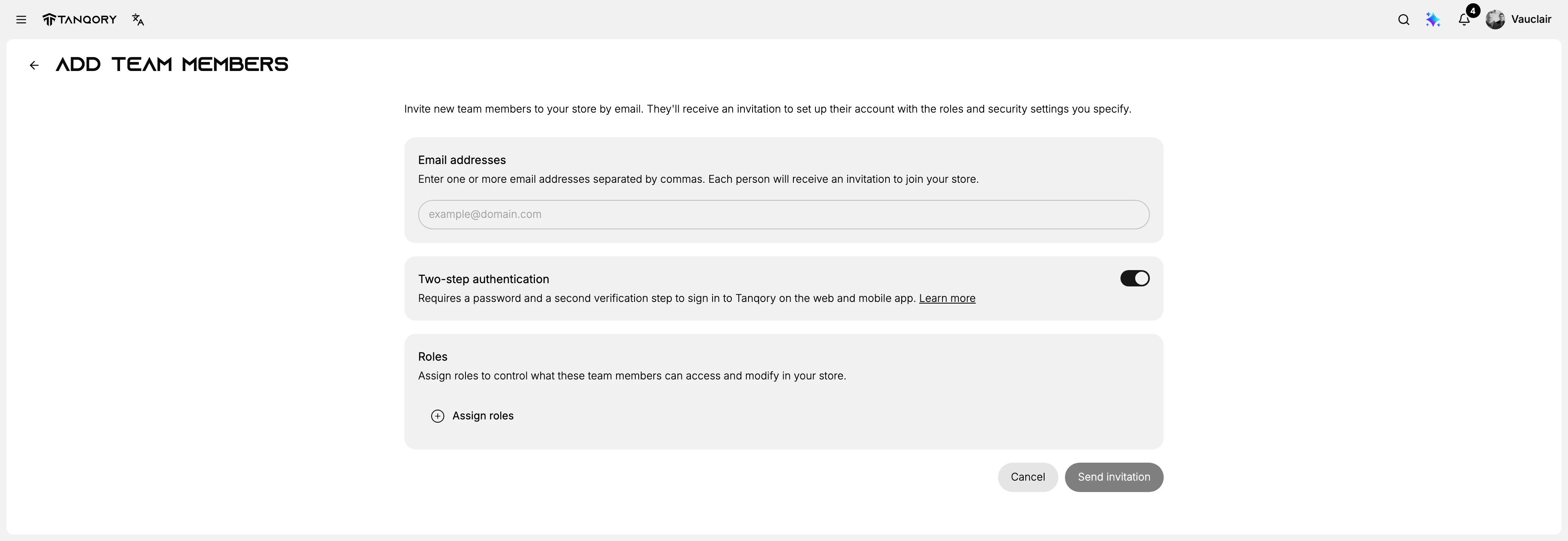
Seeing the form whole explains why the setting is worth noticing here. It sits between the addresses you are inviting and the roles you are granting them, so one screen decides who comes in, how firmly they must prove they are themselves, and what they may touch once inside. All three travel together in the same invitation.

Close up, the toggle describes itself as requiring a password and a second verification step to sign in to Tanqory on the web and the mobile app. It does the same job as the store-wide rule, narrowed to the people named in that one invitation. That is what you want when a new contractor should be held to a higher standard than the rest of the team, without changing the rule for everyone else.
Setting up your own second step
This is the part that is easy to miss, and the part that has to happen before anyone can actually log in under the rule. It is not in the store settings at all. Open the profile picture at the top right, go to Your profile, open the navigation menu, and choose Security under Account settings. The Two-factor authentication section is there, describing itself as an additional security layer that has you enter a verification code along with your password when you log in.
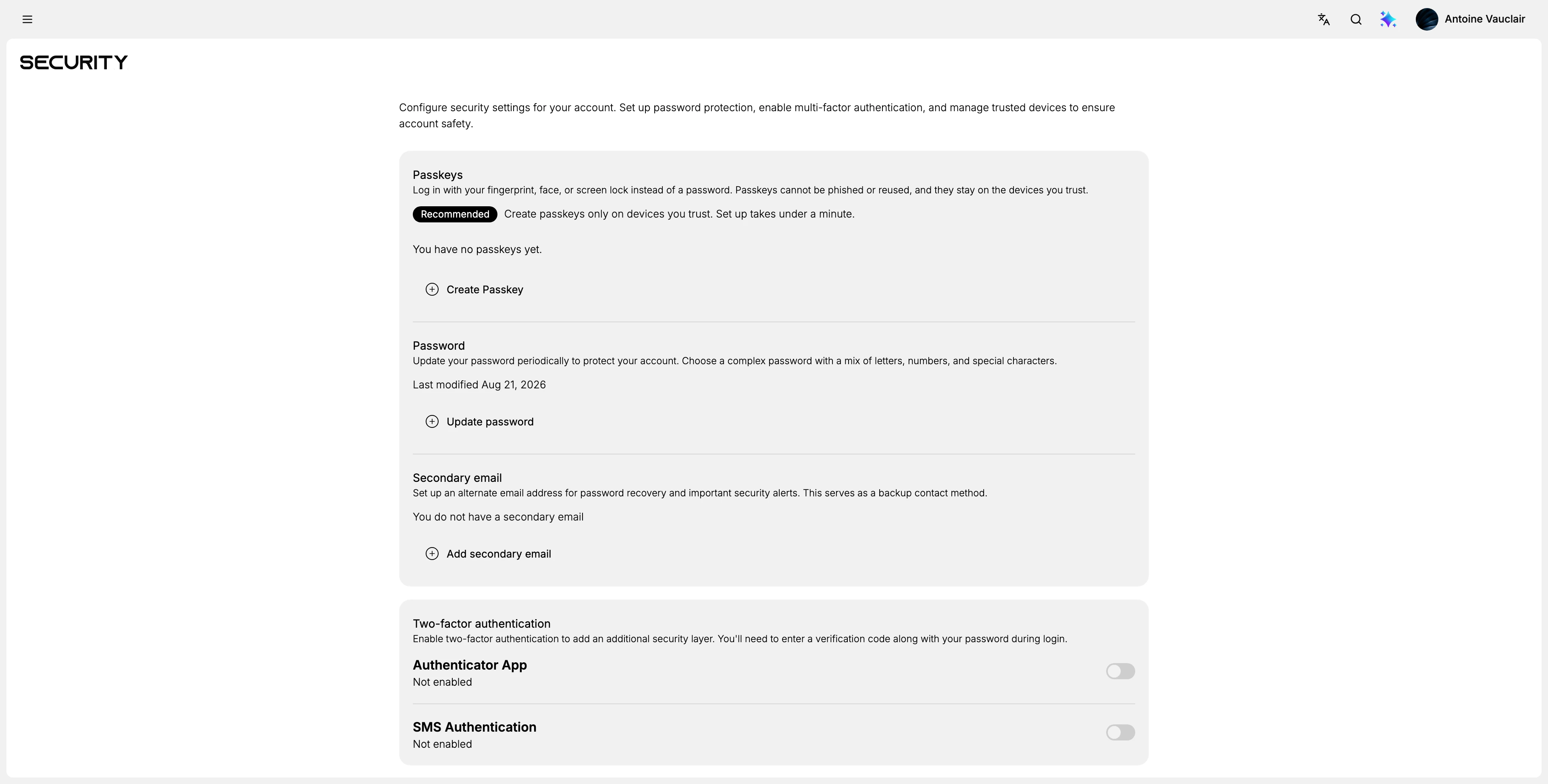
Seen whole, the page is a list of ways to make your own account harder to get into, and the second step is one of them. Below what is pictured there are two more sections, Active sessions and Connected accounts, which are about watching and unlinking rather than logging in.
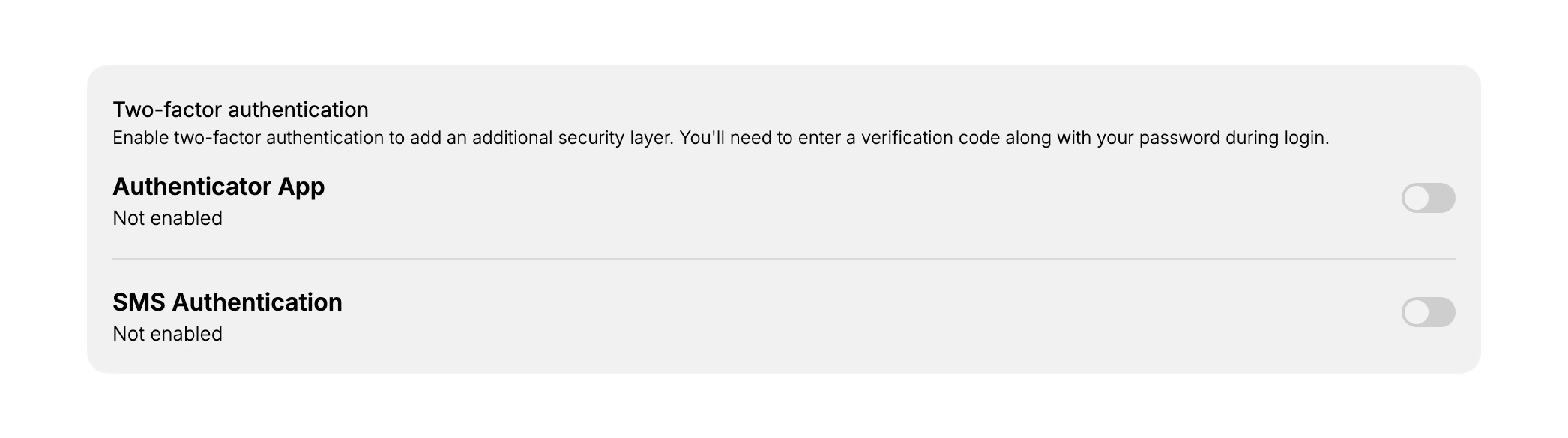
Two methods sit under it, each with its own toggle and its own state.
| Method | The second step it gives you |
|---|---|
| Authenticator App | A code made on your own phone by an app such as Google Authenticator or Authy, which shows a new 6-digit number every 30 seconds |
| SMS Authentication | A code sent to your phone as an ordinary text message |
Each reads Not enabled beside it until its toggle is switched on, so the section tells you at a glance whether you have a second step at all.
An authenticator app is the safer of the two. Its codes are worked out on the phone itself and never travel anywhere, so there is nothing to intercept. A text message has to cross the mobile network, and a phone number can be moved onto someone else's SIM card by anyone who talks the mobile operator into it.
A text message is still far better than no second step at all, and it is the sensible choice if carrying a separate app is not realistic for you.
Turning on the authenticator app
Switching the toggle does not turn anything on by itself. Tanqory checks that it is really you before it will add a way of logging in, which is the right order to do it in: an attacker sitting at an unlocked screen should not be able to attach their own phone to your account. Expect two checks before you reach the setup screen, and have the account's email open when you start.
- Switch on Authenticator App. Nothing changes on the page yet. A dialog opens instead, headed Confirm your identity, reading "For added security, enter your password."
- Enter your password and select Verify. This is the same password you log in with, and it is asked for here rather than at log-in because the change you are making is to how you log in.
- Enter the 6-digit code sent to your account email, then select Verify. The dialog says "For your security, please verify your identity before adding a login method" and names the address it went to. A Resend code button sits beneath the field. Use it only if the code has not arrived, because sending a new one stops the previous code working, and a code you typed from an older message will be rejected without saying why.
- Set the app up from the screen that opens. It is headed Configure Authenticator Application and offers two ways of linking your app to the account, which do exactly the same thing. Scan the QR code with your authenticator app, or use Copy secret and paste the key into the app by hand, which is what you want when the app is on the same machine you are already looking at.
- Type the code your app now shows, then select Verify & Enable. The field is labelled "Input the 6-digit verification code from your authenticator". This last step proves the two ends have been linked correctly, so nothing is switched on until your app and Tanqory produce the same number.
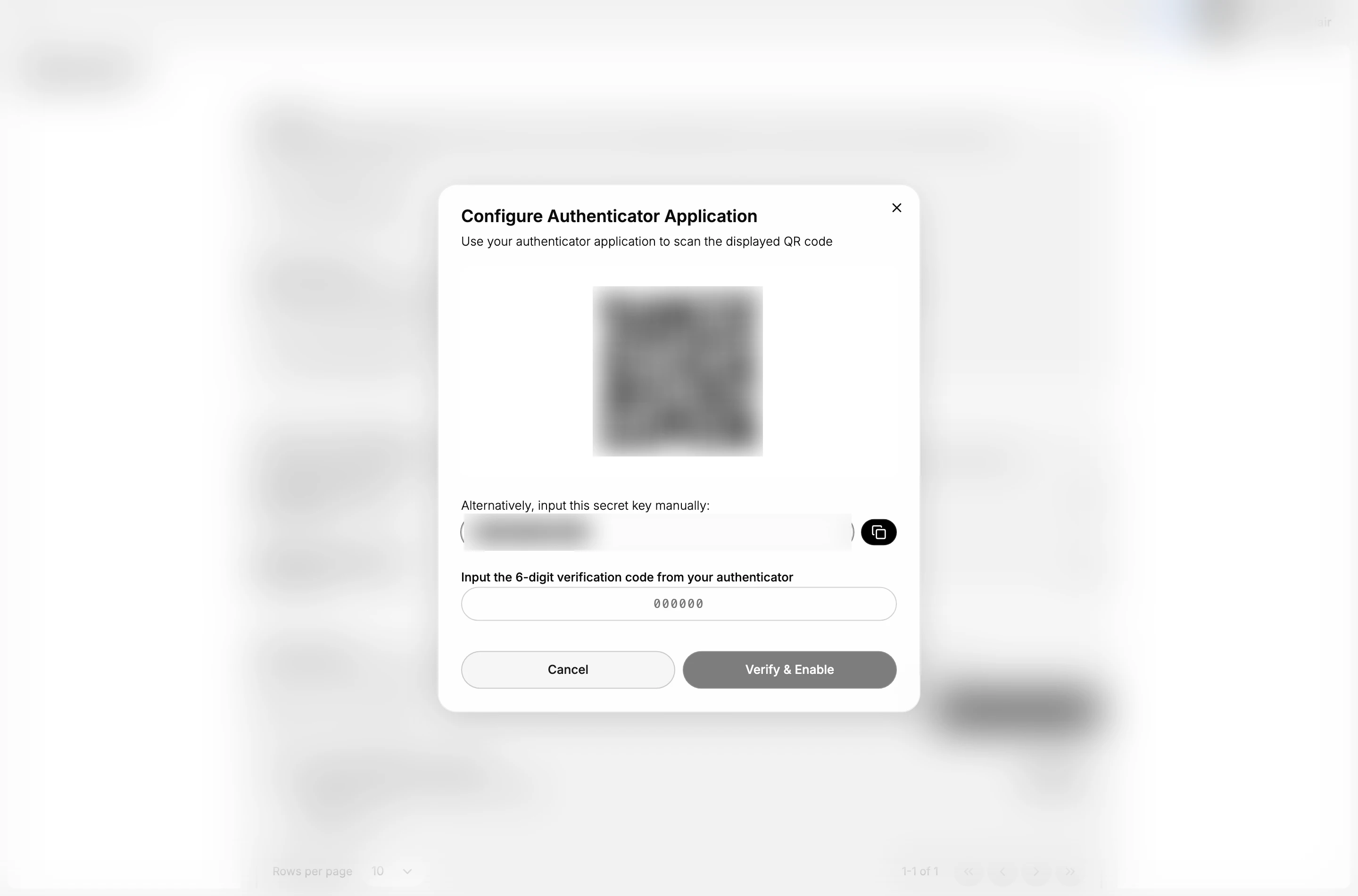
Treat what is on that screen as a password. The QR code and the secret key are the same thing in two forms, and either one lets a device generate your codes, so do not photograph the screen for later or paste the key anywhere but the app. In the picture above both are blurred for exactly that reason.
Selecting Cancel at any point leaves the toggle as it was, and the QR code and key on screen are thrown away rather than saved.
Save the backup codes you are given next
The moment the link is confirmed, Tanqory shows a Backup Codes screen carrying 10 codes. Backup codes are one-time passwords you use instead of your app, for the day the phone is lost, broken or left at home. This is the only time you will see them. The screen says so twice, in its own words: "Save these codes in a safe place. Each code can only be used once" and "Keep these codes secure! You won't be able to see them again."
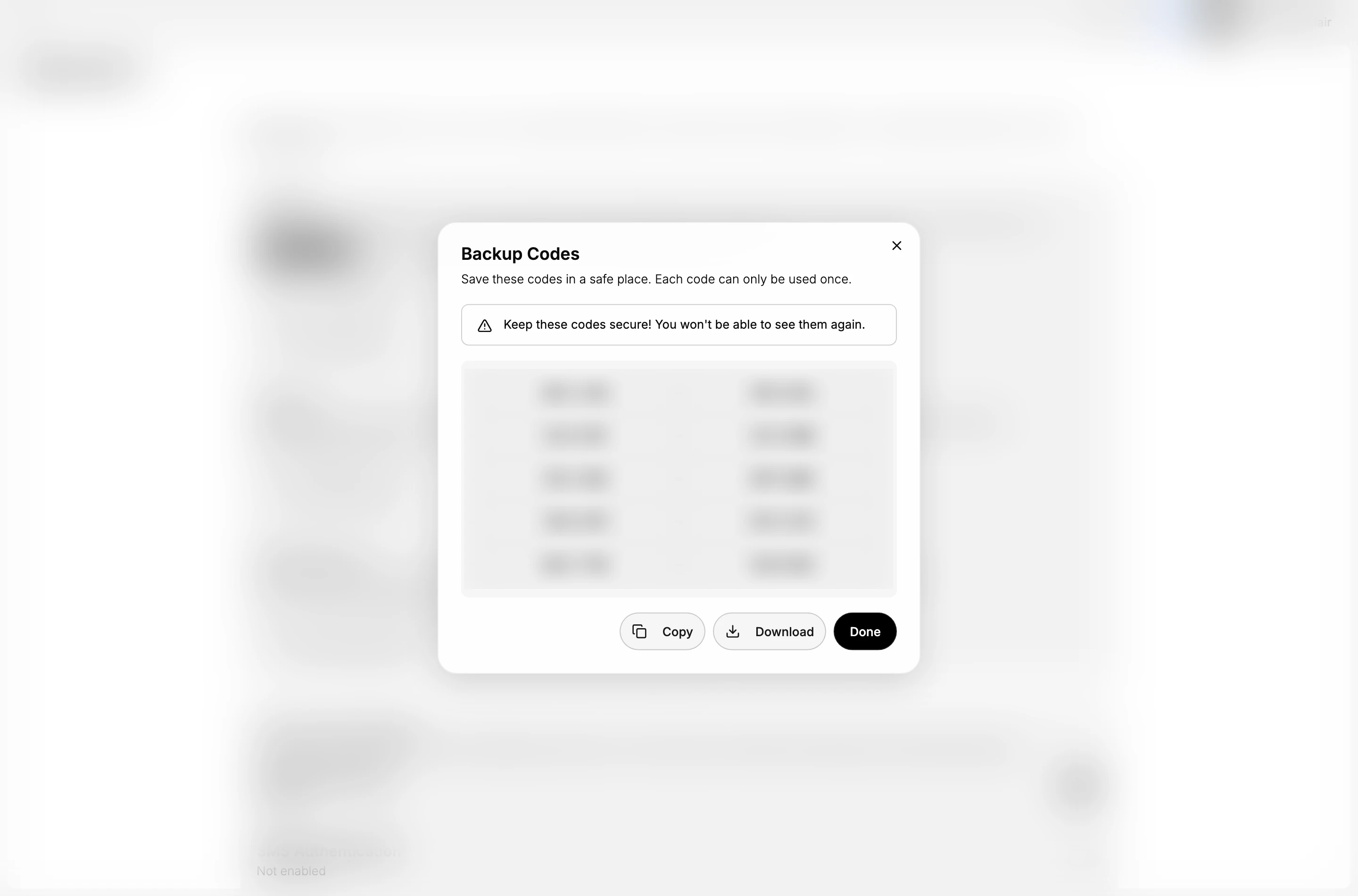
Use Download rather than trusting your memory or a screenshot, and keep the file somewhere that is not the phone holding your authenticator. The whole point of these codes is to get you in when that phone cannot, so storing both in the same place defeats them. Copy puts them on the clipboard if you would rather paste them into a password manager, and Done closes the screen for good.
Each code works once and cannot be used again. Ten is not many, which is why they are a way back into the account in an emergency rather than something to use every day.
What changes once a method is on
The section stops reading Not enabled and starts naming the method's state, and a row appears that was not there before: Backup Codes, showing how many remain and offering Regenerate.
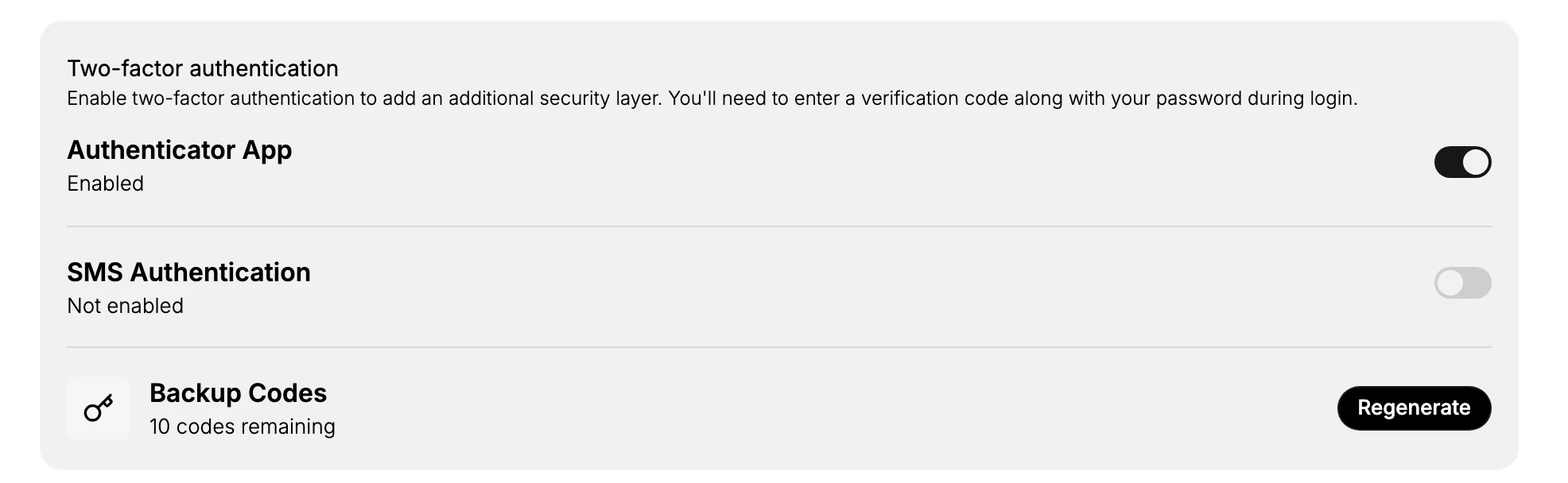
The count is worth glancing at now and then, since it falls as codes are used. Regenerate produces a new set, so download them when you do and treat the list you saved before as out of date.
Logging in changes too. After your password, you land on a page headed Two-factor authentication, reading "Enter the verification code to continue logging in", with a Verification method choice of Authenticator, SMS and Backup code. Only the methods you have set up are selectable; the others are greyed out.
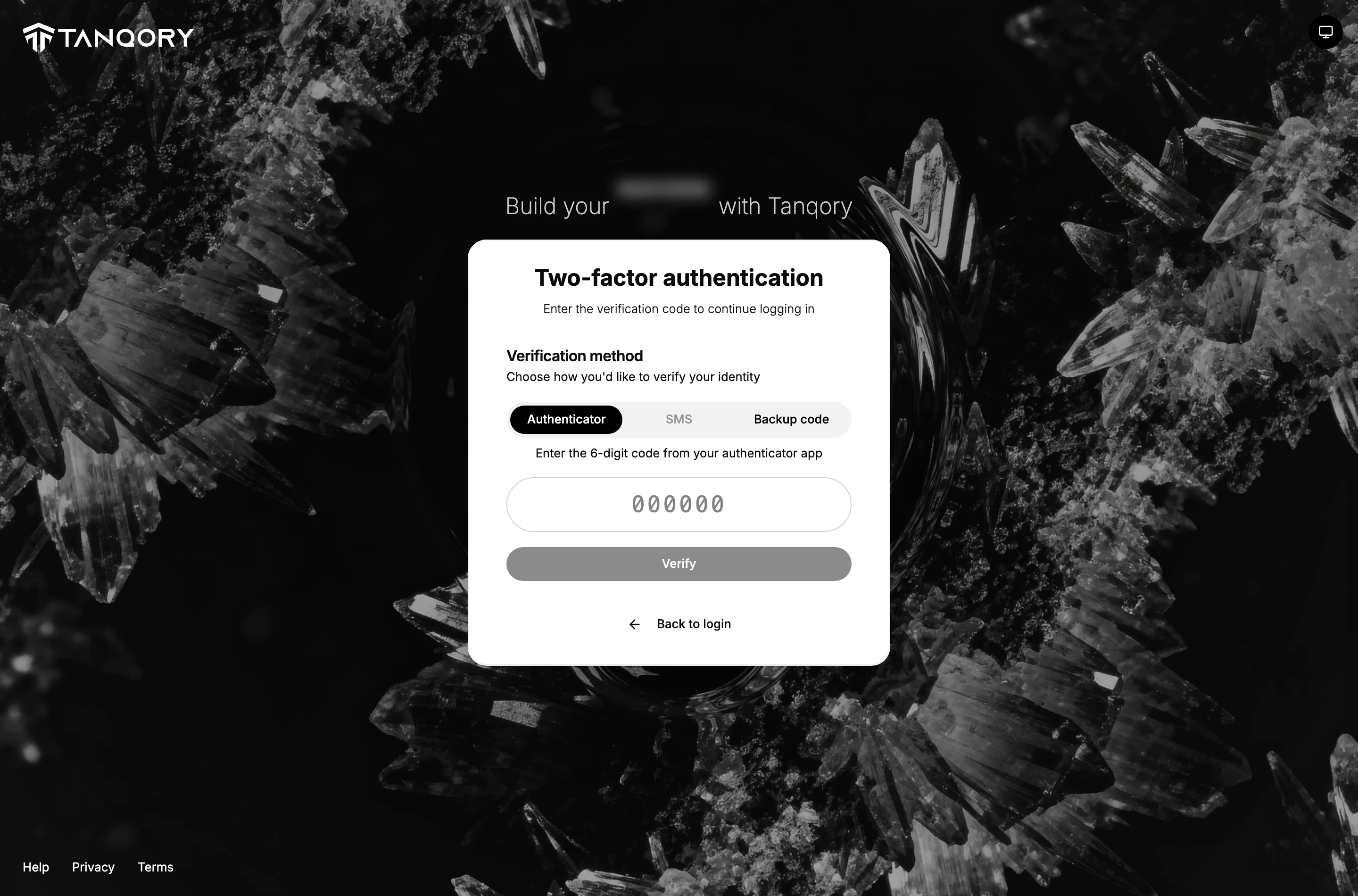
That Backup code option is where you use one of the codes you saved earlier. It is on the log-in page itself, so a lost phone does not mean asking anyone for help, as long as you still have the codes.
Turning a method off
Switch the toggle back off and Tanqory asks Confirm your identity, wanting your password again before it will do it, exactly as it did when you switched the method on. That is deliberate. Turning a second step off makes the account easier to break into, so it is treated as carefully as turning one on.
Turning on SMS instead
The text-message route is shorter, and it starts differently: switching on SMS Authentication goes straight to its own dialog without asking for your password first.
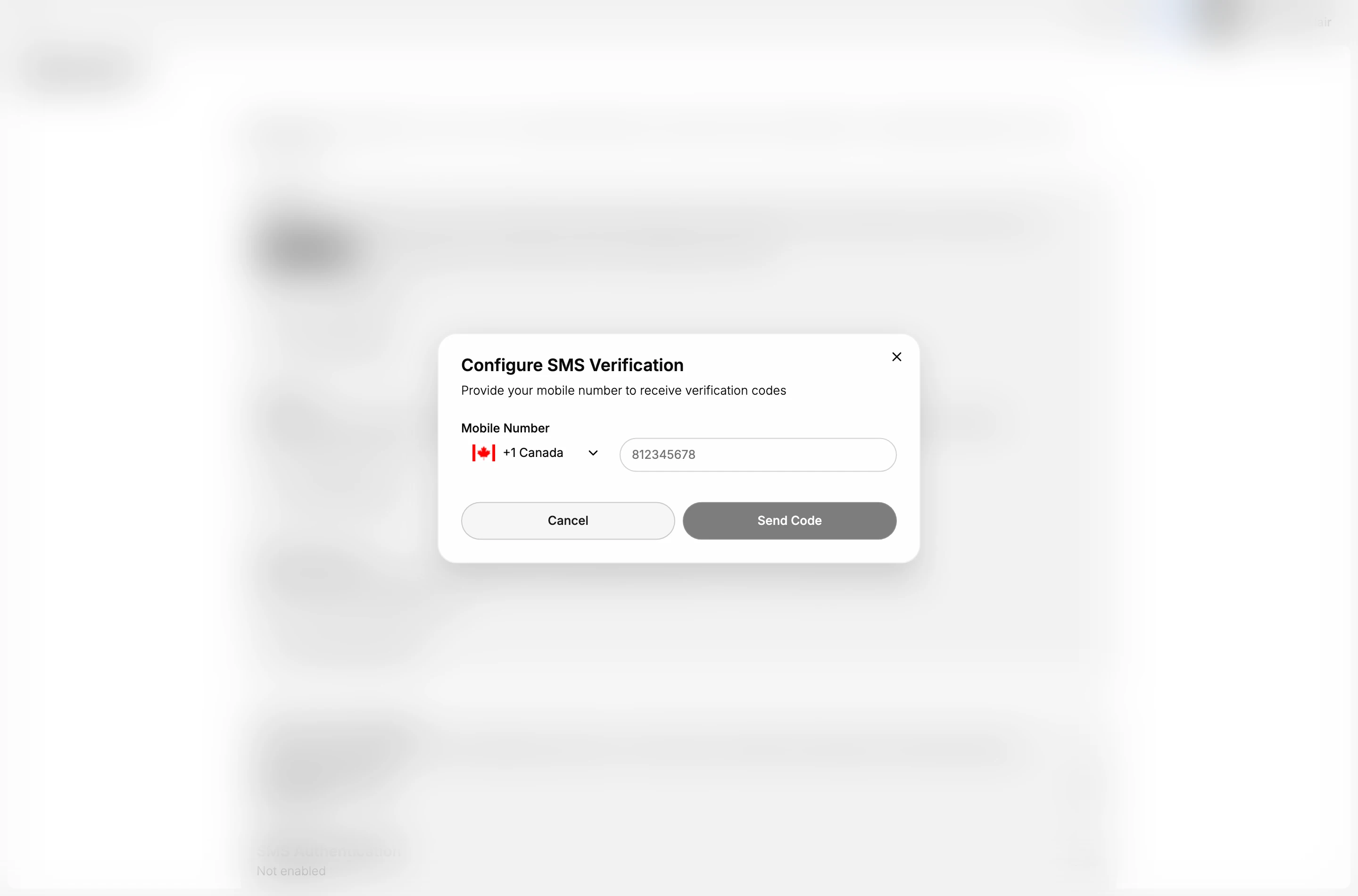
- Switch on SMS Authentication. A dialog opens headed Configure SMS Verification, reading "Provide your mobile number to receive verification codes".
- Choose the country, then type the number. The country selector sits to the left of the field and carries the dialling code, so check it before you type. A number entered under the wrong country will not reach you, and the field itself takes the number without the code.
- Select Send Code. A text message is sent to that number.
- Type the code from the message. This is what proves the phone is yours and with you at that moment, rather than a number you once had.
- Save the backup codes you are given. This route ends the same way the authenticator one does, with a set of one-time backup codes. Use Download to keep them as a file somewhere other than the phone itself, since the phone is the thing these codes exist to cover for.
The number is asked for here rather than taken from anywhere else, so this dialog is what decides which phone the account uses. Your profile carries a Phone number field labelled "For two-factor authentication", which is a separate field; the number that matters for logging in is the one you type here.
Have the phone in front of you before you start. The authenticator route is finished entirely on the screen you are already looking at, while this one cannot go any further until a message arrives.
How it fits with the other security settings
Two-factor authentication works best alongside the other rules in the Authentication requirements section. Require strong passwords makes the first factor hard to guess in the first place. Automatic session timeout logs out inactive team members after 30 minutes, so a device left alone does not stay open. Each covers a different way in, which is why they sit together.
There is a fourth protection on your own account Security page that belongs in the same thought. Passkeys let you log in with a fingerprint, your face, or the PIN that unlocks your device, instead of typing a password at all, and the page marks them Recommended.
A passkey is not a second step added to a password. It takes the password's place. Because there is nothing to type, there is nothing anyone can trick you into typing into a fake log-in page, and nothing that can be reused on another site.
Best practices
- Set your own up first. Turn a method on in your own account before you require it of anyone else, so you have already done what you are about to ask your team to do.
- Prefer the authenticator app. Its codes are worked out on your own device and never sent anywhere, so there is nothing for anyone to intercept on the way.
- Make it the standard. The store-wide rule covers every team account at once, which is what leaving it to individual choice does not do.
- Say it before you set it. Tell the team the rule is coming, since it applies to people who are already working in the store and not only to those who join later.
If something goes wrong
- A team member cannot log in after the rule is on. The likely cause is that they have not set a method up yet. That is done on their own account Security page and cannot be done for them.
- You are not sure it is on for everyone. Enforce two-factor authentication on the store Security page is the one that applies to the whole team. What is switched on in your own account says nothing about anyone else.
- You cannot change the store setting. Your role may not allow managing security settings. Ask an owner or admin.
- You have lost the device that holds your second step. Use Backup code on the log-in prompt and spend one of the ten codes you were given when you set the method up. If you did not keep them, and you have no second method on the account, that route is closed and you will need an owner or admin.
Next steps
Related articles
- Users for the page where your team is managed.
- Manage Users
- Activity Log
Still stuck?
- Ask Tanqory AIAsk in your own words. It answers from these articles and links the ones it used.
- Ask in your adminThe assistant in your Tanqory admin answers and makes the change for you once you confirm.
- Contact TanqoryWrite to our privacy, security or legal teams, or talk to sales about a plan or a move.