Roles and Permissions
A role is a bundle of permissions handed to a person in one go. Four standard roles ship with Tanqory and cover most stores, so the first thing to settle is whether you need one of your own at all. If you do, this walks the whole of building one, from the Roles page to the finished role, including the two things about that form that catch people out.
On this page
Access in Tanqory is not granted a switch at a time. You give somebody a role, and the role carries the permissions with it. One person, one decision, and the same decision repeatable for whoever does that job next.
Roles live at Settings > Users, on the Roles page.
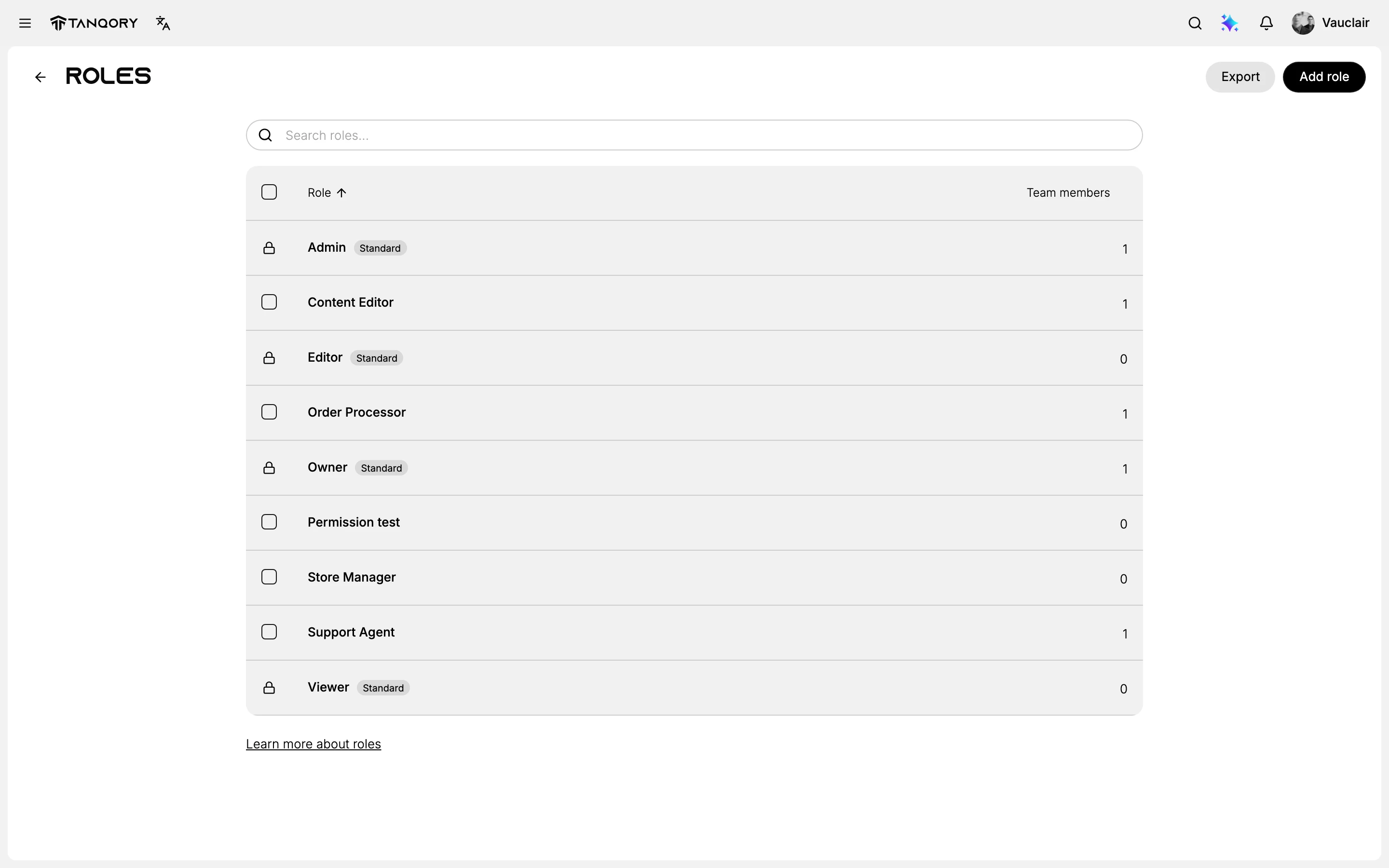
Two things on that list matter before anything else. The Team members column says how many people hold each role, which tells you which are load-bearing and which are dead weight. The icon at the start of each row says what kind of role it is: a padlock for the standard ones, a checkbox for the ones your store built.
First, decide whether you need one at all
Four roles ship with Tanqory and are marked Standard.
| Role | What it is for |
|---|---|
| Owner | The account the store belongs to. Everything is on: Settings reads 101 of 101 |
| Admin | Running the store day to day |
| Editor | Making and changing things rather than governing them |
| Viewer | Reading without changing anything |
Open any of them and the page says what it is: predefined, and it cannot be modified. You can read every permission it holds. You cannot alter one.
If one of the four already describes the job, assign it and stop reading. Build your own when the job falls between them, such as somebody who must edit products but must never reach the billing pages.
Adding a role, from start to finish
1. Open the form and fill the top of it
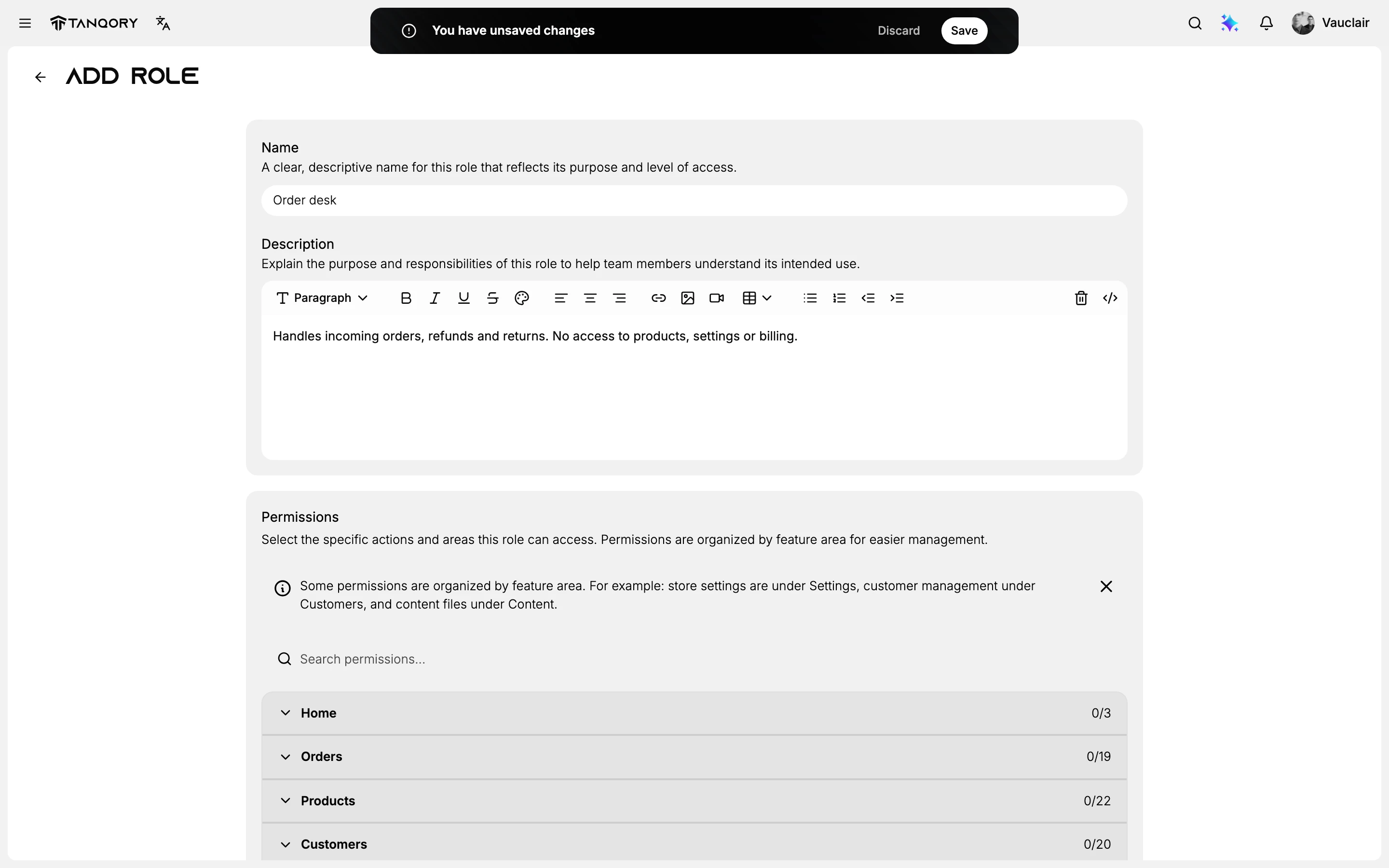
On the Roles page, select Add role at the top right. The picture below shows the form part-way through, with a worked example: a role called Order desk for somebody who deals with orders and nothing else.
2. Name it after the job
The form asks for a clear, descriptive name reflecting the role's purpose and level of access. Name the job rather than the person, because roles outlast the people holding them.
3. Write the description while you still remember why
The description is a full text editor rather than a single line. It is the only place your reasoning survives, because a list of ticked permissions will not explain itself six months from now.
4. Open a feature area and start ticking
Permissions are grouped into fourteen areas, each showing a count: Home, Orders, Products, Customers, Companies, Content, Analytics, Marketing, Discounts, Online store, Markets, Apps, Point of Sale and Settings. Settings is much the largest, at 101. Use Search permissions above them when you already know the name of what you want.
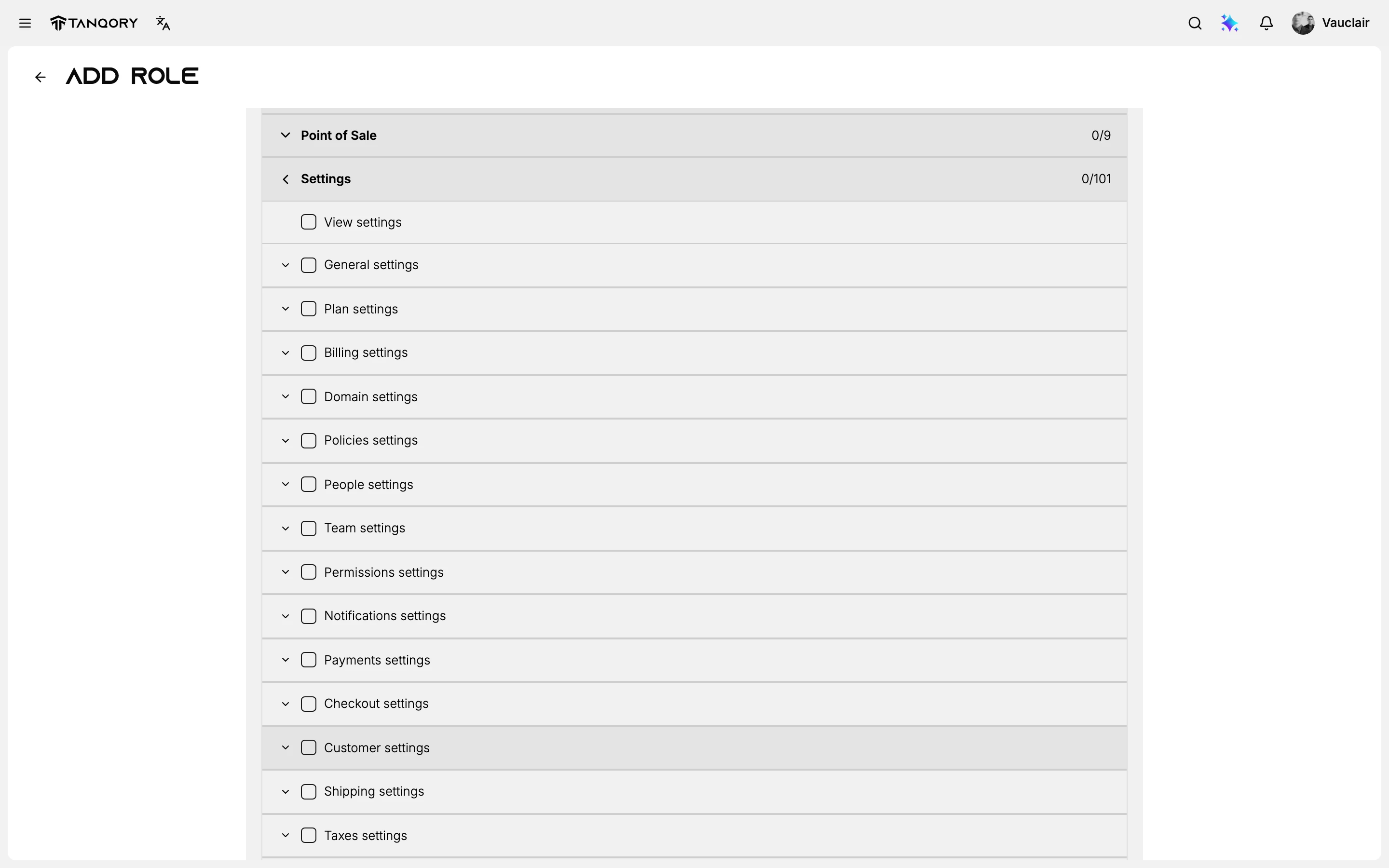
Expand Settings and you get 22 lines rather than 101. They are View settings, General settings, Plan settings, Billing settings, Domain settings, Policies settings, People settings, Team settings and Permissions settings, then Notifications, Payments, Checkout, Customer, Shipping, Taxes, Locations and Apps settings, and finally Customer events, Customer privacy, Metaobjects, Language and Brand settings.
5. Watch the count, not the ticks
The numbers disagree with the lines because each line is itself a bundle. Tick People settings alone and the count moves from 0 to 7 of 101. Most lines carry their own arrow for opening further.
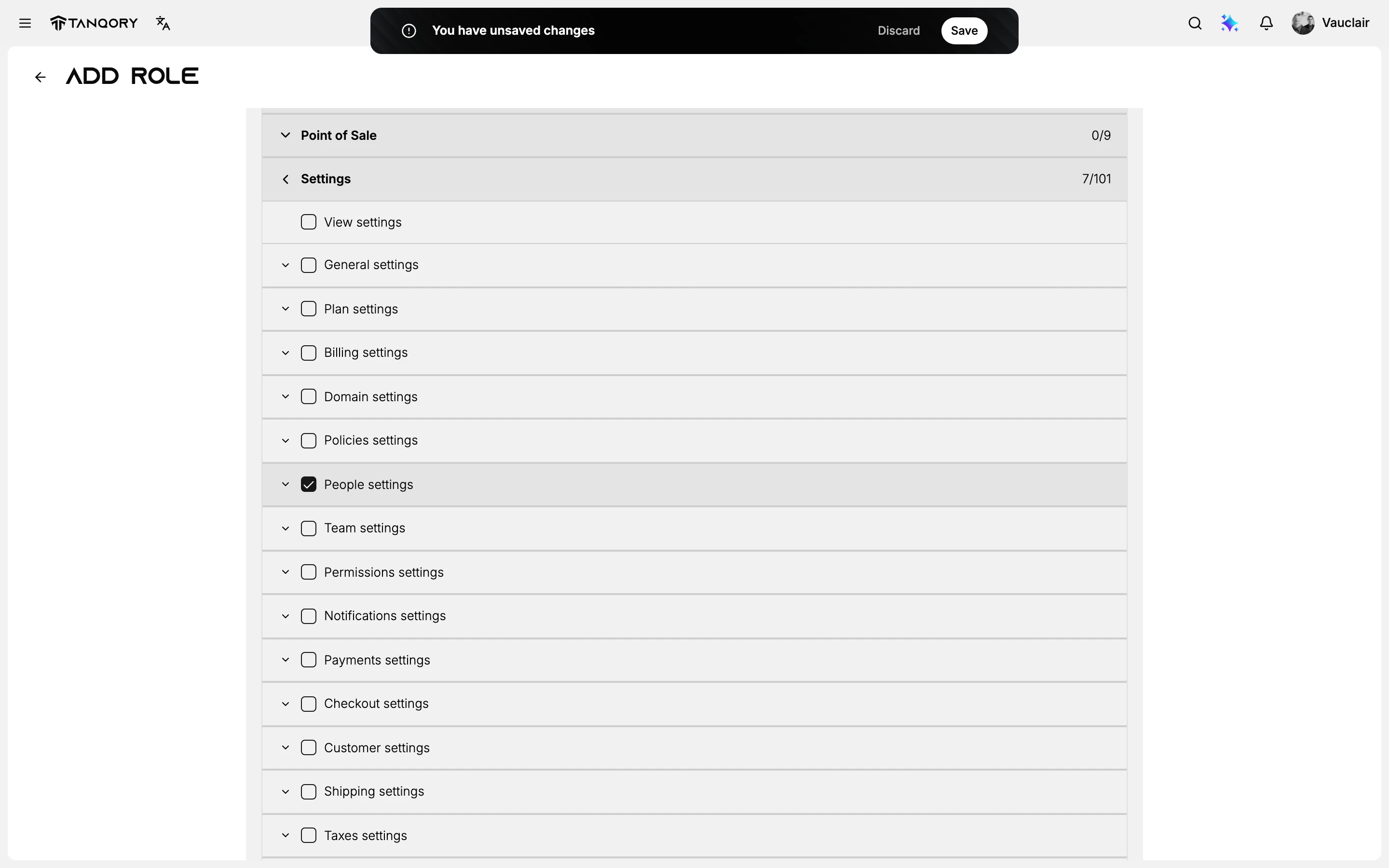
One tick, seven permissions, which is why the count is the honest measure of what you have granted rather than the number of lines you ticked. A permission name also tells you the area it governs rather than the exact screen, so Billing settings and People settings are real, but which pages each opens is not something the form states.
6. Save, or it never existed
Look at the top of that picture. The bar reading You have unsaved changes appeared the moment the first field changed, and it carries Discard and Save. Until Save is pressed there is no role, and leaving the page throws the whole thing away.
7. Check what you actually got
Open it again from the Roles page. This is the same Order desk role from step 1, now saved: the name and description exactly as they were typed, nobody holding it yet, and one thing the form never asked you about.
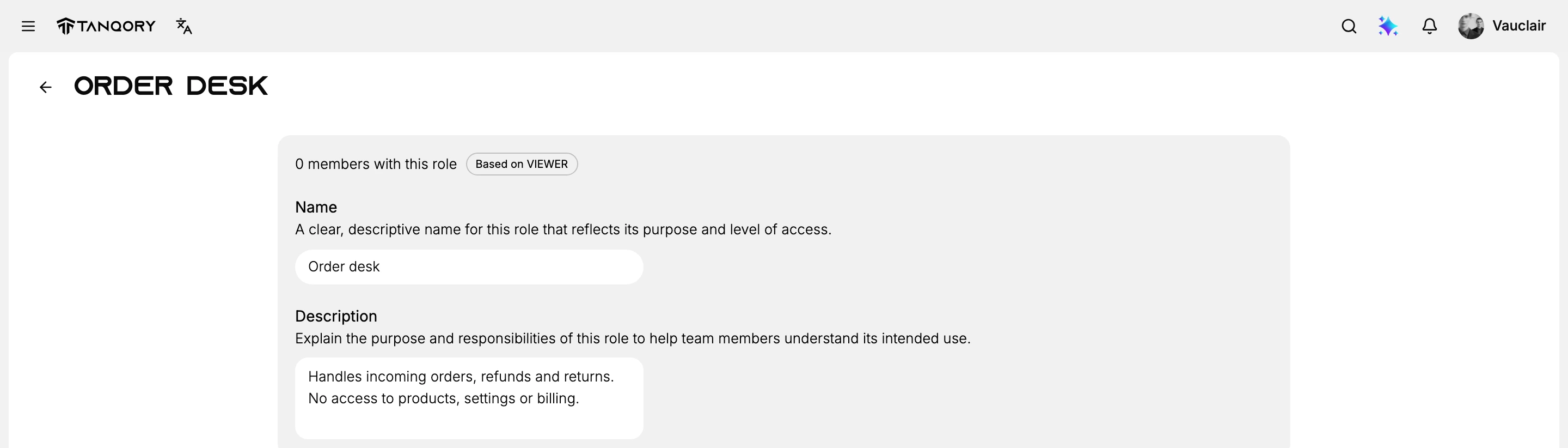
Every role built this way reports itself as Based on a standard role, and a role created with a single Settings permission came out as Based on VIEWER. A new role begins at the most restricted standard role and grows from what you tick. If you are aiming at something near Admin, you are climbing up from Viewer rather than trimming Admin down, and you will be ticking for a while.
Assigning, changing and removing
A person can hold more than one role at once. One team member's row on the Users page showed ADMIN alongside Order Processor and Support Agent. Access is cumulative, so someone's real reach is the sum of their roles rather than whichever one you remember giving them.
A role you built can be deleted. Tick its checkbox on the Roles page and a Delete button appears. Check the Team members count first: a role held by nobody is safe to remove, while a role held by three people is three people's access changing at once. The standard four have a padlock instead of a checkbox and cannot be removed.
If something goes wrong
- You cannot edit or delete a role. It is one of the four marked Standard. Build your own instead, and remember it starts from Viewer.
- A role shows far more permissions than you ticked. Each line is a bundle. The count is what you granted.
- Somebody can reach more than you intended. Check whether they hold a second role. Roles add together.
- Your new role vanished. It was never saved. The bar at the top was still showing when you left the page.
- You cannot find a permission. Use the search box above the areas rather than opening all fourteen.
Next steps
Related articles
Still stuck?
- Ask Tanqory AIAsk in your own words. It answers from these articles and links the ones it used.
- Ask in your adminThe assistant in your Tanqory admin answers and makes the change for you once you confirm.
- Contact TanqoryWrite to our privacy, security or legal teams, or talk to sales about a plan or a move.