Manage Users
Everyone with access to your store sits on one list, sorted into tabs by the state they are in. This covers reading those states, opening a person to change their roles or their sign-in requirement, and the difference between suspending someone and removing them.
On this page
Access to a store is not a single yes or no. Someone can be working in it today, invited but not yet arrived, or stopped without being removed, and each of those looks different on the Users page. Reading the page is mostly a matter of knowing which state you are looking at, because most reports of "they cannot get in" turn out to be a state rather than a fault.
The same page is where you act on a person once you have found them: change what they can reach, require a second sign-in step of them, pause them, or take their access away. Users describes the page itself; this article is about the people on it.
Before you begin
- Your role includes People settings, the permission that covers changing and removing people.
- The person has already been invited to the store. Someone who has never been invited will not appear on any tab, and they need an invitation rather than anything on this page.
- You are on the Users page in the admin, where everything in this article happens.
The tabs are five questions
The tabs across the top of Team members sort everyone by state, and each carries a count. They exist so you can ask one question at a time instead of reading the whole list.
| Tab | Who it shows | What it tells you |
|---|---|---|
| All | Everyone who has joined, active or stopped | Not quite everyone: invitations are counted separately |
| Active | People who can sign in right now | Your real access list, and the one to read in a security check |
| Suspended | People whose access has been stopped | They are still findable rather than gone |
| Pending | People invited who have not accepted yet | Nothing has gone wrong, they have not finished |
| Requests | People asking for access | Waiting on a decision from you |
The counts are the quick read, and the arithmetic tells you something the labels do not. All covers Active and Suspended together, so it does not include anyone under Pending: a store with three members and two outstanding invitations reads All 3, not All 5. Someone you invited last week is therefore missing from All by design, not by fault.
Suspending and removing
- Open Settings > Users and stay on All or Active, since those are the tabs that hold people who have accepted.
- Tick the checkbox at the left of the person's row. A bar appears directly above the list, reading how many you have selected.
- Select Suspend or Remove in that bar.
The checkbox is the part people miss: selecting the row by its name opens the person instead, and the two actions only exist while at least one checkbox is ticked. Read the count in the bar before choosing an action, because it is the only thing on screen that tells you how many rows you are about to act on.
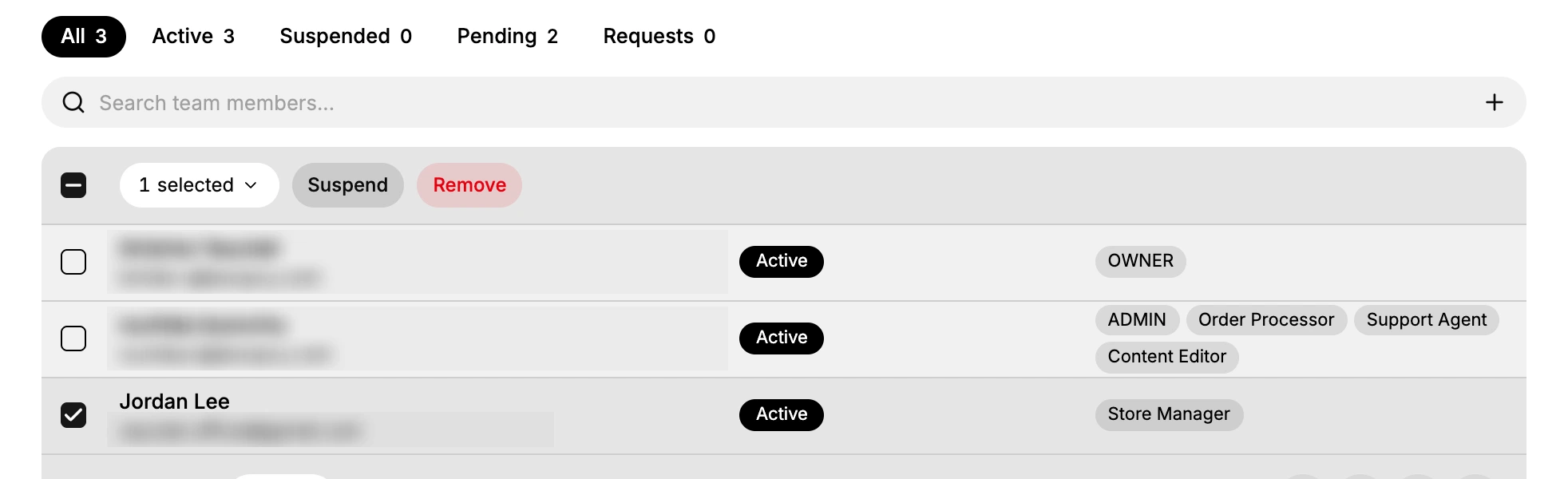
The two differ in how final they are, and the admin says as much in how it presents them. Suspend is the mild one: the Suspended tab exists to hold people in that state, so they remain part of the team list rather than disappearing from it. Remove is drawn in red, the colour this admin reserves for actions it does not expect you to take lightly.
Choose suspend when the person may come back: a contractor between projects, someone on long leave, or an account behaving oddly that you want closed off while you work out why. Choose remove when they will not come back, such as someone who has left the company.
When you are acting in a hurry and are not certain which you want, suspend is the one to reach for. It is the smaller of the two, and the admin gives it a tab of its own rather than the red treatment it gives removal.
Opening a person
Select the person's name in the list, rather than their checkbox, and their own page opens. This is where their access is actually set.
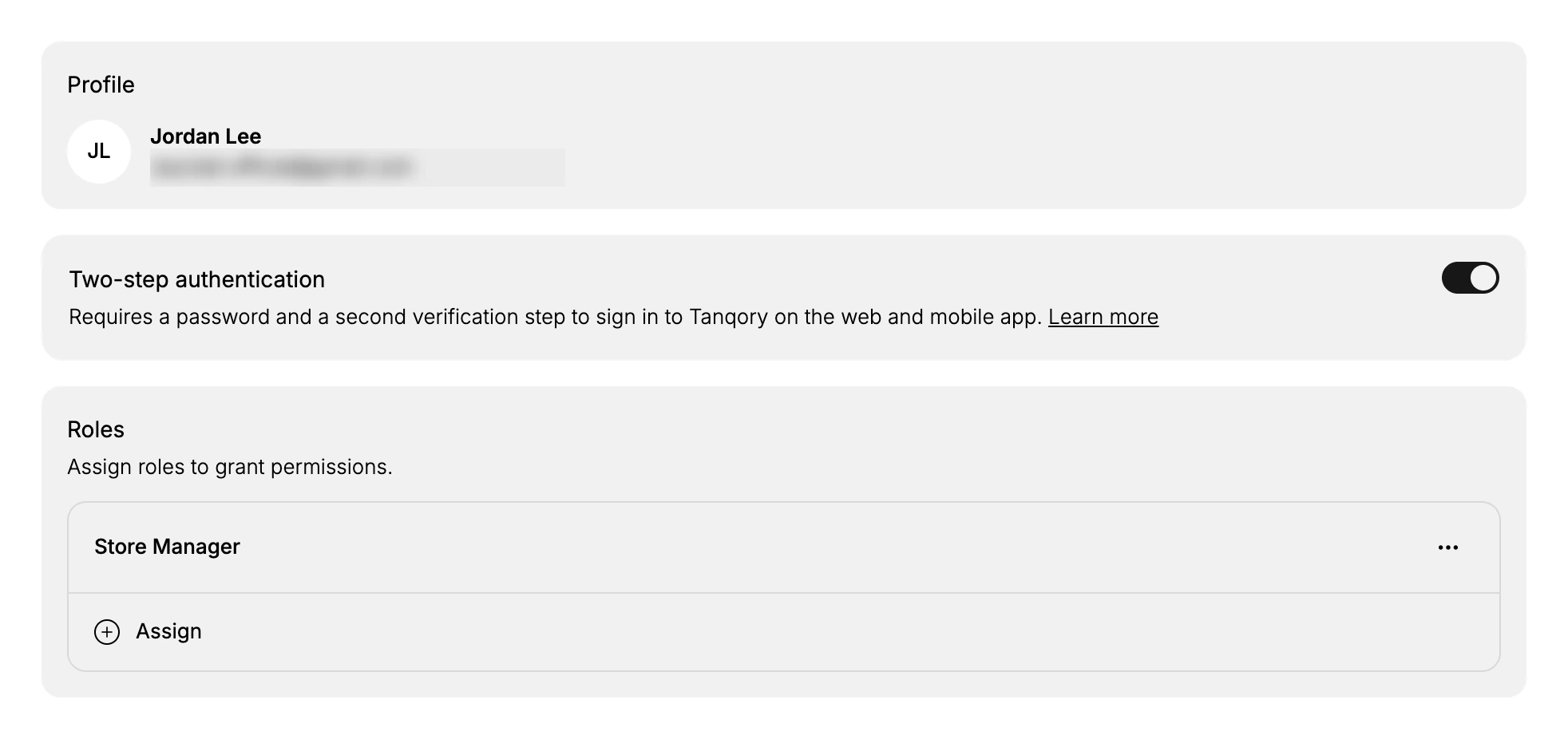
Three cards make up the page.
Profile shows the name and email address they signed up with. It is the identity behind the row, and it is read-only here: the person maintains their own name and login address from their account.
Two-step authentication is the same requirement the invitation offered, now settable for this one person. Turning it on obliges them to use a second check alongside their password on the web and in the mobile app. This is the control to reach for when someone's job grows into settings or money and the protection they joined with no longer matches what they can do.
Roles lists every role they hold, one per row. A person can hold several at once, and what they reach is the sum of them, so taking one role away does not necessarily close a door that another still opens.
To widen what someone can do:
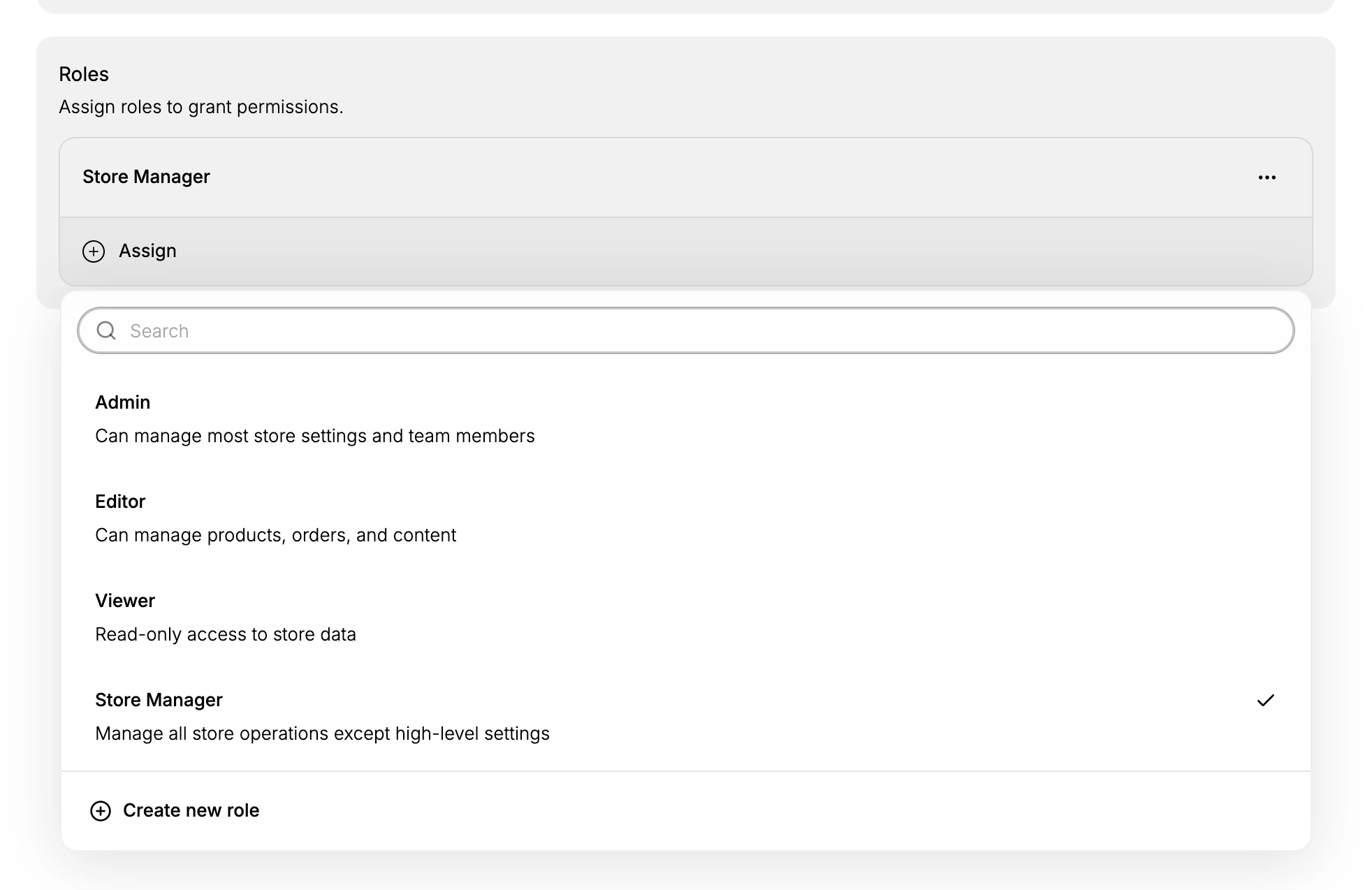
- Select Assign, the control below the last role in the card.
- The store's full set of roles opens underneath, each with the line that describes it, behind a Search box for stores that have built a lot of them.
- Choose the role you want. The roles this person already holds carry a tick on the right, so the ones without a tick are the ones that would add something.
To narrow them, select the three-dot button at the right-hand end of that role's own row. It opens a menu of one item, Remove role, in red.
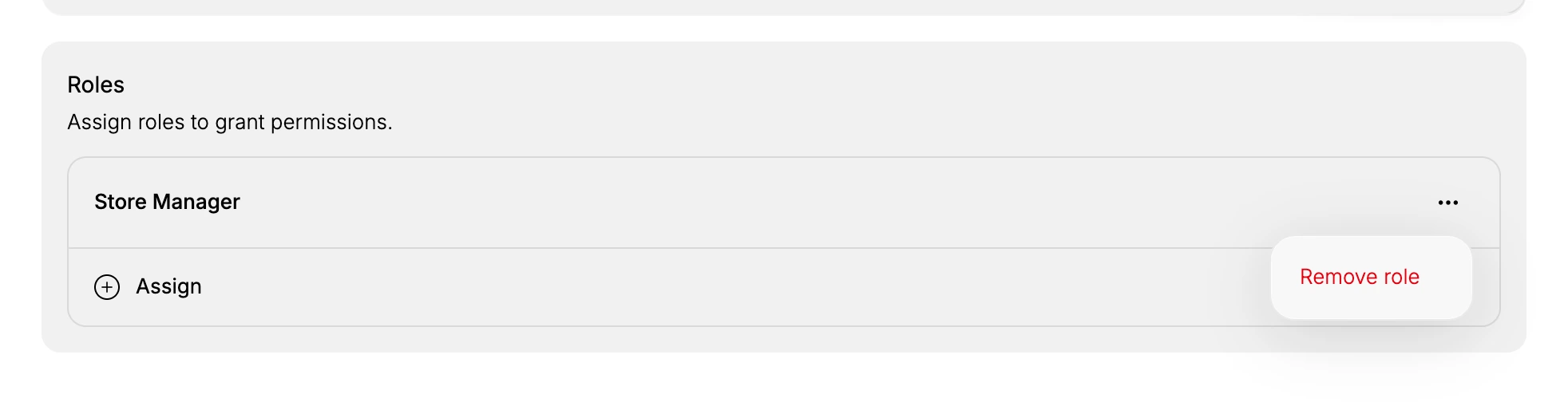
There is no Save on this page and no unsaved changes bar. What the card shows is the state of that person's access as it stands, so read it back after a change rather than looking for something to confirm.
Why someone is not in the list
Work through these in order before deciding the record is gone.
- Check the tab, and check Pending separately. All covers active and suspended members only, so someone who was invited and has not accepted is on Pending and nowhere else.
- Clear the search box and any filter. A term left from earlier narrows the list and can hide the person you are looking for.
- Check the spelling of the address. An invitation sent to a mistyped address creates a pending entry nobody will ever accept, and the person you meant is not on the list at all.
- Consider that they were removed. If they are on none of the five tabs, the store no longer holds a record of them, and the way back in is an invitation.
If something goes wrong
- They say they cannot sign in. Check which tab holds them. Suspended means the access was stopped deliberately; Pending means the invitation is still waiting; Active means the problem is their password or their second step rather than their access.
- They can see less than they should. Open their page and read the Roles card. Assign the role that covers the missing work rather than replacing what they have.
- You acted on the wrong person. Check the count in the selection bar before choosing an action, since it is the only thing on screen that tells you how many rows you have ticked.
- The tab counts do not add up to what you expect. Pending entries are invitations, not people with access, and they count separately from Active.
Next steps
- Invite Team Members for adding someone new and choosing what they arrive with.
- Roles and Permissions
- Manage Team
Related articles
- Two-Factor Authentication covers what the second step is from the signing-in side.
Still stuck?
- Ask Tanqory AIAsk in your own words. It answers from these articles and links the ones it used.
- Ask in your adminThe assistant in your Tanqory admin answers and makes the change for you once you confirm.
- Contact TanqoryWrite to our privacy, security or legal teams, or talk to sales about a plan or a move.