Users
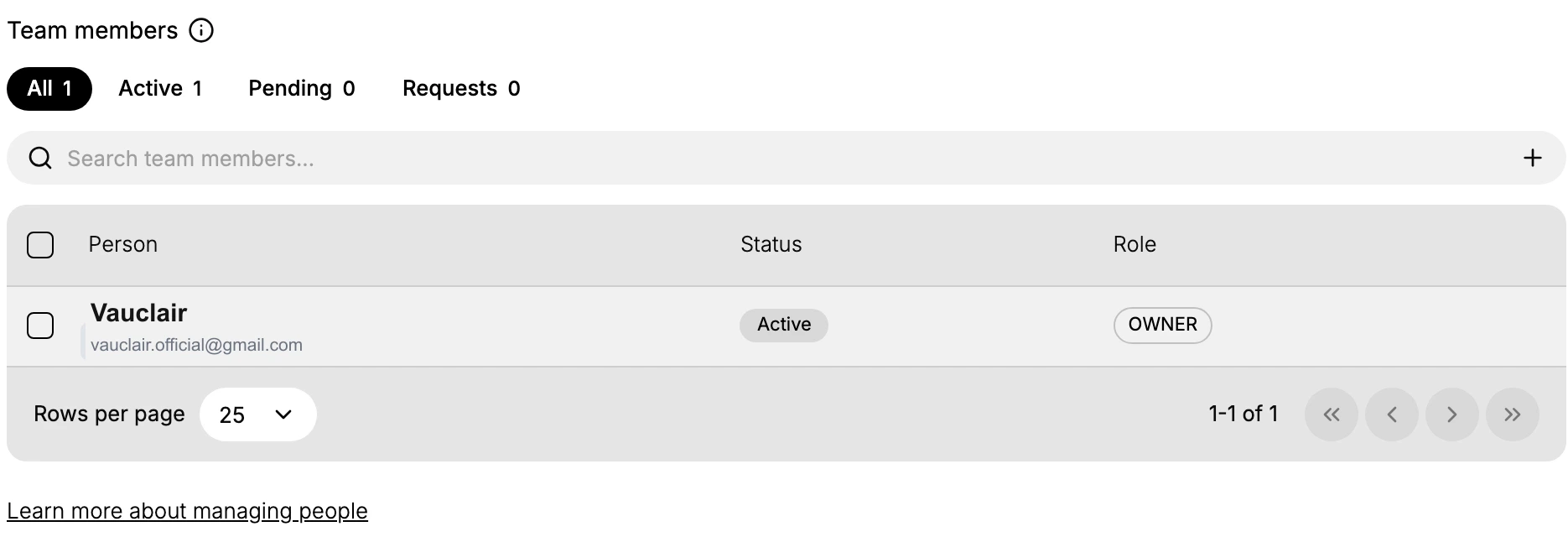
The Users page is where you manage the people who can access your store admin. You see each team member's status and role, add new users, filter by All, Active, Pending, or Requests, and export the list.
On this page
The Users page is where you manage the people who can sign in to your store admin. It lists your team members with each person's status and role, lets you add new users and export the list, and groups people into All, Active, Pending, and Requests so you can see who has access and who has an invitation outstanding. Keeping this list current is a security step, since everyone here can act in your store. You reach the page under Settings, in Users.
What's on the page
| Element | What it does |
|---|---|
| Add User | Starts adding a new person to your team |
| Export | Exports your list of team members |
| All, Active, Suspended, Pending, Requests | Tabs that filter the list by status, each with a count |
| Search team members | Finds a person in the list |
| Person, Status, Role | The columns showing who each member is, their status, and their role |
Before you begin
- Your role includes General settings. Adding or removing users is usually an owner or admin action.
- Open Settings > Users in the admin.
Manage the people who can access your store
Open Settings, then Users. Everything on this page works on a single list: the people who can sign in to your store admin. The sections below go through what that list tells you and what you can do from it.
Reading the list
The table has three columns, and each answers a different question about a person.
| Column | What it shows |
|---|---|
| Person | The member's name and email |
| Status | Whether they can sign in right now |
| Role | What they are allowed to do, such as OWNER for the store owner |
Read Role next to Person rather than on its own. The name tells you who is in your store, but the role is what decides how much damage a mistake or a compromised account could do. Reviewing the roles here is how you confirm each person has the access they need and no more.
Finding someone
Three controls narrow the list, and they work together rather than replacing each other.
Tabs group people by state: All, Active, Suspended, Pending, and Requests. Each carries a count, so you can see how your team is distributed before opening anything. Manage Users explains what each state means and what to do about it.
Search finds a person by name or email, which is the quicker route once your team is long enough that scanning stops being practical.
Add filter, beside the search box, narrows further by User status, User type, Store role, or Security. A fifth filter, Organization role, is marked coming soon.
If someone seems to be missing, check which tab you are on before assuming the record is gone. Active hides pending and suspended people, so a person can be perfectly present and still invisible from where you are standing.
Adding someone
Select Add User to invite a new person by email. The form that opens is headed Add team members, and it asks for three things at once, so the person arrives already set up rather than needing a second pass.
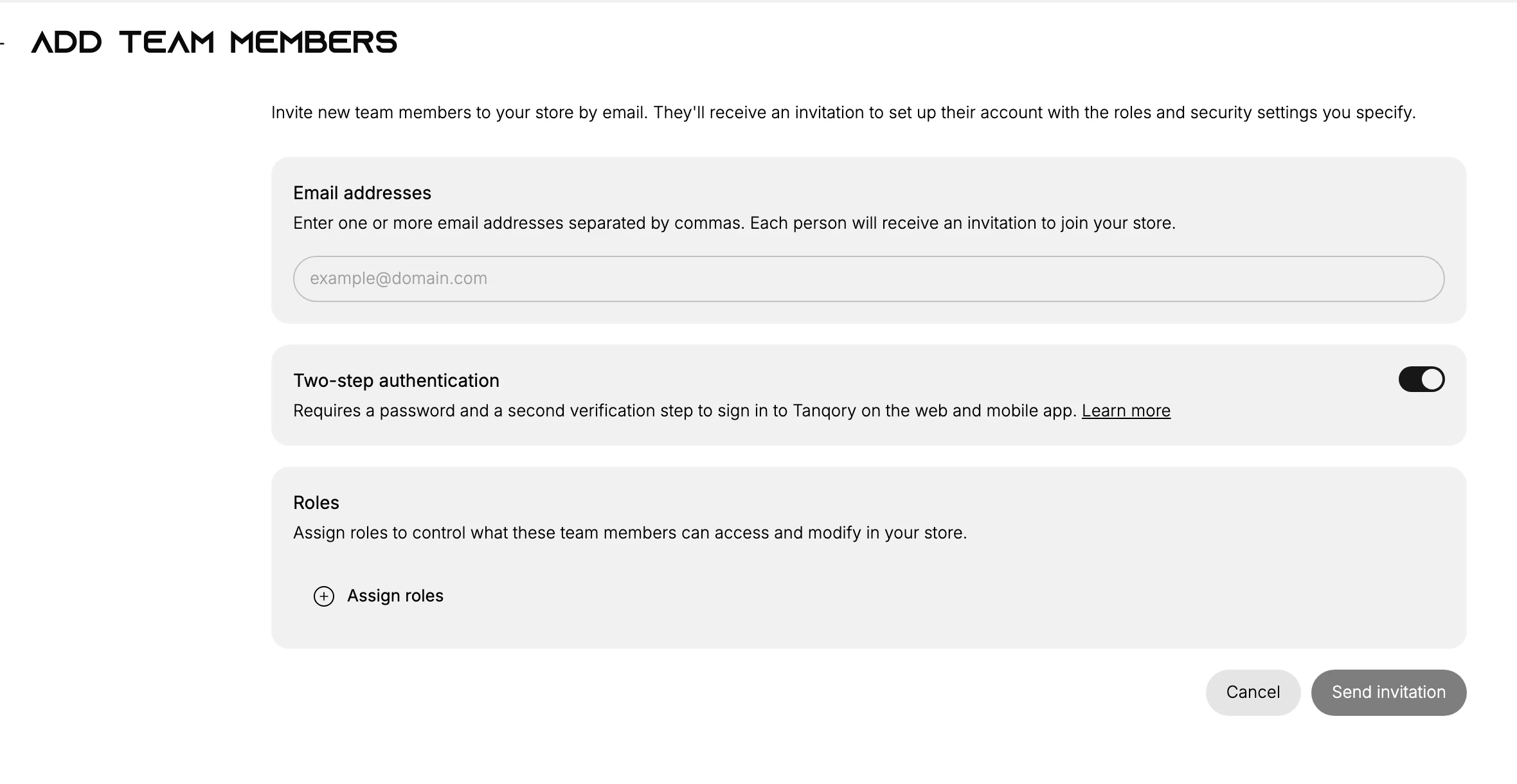
- Email addresses takes one or more addresses separated by commas, so you can invite a group in one go.
- Two-step authentication decides whether these people must pass a second verification step as well as a password.
- Roles is where you set what they will be able to do, using Assign roles. See Roles and Permissions.
Then select Send invitation.
They appear in the list straight away, but under Pending rather than Active, because an invitation is not access until they accept it. That distinction matters when someone tells you they still cannot get in: the invitation may still be waiting. See Invite Team Members.
Invite people with an address they actually check, and give each the role that matches their job rather than a broad one you intend to narrow later.
Exporting the list
Select Export to take the list of team members out of the admin.
This is worth doing periodically rather than only when you need it. An export is a record of exactly who could sign in to your store on a given day, which is the thing a security review asks for and the thing nobody can reconstruct after the fact.
Best practices
- Give each person the role they need. A role sets what someone can do, so match it to their job rather than granting more than necessary.
- Watch the Pending tab. Invitations that sit unaccepted are worth following up or removing so the list reflects real access.
- Review access regularly. Everyone here can act in your store, so check the list periodically and remove people who no longer need it.
- Use work emails. Invite people with an address they actually check so the invitation reaches them.
If something goes wrong
- An invited person cannot sign in. They may still be under Pending until they accept the invitation; check that tab.
- You cannot add or remove a user. Adding and removing people is usually limited to the owner or an admin. Ask an owner if you do not have access.
- You cannot find a member. Use the search box, and check you are on the right tab, since Active hides pending invitations.
The three parts of Users
Users is not one page but three, and they answer different questions. Knowing which part holds what saves you looking in the wrong place.
| Part | The question it answers | Where it lives |
|---|---|---|
| Team members | Who can reach your store at all | This page |
| Roles | What each of those people is allowed to do | Settings > Users, then Roles |
| Security | How well the accounts themselves are protected | Settings > Users, then Security |
They stack rather than sit side by side. A person has to exist under Team members before a role means anything, the role decides how far they can go once they are in, and Security governs how hard it is for someone else to get in as them. Fixing the wrong layer is a common waste of time: someone who cannot see a page usually needs a different role, not a different account.
Team members is this page: the list, its tabs, the search, and the actions for adding and exporting people.
Roles holds every role in your store and how many people hold each one, and is where you build a custom role when the built-in set does not fit a job. See Roles and Permissions.
Security covers protecting the accounts, including two-step authentication. See Two-Factor Authentication and Enable Two-Factor Authentication.
The tasks you do from this page
Each task has its own article.
- Invite Team Members to bring someone new in.
- Roles and Permissions to decide what each person can do.
- Manage Users for what each status means and why someone may not be able to sign in yet.
- Manage Team for keeping access current as people join, change jobs, and leave.
- Two-Factor Authentication to protect the accounts themselves.
Next steps
Related articles
Still stuck?
- Ask Tanqory AIAsk in your own words. It answers from these articles and links the ones it used.
- Ask in your adminThe assistant in your Tanqory admin answers and makes the change for you once you confirm.
- Contact TanqoryWrite to our privacy, security or legal teams, or talk to sales about a plan or a move.