Customer Notifications
Customer notifications are the automated emails your store sends to customers, organized into groups by event, alongside an SMS marketing option. You open them from Settings, Notifications.
On this page
Customer notifications are the automated messages your store sends to customers around their orders and account. The page has two parts: an SMS marketing option for text messages, and email notifications organized into groups of templates for orders, shipping, gift cards, customer accounts, and returns. Reviewing these before you launch makes sure customers get clear, on-brand messages at each step. You reach it from Settings, then Notifications, then Customer notifications.
Before you begin
- Your role includes General settings.
- Open Settings and open Notifications.
What's on the page
| Section | What it covers |
|---|---|
| SMS marketing | Turning on automated marketing text messages, which needs an SMS marketing app |
| Email notifications | The email templates customers receive, grouped by event |
| Manage email design | Opens the shared design used across your emails |
The email template groups
| Group | Templates |
|---|---|
| Orders | Draft order invoice, Order cancelled, Order confirmation, Order updated, Refund processed |
| Shipping | 4 templates |
| Gift cards | 2 templates |
| Customer | 4 templates |
| Returns | 2 templates |
Work with the Customer notifications page
From the admin, open Settings > Notifications, then Customer notifications. The page shows an SMS marketing section at the top and an Email notifications section below it with the email templates grouped by event.
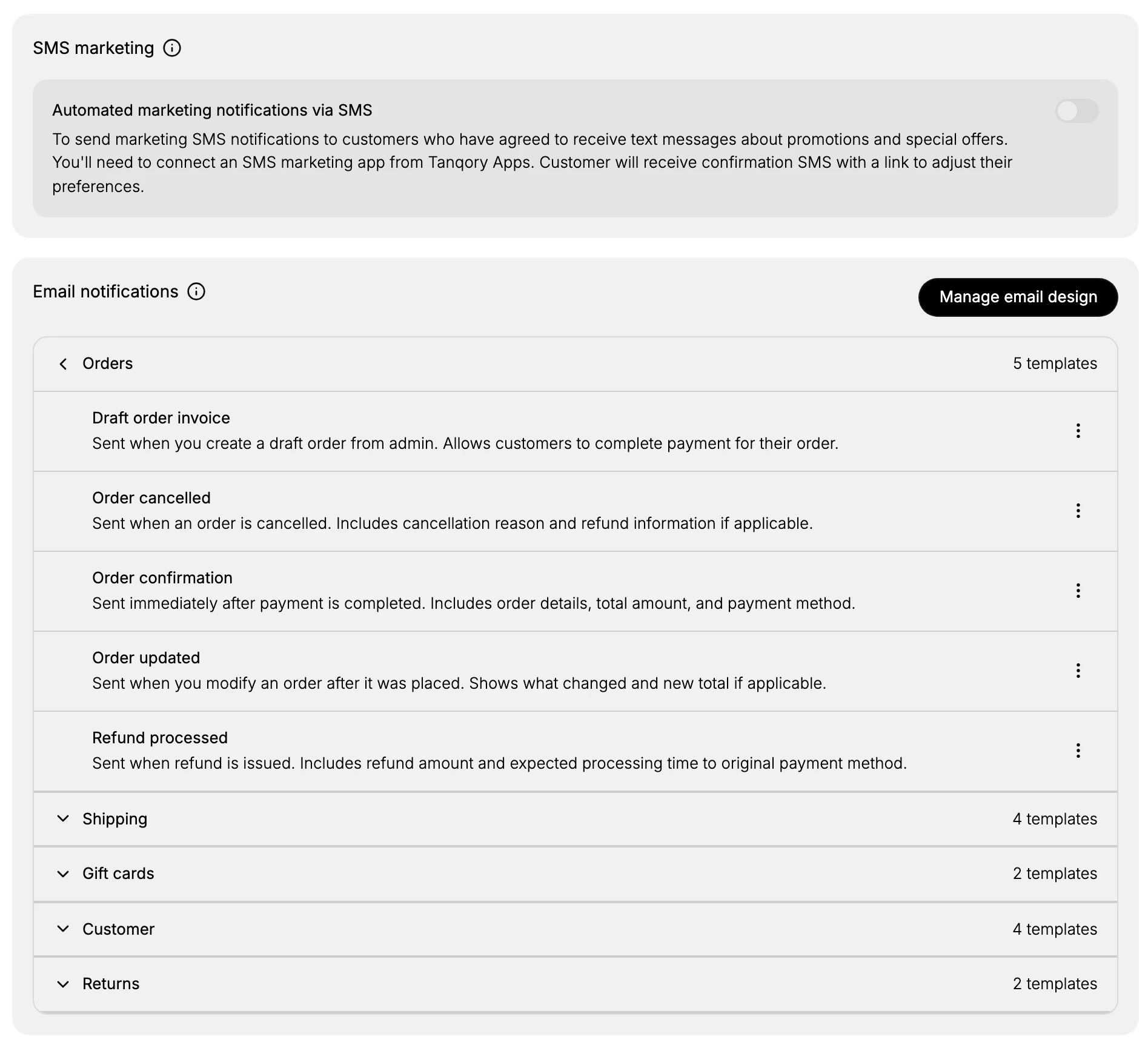
- Turn on SMS marketing if you use it. The SMS marketing section has a toggle for automated marketing text messages, off by default. As the description explains, it only sends to customers who have agreed to receive texts, and to use it you first connect an SMS marketing app from Tanqory Apps. Customers who opt in receive a confirmation text with a link to adjust their preferences. Leave it off unless you run SMS marketing and have a connected app.
- Browse the email template groups. Under Email notifications, the templates are collected into groups, each showing how many it holds: Orders, Shipping, Gift cards, Customer, and Returns. Select a group heading to expand it and see its templates. The Orders group holds five. Draft order invoice goes out when you create a draft order so the customer can pay, Order cancelled carries the cancellation reason and any refund, and Order confirmation is sent after payment with the order details and total. Order updated follows a change made after the order is placed, and Refund processed carries the refund amount and timing. Each template shows a short note of when it is sent.
- Manage a single template. Each template row has a three-dot menu on the right that opens the options for that template. Use it to work with the message that a given event sends, so the email a customer receives matches your brand. Review the templates your customers see most, starting with the order emails.
- Manage the shared email design. Manage email design, at the top of the Email notifications section, opens the design shared across your emails. Set this so every template carries the same look, which keeps your messages consistent without styling each one separately.
Best practices
- Review every group, not just Orders. Customers receive shipping, gift card, account, and returns emails too, so check each group before launch.
- Respect consent for SMS. Only turn on SMS marketing if you have a connected app and are messaging customers who agreed to receive texts.
- Keep a consistent design. Use Manage email design so every email shares one look rather than styling templates one by one.
- Start with the order emails. These are the messages customers see most, so get them right first.
If something goes wrong
- The SMS toggle will not turn on. You first need an SMS marketing app connected from Tanqory Apps.
- A group looks empty. Select its heading to expand it and reveal the templates inside.
- You cannot manage a template. Your role may not allow managing settings. Ask an owner or admin.
Next steps
Related articles
Still stuck?
- Ask Tanqory AIAsk in your own words. It answers from these articles and links the ones it used.
- Ask in your adminThe assistant in your Tanqory admin answers and makes the change for you once you confirm.
- Contact TanqoryWrite to our privacy, security or legal teams, or talk to sales about a plan or a move.