Notifications
The Notifications page is where your store's automated messages are set up. You set the sender email and open the groups for customer emails, staff alerts, fulfillment services, and webhooks.
On this page
What's on the page
| Section | What it covers |
|---|---|
| Sender email | The address customers see as the sender, with a link to connect a custom domain |
| Customer notifications | Automated emails sent to customers for orders, shipping, and account activity |
| Staff notifications | Internal alerts for your team about orders, inventory, and store operations |
| Fulfillment services | Connecting third-party logistics providers to receive order fulfillment requests |
| Webhooks | Sending real-time data to external services when store events occur |
Before you begin
- Your role includes General settings.
- Open Settings > Notifications to reach the notifications hub.
Work through the Notifications page
From the admin, open Settings, then Notifications. The page opens with a short description and then the sections: Sender email, an Email templates group holding Customer notifications, Staff notifications, and Fulfillment services, and a Webhooks group.
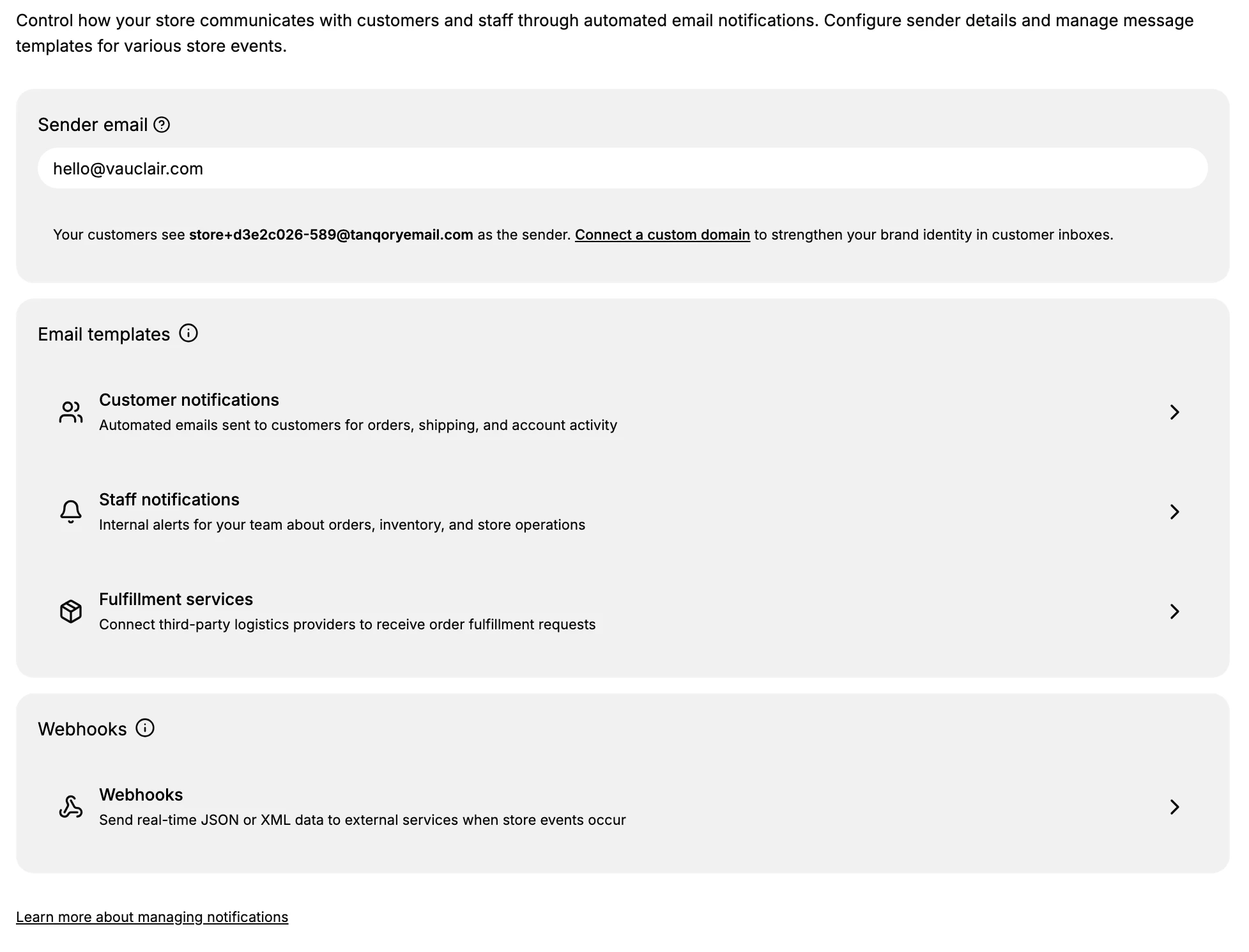
- Set the sender email. The Sender email field holds the address your store sends from, here hello@vauclair.com. The note below explains that until you connect a custom domain, customers see a default address on tanqoryemail.com as the sender. Select Connect a custom domain to send from your own domain instead, which customers recognize and trust more in their inbox.
- Open the customer and staff templates. Under Email templates, Customer notifications holds the automated emails sent to customers for orders, shipping, and account activity, and Staff notifications holds the internal alerts your team receives about orders, inventory, and store operations. Open each to review and adjust the messages that go out. See Customer Notifications and Staff Notifications.
- Connect fulfillment services. Still under Email templates, Fulfillment services is where you connect third-party logistics providers so they receive your order fulfillment requests. Set this up if a warehouse or 3PL fulfills your orders for you. See Fulfillment Request Notification.
- Set up webhooks for external services. The Webhooks group is where you send real-time data to external services when store events occur, using JSON or XML. Use it when another system needs to react to events in your store, for example an analytics or accounting tool. See Webhooks.
Best practices
- Connect a custom domain for the sender. Sending from your own domain rather than the default address makes your emails more recognizable and less likely to look like spam.
- Review customer notifications before launch. These are the emails shoppers actually receive, so confirm they read the way you want.
- Point staff alerts at the right people. Make sure the team that needs to act on orders and inventory is the one receiving the staff notifications.
- Only add webhooks you use. Connect an external service through webhooks when something genuinely needs the data, and remove ones you no longer need.
If something goes wrong
- Customer emails come from the tanqoryemail.com address. That is the default sender until you connect a custom domain from the Sender email section.
- A fulfillment provider is not receiving requests. Check that it is connected under Fulfillment services.
- You cannot open a section. Your role may not allow managing settings. Ask an owner or admin.
Next steps
Related articles
Still stuck?
- Ask Tanqory AIAsk in your own words. It answers from these articles and links the ones it used.
- Ask in your adminThe assistant in your Tanqory admin answers and makes the change for you once you confirm.
- Contact TanqoryWrite to our privacy, security or legal teams, or talk to sales about a plan or a move.