What to Get Right at Checkout Before You Launch
The checkout settings that can cost you an order or leave you without something you cannot go back for, worst first, the one thing about this page that catches people out after launch, and the three cards you can safely leave alone.
On this page
The Checkout settings page arrives working. Nothing on it has to be changed for checkout to take an order, so you can open the store without touching any of its six cards, and plenty of stores do.
Three of the six cards can still cost you, and one more thing about the page can catch you out after launch. Not by breaking checkout, which is why they are easy to miss, but by losing an order at the payment step, or by leaving you without something you need once the order is placed and cannot go back for. This article covers those, worst first, and then the cards you can safely leave alone.
Checkout Settings explains what each card is and does. For the options inside any one of them, each has its own article.
Before you begin
- You know what you sell, where you ship it, and how you will contact a buyer afterwards. Every risk below is really a question about one of those three.
- Open Settings > Checkout.
A required field stops the sale
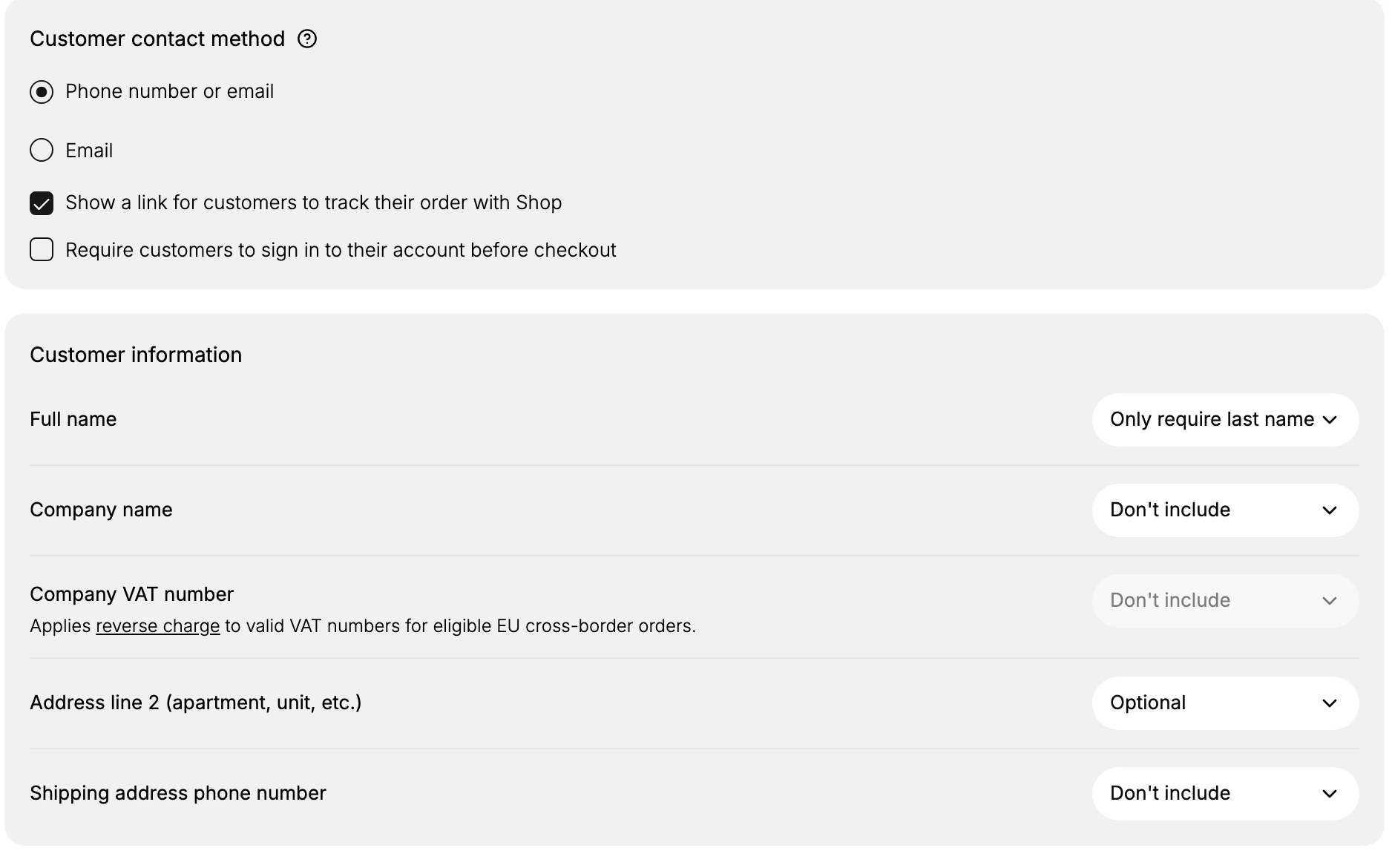
Under Customer information, every field can be set to Don't include, Optional, or Required. Required is literal: the order cannot be completed until that field is filled.
This is the setting most worth being careful with before launch, because its failure is silent. A buyer who meets a field they cannot or will not fill does not write to tell you; they leave, and nothing in the admin records that they were there.
Set a field to Required only when you genuinely cannot fulfill the order without it. Optional serves both sides: the buyers who need the field use it, and the rest are not held up.
The contact you require decides whether you can reach the buyer
Still on the first card, Customer contact method decides what a shopper types to identify themselves.
Phone number or email is the easier one for the shopper, and it means you do not control which you get. A buyer who leaves a phone number and no email leaves you nothing for anything that runs on email: the order confirmation, the shipping update, an abandoned checkout reminder, any marketing they later agree to.
Email asks slightly more and guarantees every order arrives with an address you can write to. If your follow-up is by email, that guarantee is worth the extra seconds.
Requiring an account turns away first-time buyers
The second checkbox on that card, Require customers to sign in to their account before checkout, removes guest checkout.
A first-time buyer who is asked to create an account before paying is being asked to do unpaid work at the exact moment they had decided to buy, and a share of them will not. Leave it clear unless accounts are genuinely how you sell, such as a wholesale store or a members-only catalog.
A detail you never asked for cannot be recovered
Address line 2 (apartment, unit, etc.) is the quiet one. Set to Don't include, a shopper in an apartment has no way to tell you which door is theirs, and the rest of the address is correct, so nothing looks wrong until a delivery fails.
The same logic covers the whole card. Whatever checkout does not collect is not on the order, and the only way to get it afterwards is to contact the buyer and ask.
What your marketing list can ever become
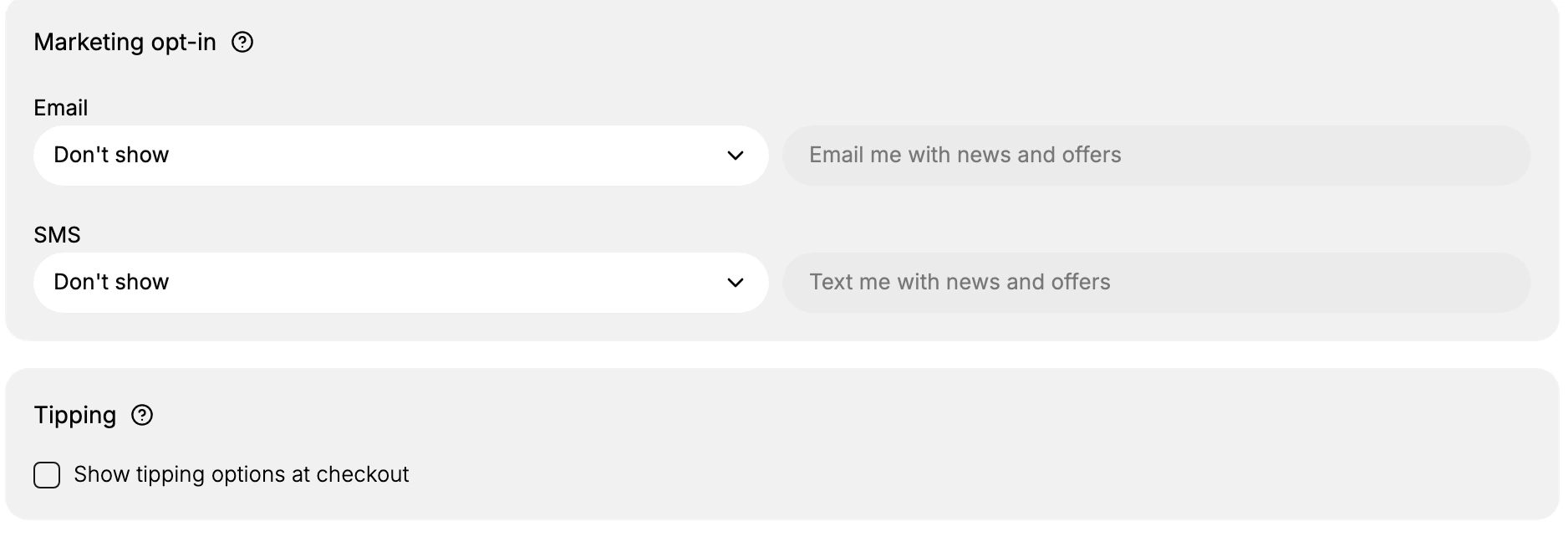
Marketing opt-in is the one setting on this page that changes what you are allowed to do rather than how checkout looks. A shopper who accepts the sign-up becomes a subscriber you may market to. A shopper who was never offered it never becomes one, however many times they buy.
Left on Don't show, your consented marketing list does not grow from orders at all. That is a fine choice for a store with no marketing to send, and an expensive one for a store that plans to have some later, because the orders you take in the meantime cannot be gone back over.
Saving publishes straight away
There is no preview and no draft. The You have unsaved changes bar holds your work until you press Save, and the next shopper to reach checkout meets whatever you saved.
Before launch that is harmless, since nobody is there. After launch it means changing one thing at a time and opening your own checkout to look, rather than saving a page of changes and hoping.
What you can leave alone
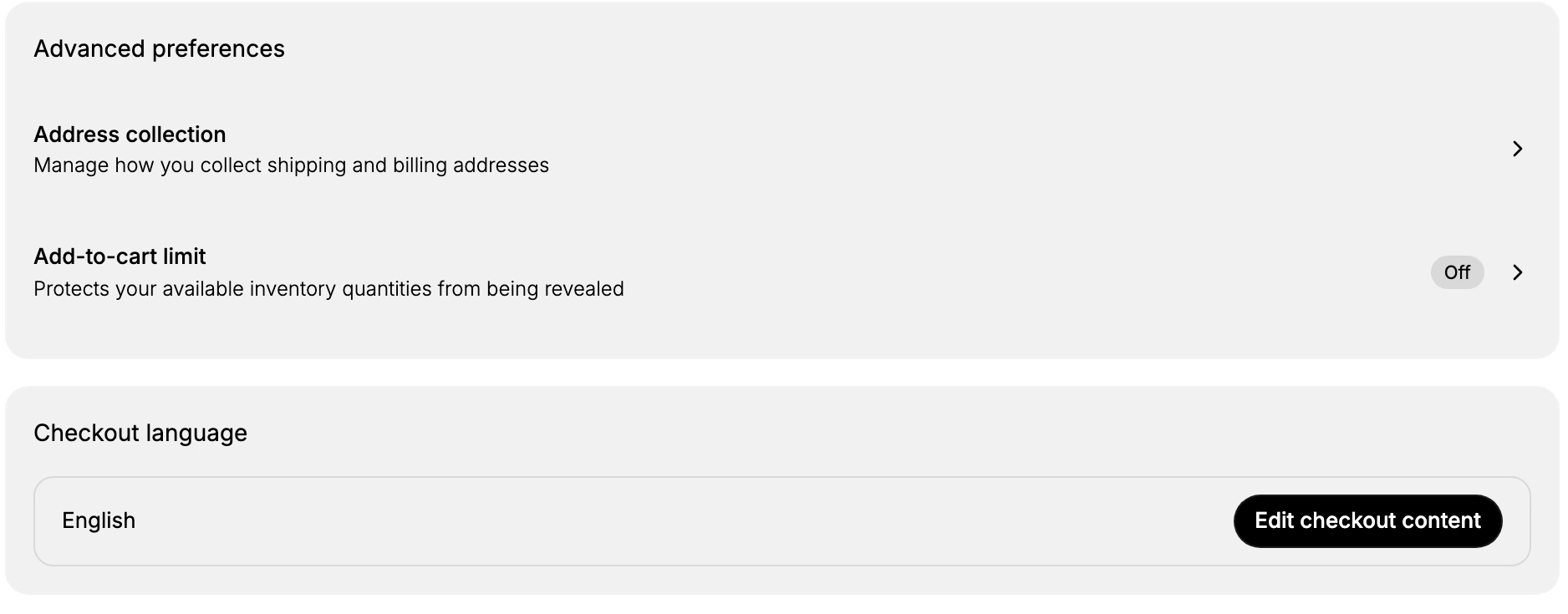
Three of the six cards cost you nothing if you never open them.
| Card | Why it can wait |
|---|---|
| Tipping | Off unless you turn it on. Only worth setting up in a store where tipping is already normal. |
| Add-to-cart limit, under Advanced preferences | Off until you set a cap. It protects scarce stock, which a new store rarely has to worry about. |
| Checkout language | Reports the language your checkout text is in. Worth reading once so you know, but nothing here needs setting. |
Address collection, the other row under Advanced preferences, is a middle case. It is set to allow a different billing address, which is the option it marks Recommended. The alternative requires the two addresses to match, described on screen as customers must use the same address for billing and shipping, which by its own terms leaves no room for a buyer whose card bills somewhere else. Look at it before launch even if you change nothing.
Before you open the store
- No field is set to Required unless you cannot fulfill without it.
- The contact method matches how you will actually reach a buyer after the order.
- Guest checkout is available, unless accounts are how you sell.
- Address line 2 is at least Optional.
- The marketing sign-up is placed, if you intend to market later.
- You have opened your own checkout and looked at it.
Best practices
- Reach for Optional before Required. It is the setting that serves the buyers who need a field without taxing the ones who do not.
- Decide the contact method against your follow-up, not against which feels friendlier.
- Turn the marketing sign-up on before you need the list, since consent cannot be collected retroactively.
- Change one thing and look, because saving is what publishes.
Common mistakes
- Requiring fields to improve your data, which also slows down every buyer who would have got it right.
- Requiring sign-in on a store selling to the public.
- Leaving the marketing sign-up hidden for a year, then wondering why there is nobody to email.
- Leaving the page with the save bar still showing, so nothing took effect.
Next steps
Related articles
Still stuck?
- Ask Tanqory AIAsk in your own words. It answers from these articles and links the ones it used.
- Ask in your adminThe assistant in your Tanqory admin answers and makes the change for you once you confirm.
- Contact TanqoryWrite to our privacy, security or legal teams, or talk to sales about a plan or a move.