Checkout Settings
The Checkout settings page is six cards in a single column, in the order a shopper meets them. This is the map of it: what each card decides, and which article takes that card further. Two of the six deserve attention before the rest, because marketing opt-in governs what you may do with a customer afterwards and customer information governs whether you finish with an address you can ship to.
On this page
The Checkout settings page decides how your storefront checkout behaves, from what a shopper types to identify themselves to the wording they read as they pay. The page is six cards in a single column, in the order a shopper meets them. This article maps the page and links to the full guide for each card.
Before you begin
- You can reach your own checkout on the storefront. There is no preview here, so saving is what publishes a change, and looking at the result is how you check your own work.
- Open Settings > Checkout.
The six sections
| Order | Section | What it decides |
|---|---|---|
| 1 | Customer contact method | Whether a shopper starts with a phone number or an email, and whether they must sign in. |
| 2 | Customer information | Which name and address fields checkout asks for. |
| 3 | Marketing opt-in | Whether the email and SMS sign-ups appear, and where. |
| 4 | Tipping | Whether tip options are offered, and at what percentages. |
| 5 | Advanced preferences | Address collection and the add-to-cart limit, each in its own dialog. |
| 6 | Checkout language | Reports the language the checkout text is in, and links out to the Languages settings. |
Each section name links to the article that covers it in full.
Nothing here has to be done in order, and every setting already sits at a working default, so a store that changes none of them still has a checkout that works. It is worth reading the page through once before you change anything. Taken in order, the cards show how much you are asking of a shopper before they can pay.
The first four sections
These are the four a shopper actually experiences, and they sit above the fold.
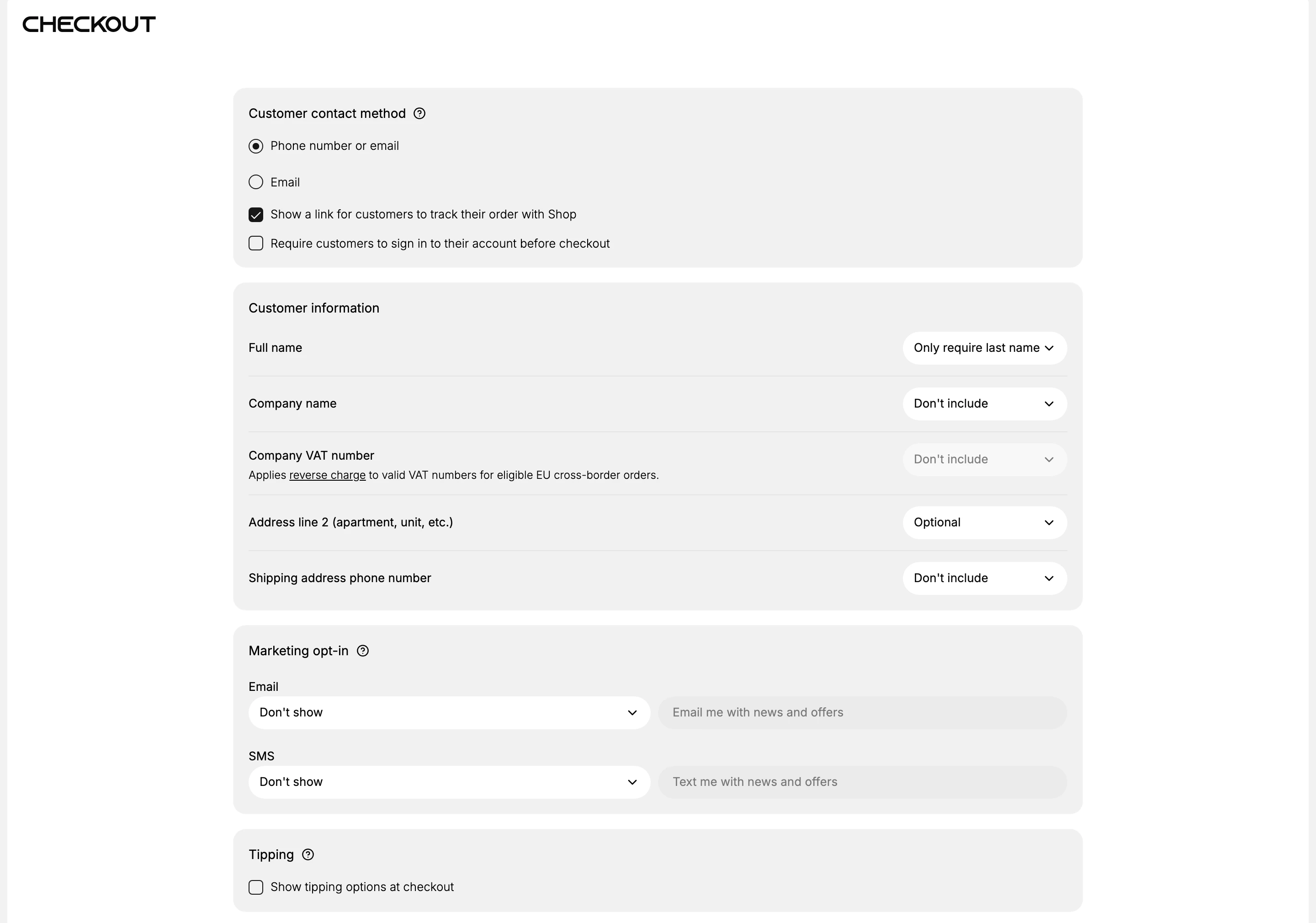
Each is a small decision about how much you ask before payment. Work downward from what checkout asks for now, and add a field only when you can say what you would do with the answer.
Note: Two of these change what you are allowed to do afterwards, not just how checkout looks. Marketing opt-in decides whether you may email or text a customer at all, and Customer information decides whether you hold an address you can ship to. Read those two before the others.
Advanced preferences and Checkout language
The last two cards hold the settings most stores never touch.
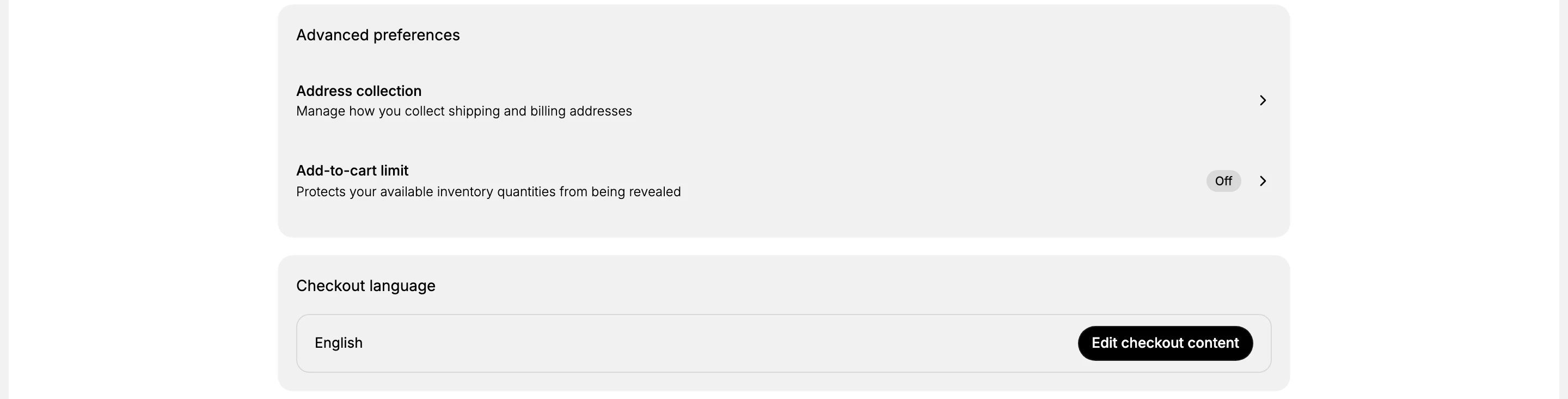
Advanced preferences lists Address collection and Add-to-cart limit as two rows. Each opens its own dialog, which is what the chevron means. Closing a dialog does not save it: the change comes back to the page as an unsaved change, and the same Save bar publishes it. Add-to-cart limit shows its state on the row, reading Off with no cap in force and On once there is one.
Checkout language is a card of its own, not a row inside Advanced preferences. It reports the language your checkout text is in and carries Edit checkout content, which despite its name is navigation rather than an editor: it opens the Languages settings page, where store languages and translations are managed.
Where these settings show up
Nothing on this page is cosmetic. What checkout asks for decides what you hold afterwards, and it shows up in three places.
| Where | What lands there |
|---|---|
| Your live checkout | The form itself: which fields appear, which are required, whether a tip is offered, and the wording around them. There is no preview, so saving is what publishes the change. |
| The order | The contact detail and the address the shopper gave, which is what you fulfill and ship against. |
| The customer record | Contact information, the Default address, and a Marketing block recording consent per channel. The Customers list summarizes the same consent, including an Email subscribers count. |
A field you never asked for is not recoverable later. If checkout did not collect an apartment number or an email address, nothing downstream has it, so the cost of asking for too little is paid at fulfillment rather than at checkout.
Best practices
- Keep the fields short. Each one you add is another step before payment.
- Match marketing opt-in to your market. Where consent must be explicit, the sign-up is what gives it to you.
- Show tipping only where it fits how you sell.
- Change one thing at a time. Checkout is your highest-stakes page, so make one change and look at the result before the next.
Common mistakes
- Requiring sign-in for every shopper, which turns away first-time buyers.
- Asking for a shipping phone on digital orders that never ship.
- Expecting Edit checkout content to open an editor for checkout wording. It opens the Languages settings page.
Next steps
Related articles
Still stuck?
- Ask Tanqory AIAsk in your own words. It answers from these articles and links the ones it used.
- Ask in your adminThe assistant in your Tanqory admin answers and makes the change for you once you confirm.
- Contact TanqoryWrite to our privacy, security or legal teams, or talk to sales about a plan or a move.