SMS Marketing Opt-in at Checkout
Turning on the SMS row adds a text sign-up to checkout, beside the email one, so shoppers can join your SMS list as they buy. Collecting the numbers and being able to text them are separate matters, though, and nothing can be sent until an SMS marketing app is connected. The sign-up gathers subscribers in the meantime, so the order you do these in matters less than remembering that the second half exists.
On this page
The SMS row in the Marketing opt-in section lets a shopper opt in to marketing texts while they buy. It sits in the third section of the Checkout settings page, beside the email option. Turning it on adds the sign-up at checkout, so shoppers who accept it join your SMS marketing list. To actually send those texts you also need an SMS marketing app connected, otherwise you collect consent but have no way to message anyone.
You will find it at the Checkout settings page, in the third section, Marketing opt-in, on the SMS row.
Where the SMS opt-in can appear
The SMS setting is a dropdown with two choices:
| Option | What it does |
|---|---|
| Don't show | The SMS sign-up does not appear. |
| Checkout only | The SMS sign-up appears during checkout. |
When it is shown, the sign-up carries the label Text me with news and offers, which the preview field in the admin shows you.
Before you begin
- You can open Settings in your store.
- To send the texts, you will need an SMS marketing app connected, from Settings > Notifications. Without it, the sign-up still collects consent, but no message can be sent.
- Open Settings > Checkout in the admin sidebar and find Marketing opt-in, where the SMS control sits.
Steps
1. Set where the SMS opt-in appears
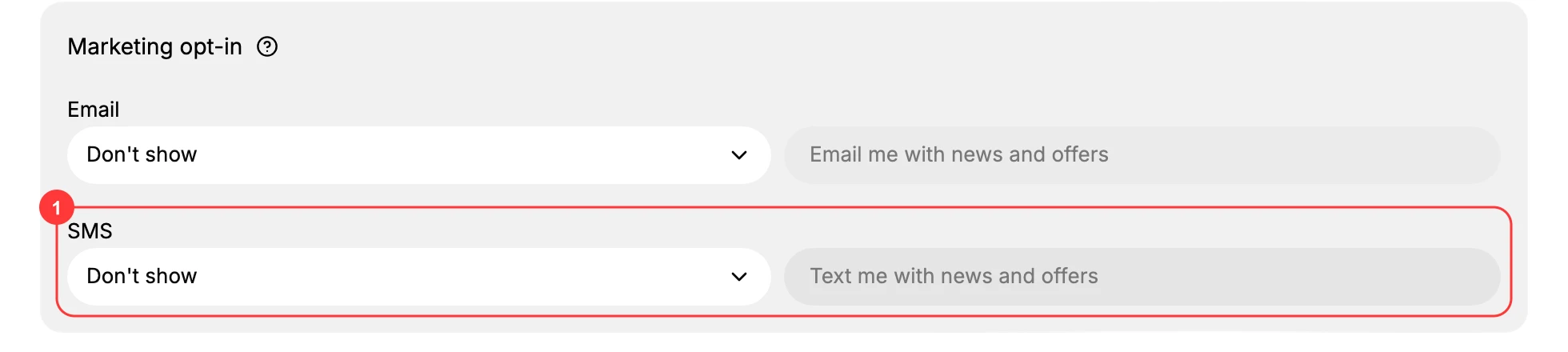
Go to Settings, then open Checkout, and scroll to Marketing opt-in. This is the section that controls the marketing sign-ups at checkout. On the SMS row (1), open the dropdown and pick Don't show or Checkout only; the field beside it previews the label shoppers read, Text me with news and offers.
Choosing Checkout only shows that labeled sign-up at checkout, and every shopper who accepts it joins your SMS marketing list. Choosing Don't show hides the sign-up, so no SMS consent is collected at checkout. Changing this raises a You have unsaved changes bar at the top of the page; click Save there to apply it.
2. Connect an SMS marketing app so you can send
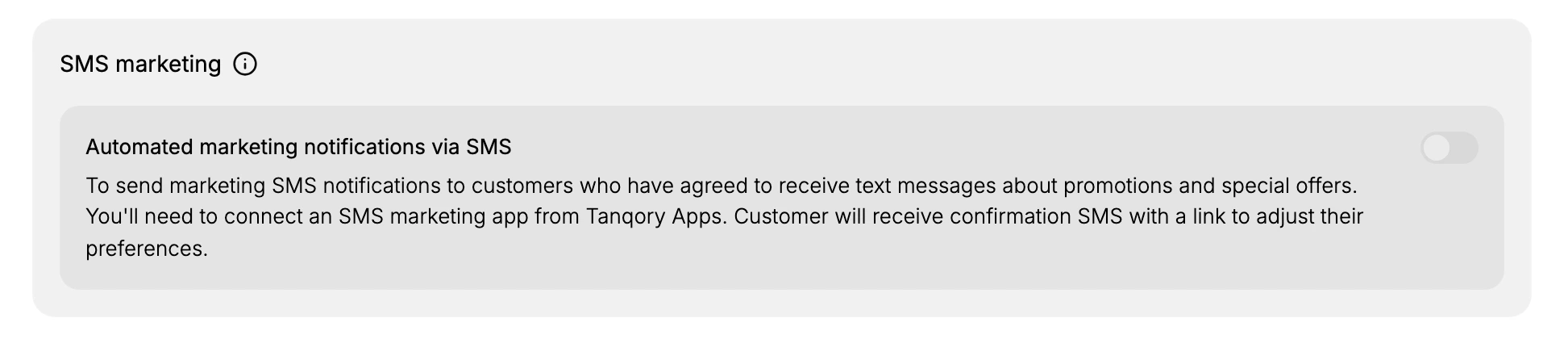
Collecting consent is only half the setup. To send marketing texts, connect an SMS marketing app from Tanqory Apps under Settings, then Notifications, on the Customer notifications page. As its SMS marketing section explains, until an app is connected the feature stays off: shoppers can still opt in at checkout, but you have no channel to reach them, so subscribers hear nothing.
Verify the result
- The SMS dropdown shows the option you chose, either Don't show or Checkout only.
- The preview beside it reads Text me with news and offers.
- The setting stays as you left it when you reopen the Checkout settings page.
Best practices
- Turn it on where it counts. Checkout is where shoppers already enter their details, so it is a natural place to offer the sign-up.
- Connect the SMS app first. Set up sending before you collect numbers, so new subscribers actually get your messages.
- Keep the label honest. The preview shows exactly what shoppers read, so make sure it matches the texts you send.
- Do not assume consent. A shopper counts as a subscriber only if they accept the sign-up, so treat only those who accepted it as subscribers, especially where local law requires explicit consent.
Common mistakes
- Turning on the sign-up with no SMS app connected, so you gather consent but cannot send a single message.
- Leaving it on Don't show when you want to build an SMS list.
- Writing a vague label that does not tell shoppers they are signing up for marketing texts.
Next steps
Related articles
Still stuck?
- Ask Tanqory AIAsk in your own words. It answers from these articles and links the ones it used.
- Ask in your adminThe assistant in your Tanqory admin answers and makes the change for you once you confirm.
- Contact TanqoryWrite to our privacy, security or legal teams, or talk to sales about a plan or a move.