Address Collection
Everything in the Address collection dialog concerns two addresses and how they relate, the one an order ships to and the one the card is billed to. Three settings sit inside it. They decide whether a shopper may keep the two apart, whether checkout tests that the shipping address can be delivered to at all, and whether the billing address is filled in for them. The dialog also saves in a way its own buttons do not suggest, which is worth knowing before you change anything.
On this page
Address collection is a dialog you open from Advanced preferences on the Checkout settings page. Everything in it concerns two addresses and how they relate: the one an order ships to, and the one the card is billed to.
Four controls sit inside it, and they answer two separate questions. Whether the two addresses are allowed to differ at all, and, if they are, how much typing a shopper has to do to give you both.
Before you begin
- You know whether you take card payments from buyers who may bill to a different address than they ship to. That single fact decides the first setting, and getting it wrong turns those buyers away at the payment step.
- Open Settings > Checkout and scroll to Advanced preferences, then click Address collection.
What the dialog holds
The dialog is titled Address collection, and describes itself as configuring billing and shipping address collection preferences. It holds a pair of radio buttons (1), then two checkboxes (2) and (3).
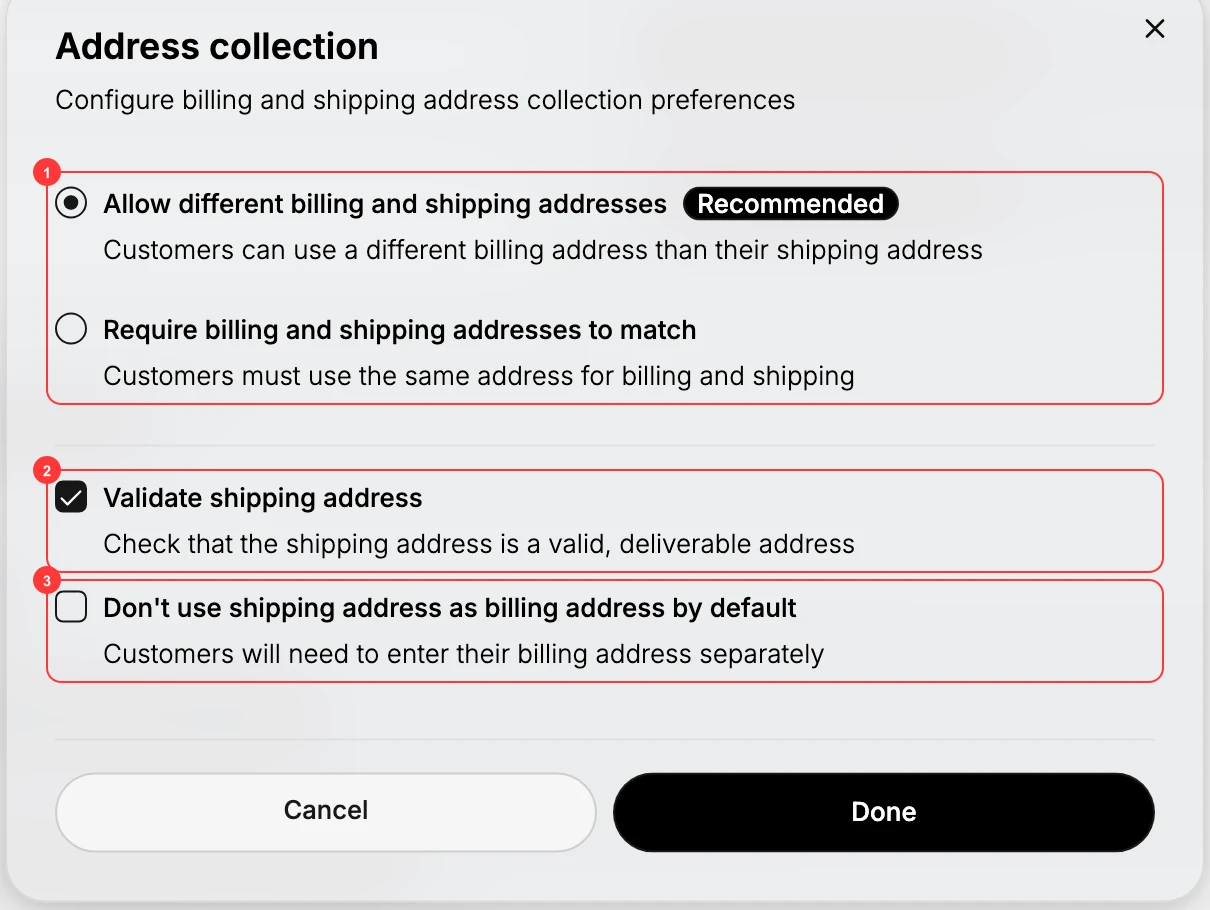
| Control | The text under it on screen |
|---|---|
| Allow different billing and shipping addresses, marked Recommended | Customers can use a different billing address than their shipping address |
| Require billing and shipping addresses to match | Customers must use the same address for billing and shipping |
| Validate shipping address | Check that the shipping address is a valid, deliverable address |
| Don't use shipping address as billing address by default | Customers will need to enter their billing address separately |
Matched or separate addresses
The radio pair is the consequential setting, and one of the two options can cost you orders.
Allow different billing and shipping addresses is the option carrying the Recommended badge. It lets a shopper ship to one address and bill to another, which is ordinary: a card registered to a home address paying for something sent to an office, a gift going straight to the recipient, a parent paying for a student.
Require billing and shipping addresses to match forces both to be the same. It makes checkout marginally simpler and it removes a whole category of buyer, because a shopper whose card bills elsewhere cannot make the form accept a true answer. They either put in something false or they leave.
Choose the stricter option only if you have a specific reason, such as a fraud rule you are working to, and know that you are trading orders for it.
Checking the address is real
Validate shipping address has checkout confirm that what a shopper typed is a valid, deliverable address rather than accepting it as typed.
This is worth leaving on. A mistyped street or a wrong postal code costs far more after the fact than at checkout: the parcel goes out, the delivery fails, and you carry the return shipping, the reship, and the conversation. Catching it while the shopper is still on the page costs them one correction.
The case for turning it off is narrow. If you ship somewhere the validator handles poorly and correct addresses are being rejected, an accepted-as-typed address beats a lost order.
Whether billing is prefilled
Don't use shipping address as billing address by default decides how much a shopper types when both addresses are the same, which for most stores is most of the time.
Left clear, the shipping address is used as the billing address unless the shopper says otherwise, so the common case is one address entered once. Selected, the shopper enters the billing address separately, as the text under the control says. That is the right setting only if your buyers genuinely bill elsewhere more often than not, since for everyone else it is a second address to retype.
One thing to watch: this checkbox stays available whichever radio you pick. Choosing Require billing and shipping addresses to match does not grey it out, even though that combination leaves no separate billing address for it to act on. Treat the two settings as a pair you set deliberately rather than assuming the dialog will stop you from choosing a combination that makes no sense.
How this dialog saves
The buttons here do not do what their names suggest, and this is worth knowing before you change anything.
Done and Cancel both close the dialog, and neither one saves. What the dialog does is hand your change back to the Checkout settings page, which then shows the You have unsaved changes bar at the top. The change reaches your store only when you click Save on that bar. Leave the page without saving and it is discarded.
Note: Cancel does not undo a change you already made inside the dialog. It closes the dialog, but the change is still staged on the page and the unsaved-changes bar still appears. Cancel is only safe if you have touched nothing. To back out of a change, set the control back yourself, or leave the page without saving.
Verify the result
- Reopening the dialog shows each control the way you left it.
- The unsaved-changes bar has gone from the Checkout settings page, so the change is saved rather than pending.
Best practices
- Allow different billing and shipping unless you have a specific reason not to.
- Keep shipping validation on, so a bad address is caught before it becomes a failed delivery.
- Leave billing prefilled from shipping, since for most stores the two are the same address.
- Save the page after closing the dialog, because the dialog alone changes nothing.
Common mistakes
- Requiring billing and shipping to match, which turns away every buyer whose card bills elsewhere.
- Turning off address validation, which moves the cost of a typo from the shopper to you.
- Trusting Cancel to undo a change, which it does not.
Next steps
Related articles
Still stuck?
- Ask Tanqory AIAsk in your own words. It answers from these articles and links the ones it used.
- Ask in your adminThe assistant in your Tanqory admin answers and makes the change for you once you confirm.
- Contact TanqoryWrite to our privacy, security or legal teams, or talk to sales about a plan or a move.