Advanced Preferences
Advanced preferences is the fifth card on the Checkout settings page and behaves unlike the four above it. Those are settings laid out in front of you; this one is two rows, each opening a dialog of its own. Between them these pages explain what the two rows govern, why they sit behind dialogs, and how a change in one actually reaches your live checkout.
On this page
Advanced preferences is the fifth card on the Checkout settings page, and it works differently from the four above it. Those are settings laid out on the page, changed where you see them and saved together. This one is a list of two rows, and each row opens a dialog.
The grouping is not arbitrary. Everything above decides what checkout asks a shopper for. These two do not: one governs how the addresses on an order relate to each other, and the other acts before checkout begins at all, in the storefront cart.
What is in the section
Open Settings > Checkout and scroll to Advanced preferences. The section lists Address collection (1) and Add-to-cart limit (2), each with a chevron marking it as something that opens rather than something you set in place.
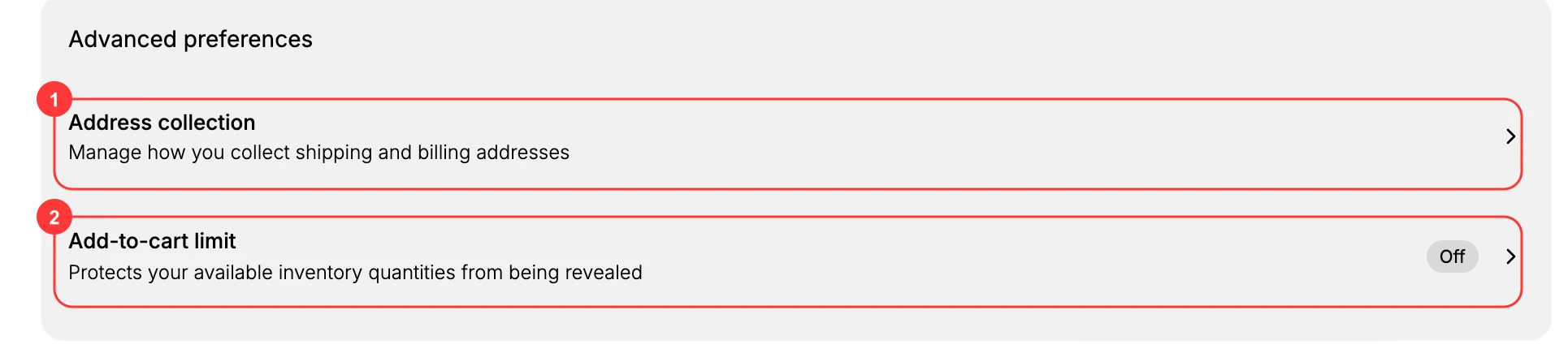
| Setting | The line under it on screen | What it controls |
|---|---|---|
| Address collection | Manage how you collect shipping and billing addresses | A choice between allowing a different billing address and requiring the two to match, plus Validate shipping address and Don't use shipping address as billing address by default. |
| Add-to-cart limit | Protects your available inventory quantities from being revealed | How many of a single product one shopper can add to their cart. The row reads Off with no cap in force and On once there is one. |
The Add-to-cart limit row shows its state, so you can see whether a cap is in force without opening it. Address collection does not, so its state has to be read inside the dialog.
How saving works here
This is the part worth knowing before you open either one, because the buttons do not do what their names suggest.
A dialog has its own Done and Cancel, but neither saves anything. What a dialog does is hand its change back to the page: the row updates to show the new state, and the You have unsaved changes bar appears at the top. The change reaches your store only when you click Save on that bar, exactly as it does for the four sections above. Leave the page without saving and the dialog change goes with it.
Note: Cancel does not undo a change you already made inside the dialog. Switching a control and then closing with Cancel still updates the row and still raises the unsaved-changes bar. Cancel is safe only if you have touched nothing. To back out of a change, set the control back yourself, or leave the page without saving.
Verify the result
- The section lists both rows.
- Add-to-cart limit reads Off with no cap in force, and On once one is saved.
- Clicking a row opens its dialog.
Best practices
- Set Address collection to match how you ship. Allowing a separate billing address suits most stores, and validating the shipping address reduces failed deliveries.
- Use the Add-to-cart limit only when something needs protecting, and keep the cap above a normal order.
- Save the page after closing a dialog, since neither Done nor Cancel puts the change live.
Common mistakes
- Missing these controls entirely, since they sit apart from the main fields and open in dialogs.
- Assuming a dialog saved itself, and leaving the page with the change still pending on the save bar.
- Leaving a cart limit on after the promotion that needed it, which quietly caps a later bulk sale.
Next steps
Related articles
Still stuck?
- Ask Tanqory AIAsk in your own words. It answers from these articles and links the ones it used.
- Ask in your adminThe assistant in your Tanqory admin answers and makes the change for you once you confirm.
- Contact TanqoryWrite to our privacy, security or legal teams, or talk to sales about a plan or a move.