Abandoned Checkout Recovery
An abandoned checkout is a cart a shopper filled and left before paying, and Tanqory can email them a link straight back to it. There are two ways to send that email: one at a time from the abandoned checkouts screens, or automatically to everyone through a workflow you build once. Which suits you depends on how many you get, and both are set out here along with the transactional switch that decides who you are allowed to send to.
On this page
A shopper who fills a cart, starts checkout, and leaves before paying has an abandoned checkout. Tanqory can email that shopper a link straight back to it, so some of those orders come back instead of being lost.
There are two ways to do it, and they answer different questions.
Send one by hand when you are looking at a particular checkout and want to write to that shopper now. Nothing to set up; the controls are already on the abandoned checkouts screens.
Build an automation when you want every abandoned checkout followed up without you. This is the bulk of the article, because it is the part with setup. It takes about five minutes and lives in Store Automation, which is its own top-level area of the admin rather than part of Marketing.
Most stores end up with both: the automation carries the routine, and you reach for a manual send on the large cart that deserves a message from a person.
Before you begin
- You know what you will say. The email is written by you, not chosen from a set of ready-made ones, so having the subject line and a couple of sentences in mind saves a stalled draft.
- You have somewhere sensible for replies to go, since the email carries a reply-to address of your choosing.
- Open Store Automation > Workflows. It is a top-level entry in the sidebar, not a page under Marketing.
Sending one by hand
The controls sit on the abandoned checkouts screens, and one of them is easy to miss.
From the list. Open Orders > Abandoned and select a checkout with the checkbox at the start of its row. A bar appears above the table showing how many are selected, with a Send recovery emails button. Nothing appears until you select something, which is why it is common to conclude the feature does not exist. You can select more than one row before sending.
From an open checkout. Click a row to open it, and Send recovery email sits in the header. Beside it, Copy checkout URL gives you the link to that pending checkout, which is what you paste into a message you write yourself, in your own words, through whatever channel you already use with that customer.
Whichever you use, the checkout's Automations card records what has been sent, so you can see later whether it was already followed up before you send again.
The three pieces of an automation
| Piece | What it does |
|---|---|
| Checkout abandoned (trigger) | Starts the workflow once a checkout has sat untouched for the number of minutes you set. |
| Send email (action) | Sends your message to the shopper. |
{{checkout.abandonedCheckoutUrl}} (variable) |
The recovery link, labeled Recovery URL in the admin, which returns the shopper to their own pending checkout. |
Building the automation
1. Open Store Automation and start a workflow
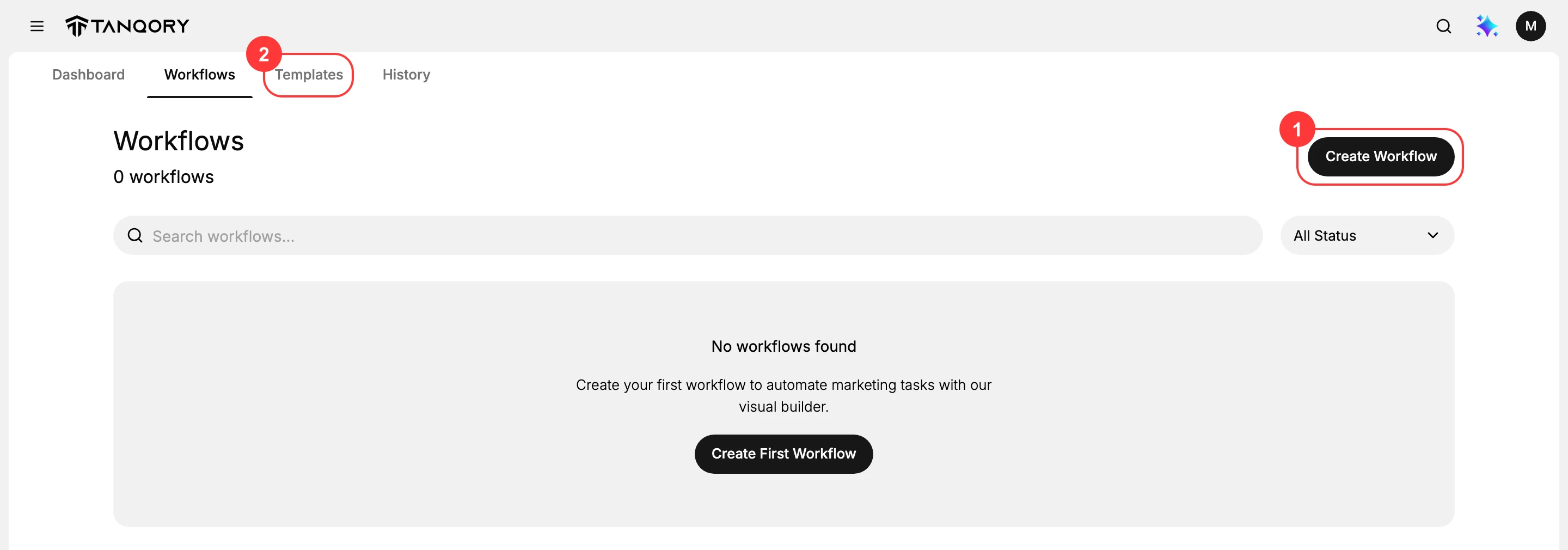
Store Automation has four tabs: Dashboard, Workflows, Templates, and History. On Workflows, click Create Workflow (1).
The builder opens on a starting screen offering three ways in: a prompt box where you describe the automation in words and have it built for you, a Select a trigger link to build it by hand, and Browse templates (2). This article builds it by hand, so click Select a trigger.
Note: The Templates tab has an Abandoned Cart category holding a ready-made Abandoned cart recovery flow. Its Use Template button creates the workflow in your store straight away, with no confirmation step and nothing to save. It arrives inactive, so it will not email anyone, but it is a real workflow on your list from that moment. Only press it if you intend to keep it.
2. Add the Checkout abandoned trigger
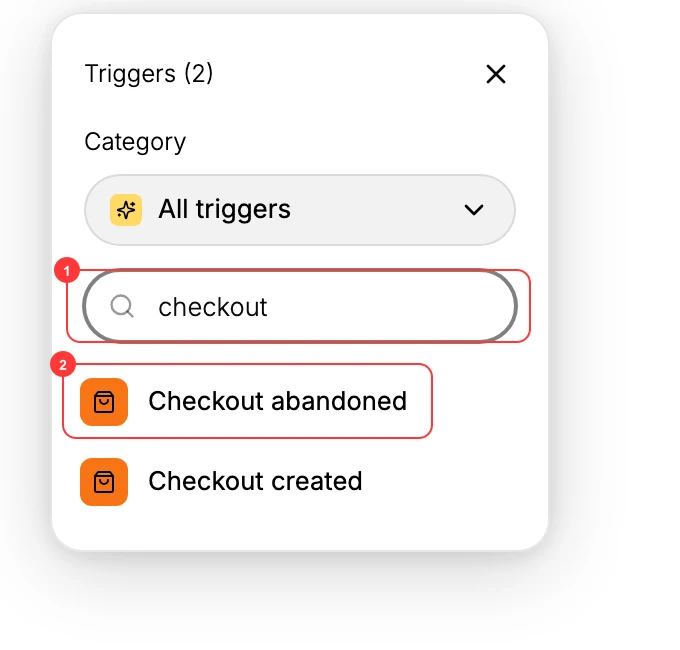
The picker lists 38 triggers grouped by area. The one you want sits under CART, alongside Checkout created.
Type checkout in the search field (1) and choose Checkout abandoned (2).
Search for the word checkout rather than cart. The group heading reads CART, but no trigger has cart in its name, so searching cart returns nothing at all and looks as though the feature is missing.
3. Set how long a checkout sits before it counts as abandoned
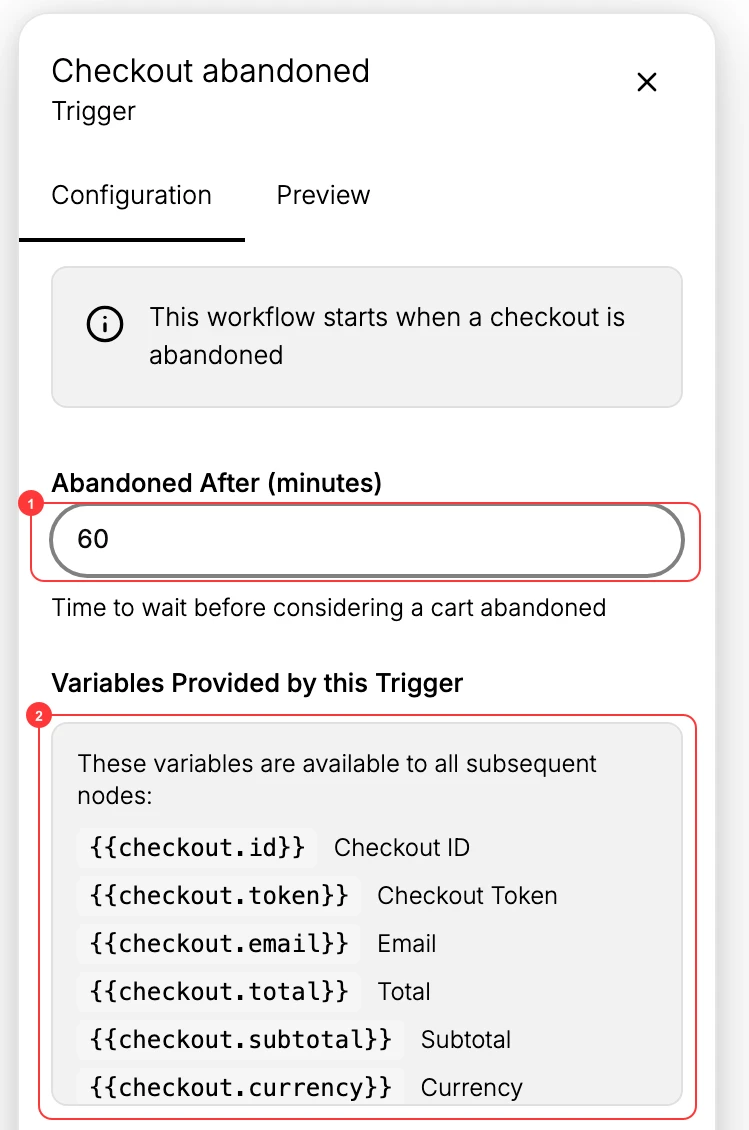
Abandoned After (minutes) (1) holds 60 and is described on screen as the time to wait before considering a cart abandoned. Sixty minutes catches the shopper who was interrupted while the cart is still on their mind. A much shorter wait reaches people who were only comparing tabs; a much longer one arrives after they have bought elsewhere.
Below it, Variables Provided by this Trigger (2) lists what later steps can insert. Fifteen are available, and these are the ones this workflow needs:
{{checkout.abandonedCheckoutUrl}}, shown as Recovery URL, the link back to the pending checkout.{{checkout.email}}, the address the shopper entered at checkout.{{checkout.total}}and{{checkout.subtotal}}, if you want to name the amount.{{customer.firstName}}, to greet a shopper you already have on record.
There is also an optional Only run when filter. Left alone, the automation runs on every abandoned checkout, which is what you want for a first recovery email.
4. Add the Send email action
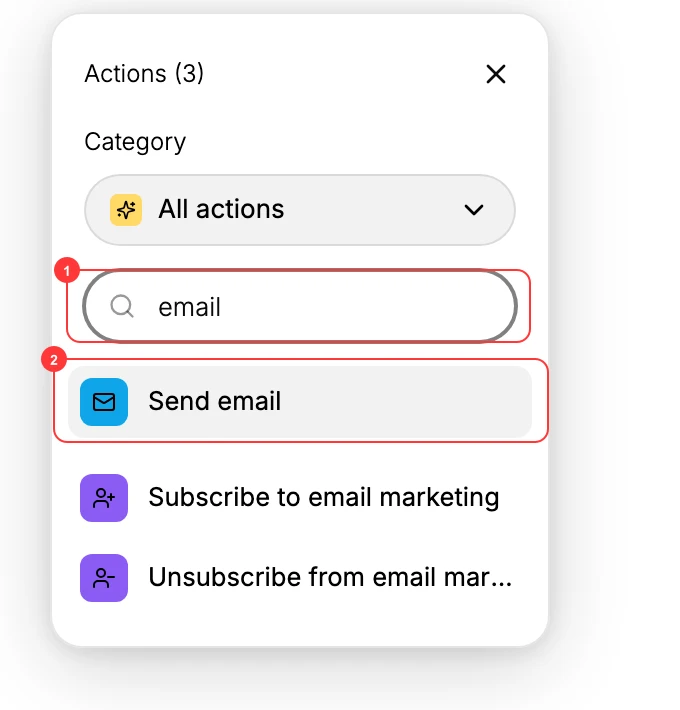
Type email in the actions search (1) and choose Send email (2), which sits under COMMUNICATION among the 44 available actions.
5. Write the email, connect the steps, and turn it on
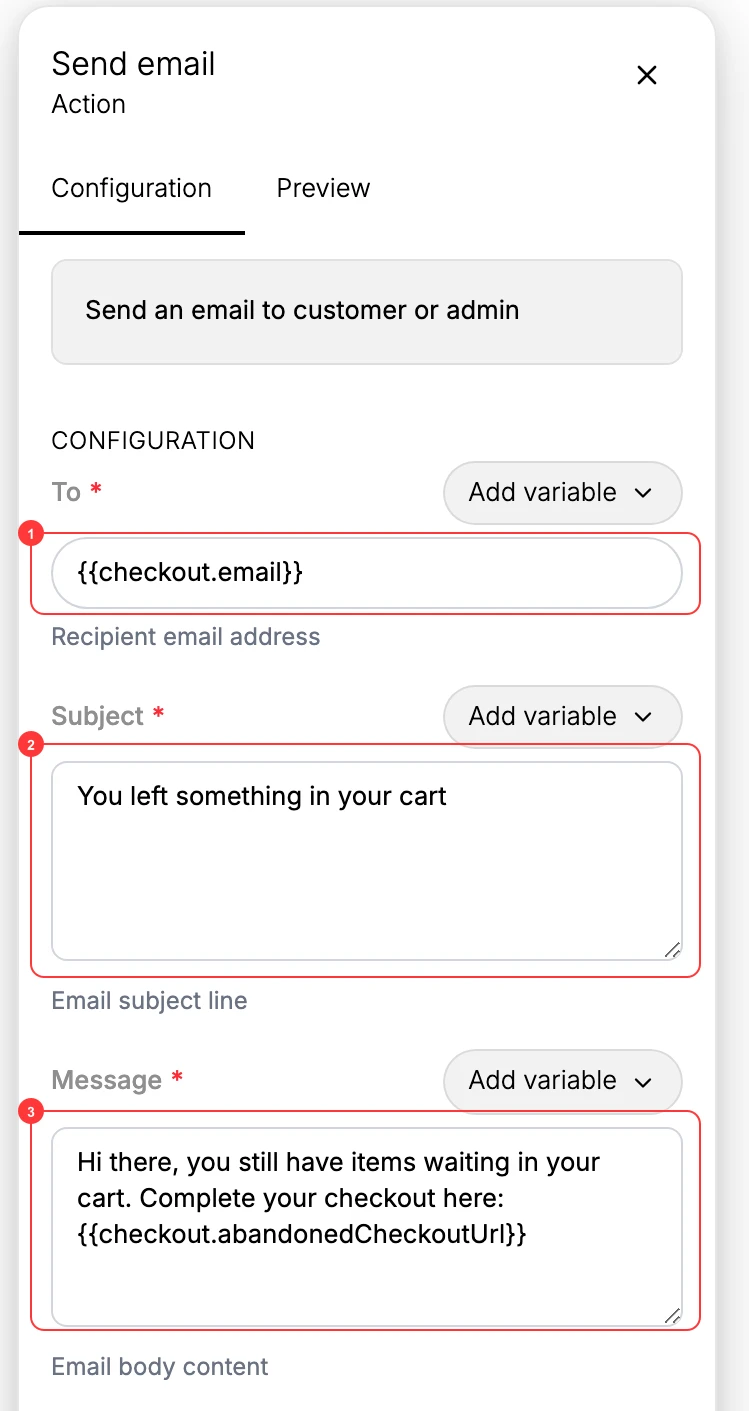
Three fields are required, and each has an Add variable control for inserting the trigger's values.
- To (1). Insert
{{checkout.email}}so the message goes to whoever left the checkout. - Subject (2). Write it yourself. Something plain and specific, naming what they left, beats a generic greeting.
- Message (3). A short reminder with the recovery link. Insert
{{checkout.abandonedCheckoutUrl}}so returning takes one click.
Two optional fields sit alongside them. Reply To sets where a reply lands, which is worth filling in so a shopper who answers reaches a person. Above the fields, an email template picker will send one of your saved templates with its design and branding instead, and leaving it empty is what lets you write the message yourself.
Then connect and activate: drag a connection from the trigger to the Send email step so they run in order, click Save, and switch the workflow from Draft to active. If saving reports missing fields, fill them or connect the steps and save again.
Once it is active, the next shopper to abandon a checkout starts the clock. Nothing happens to checkouts abandoned before you turned it on.
The transactional switch, and why it matters here
The Send email action carries a Transactional (always send) option. Its description is explicit: it sends regardless of the customer's marketing opt-in, and it is meant for order and return notices rather than promotions.
A recovery email sits close to that line. It concerns something the shopper started themselves, which is what makes it feel transactional, and it exists to bring back a sale, which is what makes it marketing. Where you land on that depends on the rules that apply where you sell, so treat the switch as a decision to make rather than a box to tick, and take advice if you are unsure. Turning it on to reach people who never opted in is the version that gets stores into trouble.
Sending a second reminder
There is no delay or wait step among the actions, so one workflow sends one email. Searching the action list for delay or wait returns nothing.
To send a follow-up, build a second workflow with the same trigger and a longer Abandoned After time. Both will fire for a shopper who never comes back, giving you two touches, and neither will fire once the checkout is completed.
Verify the result
- The workflow appears on the Workflows tab with an active status rather than Draft.
- Its Send email step has a recipient, a subject, and a message, with no required field blank.
- The message contains
{{checkout.abandonedCheckoutUrl}}. - The History tab records runs once shoppers start abandoning checkouts.
Best practices
- Start around 60 minutes. It reaches the distracted shopper while the cart is still fresh.
- Put the link near the top. The message has one job.
- Write a specific subject line, naming what they left rather than greeting them.
- Hold any discount for a second reminder, since offering one every time teaches shoppers to abandon on purpose.
Common mistakes
- Leaving the workflow in Draft, so it never runs.
- Searching the trigger list for cart, finding nothing, and concluding the feature does not exist.
- Forgetting the recovery link, which leaves the shopper to find their cart again themselves.
- Missing the send control on the list, which stays hidden until a row is selected.
- Pressing Use Template to look inside it, which creates the workflow in your store.
Next steps
Related articles
Still stuck?
- Ask Tanqory AIAsk in your own words. It answers from these articles and links the ones it used.
- Ask in your adminThe assistant in your Tanqory admin answers and makes the change for you once you confirm.
- Contact TanqoryWrite to our privacy, security or legal teams, or talk to sales about a plan or a move.