View Abandoned Checkouts
Tanqory keeps every checkout a shopper started and left, at Orders > Abandoned, with what was in the cart, who left it, and whether anyone has followed up. The page rewards a little reading. The four summary cards each count something different, contact status and recovery status are not the same thing, and a single record will tell you whether a reminder has already gone out.
On this page
An abandoned checkout is one a shopper started and left before paying. Tanqory keeps every one of them, with what was in the cart, who left it, and whether anyone has followed up. The list is at Orders > Abandoned, and the page is titled Abandoned checkouts.
It is worth reading as two things at once: a record of money that did not arrive, and a work list of people who came close enough to be worth a message.
How a checkout ends up here
A row appears the moment a shopper starts checkout and leaves without paying. Browsing and filling a cart is not enough on its own; the checkout itself has to have been started, which is why a store can have far more abandoned carts than the number on this page.
What is kept is a snapshot of that moment, and it holds more than the list columns show. Opening one gives you its reference and the date it was left, where it came from, the items and what they came to. It also holds whatever contact details and addresses the shopper had entered before they stopped, whether that shopper is subscribed to your marketing, and a record of any automation that has already run on it.
That last part decides what you do next. A checkout a recovery automation has already emailed needs nothing from you. One that nothing has touched is where your effort belongs.
The four summary cards

| Card | What the number counts |
|---|---|
| Total abandoned | Active abandoned checkouts. |
| Contacted | Customers contacted. |
| Recovered | Checkouts successfully recovered. |
| Total value | The potential revenue those checkouts represent. |
Read them together rather than one at a time. A high Total abandoned with a low Contacted means checkouts are slipping past without anyone following up. A high Contacted with a Recovered of zero means the messages are going out and not working, which is a different problem with a different fix.
What each row tells you
| Column | What it shows |
|---|---|
| Customer | The name or email captured at checkout. |
| Last activity | When the checkout was last touched, with the date and time. |
| Subtotal | The value of what was left behind. |
| Status | Not Contacted, Contacted, or Recovered. |
| Recovered by | Who or what recovered it, once it is recovered. |
| Payment method | The method, if the shopper got that far. |
Recovered by is the column that answers whether your automation is earning its place, since it names the automation or the person rather than only recording that the sale came back.
Status is really two things. The Filters panel splits them: a Contact status of Contacted or Not Contacted, and a Recovery status of Recovered or Not Recovered. They move independently, so a checkout can be Contacted and still Not Recovered, which is the ordinary state of one you have emailed and are waiting on. Read the pair together rather than treating the tabs as a single pipeline.
Narrowing the list

The status tabs (1) carry their own counts: All, Not Contacted, Contacted, and Recovered. Not Contacted is the one to work from, because it is the queue of people nobody has written to yet.
The + at the end of the tabs adds a view of your own. It opens Create new view, which saves whatever filters you currently have set under a name, so a combination you check often becomes a tab rather than something you rebuild each time.
The search field (2) takes a customer name or email.
Filters (3) opens a panel for narrowing by something other than the tabs. It offers three dropdowns, Contact status, Recovery status and Payment method, and applies them together. That lets you ask a question the tabs cannot, such as which checkouts reached a payment method and were still never contacted. Clear all resets it.
Manage columns (4) decides which of the six columns appear, and Export sends the list out as a file when you want to work on it elsewhere.
Opening one checkout
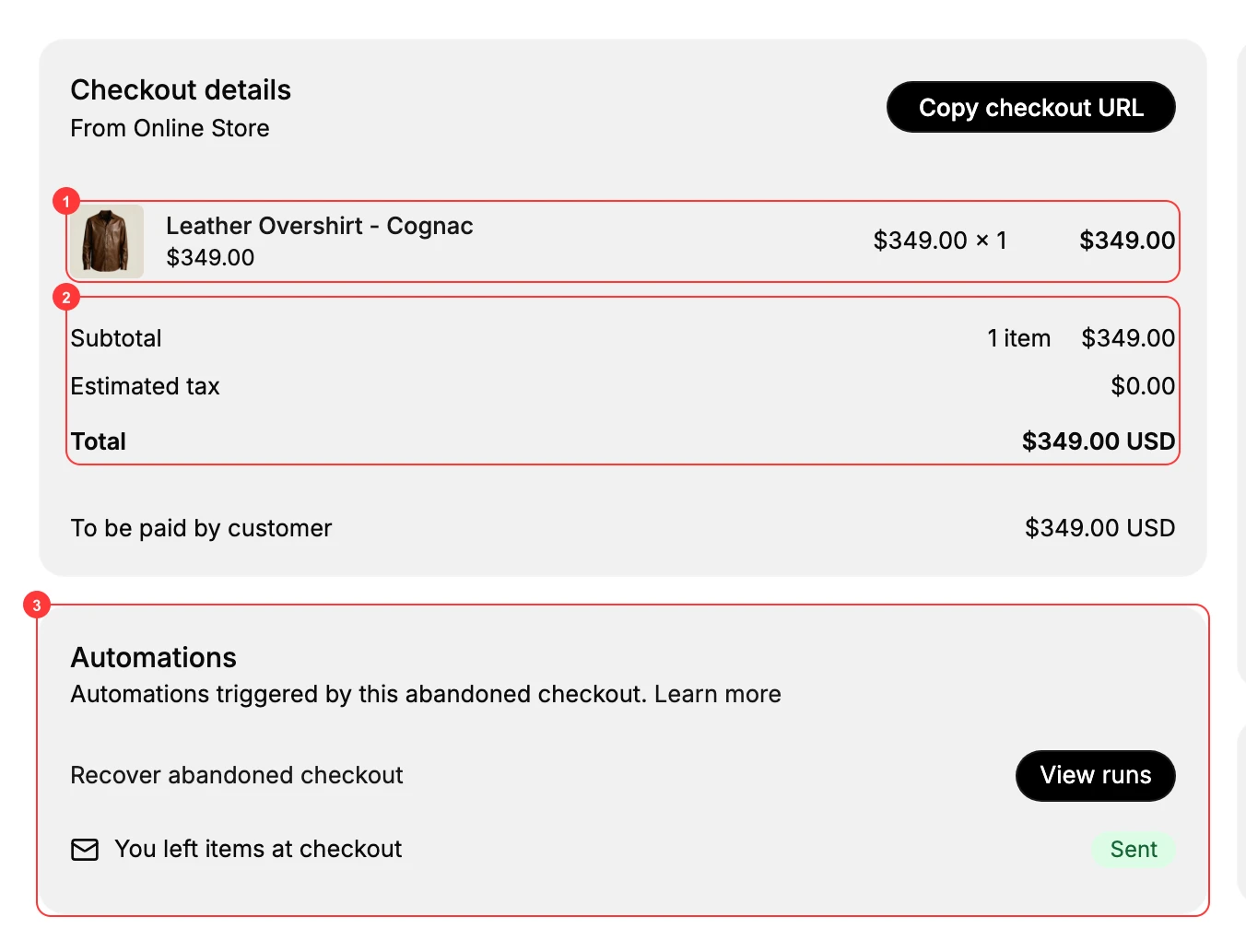
Click a row to open it. The header shows the checkout's reference, a status badge such as Not Recovered, and the date it was left.
- Checkout details lists what the shopper had, marked with where it came from, such as From Online Store, and totals it up through Subtotal, Estimated tax, and Total, ending with what the customer still owes.
- Automations lists what ran on this checkout. A recovery workflow appears here by name with the subject line it sent and its state, so Sent against Recover abandoned checkout tells you a reminder already went out. View runs beside it is a link out to Store Automation rather than a history filtered to this one checkout, so expect the whole automations area rather than the runs for this cart.
- Customer holds the contact information, the shipping and billing addresses, and a Marketing block recording whether that shopper is subscribed to email and SMS. An abandoned checkout often has no address at all, which is normal, since the shopper left before entering one.
- Notes lets you record something for whoever picks this up next.
Where the follow-up happens
Sending is covered in its own article rather than here, but it is worth knowing what you are looking at while you are on these screens.
The list has a Send recovery emails button that appears only once you select a row, which is why it is easy to conclude there is no such thing. An open checkout has Send recovery email in its header, beside Copy checkout URL, which gives you the link to that pending checkout for a message you write yourself, and Print.
Abandoned Checkout Recovery covers all of it: sending one by hand, and setting up an automation that does it for every abandoned checkout without you.
Verify the result
- The tabs total to the count on the All tab.
- Opening a checkout shows its items and a Total.
- A checkout that has already been emailed shows Sent in its Automations card.
Best practices
- Work Not Contacted first. It is the only tab where a message is guaranteed to be new to the shopper.
- Sort your effort by value. A large cart justifies a written message; a small one is what automation is for.
- Read Recovered against Contacted to judge whether your reminders work, rather than counting how many went out.
- Leave a note when you follow up by hand, so the next person does not repeat it.
Common mistakes
- Treating the list as a mailing list. These are people who did not buy, and the Marketing block on each one records what they actually agreed to receive.
- Messaging a checkout already marked Recovered, which reads as though you are not paying attention.
- Missing the send control because no row is selected.
Next steps
Related articles
Still stuck?
- Ask Tanqory AIAsk in your own words. It answers from these articles and links the ones it used.
- Ask in your adminThe assistant in your Tanqory admin answers and makes the change for you once you confirm.
- Contact TanqoryWrite to our privacy, security or legal teams, or talk to sales about a plan or a move.