Add-to-cart Limit
The Add-to-cart limit caps how many of one product a single shopper can put in their cart. It quietly does a second job as well, since a cap also stops anyone using the cart to work out how much stock you are holding. Picking the number is the whole task: too low and you turn away a genuine bulk buyer, too high and it stops nothing.
On this page
The Add-to-cart limit caps how many of a single product one shopper can put in their cart. It lives under Advanced preferences on the Checkout settings page, on a row that reads Off until you set it, and it opens a dialog of its own.
It exists for two reasons. The obvious one is that a cap stops one buyer sweeping up a scarce item. The less obvious one is that without a cap, anyone can work out exactly how much of a product you hold by adding to the cart until it refuses, which is information you may not want to publish.
Before you begin
- You track inventory on the products this is meant to protect. The limit only means something where a quantity is being counted.
- You know the largest order you are willing to fill, since the cap applies to genuine bulk buyers as well as hoarders.
- Open Settings > Checkout and scroll to Advanced preferences, where Add-to-cart limit reads Off until you turn it on.
Setting the limit
Clicking the Add-to-cart limit row opens a dialog titled Cart limits. It holds an Enable quantity limit toggle (1) and a Maximum quantity per product field (2), with Done and Cancel at the bottom.
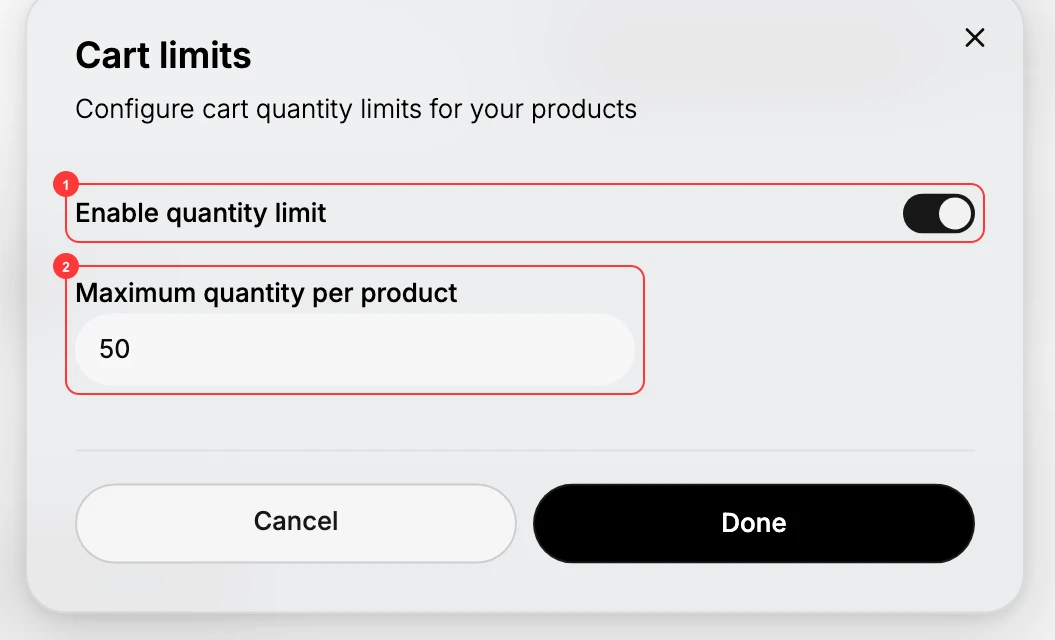
- Switch Enable quantity limit (1) on. The field below it is hidden until you do, because with no limit in force there is no number to hold.
- Enter a figure in Maximum quantity per product (2). It arrives holding 50, which is a real value rather than a suggestion, so leaving it alone sets a cap of fifty. The field is named per product, so the number applies to each product separately rather than to the cart as a whole.
- Click Done. The dialog closes and the Add-to-cart limit row now reads On instead of Off.
- Click Save on the You have unsaved changes bar at the top of the page. The dialog does not save on its own. It hands the change to the page, and the page is what puts it live, so leaving without saving discards the cap entirely.
Note: Cancel does not undo a change you have already made in the dialog. Switching the toggle and then closing with Cancel still updates the row and still raises the unsaved-changes bar. To back out, either set the control back yourself or leave the page without saving.
Choosing the number
The number is the whole decision, and both directions have a cost.
Set it too low and you block real customers. A buyer restocking a favorite, a small business ordering for its own shelves, or anyone buying gifts will hit a cap of two or three and not complete the order, and you will never hear about it.
Set it too high and it protects nothing. A cap of 500 on a product you hold 40 of does not stop a sweep and does not hide the quantity either.
The workable answer is to start from your own orders. Take the largest order of a single product you would be glad to receive, and set the cap comfortably above it. That leaves ordinary buying untouched while removing the extreme case the setting exists for. If you sell wholesale as well as retail, remember the cap applies to both, so check it before any bulk push rather than after.
What a shopper runs into
The cap applies in the storefront cart, before checkout begins. A shopper who tries to add more than the maximum cannot, so no single cart can hold your whole stock of an item. It also closes the other gap: nobody can work out your available quantity by adding to the cart until it refuses.
Verify the result
- The Add-to-cart limit row reads On.
- Reopening the dialog shows the toggle on and the maximum you typed.
- The unsaved-changes bar has gone, so the cap is saved rather than pending.
Best practices
- Turn it on for a reason, such as limited stock or an item that gets hoarded.
- Set the cap above a normal order, so a customer buying several is not stopped.
- Check it before a wholesale push. A low cap blocks legitimate large orders.
- Save the page after closing the dialog, since the dialog alone does not put the cap live.
Common mistakes
- Setting the cap too low, which blocks customers who genuinely want several.
- Turning it on with no reason, which only limits how much shoppers can buy.
- Forgetting it is on, so a later bulk promotion is quietly capped.
- Trusting Cancel to undo a change, which it does not; the row updates anyway.
Next steps
Related articles
Still stuck?
- Ask Tanqory AIAsk in your own words. It answers from these articles and links the ones it used.
- Ask in your adminThe assistant in your Tanqory admin answers and makes the change for you once you confirm.
- Contact TanqoryWrite to our privacy, security or legal teams, or talk to sales about a plan or a move.