Tipping
Switched off, no tip option appears anywhere in checkout. Switched on, a tip step appears offering three percentages that you choose, and a shopper can add to the total as they pay. Setting those percentages, and deciding whether the options show immediately or stay out of the way until someone looks for them, is the whole of it.
On this page
Tipping is the fourth section on the Checkout settings page. Switched on, it adds a tip step to checkout offering the percentages you set, so a shopper can add something to the total as they pay. Switched off, no tip option appears anywhere.
This is the one section on the page that is genuinely sequential: the first control reveals the two below it, and nothing is live until you save. It suits stores where tipping is already normal, such as cafes, delivery, and local services, and reads oddly in a store that ships boxes.
Before you begin
- You have decided who a tip is for and what happens to it. Nothing on this page distributes a tip or splits it, so how it reaches the people it was meant for is arranged outside the admin.
- Open Settings > Checkout and scroll to Tipping.
Setting it up
The section starts as a single checkbox (1). Selecting it reveals the tip percentages (2) and a second checkbox that controls how visible the tip step is (3).
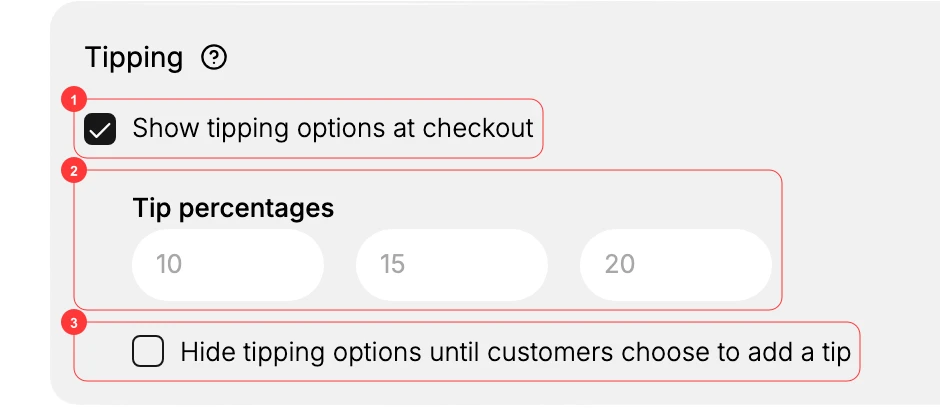
Select Show tipping options at checkout (1). This is the switch for the whole feature. Until it is selected there is nothing else to set, because the two controls below it are hidden. Clearing it later hides tipping again along with everything you configured, rather than deleting it.
Type the three tip percentages (2). The fields are empty. The greyed 10, 15, and 20 you see in them are suggestions, not values, so nothing is set until you type your own. These become the buttons a shopper is offered, so they should read as normal amounts for what you sell rather than as an ask. A cafe and a fine-dining service invite very different numbers, and a set that feels high is the most common reason a tip step is resented rather than used. There are three fields and no more, so pick the three you would actually want offered.
Decide how prominent the tip step is with Hide tipping options until customers choose to add a tip (3). Left clear, the percentage buttons are shown as part of checkout and every shopper sees them, which is what makes tips happen in a store where they are expected. Selected, the options stay out of the way until a shopper chooses to add a tip, which keeps checkout clean for the many people who will not. The first is right when tipping is part of your service; the second when it is an occasional thank-you.
Click Save on the You have unsaved changes bar at the top of the page. Everything above is inert until you do. There is no preview, so saving is what puts the tip step on your live checkout.
Once the bar has cleared, open your own checkout and look at it. The percentages you typed should be the buttons you see, in the position your visibility choice implies.
What this section does and does not settle
This section settles one thing: whether a shopper is offered a tip at checkout, and at which percentages. Everything else about a tip is outside it.
There is no control here for who a tip is for, how it is split, or how it is paid on. Switching tipping on means collecting money on someone else's behalf, and the admin gives you no mechanism for passing it along, so settle that outside it before you turn it on.
Note: There is no tips report. Searching the report library, which holds 144 reports across sales, customers, orders, inventory and finances, returns nothing for tips. The Total sales breakdown on Analytics is no better: it lists gross sales, discounts, returns, net sales, shipping, return fees and taxes, with no tip among them. So if you owe someone a share of what was tipped, plan to work it out from the orders themselves rather than from a running total.
Where the money itself lands is a question about the order rather than about this page. An order breaks its money down on its payment card, which lists the Subtotal, Tax, Total, the amount Paid, and the Net payment. Order Payment Section covers how to read it. Look at a real order there before you promise anyone a share of what was tipped.
Verify the result
- With tipping on, the percentage fields and the Hide tipping options checkbox are visible.
- The percentage fields hold the amounts you typed, in dark text rather than the greyed suggestions.
- The unsaved-changes bar has cleared, and your settings are still there when you reopen the page.
Best practices
- Match the percentages to what you sell. A cafe and a fine-dining service invite very different amounts.
- Show the options by default when tips are a real part of your service.
- Hide them until asked when a tip is a nice-to-have, so checkout stays clean.
- Check the bar has cleared before you leave. An unsaved change means no tip options at checkout.
Common mistakes
- Setting percentages too high for your category, which reads as pushy and can cost the sale.
- Turning tipping on where it makes no sense, which only puzzles shoppers.
- Leaving the page without saving, so the tip options never appear.
Next steps
Related articles
Still stuck?
- Ask Tanqory AIAsk in your own words. It answers from these articles and links the ones it used.
- Ask in your adminThe assistant in your Tanqory admin answers and makes the change for you once you confirm.
- Contact TanqoryWrite to our privacy, security or legal teams, or talk to sales about a plan or a move.