Order Payment Section
The payment card on an order reconciles what the customer owed against what they actually paid, showing the Subtotal, Tax, Total, the amount Paid, and the Net payment, along with the payment status and the Refund action.
On this page
The payment card sits below the items on an order, and it reconciles what the customer owed against what they actually paid. It shows the order's money broken down line by line, together with the payment status, so you can confirm that the customer was charged the right amount and that the money has arrived. This article explains each line on the card and what the payment actions do.
You find this card in the left column, below the items, when you open an order under Orders.
Before you begin
- Your role includes View orders.
- Open Orders in the admin sidebar and open the order you want to work on.
The payment card
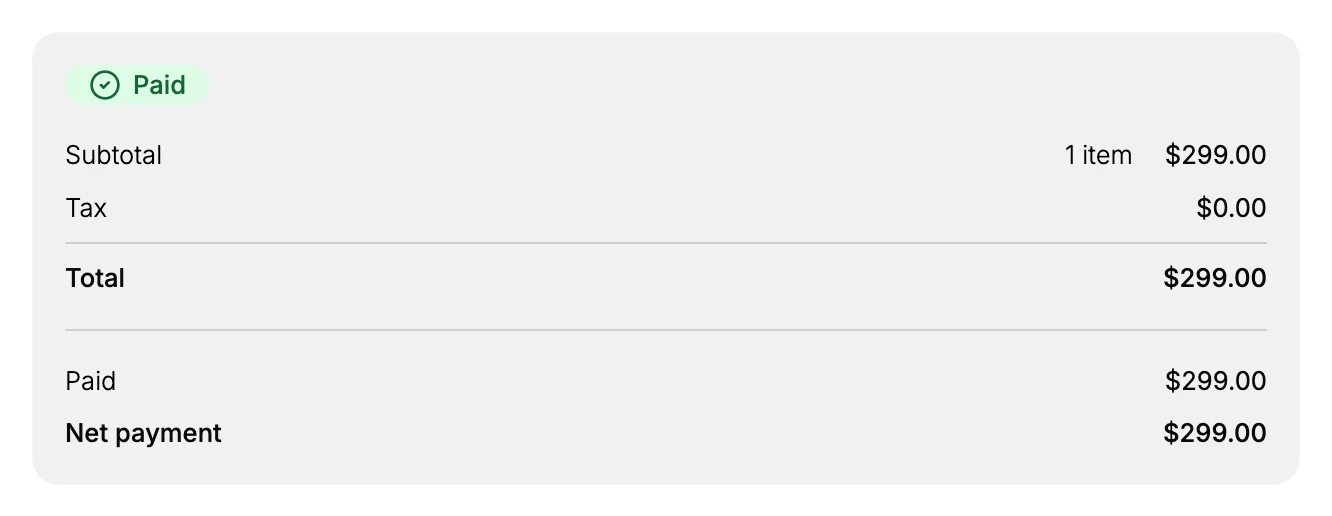
At the top of the card is the payment status, such as Paid. Below it, the card lists the money in two groups: first what the customer agreed to pay, and then what has actually been received. When the amount Paid equals the Total, the order is fully paid.
The lines on the card
The lines run from what was owed at the top to what you actually received at the bottom.
| Line | What it means |
|---|---|
| Subtotal | The price of the items before tax, with the number of items shown next to it. |
| Tax | The tax added to the order. |
| Total | The Subtotal plus Tax. This is the amount the customer agreed to pay. |
| Paid | The amount that has actually been collected from the customer. |
| Net payment | What you have received after any refunds. It equals Paid when nothing has been refunded. |
The payment status
The badge at the top of the card tells you where the order stands on payment.
- Paid means the full amount has been collected.
- A pending or unpaid status means money is still owed, for example an order that is waiting on payment or on a manual mark as paid.
The actions
The payment side of an order is worked from the header actions above the order.
- Refund returns all or part of the payment to the customer, for a cancellation, a return, or a price adjustment. After a refund, the Net payment on the card drops below the amount Paid. This is covered in Issue a Refund.
- When an order has not been paid yet, you record or collect the payment instead. Use Mark as Paid for a manual or offline payment that has landed, or Send an Invoice to email the customer a payment link.
Best practices
- Check that Paid equals Total before you fulfill, so you do not ship an order that has not been paid for.
- Read Net payment, not Paid, to see what you kept, since Net payment accounts for any refunds you have made.
- Refund from within the order rather than outside Tanqory, so the payment record and the order stay in step with each other.
Common mistakes
- Reading Total as the amount you received. Total is what the customer owed, while Paid and Net payment are what you actually collected.
- Fulfilling an order that is still pending payment, which ships goods you have not been paid for.
- Issuing a refund outside Tanqory, which leaves the order still showing the full amount as paid.
Next steps
Related articles
Still stuck?
- Ask Tanqory AIAsk in your own words. It answers from these articles and links the ones it used.
- Ask in your adminThe assistant in your Tanqory admin answers and makes the change for you once you confirm.
- Contact TanqoryWrite to our privacy, security or legal teams, or talk to sales about a plan or a move.