Send an Invoice
Sending an invoice emails the customer a message with a link to pay for the order, which is how you collect payment on an order that is not paid yet. This article covers where the Send invoice button lives, both versions of the window it opens, what every field and toggle does, and how to check afterwards that the invoice went out.
On this page
Sending an invoice emails the customer a message with a link to pay for the order. It is how you collect on an order that exists in your admin but has not been paid, such as a sale you took over the phone, an order the customer will settle by bank transfer, or an order left unpaid. The window states its own purpose plainly: it sends the customer a link to complete their order.
The invoice does not change the order itself. Nothing is marked paid, no money moves, and the order stays exactly as it was until the customer follows the link and pays, or until you record the payment yourself with Mark as Paid. What sending does is put a payment link in the customer's hands.
You open it with Send invoice, which appears on the payment card of an unpaid order and on a draft order, both reached from Orders.
Two versions of the same window
The window differs depending on where you opened it, and it is worth knowing which one you are looking at.
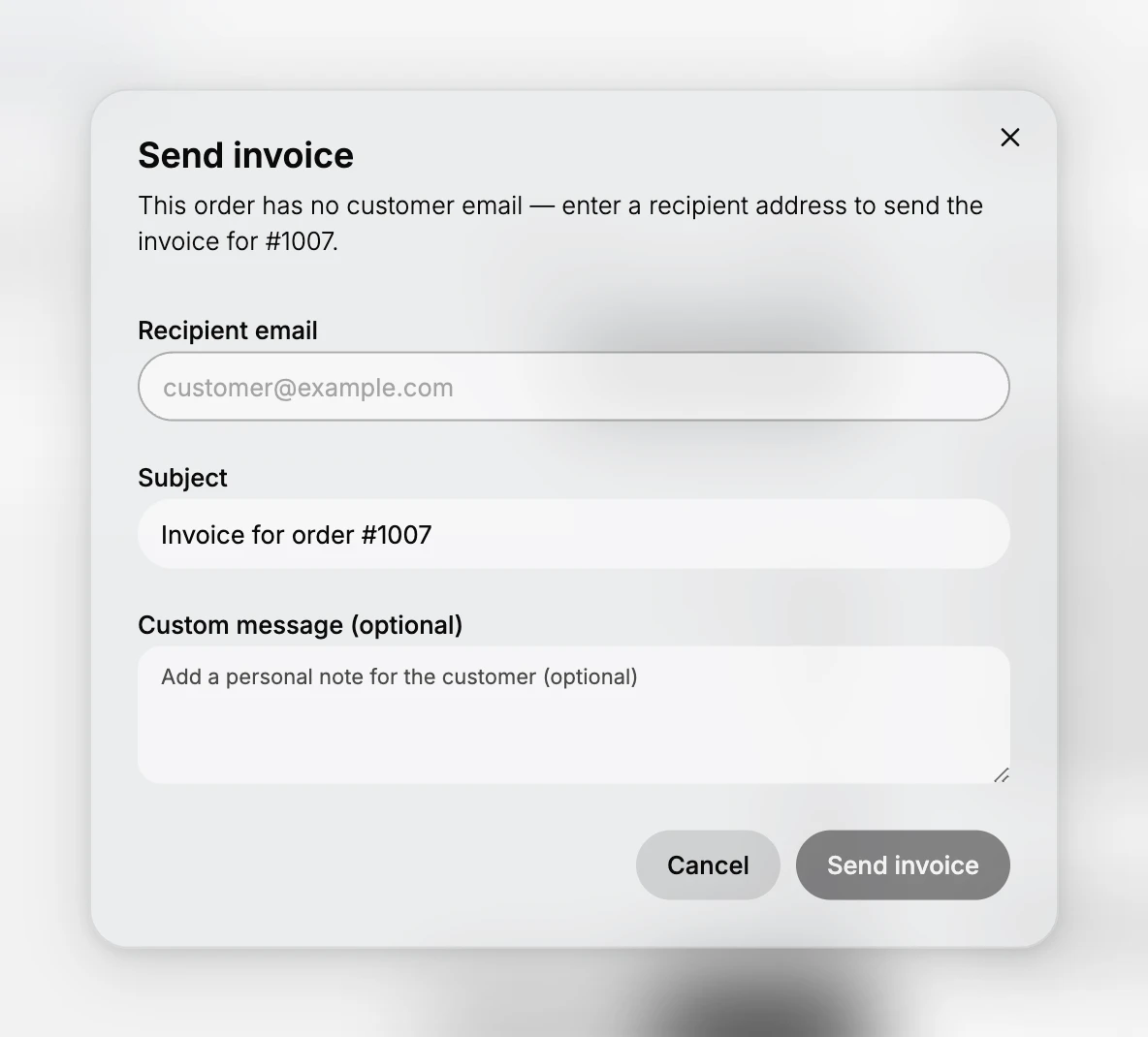
- From an unpaid order it is the short version: a recipient, a subject, and an optional message.
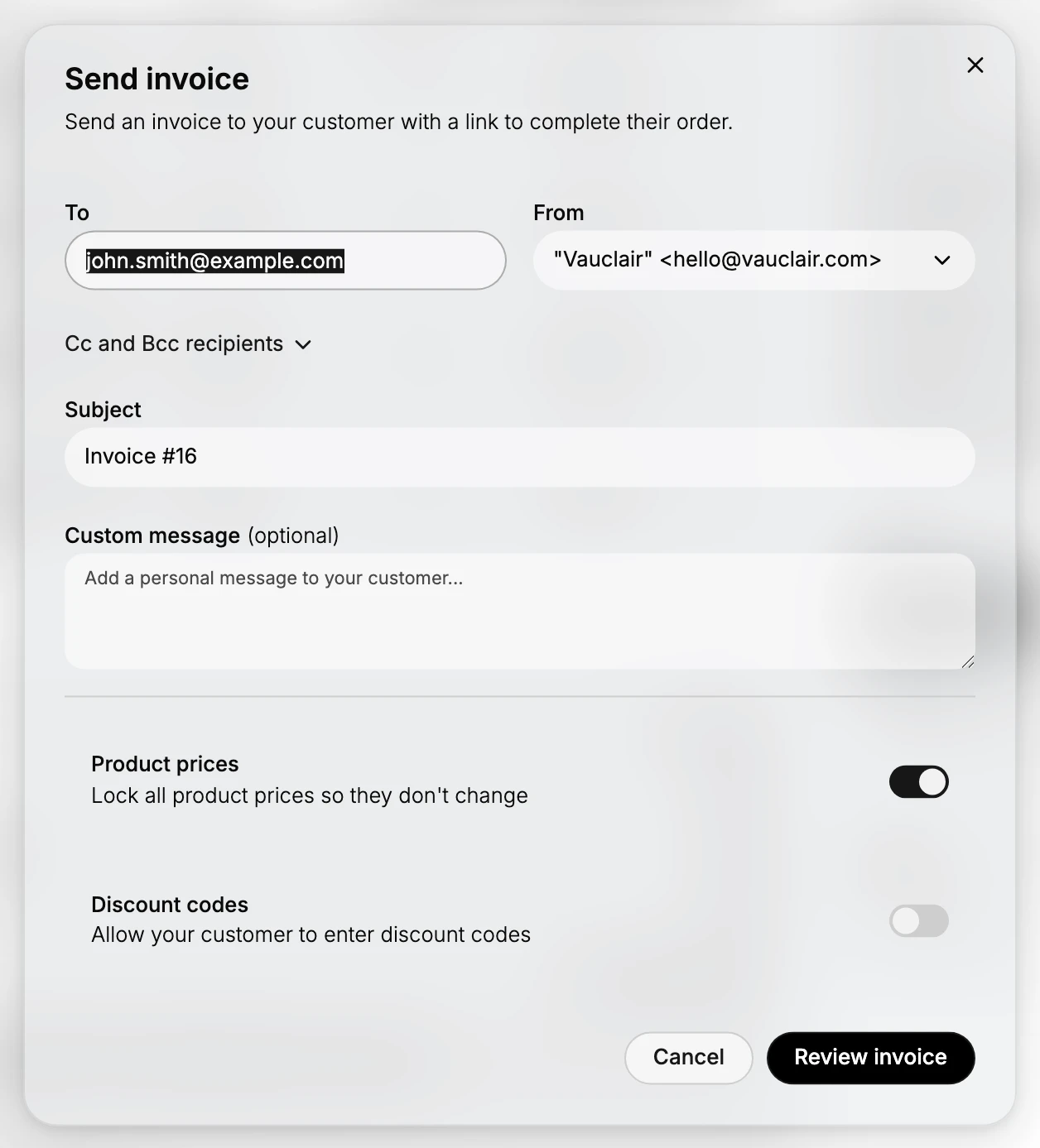
- From a draft order it is the longer version, which adds a sender address, Cc and Bcc, and two toggles that control what the customer can do on the payment page.
Both send the same kind of email. The draft version gives you more control, because a draft is often the order you are negotiating with a business customer.
The window on an unpaid order
The window has a Recipient email field, a Subject field filled in with the order number, and an optional Custom message box, with Cancel and Send invoice buttons. If the order has no customer email on file, a note asks you to enter a recipient address.
The window on a draft order
Opened from a draft, the same action gives you the fuller form.
| Field | What it does |
|---|---|
| To | The address the invoice goes to. It is filled in with the customer's email when the draft has a customer |
| From | The sender the email comes from, chosen from your store's sending addresses, so the customer sees a name they recognize |
| Cc and Bcc recipients | Expands to add copies, which is how you keep a colleague or a shared inbox in the loop |
| Subject | Filled in with the draft number, for example Invoice #16. Change it to whatever the customer will recognize |
| Custom message | An optional personal note, useful for the due date, a payment reference, or a thank you |
| Product prices | Locks all product prices so they do not change. Leave it on so the customer pays the price you quoted, even if the catalog price moves before they get round to paying |
| Discount codes | Lets the customer enter discount codes on the payment page. It is off to begin with, which keeps the invoice at the price you agreed |
The button at the end reads Review invoice rather than Send, so selecting it does not fire the email off on the spot. Cancel closes the window and sends nothing.
Before you begin
- Your role includes Edit orders.
- You have the recipient email, or the order already has a customer email.
- Open Orders and open an unpaid order or a draft order, then select Send invoice on its payment card.
Steps
1. Open the Send invoice window
On the order's payment card, select Send invoice. On a draft order the same button sits next to Mark as paid at the bottom of the payment card.
2. Check the recipient, and the sender if you have one
Look at the address before anything else. It is filled in from the customer on the order, so it is right when the order has the right customer on it, and blank or wrong when it does not. On the draft version, check From as well, since that is the address the customer sees and replies to, and open Cc and Bcc recipients if a colleague needs a copy.
3. Check the subject
The Subject is filled in with the order or draft number, such as Invoice #16. Keep the number in it, because that is what lets the customer match the email to the right order when they come back to it weeks later.
4. Add a message if it helps
Use the Custom message box for anything the invoice itself does not say, such as when payment is due, a purchase order reference, or who on your team to reply to. It is optional, and an invoice with no message is perfectly normal.
5. Set the payment page options on a draft
Leave Product prices locked unless you specifically want the customer charged the catalog price at the moment they pay. Turn Discount codes on only if you are happy for a code to be applied on top of what you quoted.
6. Send it
Select the final button to send, or Cancel to close the window without sending anything. On a draft the button reads Review invoice, so you get a look at the invoice before it goes out.
Verify the result
- A draft you have invoiced appears under the Invoice sent tab on the Drafts page, which is the quickest confirmation that it went.
- The order's timeline records that the invoice was sent, which is the record to check if the customer says they never got it.
- The order itself is unchanged and still unpaid until the customer pays or you mark it paid.
Best practices
- Check the recipient address every time. It is the one mistake that cannot be taken back once the email has gone.
- Keep the order number in the subject, so the customer can find the email again.
- Say when payment is due in the custom message, rather than assuming the customer will infer it.
- Leave product prices locked, so the customer is charged the price you quoted.
- Send from an address your customer recognizes, and copy a shared inbox if someone else may need to answer the reply.
Common mistakes
- Sending to the wrong address because the prefilled recipient was not checked.
- Confusing Send invoice with Mark as paid. Sending an invoice asks the customer to pay, while Mark as Paid records money you have already received.
- Expecting the order to change once the invoice is sent. It does not: the order stays unpaid until the payment arrives.
- Turning on discount codes out of habit, which lets the customer reduce the total you agreed.
If something goes wrong
- The recipient field is empty. The order has no customer email on file. Type the address in, or add the customer to the order first.
- The customer says the invoice never arrived. Check the timeline entry for the send, confirm the address, and send it again. Ask them to look in their spam folder, since it is an automated email carrying a payment link.
- The customer paid a different amount. The price lock was off, so the catalog price at the time of payment applied rather than the one you quoted.
- You need to change the order first. Close the window, edit the order or draft, then send the invoice, so the customer gets a link to the corrected total.
Next steps
Related articles
Still stuck?
- Ask Tanqory AIAsk in your own words. It answers from these articles and links the ones it used.
- Ask in your adminThe assistant in your Tanqory admin answers and makes the change for you once you confirm.
- Contact TanqoryWrite to our privacy, security or legal teams, or talk to sales about a plan or a move.