Order Detail Page
The order detail page is where you work a single order: its items and fulfillment, payment, timeline, and customer, with the actions to edit, refund, or print it.
On this page
The order detail page is where you do the work on one order. It opens when you select an order from the Orders overview, and it gathers everything about that order in one place: what was bought, whether it is paid and fulfilled, who the customer is, and a history of what has happened. This article walks through the page so you know where each part is.
You reach this page by selecting an order under Orders.
Before you begin
- Your role includes View orders.
- You know roughly what you are looking for. The page is long, and the cards described here are spread across two columns.
- Open Orders in the admin sidebar and open the order you want to work on.
The order detail page
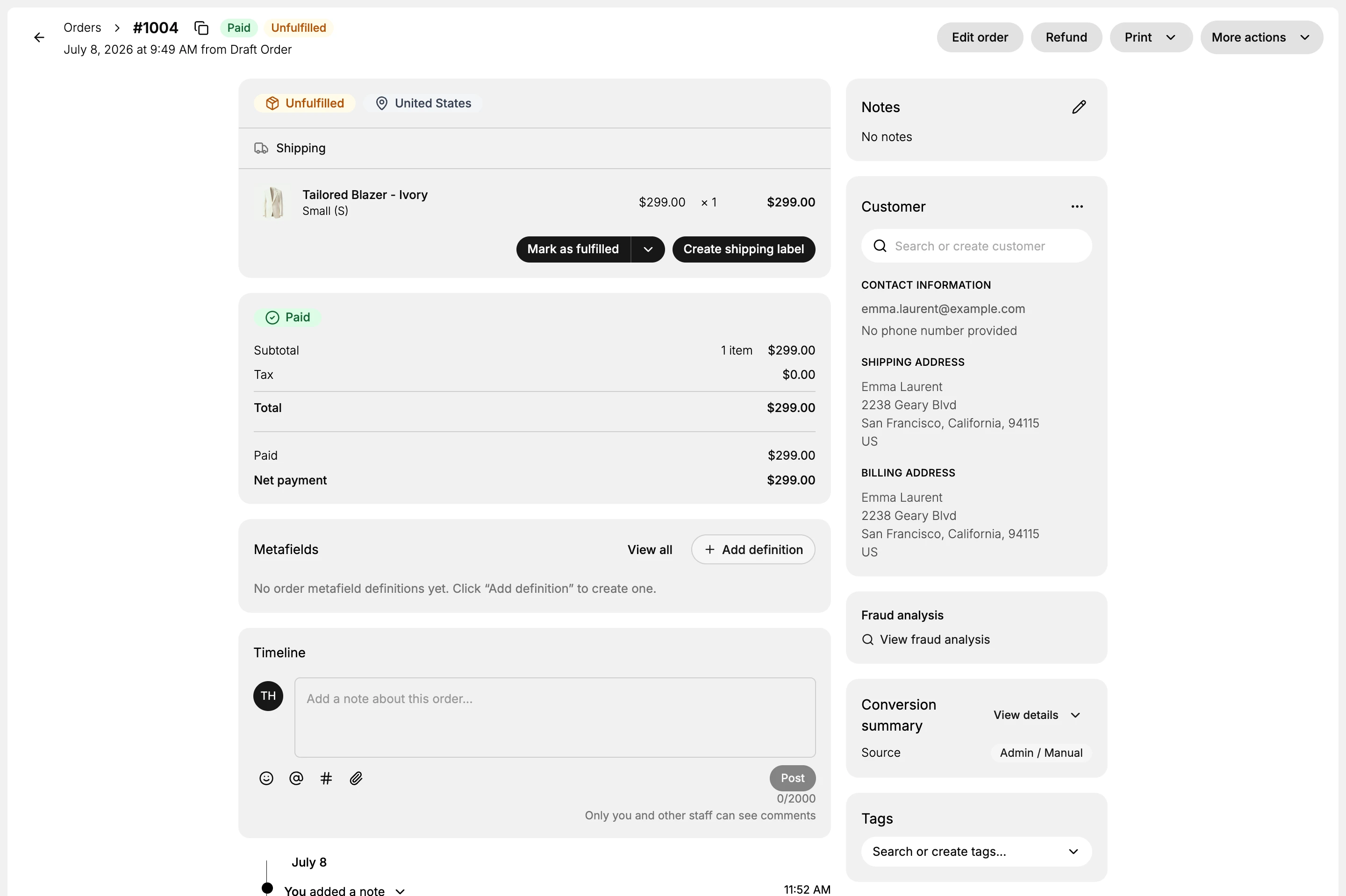
At the top, the header shows the order number, its Paid and Unfulfilled status badges, and when and how it was created. On the right of the header are the order-level actions: Edit order, Refund, Print, and More actions. Below that, the page splits into a left column for the order itself and a right column for the customer and related details.
The fulfillment and items card
The first card on the left shows the fulfillment status, such as Unfulfilled, the destination, and each line item with its price, quantity, and total. When you are ready to ship, use Mark as fulfilled here. This card is covered in Order Fulfillment Section.
The payment summary
Below the items, the payment card shows the money side of the order: whether it is Paid, the Subtotal, Tax, Total, the amount Paid, and the Net payment. This is where you confirm the customer was charged the right amount. It is covered in Order Payment Section.
The timeline
The Timeline records everything that has happened to the order, such as when it was created and when it was marked paid, and it has a box to post an internal note for other staff. It is covered in Order Timeline Section.
The right column
The right column holds details about the order and its customer.
- Notes is a free note about the order, covered in Order Notes Section.
- Customer shows who the order is for, with contact information and shipping and billing addresses, covered in Order Customer Section.
- Fraud analysis links to a risk review of the order.
- Conversion summary shows where the order came from, such as Admin or Manual.
- Tags lets you label the order.
Best practices
- Read the status badges first. The Paid and Unfulfilled badges tell you what the order still needs before you read anything else.
- Use the header actions for whole-order changes, such as Edit order or Refund, and the cards for their own part of the order.
- Post a timeline note when you do something unusual, so the next person understands the order.
Next steps
Related articles
Still stuck?
- Ask Tanqory AIAsk in your own words. It answers from these articles and links the ones it used.
- Ask in your adminThe assistant in your Tanqory admin answers and makes the change for you once you confirm.
- Contact TanqoryWrite to our privacy, security or legal teams, or talk to sales about a plan or a move.