Order Actions Menu
The action buttons at the top of an order act on the whole order: the main actions are buttons, Print opens its own menu, and the less-common actions are grouped under More actions.
On this page
The buttons at the top right of an order are where you act on the order as a whole, rather than on one part of it. The actions you use most are buttons of their own, Print has its own small menu, and the rest are gathered under More actions so the row stays tidy. Which buttons appear depends on the state of the order. This article explains the action row and what each part holds.
You find these buttons at the top right of the page when you open an order under Orders > Overview.
Before you begin
- Your role includes View orders.
- Bear in mind that which buttons appear depends on the state of the order, so a paid and fulfilled order shows a different set from a new one.
- Open Orders in the admin sidebar and open the order you want to work on.
The action buttons
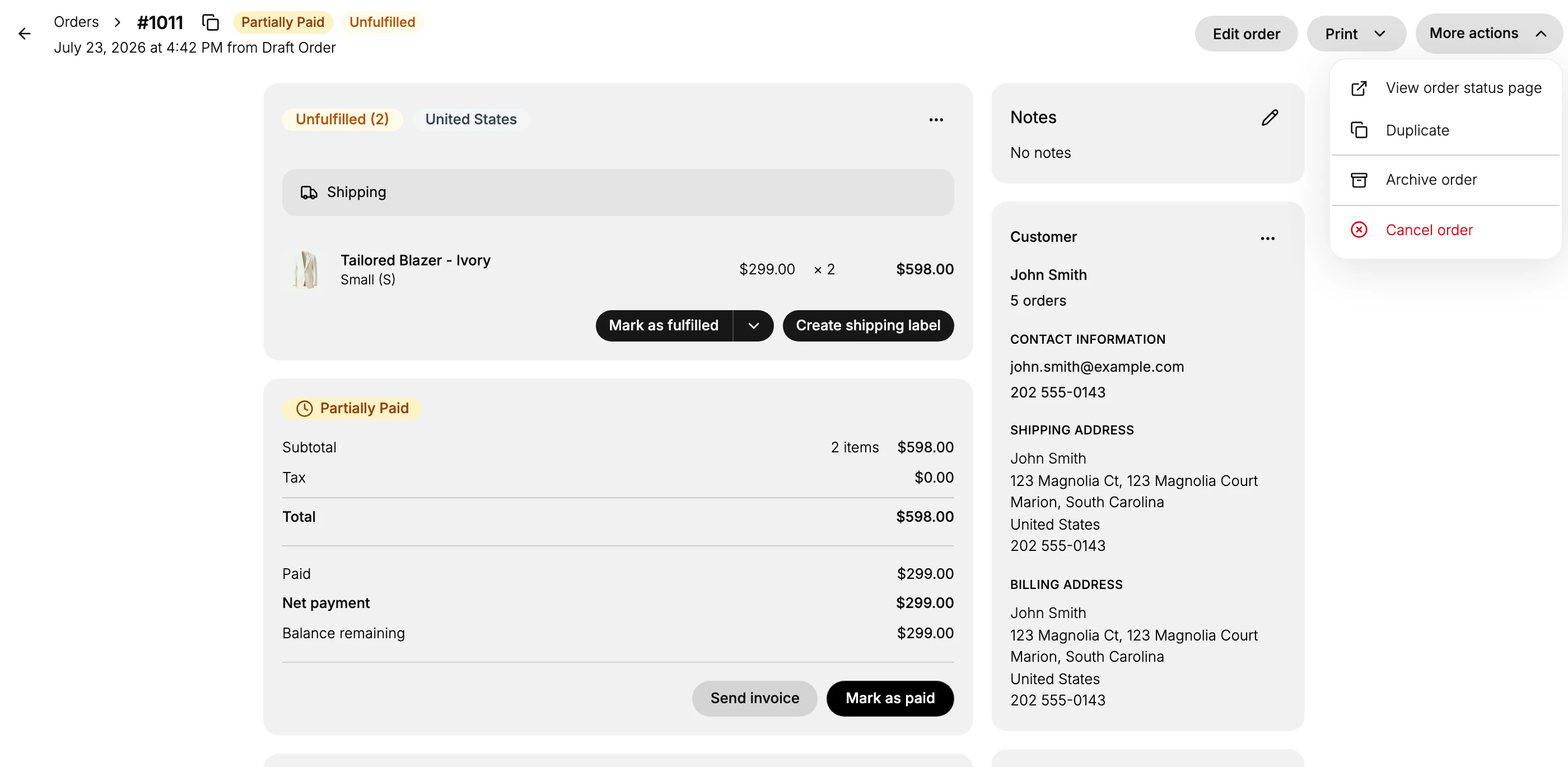
The main actions sit as their own buttons, with Print and More actions at the end of the row. The buttons that appear change with the order's state. An order you can still change shows Edit order; once an order is paid you can Refund it; and once it is fulfilled a Return button appears. Print and More actions are always there.
What Print holds
Print opens a small menu with two choices:
- Print order produces a printable summary of the order.
- Print packing slip produces the slip that goes inside the parcel. What it shows is set by a template you can edit in Customize Packing Slips.
What More actions holds
More actions is the overflow menu for the less-common operations, kept off the main row so it stays uncluttered. On this active order it holds:
- View order status page opens the status page the customer sees for the order.
- Duplicate starts a new order from a copy of this one.
- Archive order moves the order out of your active list into the archive without deleting it, so you can tidy finished orders away and still find them later.
- Cancel order cancels the order. It is shown in red because it stops the order rather than editing it.
The exact items depend on the order's state. On an order that is already archived, this menu shows Unarchive order to bring it back to the active list, and Delete order (in red) to remove it for good, in place of Archive order and Cancel order.
Best practices
- Look under More actions for anything not on the main row, since the less-common operations live there rather than as their own button.
- Use Print order for a summary and Print packing slip for the parcel, since they produce different documents.
- Archive to tidy, cancel or delete with care. Archive order just moves an order out of your active list and keeps it, whereas Cancel order stops the order, and Delete order (on an already archived order) removes it for good and cannot be undone.
Common mistakes
- Not finding an action because it is under More actions rather than being a button on the row.
- Confusing Duplicate with editing the order. Duplicate makes a separate new order, while Edit order changes this one.
- Canceling or deleting an order when you only meant to archive it. Archive keeps the order and moves it out of the active list, while Cancel stops it and Delete (on an archived order) cannot be undone.
Next steps
Related articles
Still stuck?
- Ask Tanqory AIAsk in your own words. It answers from these articles and links the ones it used.
- Ask in your adminThe assistant in your Tanqory admin answers and makes the change for you once you confirm.
- Contact TanqoryWrite to our privacy, security or legal teams, or talk to sales about a plan or a move.