Edit an Order
Editing an order lets you change what is on it after it was placed: add a product or a custom item, change an item's quantity, or add a shipping fee. You make the changes on the Edit page, write a reason for your records, and then Update order to apply them, with a Summary showing what changed before you commit. This article walks through the Edit page and its controls.
On this page
Editing an order lets you change what is on it after it was placed, such as adding a product, adding a one-off custom item, changing an item's quantity, or adding a shipping fee. You make the changes on the order's Edit page, note why you made them, and then apply them with Update order. A Summary shows what has changed before you commit. This article walks through the Edit page and its controls.
You open it with Edit order on the order, reached from Orders > Overview.
The Edit page
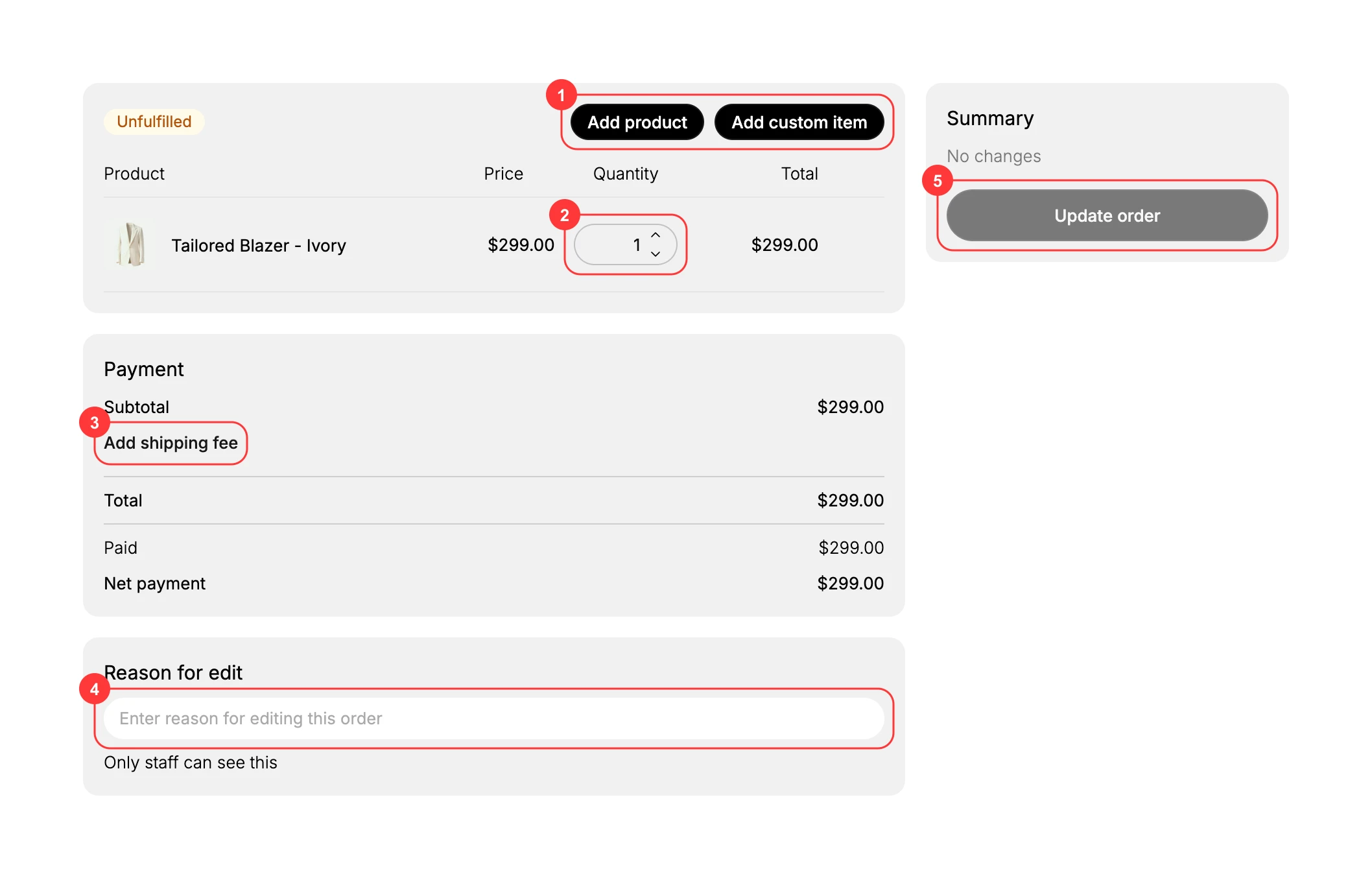
The page shows the order's items with an editable quantity, buttons to add more items, a Payment card where you can add a shipping fee, a Reason for edit box, and a Summary with the Update order button. The Summary reads No changes until you make one, and Update order stays inactive until then.
Before you begin
- Your role includes Edit orders.
- Open Orders > Overview and open the order, then select Edit order.
Steps
1. Open the Edit page
On the order, select Edit order. The Edit page opens with the order's items, the Payment card, a Reason for edit box, and a Summary.
2. Add or change items
Use Add product to add a catalog item or Add custom item to add a one-off charge that is not in your catalog (1). To change how many of a line the order has, use the Quantity stepper on that line (2). The line and order totals update as you go.
3. Add a shipping fee if needed
In the Payment card, select Add shipping fee (3) to add a shipping charge to the order.
4. Enter a reason for the edit
Type why you are changing the order in the Reason for edit box (4). As the note says, only staff can see this, so it is for your own records.
5. Review the Summary and update the order
Check the Summary, which shows what has changed and the effect on the total. When it is right, select Update order (5) to apply the changes to the order.
Best practices
- Write a clear reason for the edit, since it stays on your records and explains later why the order was changed.
- Check the Summary before you update, so you apply exactly the change you meant to.
- Use Add custom item for a one-off charge that is not a catalog product, rather than forcing it onto an existing line.
Common mistakes
- Updating without checking the Summary, and so changing the order or its total in a way you did not intend.
- Leaving the reason blank, which makes it harder to tell later why the order was edited.
- Editing an order that has already shipped, where a return is usually the better path than changing the order.
Next steps
Related articles
Still stuck?
- Ask Tanqory AIAsk in your own words. It answers from these articles and links the ones it used.
- Ask in your adminThe assistant in your Tanqory admin answers and makes the change for you once you confirm.
- Contact TanqoryWrite to our privacy, security or legal teams, or talk to sales about a plan or a move.