Refund an Order
Refunding an order returns money to the customer for the items you choose. On the Refund page you pick how many of each item to refund, write a reason for your own records, and set the refund method and the amount, up to the amount still available. Refunded items are removed from the order, and the refund is recorded on it. To change prices or quantities instead of returning money, edit the order rather than refunding it.
On this page
You open this page with Refund on the order, reached from Orders > Overview.
The Refund page
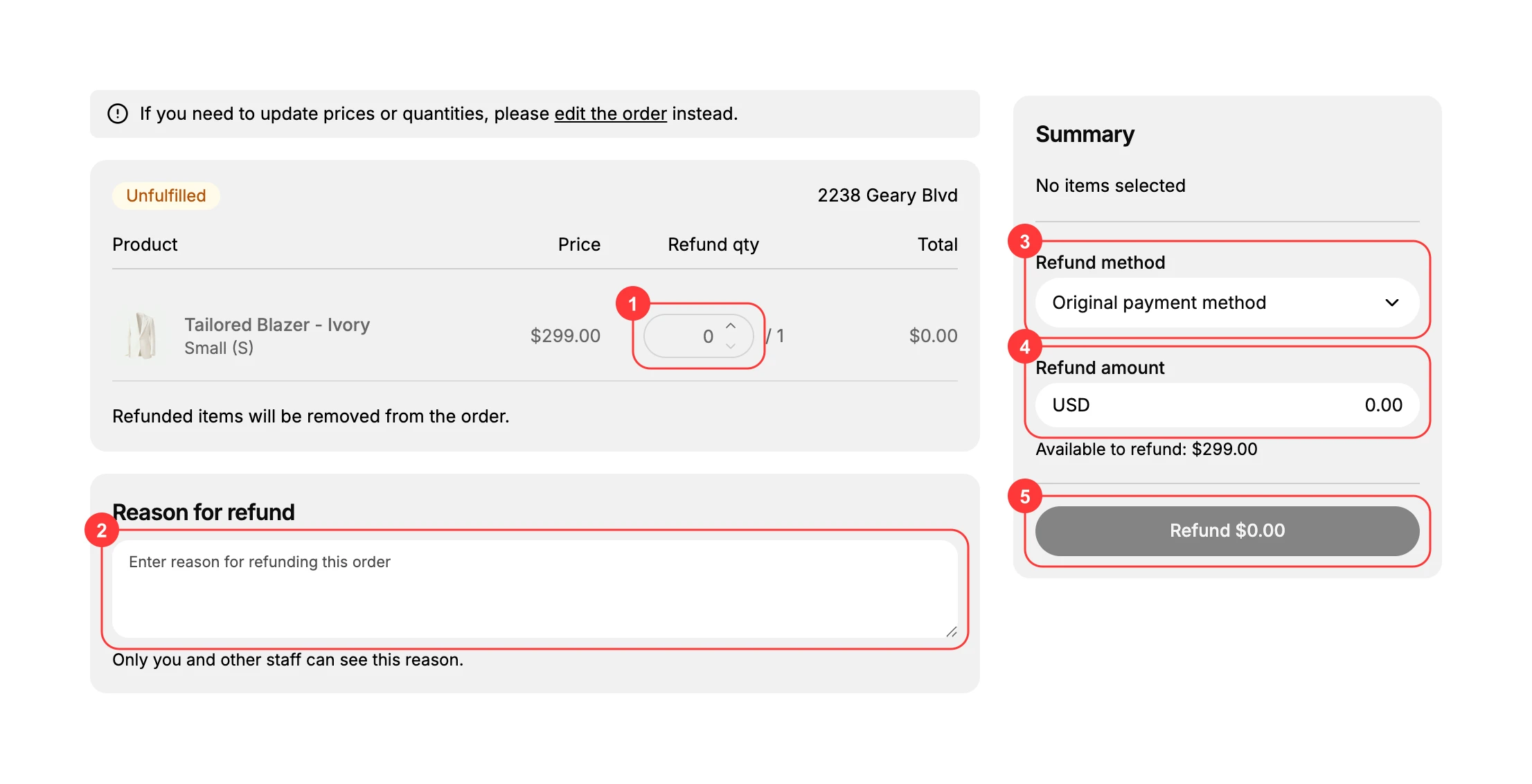
The page lists the order's items with a column to choose how many to refund, a box for the reason, and a Summary on the right where you set the method and amount and complete the refund. A note reminds you that refunding is for returning money, and that to change prices or quantities you should edit the order instead.
Before you begin
- Your role includes Edit orders.
- The order still has an amount available to refund.
- Open Orders > Overview and open the order, then select Refund.
Steps
1. Open the Refund page
On the order, select Refund. The Refund page opens with the order's items, a Reason for refund box, and a Summary.
2. Choose how many of each item to refund
Use the Refund qty stepper on each line to set how many of that item to refund, up to the quantity on the order (1). As you do, the item's refund total and the Summary update. Refunded items are removed from the order.
3. Enter a reason for the refund
Type why you are refunding in the Reason for refund box (2). As the note says, only you and other staff can see this reason, so it is for your own records rather than for the customer.
4. Check the refund method
The Refund method (3) in the Summary is set to Original payment method, which returns the money the way the customer paid. Leave it as it is unless you need a different method.
5. Set the refund amount
The Refund amount (4) shows the amount to return, in the order's currency. It is set from the items you chose, and you can adjust it up to the Available to refund figure shown below it. You cannot refund more than that amount.
6. Complete the refund
When the amount is right, select the Refund button (5), which shows the amount it will return. The button stays inactive until there is an amount to refund. Completing it returns the money and records the refund on the order.
Best practices
- Refund by item quantity where you can, so the amount is worked out from the actual items rather than typed by hand.
- Write a clear reason, since it stays on your records and helps you see later why the refund was made.
- Check the amount against Available to refund before you finish, so you return the right amount.
Common mistakes
- Refunding when you meant to edit the order. Refunding returns money and removes the items; to change prices or quantities, edit the order instead.
- Trying to refund more than is available, which the page does not allow, since the amount is capped at Available to refund.
- Leaving the reason blank, which makes it harder to tell later why the refund happened.
Next steps
Related articles
Still stuck?
- Ask Tanqory AIAsk in your own words. It answers from these articles and links the ones it used.
- Ask in your adminThe assistant in your Tanqory admin answers and makes the change for you once you confirm.
- Contact TanqoryWrite to our privacy, security or legal teams, or talk to sales about a plan or a move.