Restock a Return
When you process a return, you can restock the returned items back into inventory at a chosen location, review the refund due, and choose whether to issue the refund now or later.
On this page
Processing a return is where you receive the returned items and decide what happens to them and to the customer's money. On the Process return page you can restock the returned items back into your inventory at a location you choose, review the refund due, and choose whether to issue the refund now or later. Restocking keeps your stock counts accurate when returned items are sellable again. You open it by selecting Process return on an in-progress return, a state Return In Progress Status describes.
Note: Clearing Restock items at means the returned item is not put back into stock. Leave it checked only for items you can sell again, and clear it for damaged ones.
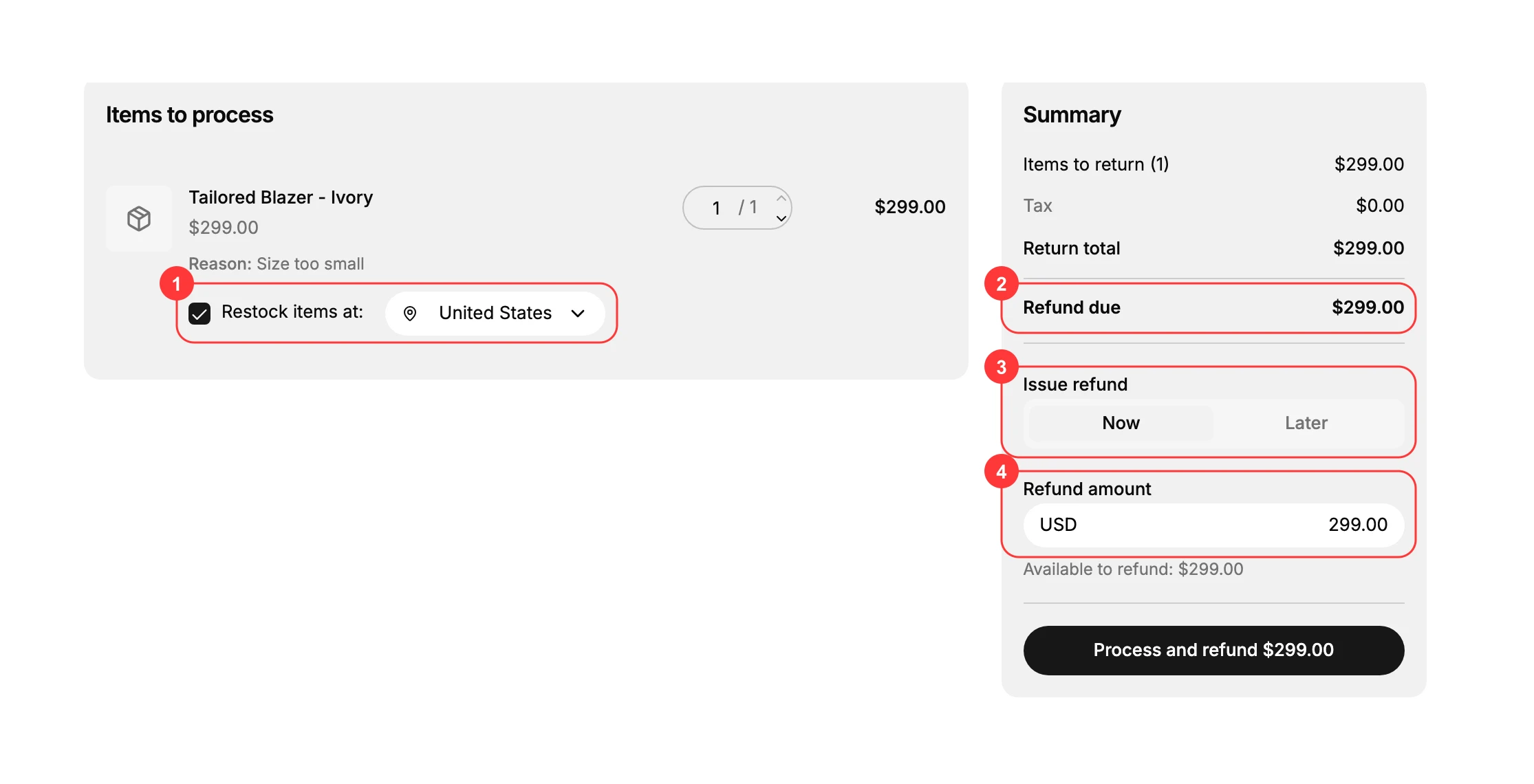
What's on the Process return page
| Element | What it does |
|---|---|
| Items to process | The returned items, with the quantity to process and the return reason |
| Restock items at | A checkbox and location to put the returned items back into inventory |
| Refund due | The amount owed back to the customer for the return |
| Issue refund: Now or Later | Whether to refund with this processing or refund later |
| Refund amount | The amount to refund, up to the amount available |
Before you begin
- Decide before you start whether the item is fit to sell again, since restocking puts it back into available inventory.
- Your role includes Manage returns and exchanges.
- The return is In Progress, so it can be processed.
- Open Orders > Overview in the admin sidebar and open the order with the return, then select Return.
Steps
1. Open the Process return page
On the order's in-progress return, select Process return. The Process return page opens with the returned items under Items to process and a Summary on the right.
2. Choose whether to restock
Each returned item has a Restock items at checkbox and a location (1). Leave it checked to put the returned items back into your inventory at the chosen location when the item is sellable again, or clear it for items you will not resell, such as damaged ones. Restocking keeps your stock counts right, so only restock what you can sell.
3. Review the refund due
The Summary shows the Return total and the Refund due (2) to the customer, along with the amount available to refund. Confirm the refund due matches what the customer should get back for the returned items before you go further.
4. Choose to refund now or later
Under Issue refund (3), choose Now to refund as you process the return, or Later to process the return now and refund separately. Set the Refund amount (4) if it needs adjusting, up to the amount available. Then finish with the button at the foot of the summary, which reads Process and refund followed by the figure, so the amount is on the button itself. Because refunding returns real money to the customer, read that figure before you press it.
Processing closes this stage. The items you restocked are back in stock at the location you chose, the refund is recorded against the order if you chose Now, and the return leaves the In Progress state on the order. If you chose Later, the money is still to be sent, and Issue a Refund is where you do that.
Best practices
- Restock only sellable items. Keep Restock items at checked for items you can sell again, and clear it for damaged or unsellable ones.
- Restock at the right location. Choose the location where the item physically returns so your stock counts match reality.
- Check the refund due first. Confirm the amount owed back is correct before processing.
- Use Later when you inspect first. If you want to check the items before refunding, process now and choose to refund later.
If something goes wrong
- Inventory is off after a return. Check whether Restock items at was set correctly; unchecking it means the item was not returned to stock.
- The refund is not what you expect. Review the returned items and the refund amount, which is capped at the amount available to refund.
- You cannot process the return. Your role may not allow managing orders and returns. Ask an owner or admin.
Next steps
Related articles
Still stuck?
- Ask Tanqory AIAsk in your own words. It answers from these articles and links the ones it used.
- Ask in your adminThe assistant in your Tanqory admin answers and makes the change for you once you confirm.
- Contact TanqoryWrite to our privacy, security or legal teams, or talk to sales about a plan or a move.