Adjusting Inventory Quantities
Recording a stock change that no order caused, as a plus or a minus with the reason attached. Which of the five quantities is yours to change, and why the reason you pick is what makes the history worth keeping.
On this page
An adjustment is any stock change that a customer order did not cause. A delivery arrives, a box is dropped, a cycle count finds nine where the system says eleven. Orders move stock on their own; everything else is you, telling the store what happened.
There are two ways to say it. You can enter the change, plus two or minus three, with a reason attached, which is what this article covers. Or you can type the new total and let it replace what was there, which records the correction but not the cause, and is covered in Update On-Hand Quantities.
Before you begin
- The product has Track quantity turned on. Without it, there is no quantity to adjust.
- You know the product, the amount of the change, and the reason for it.
- On a store with more than one location, you know which location the change belongs to.
- Your role includes Edit products.
- Open Products and open Inventory.
Which of the five numbers to change
| State | What it means |
|---|---|
| On hand | Total units physically at the location |
| Available | Units ready to sell, not committed or held back |
| Committed | Units already promised to placed orders awaiting fulfillment |
| Unavailable | Units present but not for sale (damaged, held for review, safety stock) |
| Incoming | Units in transit on a transfer or purchase order, not yet received |
On hand = Unavailable + Committed + Available, and On hand is the one you change. It is the count of what is in the building, which is the only thing a delivery or a breakage actually alters. Available follows from it automatically.
The other two look tempting when a number seems wrong, and neither is yours to set. Committed is written by the orders you have taken, and Incoming by transfers and purchase orders that have not landed yet. Editing either treats the symptom and leaves the cause running.
The reason is the point of doing it this way
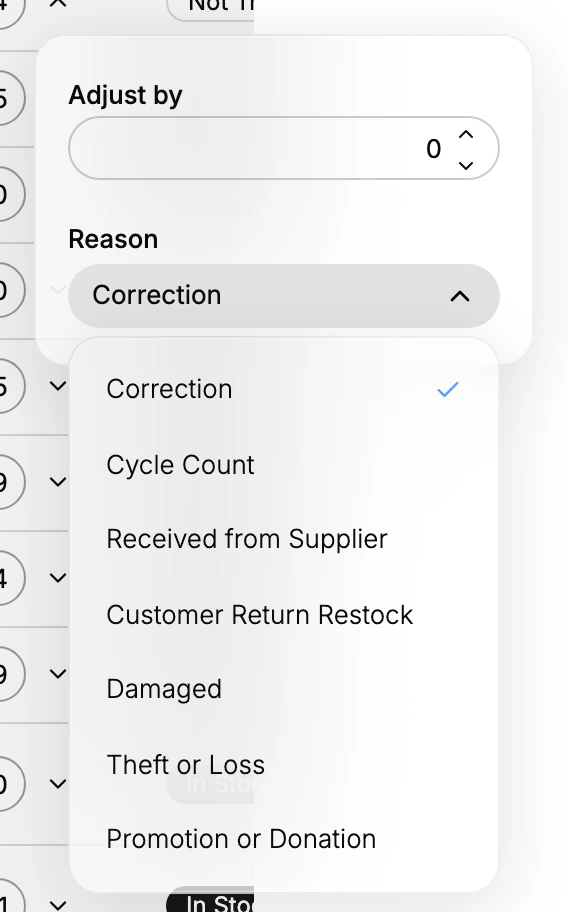
Tanqory offers a fixed set of reasons, and the reason is stored with the change.
| Reason | When to use |
|---|---|
| Correction | A count or system error you are fixing |
| Cycle Count | A scheduled physical count revealed a difference |
| Received from Supplier | A delivery or purchase order arrived |
| Customer Return Restock | Returned goods put back into sellable stock |
| Damaged | Items broken or unsellable |
| Theft or Loss | Stock missing through theft or shrinkage |
| Promotion or Donation | Items given away for a promotion or donation |
Picking the one that actually happened costs a second and is what makes the history worth reading. Three months of Damaged on the same product is a supplier or packaging problem you can go and solve. The same three months recorded as Correction is just noise, and the pattern is invisible.
Steps
1. Open the Inventory page
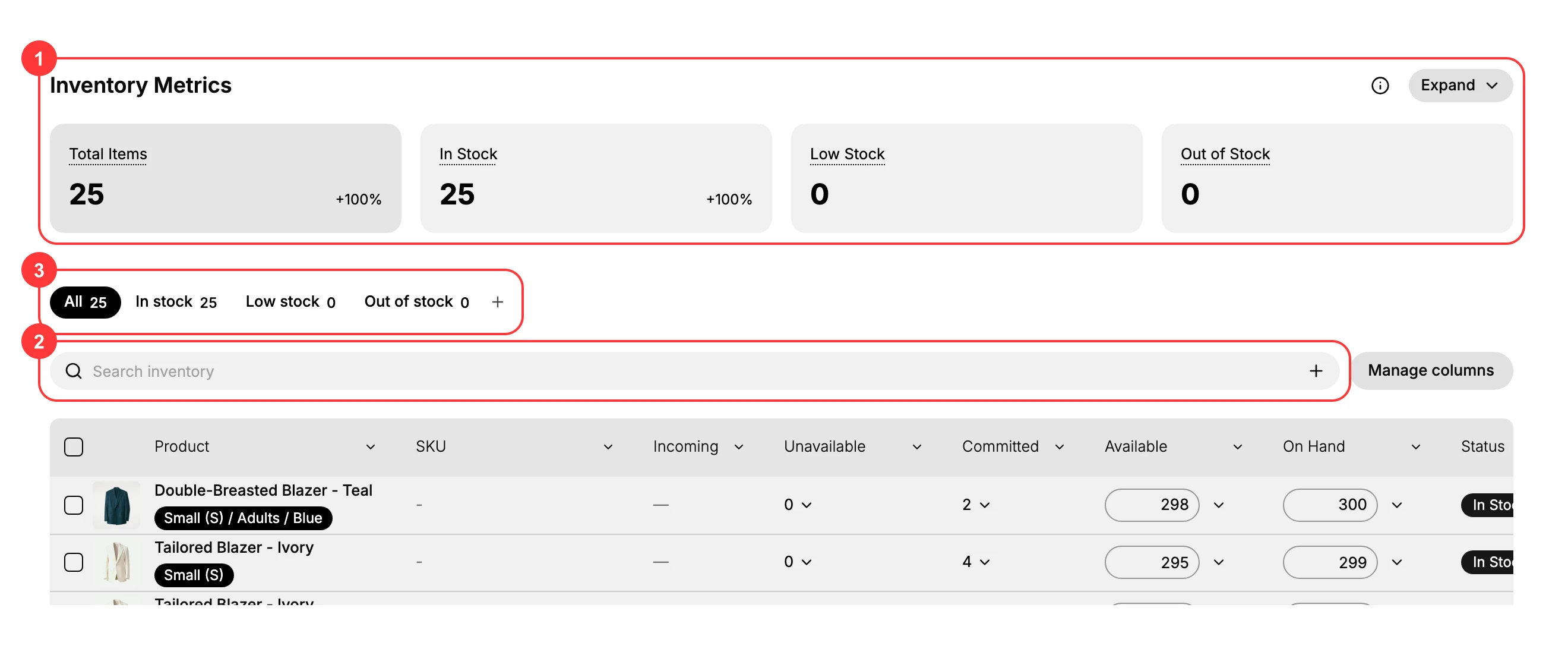
Go to Products > Inventory. The Inventory Metrics cards (1) summarize Total Items, In Stock, Low Stock, and Out of Stock. Use the search box (2) to find a product by name or SKU, or the status filter tabs (3) to narrow the list to In stock, Low stock, or Out of stock.
2. Read the row before you change it
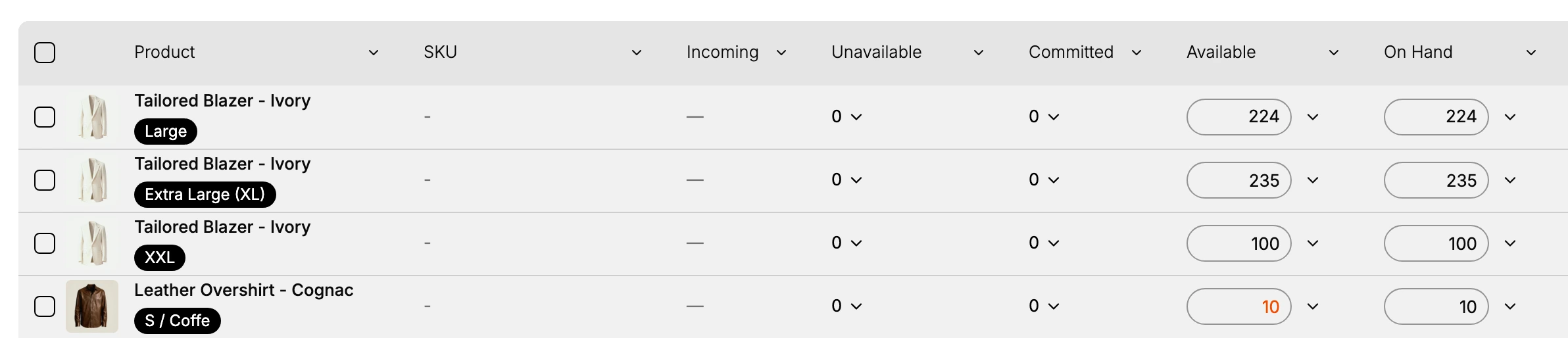
Each row lays the states out side by side, Unavailable, Committed, Available and On Hand, so you can see where the stock actually sits. Read it first: a product that looks short is often fully stocked with most of it committed to orders, and that is not a case for an adjustment at all.
3. Open the adjust control
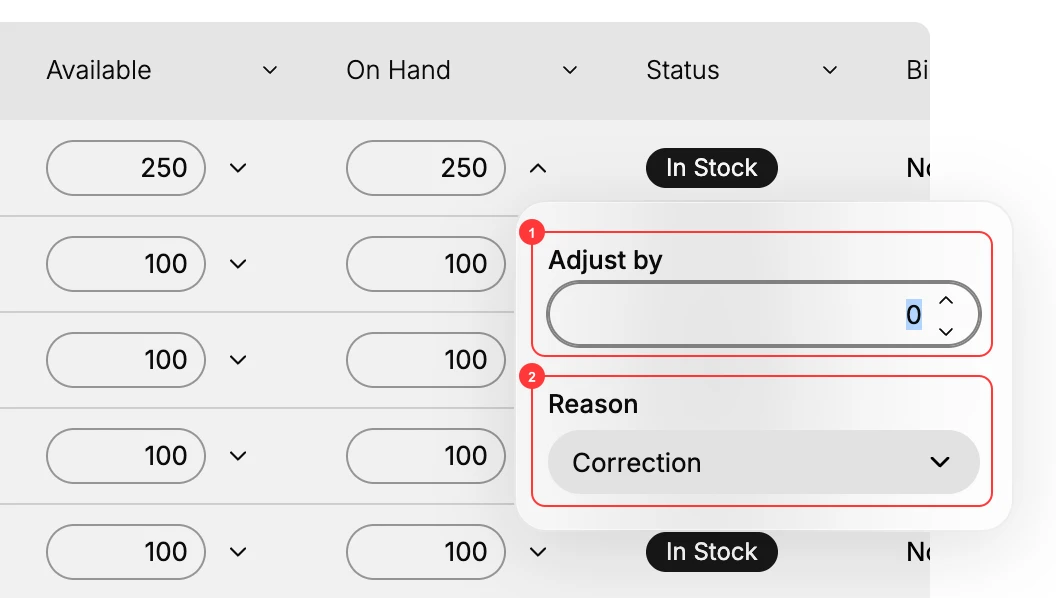
On the row you want, open the menu on the On Hand value. The Adjust by panel appears, with the Adjust by field (1) and the Reason menu (2).
4. Enter the change, not the total
In Adjust by, enter the size of the change: a positive number when stock goes up, such as a delivery, and a negative number when it goes down, such as damage or loss. This is the difference between the two ways of correcting stock, so it is worth being deliberate about. Three units broken is minus three, not the number that is left.
Then open Reason and choose what happened. On Hand updates as soon as the change is applied.
5. Or make the change from the product
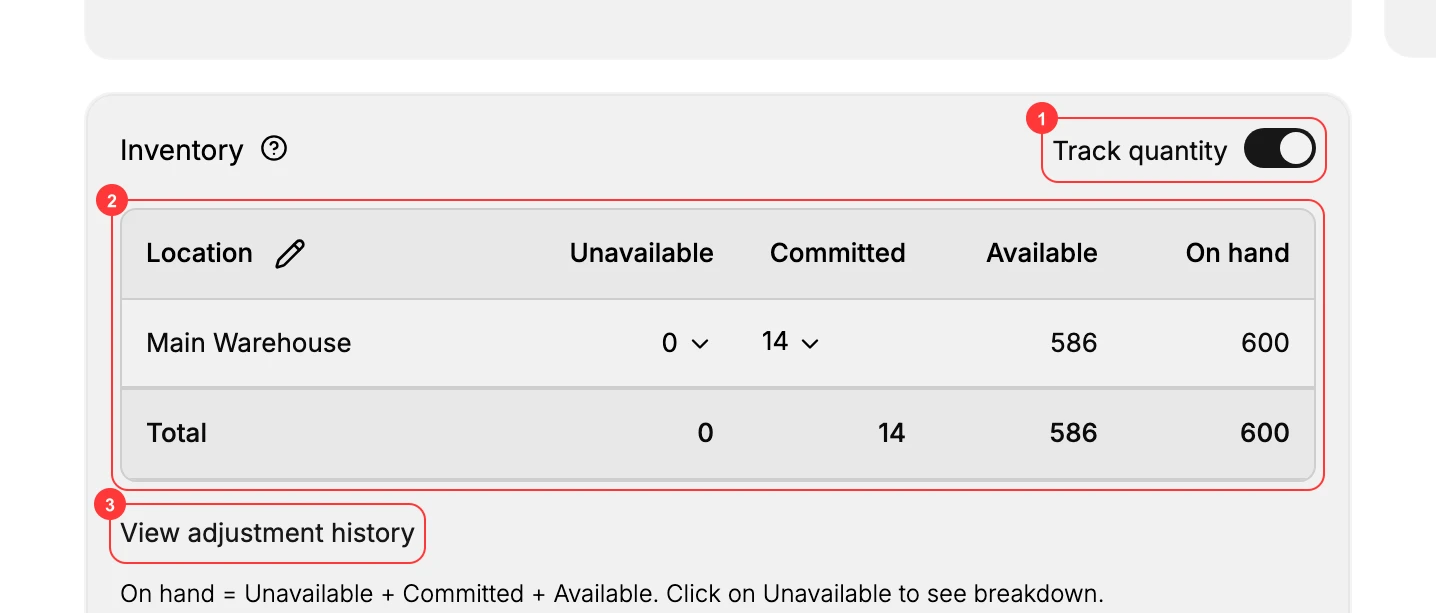
The same adjustment can be made from the product itself, which is the more natural place when you are already editing it. Open the product and find the Inventory section. Track quantity (1) must be on for the stock to be editable, the location table (2) shows the same states per location, and View adjustment history (3) opens the full log for that product.
6. Check that it recorded what you meant
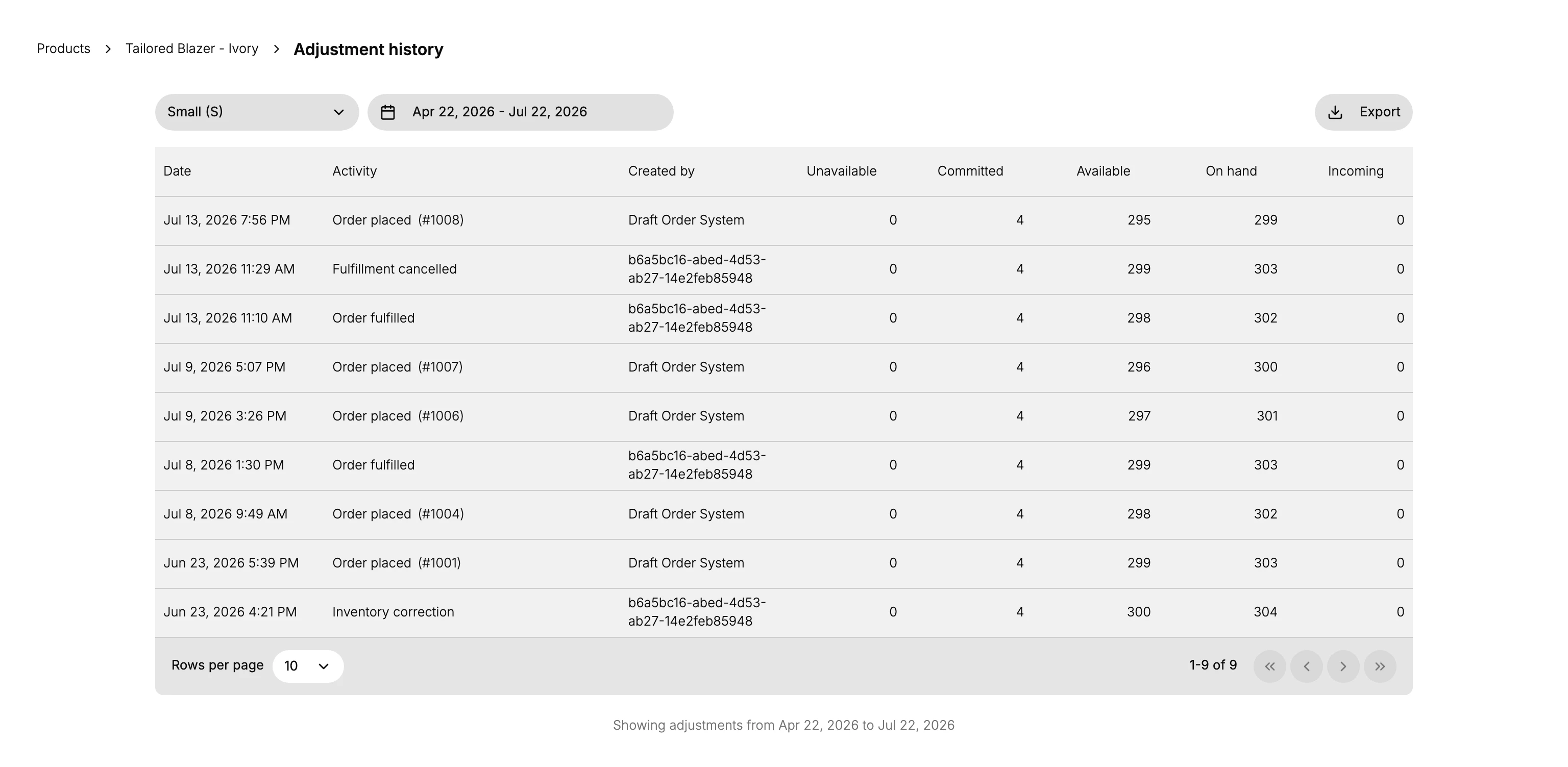
Open View adjustment history. The newest entry should carry your change, with the Activity naming the event, Created by naming you, and the resulting stock figures beside it. Export downloads the log.
This is the step worth not skipping on an adjustment that mattered, because it is where a wrong reason or a change applied to the wrong location becomes obvious while you still remember what you did.
Counting on a schedule
Adjustments are how a store stays honest, and they work best on a rhythm rather than in response to a surprise. Cycle counts on a regular schedule catch drift while it is still small, and high-value products earn a shorter interval than the rest, since the same percentage of drift costs more.
When the count covers a whole shelf or a whole location, a file is the better tool than one row at a time. See Bulk Adjust Inventory.
Verify the result
- The On Hand figure on the Inventory page matches the new count.
- The adjustment history shows a new entry with your reason and your account.
- The Inventory Metrics cards update to reflect the change.
Best practices
- Pick the reason that matches the event. The history is only as useful as the reasons in it.
- Record a cycle count as a Cycle Count, so a scheduled difference reads differently from a one-off correction.
- Count high-value products more often than the rest.
- Adjust at the correct location. A change on the wrong location creates two errors instead of fixing one.
- Adjust On hand for real stock movements, and leave Committed and Incoming to update from orders and transfers on their own.
Common mistakes
- Changing the count without choosing the reason that fits, which hides the cause when you review it later.
- Adjusting the wrong location.
- Editing On hand to cover an incoming delivery before it has been received as a transfer or purchase order.
- Never opening the adjustment history, so a recurring loss goes unnoticed.
If something goes wrong
- The change will not save. Confirm your role can manage inventory.
- The count is wrong after the change. Open the adjustment history, find the entry, and make a correcting adjustment rather than typing over the number.
- Two people adjusted the same product at once. Tanqory keeps the last change, so agree who adjusts what before a count rather than after.
- The product has no quantity to change. Turn on Track quantity in the product first.
- A delivery has not shown up in stock. Do not adjust it in by hand if it belongs to a purchase order or transfer. Receive it, and the count moves with a record of where it came from.
Next steps
Related articles
Still stuck?
- Ask Tanqory AIAsk in your own words. It answers from these articles and links the ones it used.
- Ask in your adminThe assistant in your Tanqory admin answers and makes the change for you once you confirm.
- Contact TanqoryWrite to our privacy, security or legal teams, or talk to sales about a plan or a move.