Import Inventory
Setting stock levels for many products at once from a CSV. The three columns the file must have, why a row whose SKU does not match is skipped without stopping the import, and how to catch that before you trust the result.
On this page
An import sets quantities from a file. It is the fastest way to load stock after a migration, apply the results of a stocktake, or update a large number of products without opening any of them, and it is the point in the round trip where the store actually changes.
The word to hold on to is sets. A quantity in the file replaces the quantity in the store for that SKU at that location. Nothing is added to what is there, so a file built by hand from what you counted must be complete for the products it names.
What the file has to be
There is no column mapping step. The importer expects one exact shape, and a file that does not match it is not corrected for you.
- The file must be in CSV format.
- It needs three columns: SKU, Quantity, and Location.
- Each SKU must match a product that already exists in your store.
That last rule is the one that decides how an import goes. Matching is by SKU, so a row whose SKU does not exist is not applied, and it fails quietly: the import does not stop, and the products that did match are updated. This is why a spreadsheet that has quietly reformatted your SKUs, dropping a leading zero or turning a code into a number, can leave you with an import that appears to run and changes almost nothing.
Download Template in the import dialog gives you a CSV with the columns already correct. Starting from an export is better still, since the SKUs come out of the store itself and are guaranteed to match on the way back.
Before you begin
- Your role includes Edit products.
- The products you are updating already exist, so their SKUs are in the store.
- Your CSV is ready, or you will start from the template.
- Open Products > Inventory in the admin sidebar, where Import sits in the page header.
Running the import
Select Import at the top right of the Inventory list.
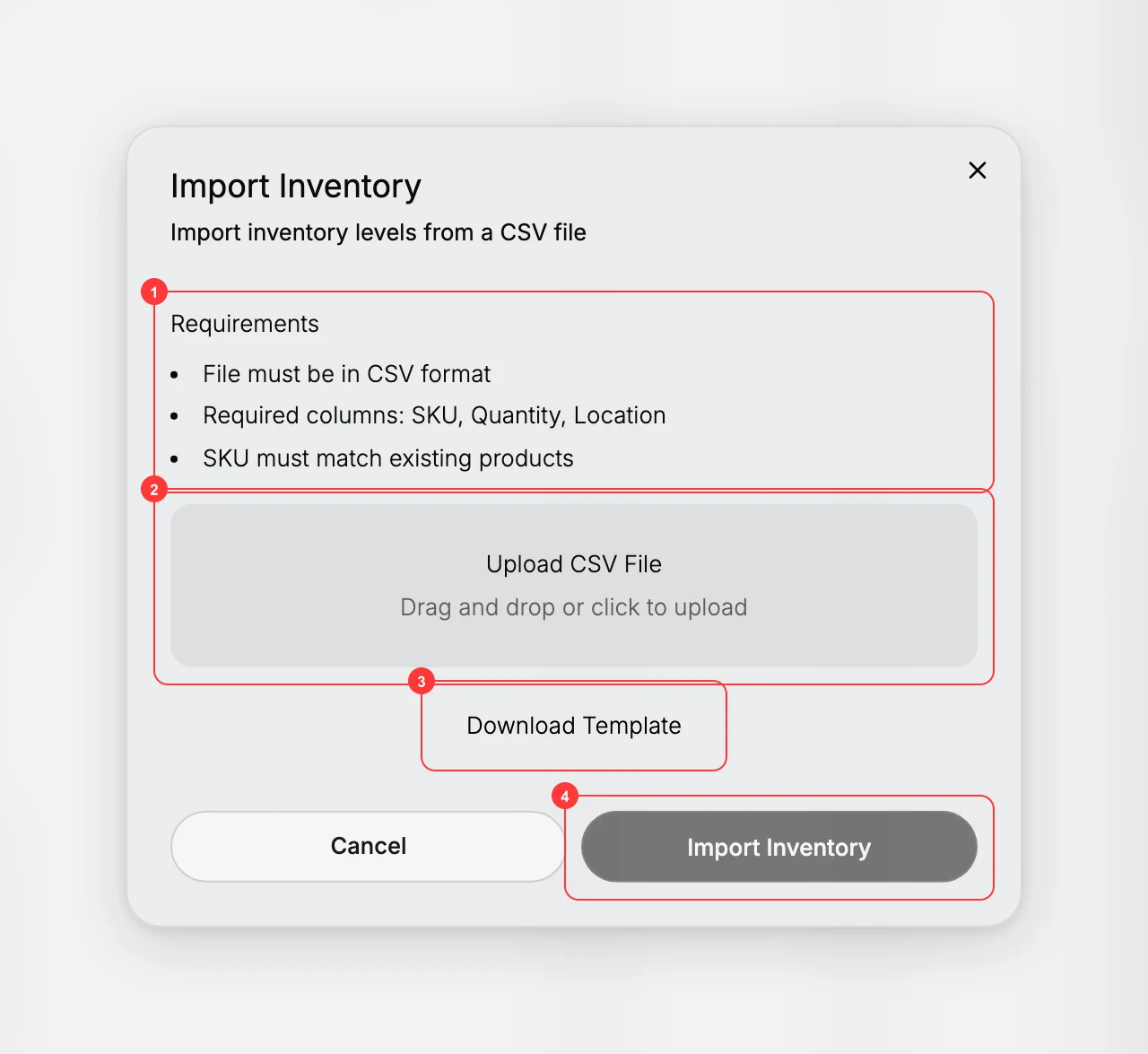
- Read the required columns. The dialog lists them (1), SKU, Quantity and Location, along with the rule that each SKU must match an existing product. Download Template (3) is here if you still need the blank file.
- Upload the file. Drop or select it in Upload CSV File (2).
- Apply it. Choose Import Inventory (4). The quantities in the file are written to the matching SKUs at the location each row names.
- Check the result before you trust it. Back on the Inventory page, open a few of the products you changed and compare them against your file. Also look at the Inventory Metrics cards, since a large import that has silently matched nothing leaves them exactly where they were.
Test with a small file before running a large one. A handful of rows tells you whether your SKUs match and whether your spreadsheet has been helpful with the formatting, and it costs one minute against an import that touches your whole catalog.
Verify the result
- The products in your file show the imported quantities on the Inventory page.
- Rows for SKUs that did not match a product are not updated.
- The totals on the Inventory Metrics cards reflect the change.
Best practices
- Start from Download Template so the column names match exactly.
- Test with a small file first, then run the full import once it looks right.
- Match each SKU exactly, since a SKU that does not match an existing product is skipped.
- Keep quantities as whole numbers, and set the Location to the name of the location you are updating.
Common mistakes
- Renaming or reordering the columns. The import expects SKU, Quantity, and Location.
- Using a SKU that does not exist in the store, which leaves that row unchanged.
- Opening the CSV in a spreadsheet that reformats SKUs, such as dropping leading zeros.
If something goes wrong
- A row did not take. Its SKU does not match a product in the store. Compare it against a fresh export, which is the store's own spelling of that SKU.
- Nothing changed at all. Check the column names are exactly SKU, Quantity and Location, and that they have not been renamed or reordered.
- The quantity landed at the wrong place. The Location column names the location, so check it matches the location you meant.
- The numbers are wrong rather than missing. Quantity replaces the count rather than adding to it. Correct the file and import again, or fix individual products from Update On-Hand Quantities.
Next steps
Related articles
Still stuck?
- Ask Tanqory AIAsk in your own words. It answers from these articles and links the ones it used.
- Ask in your adminThe assistant in your Tanqory admin answers and makes the change for you once you confirm.
- Contact TanqoryWrite to our privacy, security or legal teams, or talk to sales about a plan or a move.