Export Inventory
A CSV snapshot of your stock, taken without changing anything. What the four choices in the Export dialog put in the file, and why the format you pick decides whether your SKUs survive the trip through a spreadsheet.
On this page
An export is a snapshot of your stock as a CSV. Nothing in the store changes when you take one, which makes it the one inventory operation you can run as often as you like: before a count, before a bulk change, or any time you want a record of where the numbers stood.
It is also the first half of a round trip. The file you download is the file you edit and bring back, and because the import matches rows by SKU, exporting first is what guarantees those SKUs are exactly right. See Bulk Adjust Inventory for that whole workflow.
Before you begin
- You have the Import and export products permission.
- You know what the file is for, since that decides the four choices below.
- Open Products > Inventory in the admin sidebar, where Export sits in the page header.
Four choices decide what lands in the file
Click Export on the Inventory list to open the Export inventory dialog.
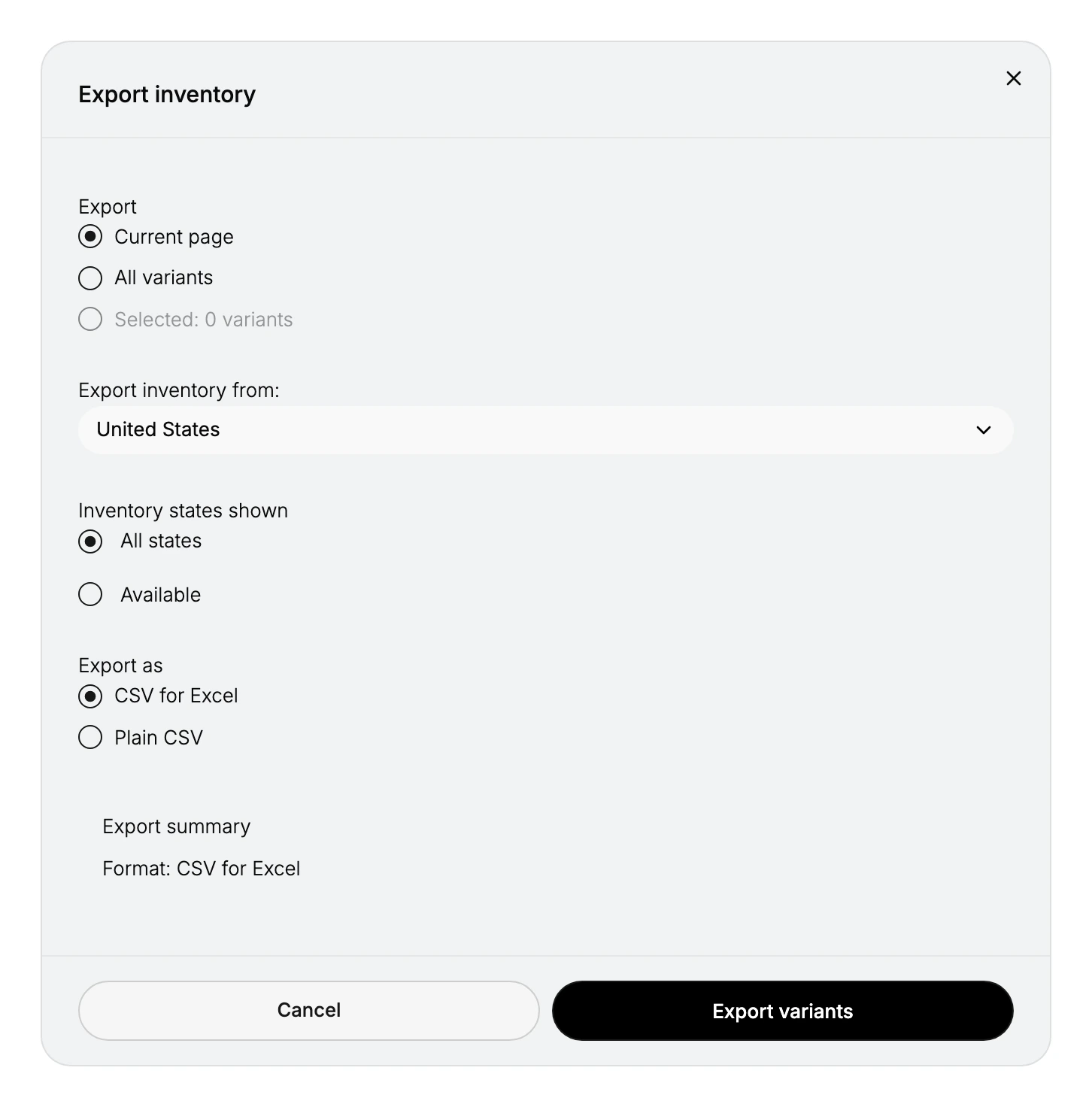
| Choice | Options | What it does |
|---|---|---|
| Export | Current page, All variants, or Selected variants | Sets how many rows go in the file. Select rows in the list first to use Selected. |
| Export inventory from | A location (for example Main Warehouse) | Limits the file to one location's counts. |
| Inventory states shown | All states, or Available | Includes every quantity column, or just the Available figure. |
| Export as | CSV for Excel, or Plain CSV | CSV for Excel is formatted to open cleanly in Excel; Plain CSV is a standard file for other tools. |
Two of these are worth deciding rather than accepting.
Scope is set before you open the dialog as much as inside it. Filtering the list to Low stock, or ticking the rows you want, is what makes Selected variants mean anything; choose it with nothing selected and you have scoped the export to nothing.
Export as decides whether your SKUs survive. Excel will happily read a plain CSV and reformat what it finds, turning a code with leading zeros into a smaller number and a code that looks like a date into one. CSV for Excel exists to stop that. Pick it whenever the file is going into Excel, because the damage happens silently on open and the file you later import will no longer match anything.
Then click Export variants, and the file downloads.
Choosing the scope to match the job
- A cycle count wants a baseline of the shelf you are about to count, so limit it to that location and take it before anyone starts counting.
- Reconciling against another system usually wants All states, since Committed and Unavailable are exactly what explains a difference the other system cannot see.
- A quick check on a handful of products is what Current page and Selected variants are for.
Exporting Available alone is the choice people regret most often. It is the smallest file and the least informative one: it tells you what is sellable without telling you why, so the moment a number looks wrong you have to export again.
Verify the result
- The downloaded file opens and lists the variants in your chosen scope.
- The counts match what the Inventory page shows for that location.
Best practices
- Choose CSV for Excel if you will open the file in Excel, so codes like SKUs are not reformatted.
- Export before a cycle count so you have a baseline to compare the physical count against.
- Limit to one location when you are reconciling a single warehouse, to keep the file focused.
Common mistakes
- Opening a Plain CSV in Excel and saving it, which can turn SKUs or barcodes into numbers or dates. Use CSV for Excel instead.
- Exporting Available only when you needed every state, then missing Committed or On hand in the file.
- Forgetting to select rows before choosing Selected variants, so nothing is scoped.
If something goes wrong
- The file has more or fewer rows than expected. Check the Export scope you picked (Current page, All variants, or Selected).
- A column you wanted is missing. Re-export with Inventory states shown set to All states.
- The counts disagree with the admin. Check the location you exported from against the location selected at the top of the Inventory list. Both are per location, and they do not have to match.
- Permission denied. Your role lacks the Import and export products permission.
Next steps
Related articles
Still stuck?
- Ask Tanqory AIAsk in your own words. It answers from these articles and links the ones it used.
- Ask in your adminThe assistant in your Tanqory admin answers and makes the change for you once you confirm.
- Contact TanqoryWrite to our privacy, security or legal teams, or talk to sales about a plan or a move.