Inventory History
Every change to a tracked quantity leaves a row here, with its cause, its author and the counts it produced. How to read it when a number does not make sense, and why the correction is made somewhere else.
On this page
Every change to a tracked quantity leaves a line behind. The inventory history is that record, one row per change, showing when it happened, what caused it, who was responsible, and the quantities the product was left with afterwards.
It is the screen you open when a number does not make sense. A count that reads lower than you expect has a reason, and the reason is almost always here: an order took units, someone corrected a miscount, a transfer arrived. The history is kept per variant, so each size or color of a product has its own.
You reach it from the product itself. Open the product, scroll to the Inventory section, and click View adjustment history, which opens the history on its own page.
What each entry shows
| Column | What it shows |
|---|---|
| Date | When the change happened, with the time |
| Activity | What caused the change, for example an order being placed. When the change comes from an order, the order number is shown |
| Created by | Who or what made the change, for example a staff member or the system |
| Unavailable, Committed, Available, On hand, Incoming | The quantities right after the change, so you can see how each event moved the numbers |
Manual adjustments, transfers and received purchase orders all land here alongside orders, each with its own Activity and Created by, so the history is the one place where every source of movement appears together.
Before you begin
- You have the View products permission.
- The product tracks its quantity. An untracked product has no counts to record, so it has no history to read.
- Open Products in the admin sidebar and open the product whose history you want to read.
Reading the history
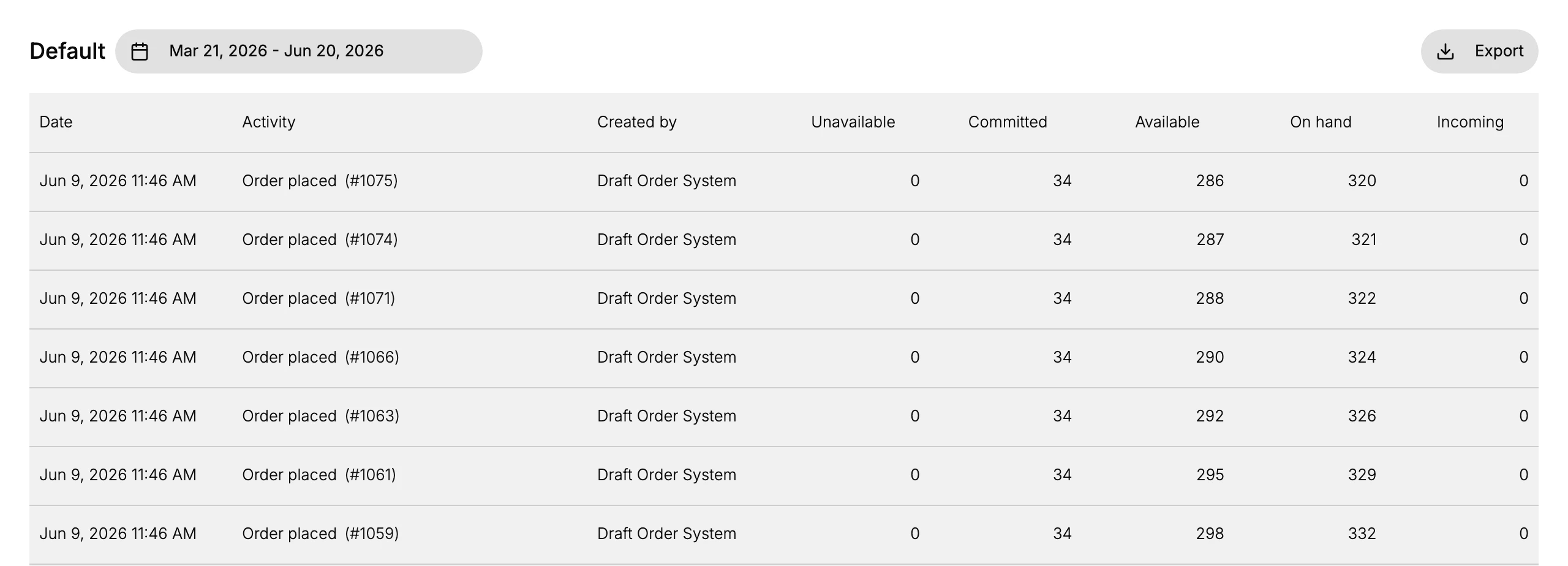
Entries are listed newest first, so the top row is the most recent thing that happened to this variant. Read a row across rather than down: the left of the row tells you what happened, and the right tells you what the product was left holding.
To find out why a count moved, start at the top and read down until the quantity columns show the number you expected. The row where it changed is the event that caused it, and its Activity names the cause.
To find out who is responsible, read Created by on that row. A staff member's name means a person made the change by hand; the system means it followed from something else, such as an order being placed.
To follow a single number over time, read one quantity column downwards. Watching Committed and Available together is the clearest way to see orders arriving, since each order moves units from one to the other without changing On hand at all.
A date range at the top limits the entries to a period, which is worth setting on a product that moves often, and Export downloads the list when you want a copy to reconcile against your own records or to send to someone.
What the history cannot do
Nothing on this page changes a quantity. It is a record, not a control, which is what makes it trustworthy: the entries are written by the events themselves rather than by anyone editing the page.
So when the history shows you a count that should not be there, the fix is made elsewhere. Correct the number from the product or the inventory list, as Update On-Hand Quantities describes, and the correction then appears here as its own entry, with your name against it and a reason if you gave one.
That is also the argument for correcting counts properly rather than quietly. A hand-edited number with no note is the one line in this history that cannot explain itself later.
Verify the result
- The newest change is at the top, with its Date, Activity, and Created by.
- The On hand value on each row matches the count after that change.
- An order you placed appears as an entry with its order number.
Best practices
- Check the history before you correct a count, and read down to the entry where the number changed. The explanation is usually already there.
- Note the Created by to see whether a person or the system made the change, since the two are fixed in different ways.
- Export the history when you reconcile stock against your own records.
Common mistakes
- Assuming a count is wrong before opening the history, where the change is usually explained.
- Overlooking order entries, which move Committed and Available as orders come in without touching On hand.
- Reading the wrong variant's history, since each size or color keeps its own.
If something goes wrong
- A change you made is not listed. Check you are viewing the right variant. History is per variant, so a change to the medium is not on the small.
- An order does not appear. Orders are recorded against the variant that was bought, and only once the order is placed.
- A count still looks wrong. Find the entry that moved it, then correct it from Update On-Hand Quantities. The correction appears here as its own entry.
- The page will not open. Your role lacks the View products permission.
Next steps
Related articles
Still stuck?
- Ask Tanqory AIAsk in your own words. It answers from these articles and links the ones it used.
- Ask in your adminThe assistant in your Tanqory admin answers and makes the change for you once you confirm.
- Contact TanqoryWrite to our privacy, security or legal teams, or talk to sales about a plan or a move.