Manage Inventory
The stock for every SKU in the catalog on one screen. What each quantity column means, why Available moves on its own, and which numbers are yours to correct rather than to read.
On this page
The Inventory page is the whole catalog's stock on one screen, a row per SKU rather than a product at a time. It is where you look when the question is about numbers rather than about a particular product: what is running out, what is on its way, what does not match the shelf.
Managing inventory is less a task than a habit. The counts drift on their own as orders are placed, returns come back and deliveries land, and this page is where the drift becomes visible.
Before you begin
- You have the Edit products permission.
- Your products have variants with SKUs, and inventory tracking is on. A product without tracking has no counts to show here.
- Open Products and open Inventory.
The columns, and the arithmetic between them
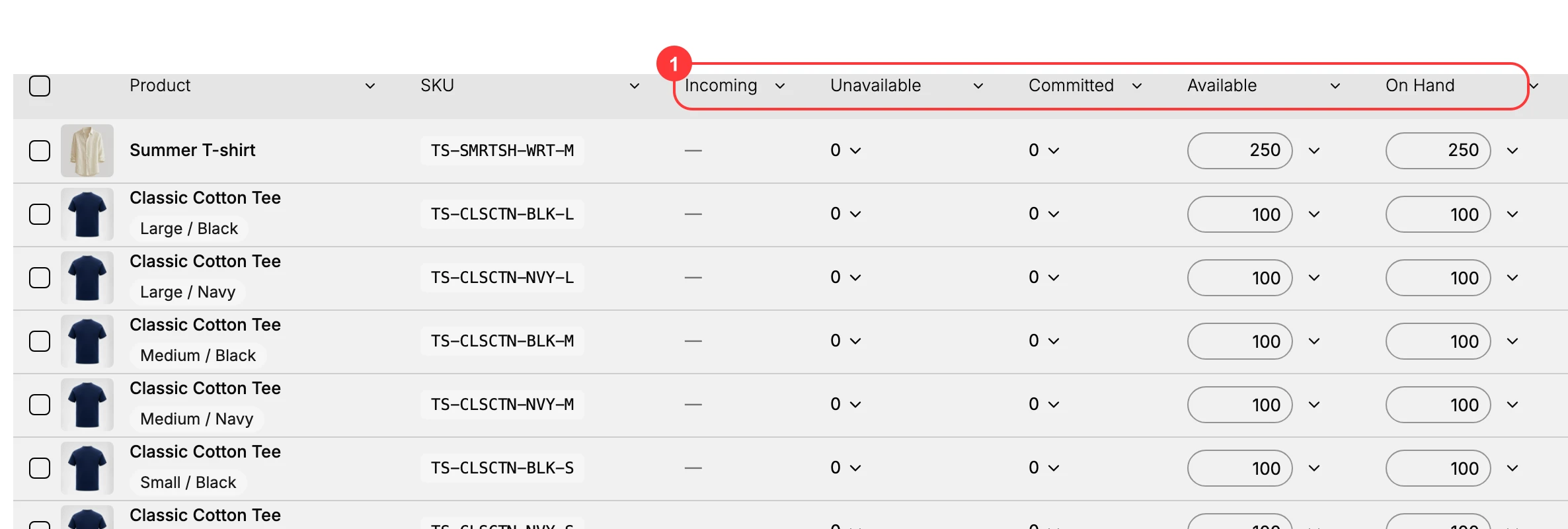
Five numbers describe every SKU, and only one of them is what you can actually sell. Available is what is left once Committed and Unavailable are taken out of On hand, which is why it moves without anyone touching it: an order is placed, units become committed, and Available falls while On hand stays exactly where it was.
| Column | What it shows |
|---|---|
| On hand | The units physically at your location |
| Available | The units you can sell right now |
| Committed | The units in placed orders that are not yet fulfilled |
| Unavailable | The units on hand that are not for sale, for example reserved or damaged stock |
| Incoming | The units expected from transfers or purchase orders |
| SKU | The stock keeping unit code that identifies the variant |
| Status | In stock, Low stock, or Out of stock |
Two of these earn their keep by being used deliberately. Put stock you are holding back into Unavailable rather than leaving it in the sellable pool, and read Incoming before you reorder, since it is the record of what is already on its way and the reason not to buy the same thing twice.
The cards at the top
Total Items, In Stock, Low Stock and Out of Stock summarize the catalog without your having to open a single product. Total Items counts what is tracked; the other three split it by stock status.
They are a glance rather than a tool. The pair worth reading every time is Low Stock next to Out of Stock, because the first is a list you can still act on and the second is a list of sales you have already lost.
Working the list
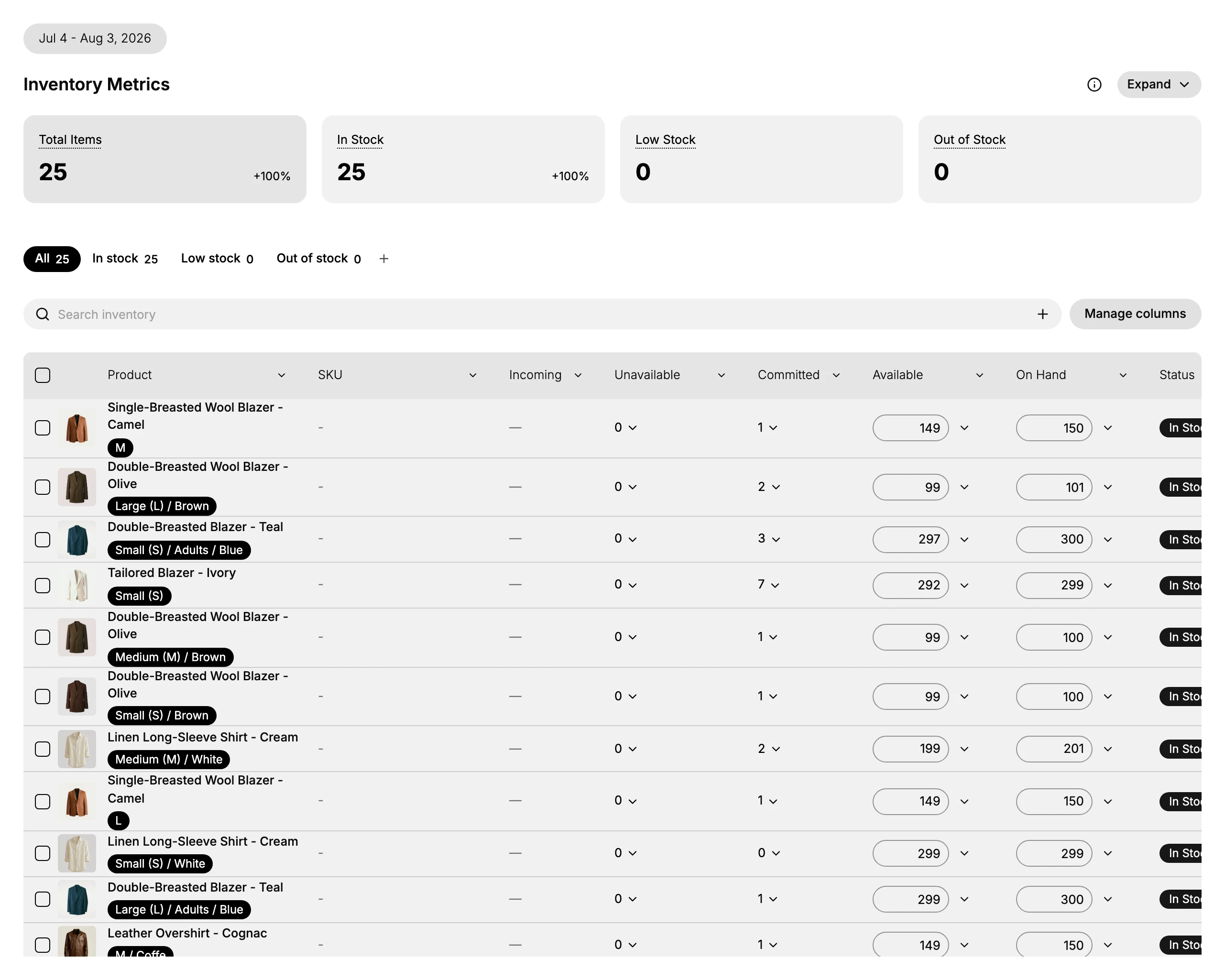
- Narrow before you change anything. The All, In stock, Low stock and Out of stock tabs filter the list, Search inventory finds a product or SKU by name or code, and Manage columns decides which quantity columns are shown. Editing the right row is much easier on a short list.
- Adjust a count in place. Quantities can be edited directly in the row. Update On-Hand Quantities sets a precise On hand figure or corrects a count properly, and Bulk Adjust Inventory changes many at once.
- Bring stock in. Move units between your own locations with a Transfer, or order from a supplier with a Purchase Order. Both add to Incoming until they are received.
- Take a copy or make bulk changes. Import and Export move stock levels as a CSV, which is the practical route when the changes run to dozens of rows.
Correct counts at the source
When a number is wrong, the temptation is to type over it until the page agrees with the shelf. It is worth resisting for the two columns that are calculated rather than counted.
Available and Committed are results. Committed follows the orders you have taken, and Available follows from On hand once the other two are removed, so editing them treats a symptom. The change that belongs to you is On hand, and it should be made from a real count with a reason recorded against it.
When the number still does not make sense, Inventory History shows every change to that variant with its cause, which is usually faster than guessing.
Verify the result
- The On hand count matches your physical count after an adjustment.
- Available updates when Committed or Unavailable changes.
- Incoming reflects open transfers and purchase orders.
Best practices
- Count stock on a regular schedule and correct On hand from the real count.
- Act on Low Stock before items reach Out of Stock.
- Use Unavailable for stock you are holding back, so Available stays accurate.
- Check Inventory History when a number does not look right.
Common mistakes
- Editing Available directly when the real change is to On hand or Committed.
- Ignoring Incoming, then double-ordering stock that is already on the way.
- No low-stock follow-up, which leads to stockouts.
If something goes wrong
- A count looks wrong. Open Inventory History to see what changed.
- Available fell but nothing was sold. Check Committed, since a placed order reserves units before fulfillment.
- A SKU is missing. Confirm the variant has a SKU and that tracking is on.
- Permission denied. Your role lacks the Edit products permission.
Next steps
Related articles
Still stuck?
- Ask Tanqory AIAsk in your own words. It answers from these articles and links the ones it used.
- Ask in your adminThe assistant in your Tanqory admin answers and makes the change for you once you confirm.
- Contact TanqoryWrite to our privacy, security or legal teams, or talk to sales about a plan or a move.