Update On-Hand Quantities
Replacing a count with the total you actually counted, rather than working out the difference. The field is absolute, Available recalculates from it, and the one thing it cannot record is why the number moved.
On this page
Sometimes you do not know what changed, only what is there. You have counted the shelf and there are forty-two, and how it got from what the system says to forty-two is a question for another day. Typing the total is the answer to that situation: it replaces the figure rather than adjusting it, so you never have to work out the difference.
On hand is the whole physical count at a location, sellable stock and committed and unavailable units together. On hand = Unavailable + Committed + Available, and Available recalculates from whatever total you set.
When the total is the right thing to set
- A physical count or cycle count gives a different total from the system.
- A delivery arrives outside a purchase order.
- Damaged, expired or lost stock has to be written off.
In each of these you are stating a fact about the shelf. Where you know the movement instead, three broken, twelve received, entering it as a change with a reason keeps more of the story. See Adjusting Inventory Quantities.
Before you begin
- Your role includes Edit products.
- The product has Track quantity turned on.
- You have the new total in front of you, from the count or the delivery.
- Open Products > Inventory.
Steps
1. Find the product
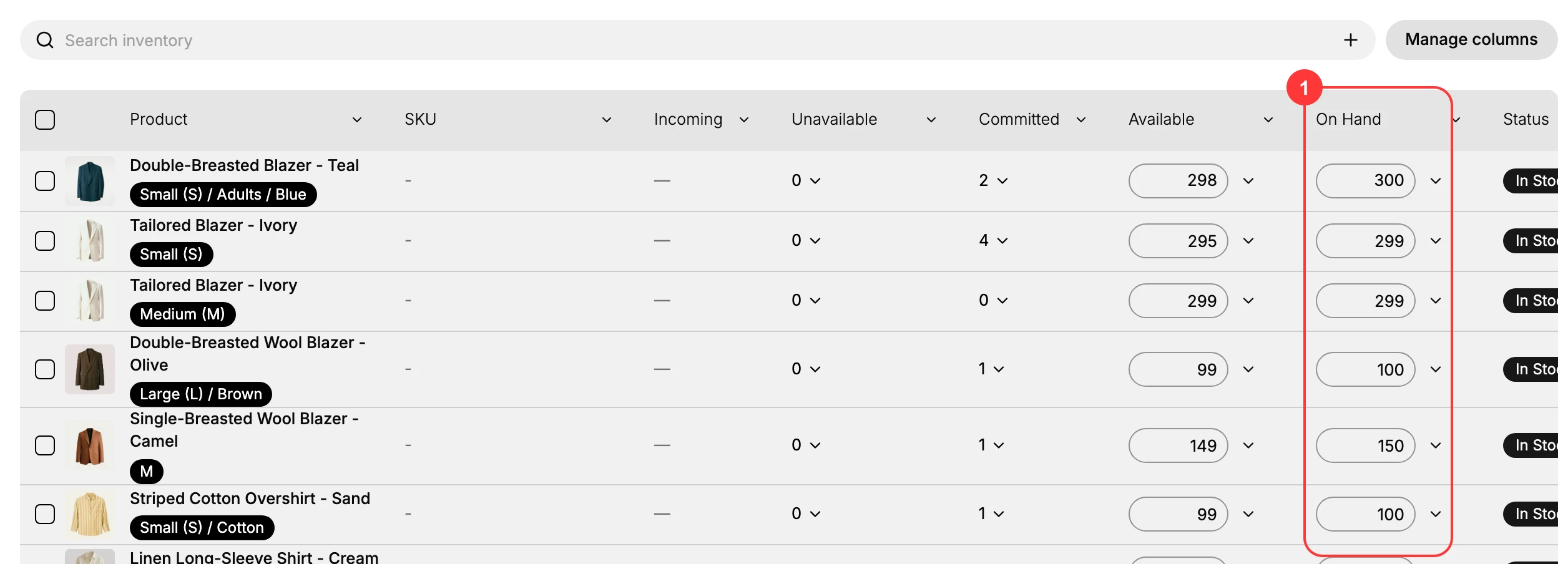
Open the Inventory list and find the product row. The On Hand column (1) shows the current total physical count for the location.
2. Type the new total
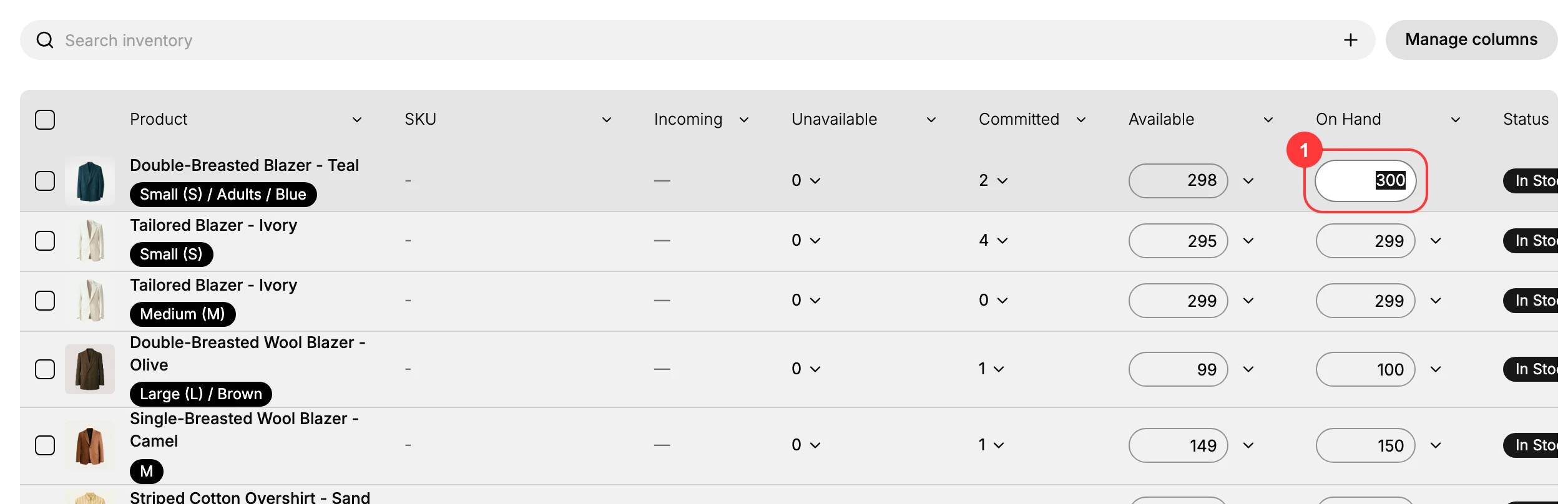
Click the On Hand value (1) and it becomes an editable field. Enter the total from your count.
This field is absolute. The number you type is the number the store will hold, so a count of forty-two is typed as 42, never as the difference between 42 and what was showing. Available recalculates from the new total as you type, which is a useful check: if it moves somewhere you did not expect, some of that stock is committed or held back.
3. Save it
A bar at the top reports unsaved changes. Read the new figure once more, then select Save (1). Discard throws the edit away if the number is wrong, and nothing has been written to the product until you save.

4. Confirm it landed
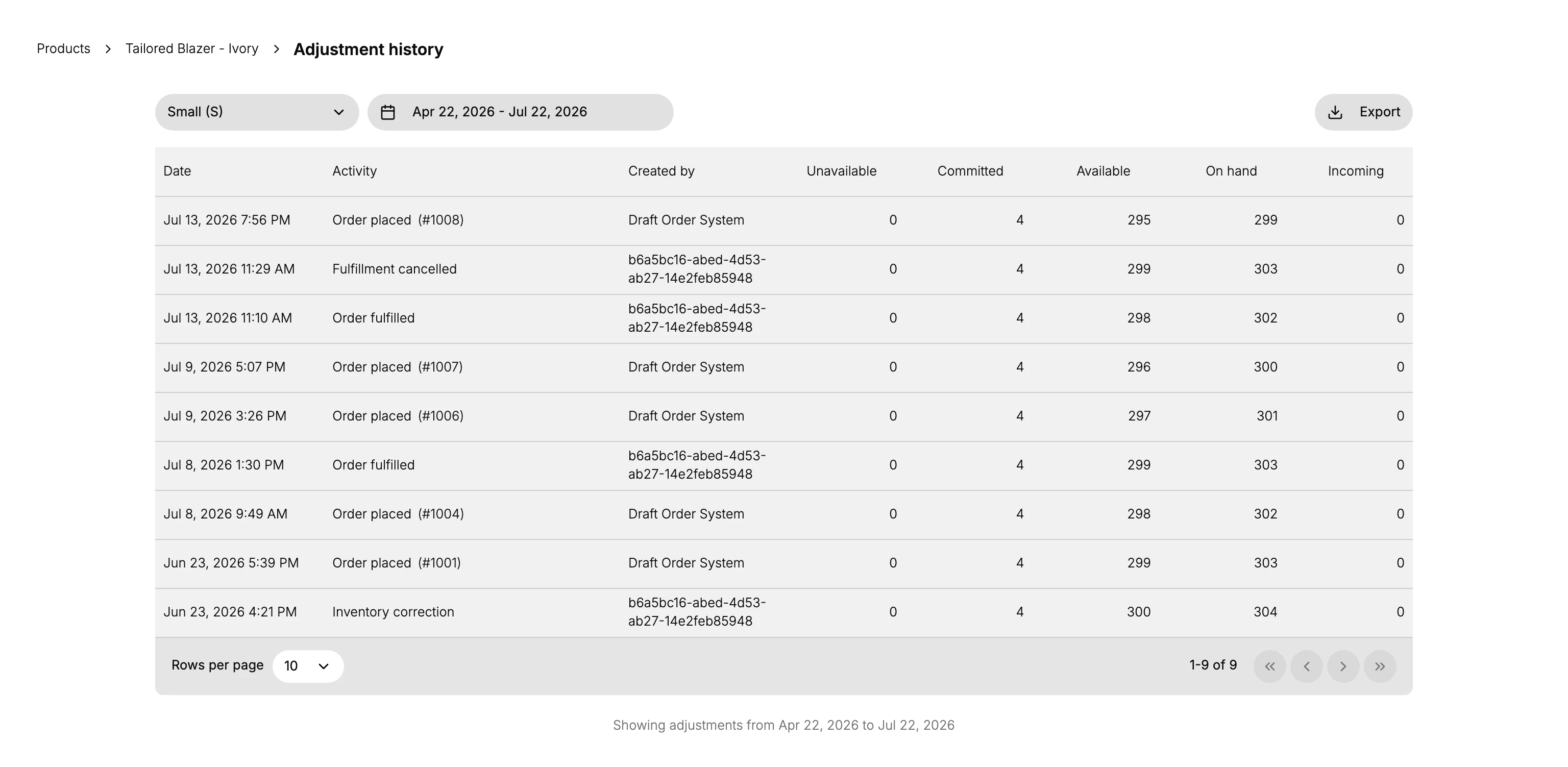
Open the product and select View adjustment history. The newest entry carries the date, the activity, your name under Created by, and the stock figures the change produced, so the count is traceable afterwards.
What typing a total does not record
Setting the value directly is saved as a general correction. The number is right afterwards, and the history can say only that somebody corrected it.
That is fine for a stocktake, where the count itself is the explanation. It is a loss anywhere the cause matters, and the causes that matter are the ones you would want to see a pattern in: Damaged, Theft or Loss, Received from Supplier. For those, open the menu on the On Hand value and use Adjust by with a reason instead, which Adjusting Inventory Quantities covers.
Verify the result
- The On Hand figure matches your new count.
- Available has recalculated from the new on-hand total.
- The adjustment history shows a new entry with your account.
Best practices
- Count and update high-value products more often than the rest.
- Run cycle counts on a regular schedule rather than only when something looks wrong.
- Update at the correct location so one count does not overwrite another.
- Use Adjust by with a reason when the cause matters for later analysis.
Common mistakes
- Typing a change amount into the field instead of the new total. The field sets on hand to an absolute number.
- Updating the wrong location.
- Editing on hand to cover a delivery that should be received as a purchase order or transfer.
If something goes wrong
- The count went somewhere unexpected. You may have typed the change rather than the total. The field sets an absolute number.
- Available did not move as much as you expected. Check Committed, since those units are already promised to orders.
- The wrong location changed. Correct both, then check the history to confirm which entries were yours.
- A delivery is still missing from stock. If it belongs to a purchase order or a transfer, receive it rather than typing it in, so the arrival is recorded as one.
Next steps
Related articles
Still stuck?
- Ask Tanqory AIAsk in your own words. It answers from these articles and links the ones it used.
- Ask in your adminThe assistant in your Tanqory admin answers and makes the change for you once you confirm.
- Contact TanqoryWrite to our privacy, security or legal teams, or talk to sales about a plan or a move.