Create an Inventory Transfer
Moving stock between two of your own locations, and why the in-transit state in the middle is the reason to use a transfer rather than editing both counts. A saved transfer is still a draft, and a draft moves nothing.
On this page
A transfer moves stock between two of your own locations, such as restocking a shop from the warehouse. Nothing is bought and nothing is sold; the same units end up somewhere more useful.
What makes a transfer worth using instead of editing both counts by hand is the middle. Between leaving the origin and arriving at the destination, the stock sits in a third state, in transit, belonging to neither location and countable by nobody. A transfer keeps that state honest. Two hand adjustments cannot, and they leave no record that the movement ever happened.
Because a transfer has two ends, it needs at least two locations. How many you can have depends on your plan. See Multi-Location Inventory.
Before you begin
- Your role includes Manage inventory transfers.
- You have at least two locations, an origin and a destination.
- The origin actually holds the stock you are about to move, since a transfer does not check the shelf for you.
- Open Products and open Transfers in the admin sidebar.
What a transfer carries
| Field | What it is |
|---|---|
| Origin location | The location the stock leaves from. |
| Destination location | The location the stock is going to. |
| Products and quantities | The items to move and how many of each, added with Search products to add. |
| Date | The expected date for the transfer. |
| Reference name | A label so you can find the transfer later. |
| Note | An internal note about the transfer. |
| Tags | Labels to group and filter transfers. |
The last three do no work in the system and are worth filling in anyway. A transfer is read weeks later by whoever is standing at the destination wondering what turned up, and a reference name that says what the movement was for answers that faster than any amount of digging.
Creating one
Go to Products > Transfers. The list shows your transfers under the All, Draft and In Transit tabs, with Create Transfer at the top, alongside Transfer Metrics, a Total Transfers over time chart and a Transfer Report. Click Create Transfer.
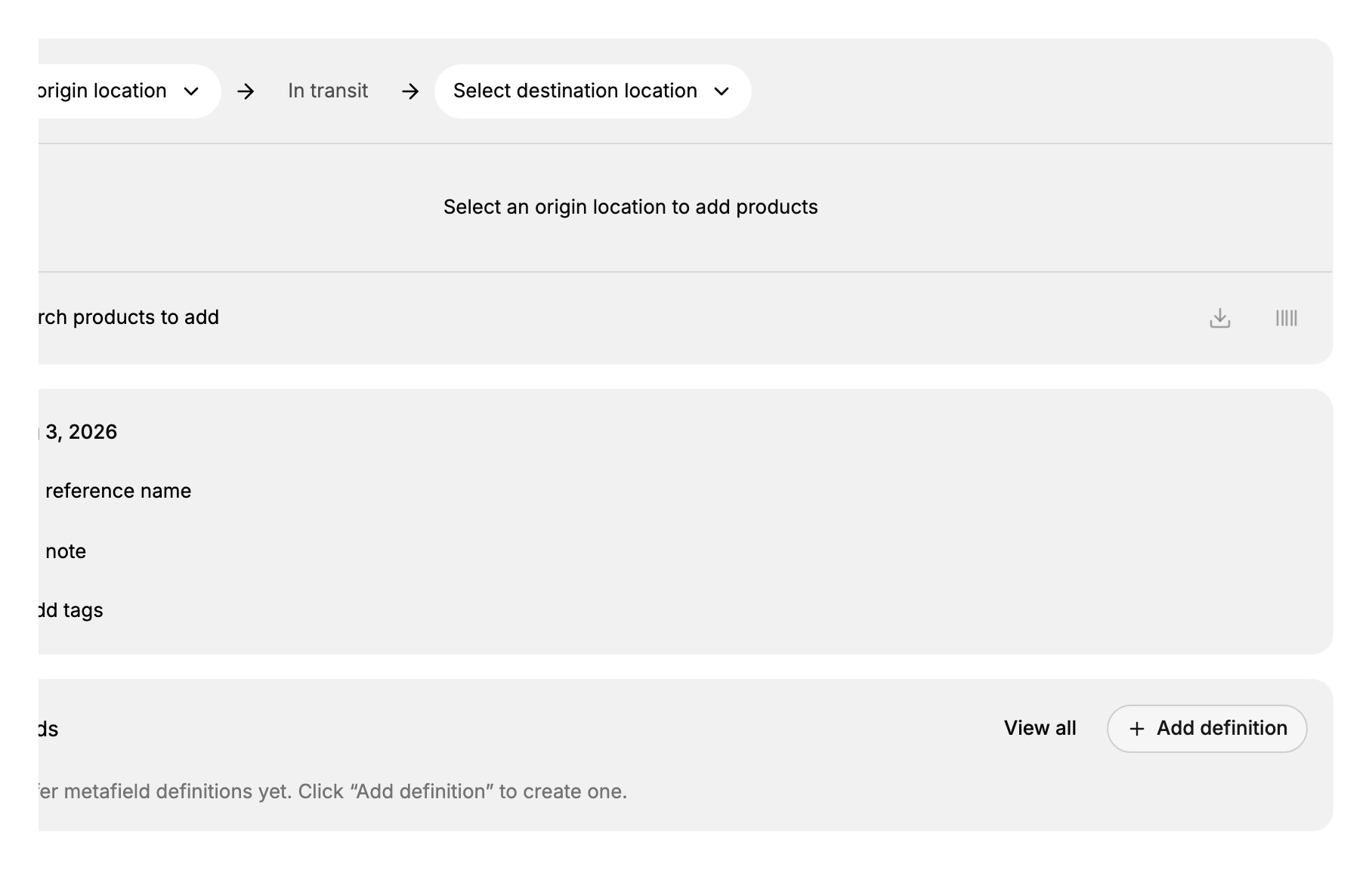
- Choose the origin, then the destination. Select origin location is where the stock leaves from and Select destination location is where it goes. Pick the origin first, because products are added from it. Getting these the wrong way round is the easiest mistake on this form and the hardest to spot afterwards, since the transfer looks perfectly normal, just pointed at the wrong building. If you cannot pick a destination at all, you have only one location.
- Add the products and quantities. Use Search products to add for each product, and set how many of each to move. These quantities are what leaves the origin and what the destination will expect.
- Add the date and the details. Set the transfer date, and use Add reference name, Add note and Add tags to make the transfer findable later. A tag such as a season or a restock run lets you filter a whole batch of related transfers together.
- Save. The transfer is created as a Draft, which you can still edit.
A draft moves nothing
Saving does not send. A transfer sits in Draft until it is moved on, and until then the stock has not left the origin and no count anywhere has changed.
This is the failure worth watching for, because a forgotten draft looks like completed work. The transfer exists, it is correct, and the shop is still waiting. Check the Draft tab as part of any restock run, and keep an eye on In Transit too, since stock in motion is stock nobody is counting.
The stock arrives when someone receives it
Once sent, the transfer is In Transit and its quantity is tracked separately from on-hand stock at either end. The destination's count only rises when someone there receives it, records how many actually turned up, and confirms.
That is deliberate: it means the difference between what was sent and what arrived is visible rather than assumed. The receiving end of the movement is described in Receive an Inventory Transfer.
Verify the result
- The transfer appears under the Draft or In Transit tab with its origin and destination.
- The products and quantities on the transfer match what you meant to move.
- After the destination receives it, that location's on-hand quantity goes up by the amount transferred.
Best practices
- Name the transfer with a clear reference, such as the purpose or date, so you can find it later.
- Check the origin has the stock before you send, so the transfer does not leave a location short.
- Add a note with why you are moving the stock, for the next person.
- Receive promptly at the destination so its on-hand count reflects reality.
- Watch the In Transit tab so stock in motion is not forgotten between locations.
- Use a tag for related transfers, such as a season or a restock run, so you can filter them together.
Common mistakes
- Swapping the origin and destination, which moves stock the wrong way.
- Transferring more than the origin holds, leaving that location short.
- Leaving a transfer in Draft and forgetting to send it, so the stock never moves.
If something goes wrong
- You cannot pick a destination. You may have only one location. A transfer needs a second location.
- The destination count did not change. Confirm the transfer was received, not just sent, at the destination.
- The origin is now short. Check the quantities on the transfer against what the origin actually held.
- Permission denied. Your role lacks the Manage inventory transfers permission.
Next steps
Related articles
Still stuck?
- Ask Tanqory AIAsk in your own words. It answers from these articles and links the ones it used.
- Ask in your adminThe assistant in your Tanqory admin answers and makes the change for you once you confirm.
- Contact TanqoryWrite to our privacy, security or legal teams, or talk to sales about a plan or a move.