Track Quantity
The switch that decides whether a product has a stock count at all. What appears when you turn it on, why the storefront sells against Available rather than On hand, and why the starting figure has to be the real one.
On this page
Track quantity is the switch that decides whether a product has a stock count at all. With it on, Tanqory counts units per location, the storefront sells against the Available figure, and every order takes the count down. With it off, the product is always available, and no number anywhere records how many you have left.
That makes it the first decision about any product, not a refinement. Nearly everything else in this category, low stock, transfers, purchase orders, history, only exists for products where this switch is on.
Which products need it
| Product | Track quantity? |
|---|---|
| Physical goods you ship | Yes, so stock stays accurate. |
| Digital downloads | No, the stock is unlimited. |
| Made-to-order or pre-order | Yes, and turn on Sell when out of stock. |
| Services and subscriptions | No. |
The rule underneath the table is whether running out is possible. A download cannot run out and needs no count; anything that comes off a shelf can, and an uncounted physical product will keep taking orders long after the last one has shipped.
Before you begin
- You have the Edit products permission.
- You have a location to hold the stock, and you know the count that is actually on the shelf today.
- Open Products in the admin sidebar, open the product, and find the Inventory section on its page.
Turning it on
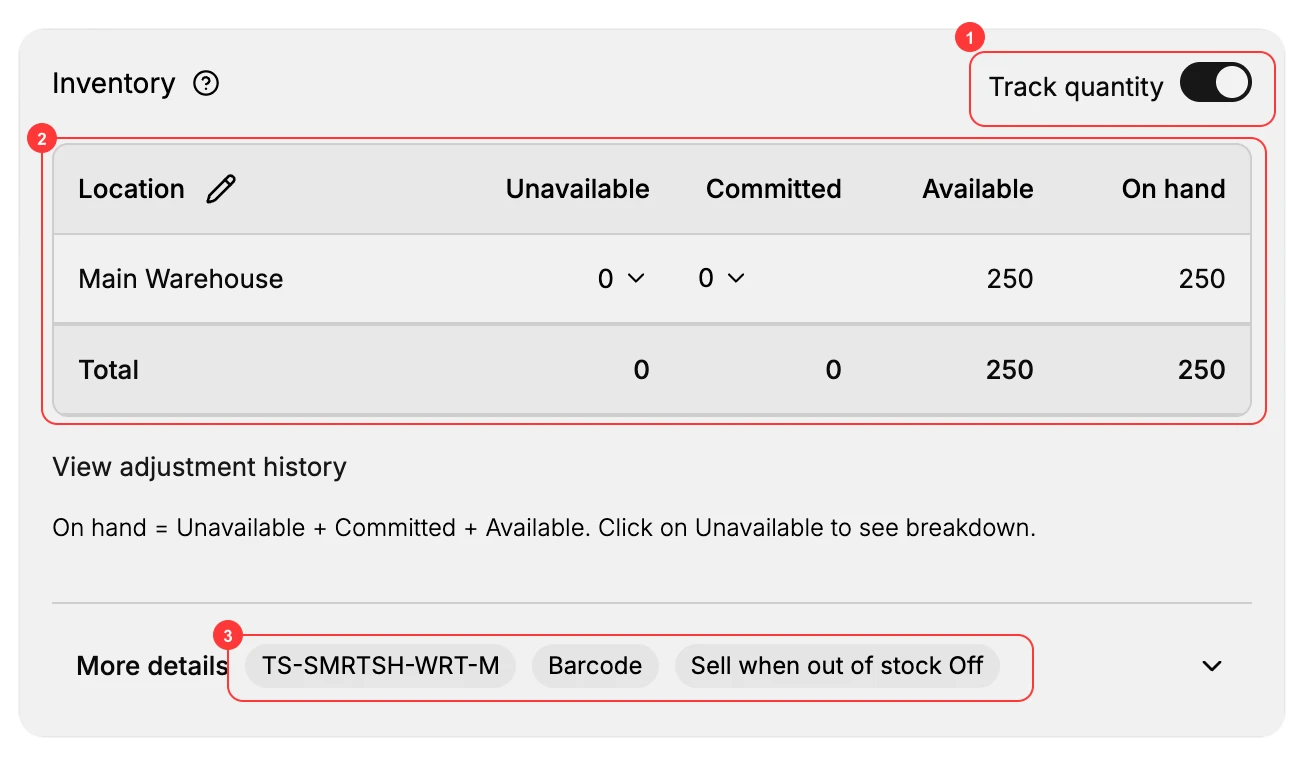
- Switch on Track quantity (1). The section changes as soon as you do. A per-location table (2) appears with Unavailable, Committed, Available and On hand columns and a Total row, and More details (3) opens up to hold the SKU, Barcode and Sell when out of stock. None of that exists while the switch is off.
- Read what the table is telling you. Each location gets its own row, and On hand = Unavailable + Committed + Available. The number the storefront sells against is Available, not On hand, which is why a product with stock in the building can still be unsellable. Counts are not typed here: set them on the Inventory page or record an adjustment, and View adjustment history shows what has moved them before.
- Fill in the SKU and Barcode. Under More details, the SKU is your own stock-keeping code and the Barcode takes a UPC, EAN or GTIN if you scan. Both are what make a product findable when you are counting a shelf rather than browsing the admin.
- Save. Use Save in the unsaved-changes bar at the top of the editor. Nothing counts until you do.
Enter the real on-hand figure at the start rather than a round number you mean to correct later. A count that begins wrong stays wrong through every sale that follows, and the history will show no event to explain it.
The setting that rides along with it
Sell when out of stock sits in the same section and only matters once tracking is on. Off, the storefront stops selling the moment Available reaches zero. On, customers can keep ordering past zero.
Leave it off unless you have a reason. It is the setting most often on by accident, and the symptom is not an error message but orders you cannot ship. Pre-orders and made-to-order goods are the case it exists for, and they are also the case where the customer needs telling on the product page how long the wait will be.
What changes once it is on
The product starts behaving like stock. Available falls as orders arrive, the product turns up in the Low stock and Out of stock views, its per-location rows appear, and it becomes something a transfer or a purchase order can top up.
From here, Adjust Inventory Quantities covers correcting the count when it drifts.
Verify the result
- Track quantity is on and the per-location table shows your counts.
- The storefront shows the product in stock while Available is above zero.
- An order lowers Available by the amount bought.
- With Sell when out of stock off, the product reads as sold out once Available hits zero.
Best practices
- Turn it on for every physical product so the count cannot drift into overselling.
- Enter the real On hand count when you start, so the numbers are right from day one.
- Read Available, not On hand, to judge what is still sellable.
- Use Sell when out of stock deliberately, since leaving it on by accident causes oversells.
Common mistakes
- Leaving Track quantity off on a physical product, so it keeps selling after you run out.
- Turning on Sell when out of stock without meaning to, which lets the product oversell.
- Entering the wrong starting count, which puts the stock off from the start.
- Tracking at one location when the product actually ships from several.
If something goes wrong
- Stock does not go down after a sale. Confirm Track quantity is on for that product.
- The product sells at zero. Sell when out of stock is on; turn it off.
- Available looks low. Check Committed; those units are reserved by open orders.
- The count is right at one location and wrong overall. Check the per-location rows against the Total.
- Permission denied. Your role lacks the Edit products permission.
Next steps
Related articles
Still stuck?
- Ask Tanqory AIAsk in your own words. It answers from these articles and links the ones it used.
- Ask in your adminThe assistant in your Tanqory admin answers and makes the change for you once you confirm.
- Contact TanqoryWrite to our privacy, security or legal teams, or talk to sales about a plan or a move.