Inventory
The Inventory page is where you track stock across every product and location. See what is available, committed, incoming, and on hand, and turn tracking on per product.
On this page
Inventory is the quantity of each product you have available to sell. Tanqory tracks it per product and per location, and gives you a dedicated Inventory page that lists every tracked item with its stock columns. Keeping these numbers accurate is what stops you from overselling and tells you when to reorder.
You'll work on the Inventory page, and inside each product's own Inventory section.
Before you begin
- Your role includes View products, and Edit products to change a quantity.
- The products you want to count have Track quantity turned on, since a product that is not tracked has no quantity to show.
- Open Products > Inventory in the admin sidebar to open the inventory list.
The Inventory page
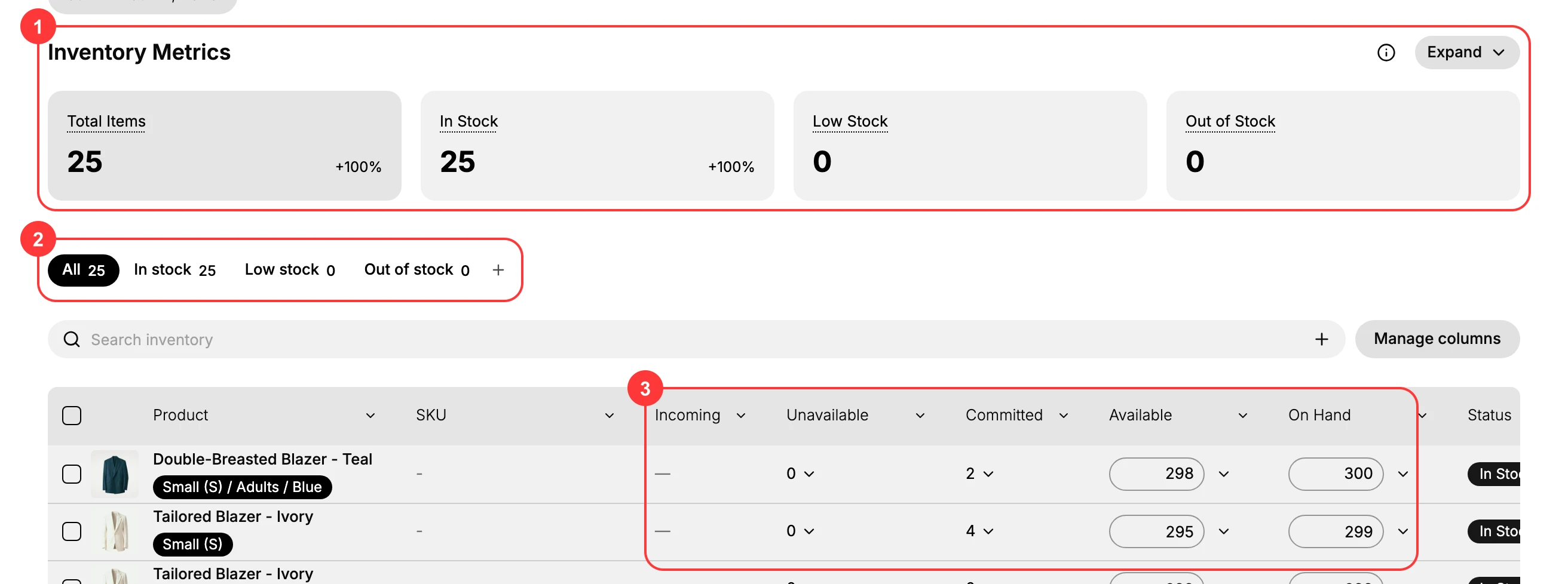
The Inventory page lists one row per product (and per variant) with its stock broken into columns. At the top, the Inventory Metrics summarize the catalog: Total Items, In Stock, Low Stock, and Out of Stock. The In stock, Low stock, and Out of stock filters narrow the list to the rows that need attention, and Export and Import let you pull the counts out or update them in bulk.
What the stock columns mean
Each row splits its stock into the same set of numbers. Reading them correctly is the key to using the page.
| Column | What it counts |
|---|---|
| Incoming | Units expected to arrive but not yet received. |
| Unavailable | Units you hold but cannot sell right now (for example damaged or held back). |
| Committed | Units promised to orders that are placed but not yet fulfilled. |
| Available | Units you can sell right now. This is the number the storefront uses. |
| On Hand | Everything physically in stock. On hand = Unavailable + Committed + Available. |
The most important number for selling is Available. On Hand is the physical count, and the difference between them is the stock already spoken for or held back.
Turn on tracking for a product
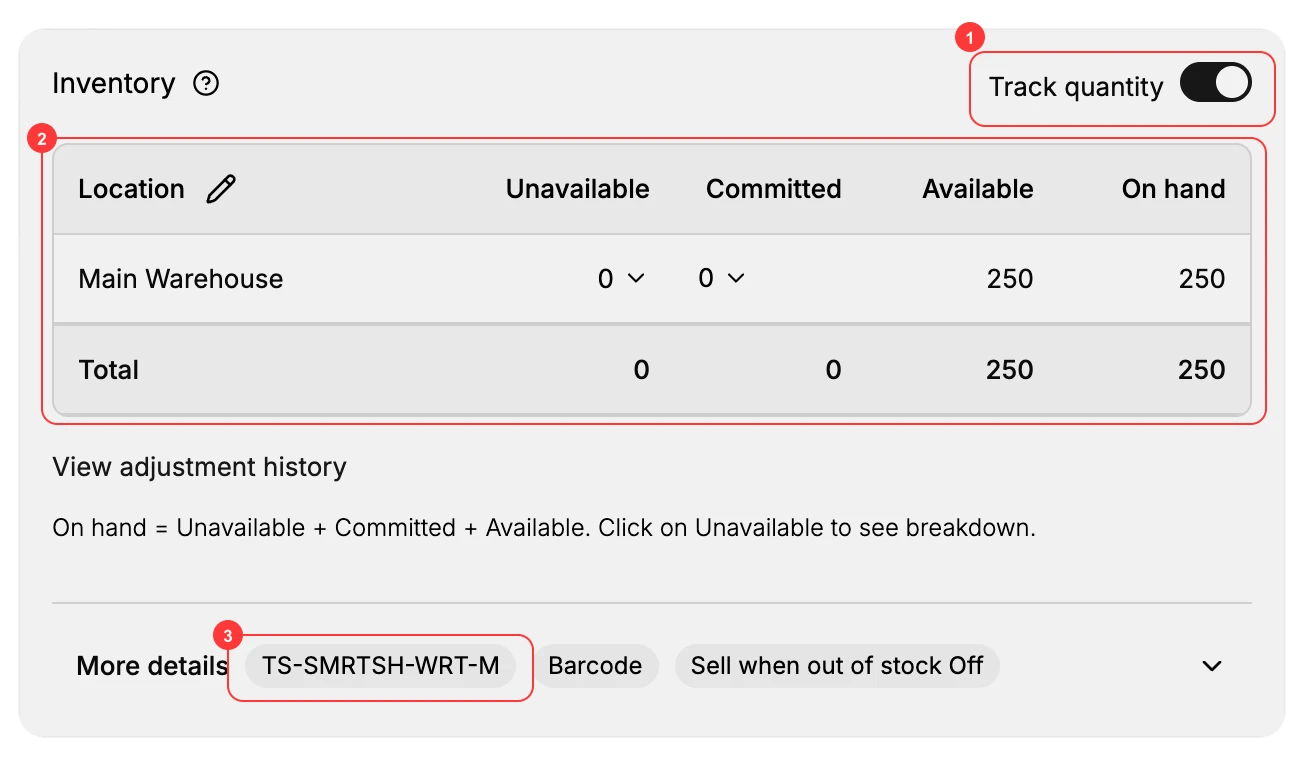
Stock is only counted for products where tracking is on. Open a product, go to its Inventory section, and switch on Track quantity. A per-location table appears with the same Unavailable, Committed, Available, and On hand columns, plus a Total row that sums every location. Record the SKU under More details, add a Barcode if you use one, and set whether to Sell when out of stock. If you leave Track quantity off, Tanqory treats the product as always available and does not count units.
Track Quantity has the full walkthrough.
See stock from the Products list too
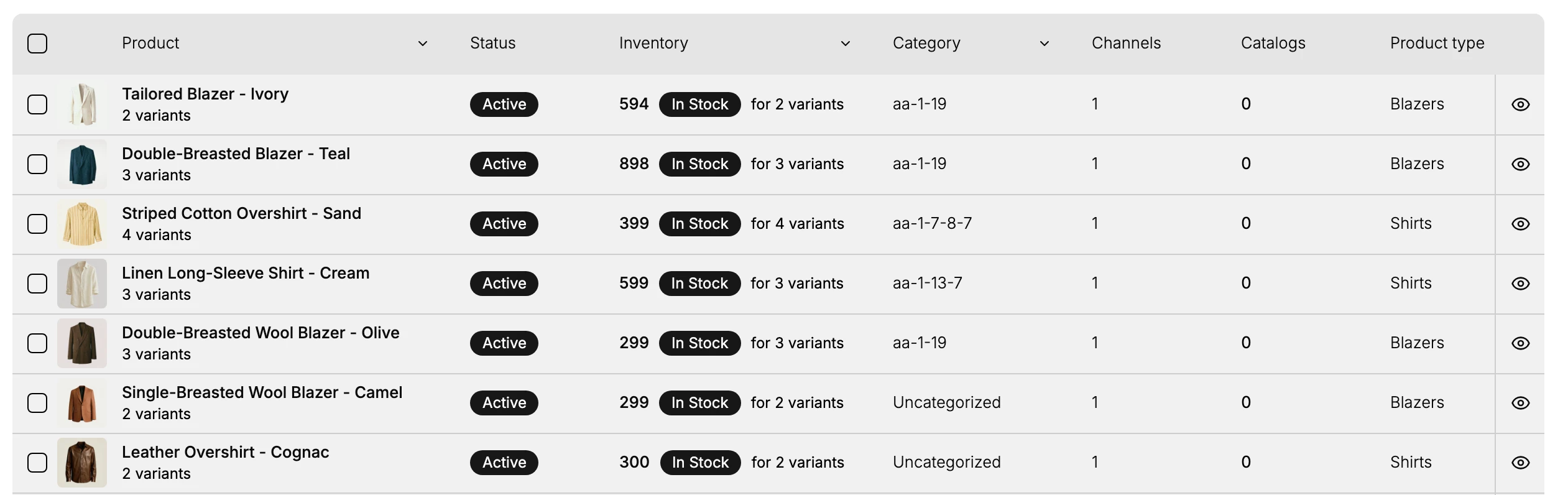
The Products list carries an Inventory column, so you can read a product's stock without leaving the catalog. It also has its own Low stock and Out of stock filters, which is handy when you are already working with products.
Adjust a count by hand
When a physical count does not match the system, for example after damage, loss, or a stock take, correct it with an adjustment rather than editing around it. Each product's Inventory section has View adjustment history so you can see what changed and when. See Adjust Inventory Quantities.
Work across multiple locations
If you stock a product in more than one place, each location keeps its own count and the product's Total is the sum across locations. Set up and manage locations under Multi-Location Inventory, and move units between them with Create an Inventory Transfer.
Update many items at once
Use Export on the Inventory page to download the current counts, edit them in a spreadsheet, and Import the file back to update stock in bulk. This is faster than editing rows one by one when you are reconciling after a count.
Best practices
- Turn on Track quantity for anything with finite stock so the storefront stops selling it once Available hits zero.
- Watch the Low stock filter on a regular cadence so you reorder before a product sells out, not after.
- Read Available, not On Hand, to judge what you can sell, since committed and unavailable units are not for sale.
- Reconcile with Export and Import after a physical count instead of editing many rows by hand.
Common mistakes
- Leaving Track quantity off on a product with limited stock, so it keeps selling after you run out.
- Reading On Hand as sellable stock, when committed and unavailable units are included in it.
- Editing a count to fix an error instead of recording an adjustment, which loses the reason for the change.
- Ignoring the Low stock filter until items have already gone out of stock.
If something goes wrong
- Stock did not go down after a sale. Confirm Track quantity is on for that product.
- Available looks lower than expected. Check Committed; those units are reserved by open orders.
- A product still sells at zero. It is not tracked, or Sell when out of stock is on.
- Permission denied. Your role lacks the permission to view or change inventory.
Next steps
Related articles
Still stuck?
- Ask Tanqory AIAsk in your own words. It answers from these articles and links the ones it used.
- Ask in your adminThe assistant in your Tanqory admin answers and makes the change for you once you confirm.
- Contact TanqoryWrite to our privacy, security or legal teams, or talk to sales about a plan or a move.