Receive a Purchase Order
A purchase order has no Receive button. The goods come in through an inbound transfer you create or link, and receiving that transfer is what adds the stock and moves the order toward Received.
On this page
The goods have arrived, and the purchase order has no Receive button. That is not an oversight to work around: in Tanqory the arrival is carried by a transfer, and receiving that transfer is what puts the stock on the shelf.
So the order is placed, an inbound transfer is created from it or linked to it, and the transfer is received at the destination. As it is received, the destination's stock goes up and the purchase order moves from Ordered toward Received.
You work under Products, in Purchase Orders, and the receiving itself finishes on the transfer under Transfers.
Before you begin
- You have the Manage inventory transfers permission.
- The order is Ordered. A Draft has a Mark as ordered action, after which the transfer actions appear.
- A destination location is set on the order, and a second location exists so the inbound transfer can be received. A transfer has two ends, so a store limited to one location cannot complete this. See Multi-Location Inventory.
- Open Products and open Purchase Orders, then open the order.
The statuses
| Status | What it means |
|---|---|
| Draft | The order is still being built or saved, and has not been placed. |
| Ordered | You have placed the order with the supplier and are waiting for it. |
| Partial | Some of the ordered units have been received. |
| Received | All ordered units have been received. |
| Closed | The order is complete and no longer active. |
Your inventory is not changed by any of these on its own. It changes when the inbound transfer is received.
Why it runs through a transfer
- The order carries a Supplier, a Destination location, and the items ordered, each with a quantity and cost.
- Once the order is Ordered, it shows Create transfer and Link transfer. Create transfer builds a new transfer from the order's items; Link transfer attaches one you already made.
- You then receive that transfer at the destination, in the Receive Transfer Items dialog described in Receive an Inventory Transfer. That is the step that adds stock.
- As the transfer is received, the destination's on-hand stock rises and the order moves from Ordered to Partial, then Received once everything is in.
- Because a transfer has a source and a destination, receiving needs two locations.
Receiving one
Open the order under Products > Purchase Orders. If it is still a Draft, use Mark as ordered and confirm; the order becomes Ordered and shows Create transfer and Link transfer.
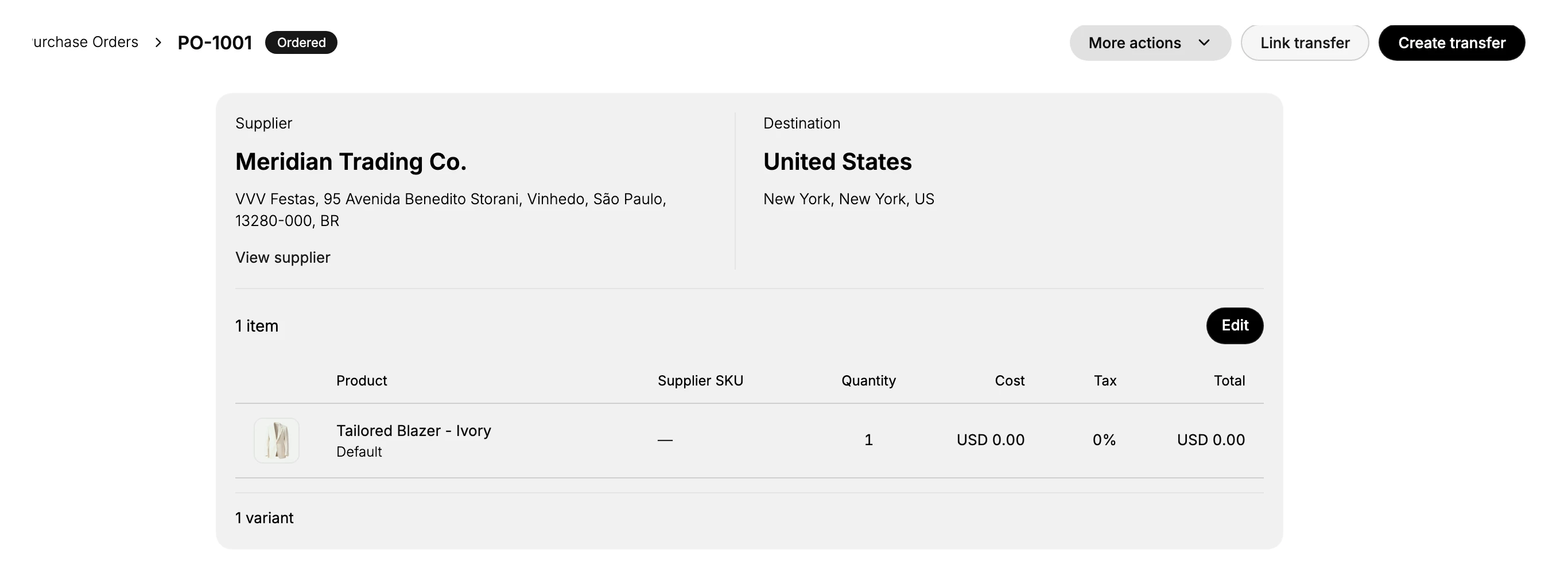
- Place the order. On a Draft, select Mark as ordered and confirm. The status becomes Ordered and the order is waiting on the supplier.
- Check the delivery against the order. Compare the Supplier, the Destination, and the items and quantities with what physically turned up, and note anything short, over or damaged before you start entering numbers.
- Create or link the inbound transfer. Create transfer builds one from the order's items; Link transfer attaches an existing one. This transfer is the shipment.
- Receive the transfer at the destination. Open it, move it to In Transit if it is not already, then use Receive items. Enter what actually arrived, line by line. See Receive an Inventory Transfer. The accepted units are added to the destination's on-hand stock.
- Check the order, then close it. The order moves to Partial, then Received once everything is in. When it is complete, or the supplier confirms nothing more is coming, close it from More actions, and use the Timeline comment to record any discrepancy.
Enter what arrived, not what you ordered
The ordered quantity is a guess about the future; the delivery is a fact. Receiving the ordered quantity because it is quicker overstates the destination's stock by exactly the amount that did not turn up, and the store will sell against that number.
Recording the real figure also puts the shortfall where it can be used. A short line with a Timeline note is something you can raise with the supplier and reconcile against the invoice before you pay it. The same shortfall absorbed silently turns up later as a count nobody can explain.
Verify the result
- The destination location's on-hand stock has gone up by the quantity received. See Inventory by Location.
- The order's status reflects what actually arrived, Partial or Received.
- The inbound transfer shows its items as received.
Best practices
- Receive promptly after the goods arrive, so stock reflects reality.
- Record the quantity that actually arrived, not the ordered quantity, so a short or over shipment is captured.
- Leave a Timeline note for any discrepancy, so the next person and the supplier follow-up have the context.
- Reconcile against the supplier invoice before you pay it.
Common mistakes
- Looking for a Receive button on the purchase order. Receiving is done through a transfer you create or link.
- Receiving the ordered quantity when less arrived, which overstates stock at the destination.
- Closing the order before the goods are received or reconciled, which makes a later discrepancy harder to settle.
If something goes wrong
- You do not see Create transfer or Link transfer. The order is not Ordered yet. Open it and use Mark as ordered first.
- You cannot receive the transfer. The transfer needs two locations, a source and the destination. A store limited to one location cannot complete it. See Multi-Location Inventory.
- The destination stock did not change. Confirm the inbound transfer was received, not just created, and that you accepted rather than rejected the units.
- More arrived after you closed the order. Handle it as its own receipt rather than reopening a closed order, so the trail in Inventory History stays readable.
- Permission denied. Your role cannot manage inventory.
Next steps
Related articles
Still stuck?
- Ask Tanqory AIAsk in your own words. It answers from these articles and links the ones it used.
- Ask in your adminThe assistant in your Tanqory admin answers and makes the change for you once you confirm.
- Contact TanqoryWrite to our privacy, security or legal teams, or talk to sales about a plan or a move.