Inventory by Location
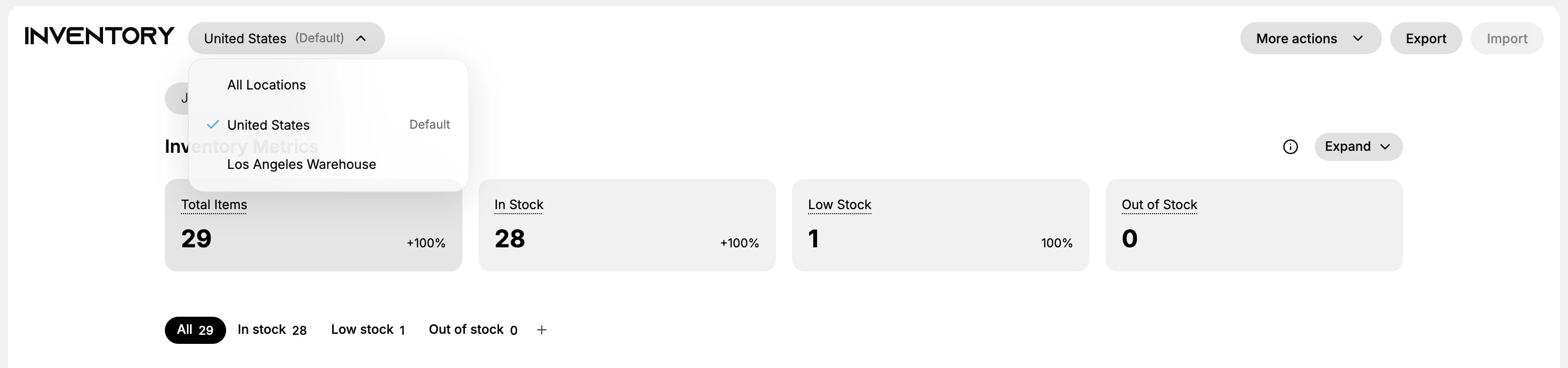
Where a product is stocked, not just how much of it you hold. The product page shows every location side by side, the Inventory list shows one location at a time depending on the selector at the top, and reading the wrong one is how stock gets promised from a city that does not have it.
On this page
A store with one location has one number per product. A store with two has a question that number cannot answer: not how much do I have, but where is it.
Tanqory answers that on the product itself. Open a product, scroll to the Inventory section, and every active location has its own row, with a Total beneath that adds them together. That per-location split is what this article is about, and where you look for it matters, because the two screens showing these quantities are not showing the same thing.
The total and the split are on different screens
| Surface | What it shows |
|---|---|
| Product > Inventory section | One row per active location with Unavailable, Committed, Available, and On hand, plus a Total row that adds the locations together |
| The Inventory list | One location at a time, chosen with the location selector in the page header. The rows have no location column; the selector is what decides which location's counts you are reading |
The difference is how many places you can see at once. The product shows every location side by side, so you can compare them. The list shows one location across the whole catalog, so you can sweep a single warehouse for what is short there.
The trap is not noticing which location the list is set to. The same variant of a blazer reads On hand 304 under one location and 1 under another, and nothing about the row itself tells you which you are looking at. The selector at the top does, and it is the first thing to check before you trust a number on this screen.
Before you begin
- You have the Edit products permission.
- The product has Track quantity turned on, so quantities are counted per location.
- You have more than one active location, otherwise the split has nothing to show. Multi-Location Inventory covers setting them up.
- Open Products > Inventory, then open the product you want to read.
Reading a product's location rows
Each active location carries its own Unavailable, Committed, Available and On hand, and the Total row is those rows added up. Reading across a single row tells you what one place is holding; reading the Total tells you what the business holds.
Both numbers are true and they answer different questions. Before you promise stock to a customer or draw units for an order, read the location row, not the Total, since the Total can be perfectly healthy while the location serving that customer has nothing on the shelf.
When the stock is in the wrong place
Sitting in the wrong place is a different problem from being short, and it has a different fix. You are not missing units, so buying more would be a mistake; the units need to move.
Move them with a transfer rather than by adjusting each location's count by hand. Two hand adjustments can be made to produce the same end numbers, but they record nothing about the movement, and they are easy to get half right, leaving one location overstated and the other short. A transfer records where the stock left and where it arrived, and it carries its own states so the stock in the van is accounted for while it travels. The steps are in Create an Inventory Transfer.
Adjustments are the right tool for the other case, where the count is wrong rather than the location. When a location's row does not match what is actually on its shelf, correct it there, and reconcile each location on its own schedule, since a busy warehouse drifts faster than a quiet one.
Verify the result
- Each active location appears as its own row in the product's Inventory section.
- The Total row equals the sum of the location rows.
- The On Hand value in the Inventory list matches that Total.
Best practices
- Read per-location On hand before moving or selling stock, so you draw from a location that actually has it.
- Use the Total only for an overall view, and the location rows for anything location-specific.
- Reconcile each location against the shelf, since locations drift at different rates.
Common mistakes
- Reading the Inventory list total when you need one location, which hides where the stock actually is.
- Adjusting a quantity on the wrong location, which makes one location look short and another overstocked.
- Forgetting that the list has no location split, and assuming a number belongs to one place.
If something goes wrong
- A location row is missing. Confirm the location is active in Settings > Locations and that the product has Track quantity on.
- The Total does not match the Inventory list. Check the location selector at the top of the list. A single location's count is not the product's Total across every location.
- A location's count looks wrong. Open Inventory History to see what moved it, then correct it from Update On-Hand Quantities.
- Permission denied. Your role lacks the Edit products permission.
Next steps
Related articles
Still stuck?
- Ask Tanqory AIAsk in your own words. It answers from these articles and links the ones it used.
- Ask in your adminThe assistant in your Tanqory admin answers and makes the change for you once you confirm.
- Contact TanqoryWrite to our privacy, security or legal teams, or talk to sales about a plan or a move.