Multi-Location Inventory
Locations are the places your stock can be, and every quantity in the store belongs to one of them. Adding one, moving the default, retiring a location you no longer use, and what each of those changes elsewhere in inventory.
On this page
A location is a place that holds stock: a warehouse, a shop, a unit at the back of a building. Until you have more than one, inventory is a single pool and no location needs thinking about. The moment you have two, every quantity in the store belongs to one of them, and the question stops being how much do you have and becomes where is it.
This is the page where those places are created. What you do here is felt everywhere else in inventory, because products hold a separate on-hand count per location, transfers move stock between them, and purchase orders arrive at one of them.
One location is always the Default, which Tanqory and apps use when nothing else is specified. The number of locations you can have active at once depends on your plan.
Before you begin
- Your role includes Edit products.
- Your plan allows the number of locations you need. The page tells you how many of your allowance are in use.
- Open Settings > Locations in the admin sidebar.
What the page holds
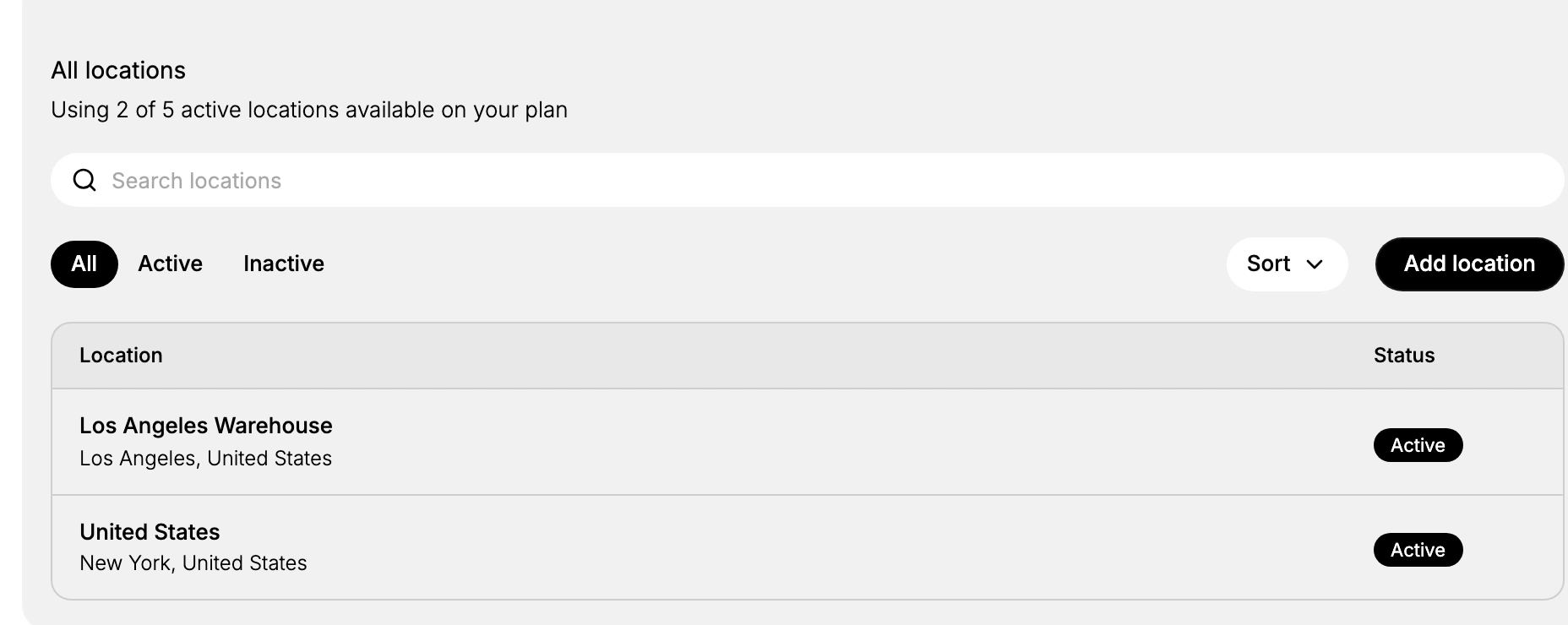
Each location is listed with its name, address and state, and one carries the Default marker. Above the list, the All, Active and Inactive tabs separate the places currently holding stock from the ones you have retired, and the count of active locations against your plan's allowance sits at the top.
Add location creates a new one, and Change default location moves the default marker to a different location.
Adding a location
Click Add location and give it a name and an address. It appears in the list straight away and can hold its own inventory from that point on.
Name it the way your staff talk about it. Main Warehouse and Downtown Retail Store are chosen correctly under pressure; Location 2 is not, and a location picked wrongly sends stock to the wrong building.
If you are already at your plan's limit of active locations, adding another prompts you to upgrade rather than failing quietly.
The default location
The default is the location used whenever nothing else names one, which makes it the quiet answer to a question nobody asked. Stock lands there, orders draw from there, and if the marker is on a place that no longer does the work, the mistake looks like an inventory error rather than a settings one.
Move it with Change default location whenever the shape of your business changes, such as when a new warehouse takes over from the room you started in.
Retiring a location without deleting it
A location can be Active or Inactive. Set one inactive when it should no longer hold or fulfill stock, such as a pop-up that has closed, and it stops appearing as somewhere stock can go while its record stays intact under the Inactive tab.
Leaving a closed location active is the more expensive mistake of the two, since it remains a valid destination and stock can still be sent to a place with nobody in it.
What locations change elsewhere
Once you have more than one, three things behave differently.
- Each product holds a quantity per location. Set it on the product, or in bulk from Products > Inventory, where the export and import files carry a Location column. See Bulk Adjust Inventory.
- Stock moves by transfer, not by editing. To rebalance, create a transfer from one location to another rather than adjusting both counts by hand. See Create an Inventory Transfer.
- The Inventory list gains a location selector. It sits in the page header and scopes the list to one location, so the number you read there depends on which location is picked. See Inventory by Location.
Because of that last point, adding or retiring a location changes what the other inventory screens are counting. It is worth reconciling per-location counts against the shelf on a schedule, since each location drifts at its own pace.
Verify the result
- Every location you added appears on the Locations page with the right state.
- One location is marked Default.
- Each product shows an on-hand quantity for each active location.
Best practices
- Give each location a clear name such as Main Warehouse or Downtown Retail Store, so staff pick the right one.
- Keep the default location current, since it is used whenever no other location is specified.
- Deactivate a location you no longer use instead of leaving it active and cluttering the list.
- Reconcile per-location counts regularly against what is physically on the shelf.
Common mistakes
- Leaving the default on the wrong location, so stock is taken from a place you did not mean.
- Setting a quantity on the wrong location, which makes one location look short and another overstocked.
- Leaving a closed location active, so it still appears as a place that holds stock.
If something goes wrong
- A per-location quantity is blank. Confirm the product has Track quantity turned on and that the location is active.
- You cannot add another location. You may be at your plan's limit; the page shows how many active locations you are allowed.
- Stock went to the wrong place. Check which location holds the Default marker, since anything that did not name a location used it.
- Permission denied. Your role cannot manage settings.
Next steps
Related articles
Still stuck?
- Ask Tanqory AIAsk in your own words. It answers from these articles and links the ones it used.
- Ask in your adminThe assistant in your Tanqory admin answers and makes the change for you once you confirm.
- Contact TanqoryWrite to our privacy, security or legal teams, or talk to sales about a plan or a move.