Bulk Adjust Inventory
Replacing hundreds of counts at once after a stocktake: export what the store believes, record what is on the shelf, import it back. Where the round trip actually breaks is the spreadsheet in the middle.
On this page
Some corrections are too big to make one product at a time. After a stocktake, a cycle count, or a migration, you are not fixing a number, you are replacing hundreds of them. The way to do that is with a file. Export what the store believes, write down what is actually on the shelf, and import the result.
This article is that round trip. The two dialogs it uses each have their own article, Export Inventory and Import Inventory; what follows is how they work as one job, and where it goes wrong in the middle.
The three columns that travel
| Column | What it is |
|---|---|
| SKU | The product's SKU. It must match a product that already exists in your store. |
| Quantity | The on-hand quantity to set for that SKU at the location. |
| Location | The location the quantity applies to, for example Main Warehouse. |
Quantity sets the on-hand level rather than adjusting it, so the number you write is the number the store will hold. SKU is how a row finds its product, which makes that column the one thing in the file you must not touch.
Before you begin
- Your role includes Edit products, since stock is held on the product.
- You know which location you are counting, since the file works one location at a time.
- Open Products > Inventory in the admin sidebar, where Export and Import sit in the page header.
Steps
1. Export what the store currently believes
Click Export, then set the scope (Current page, All variants, or a selection), the location under Export inventory from, the states to include (All states or Available), and the format. Choose CSV for Excel if the file is going into Excel. Click Export variants to download it.
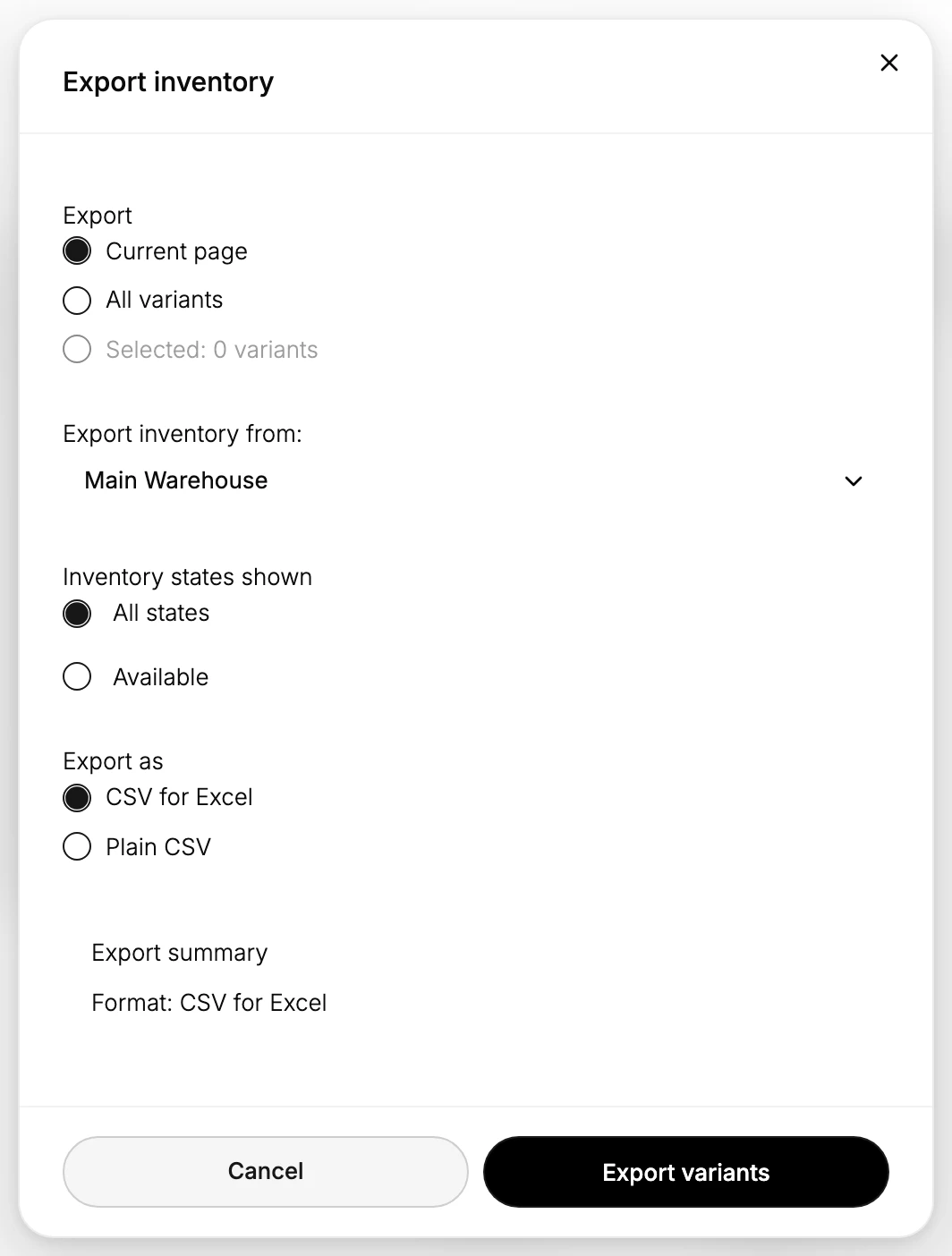
Do this before anyone starts counting, not after. The file is both your list of SKUs to count against and your record of the previous quantities, which is the only copy of them you will have once the import has run.
2. Edit only the Quantity column
Open the file in a spreadsheet and set Quantity for each SKU and location you are changing. Leave SKU exactly as it was exported, and save as CSV.
This step is where bulk adjustments actually fail, and rarely because someone typed a wrong number. Spreadsheets reformat what they think are numbers, so a SKU with leading zeros loses them and a long code turns into scientific notation. The row still looks right on your screen and no longer matches anything in the store. Open the file as text where your spreadsheet offers it, and check a few SKUs against the export before you upload.
3. Import it back and check
Click Import. The Import Inventory dialog lists the required columns and the rule that each SKU must match an existing product, with Download Template if you need a blank file. Drop the file onto Upload CSV File, then click Import Inventory.
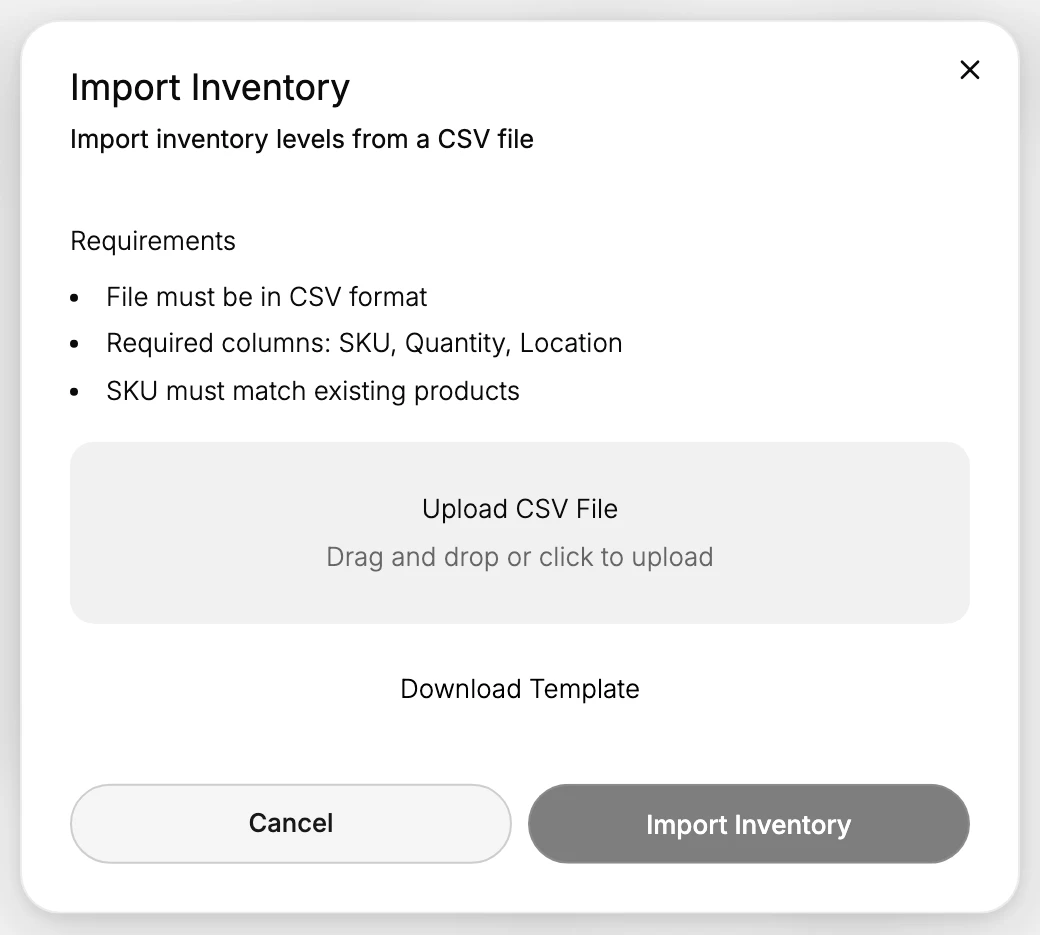
Open a few of the SKUs you changed and confirm the on-hand quantity matches the file. Check the ones you expect to have changed most, since a row that silently failed to match looks identical to a row you never edited.
When to reach for this instead of editing by hand
A single wrong count is faster to fix on the product, and it leaves a cleaner record when you give the reason. See Update On-Hand Quantities.
The file is the better tool once the change is a whole shelf, a whole location, or a whole catalog, and it is the only practical tool after a full stocktake. If you are correcting more than a handful of products and they all belong to the same count, do it here.
Verify the result
- The SKUs you changed show the new on-hand quantity at the location.
- Spot-check a few of the products to confirm the file applied as you expected.
Best practices
- Export first so you have the exact SKUs and a copy of the previous quantities to fall back on.
- Leave the SKU column unchanged so every row still matches a product.
- Open the CSV as text in your spreadsheet so it does not reformat SKUs, for example by dropping leading zeros.
- Test a small file first before importing a large one.
Common mistakes
- Editing the SKU column so a row no longer matches a product, which skips that row.
- Letting a spreadsheet reformat SKUs into scientific notation or without leading zeros.
- Wrong location in the Location column, which sets the quantity for a location you did not mean.
If something goes wrong
- The import does not apply as expected. Check the file is CSV with the columns SKU, Quantity, and Location, and that each SKU matches a product in your store.
- The numbers look wrong after import. The Quantity column is the on-hand level to set for that location, so check the values in your file, then re-export and import a correction.
- You need the old numbers back. Use the export you took in step 1, which is why it is taken first.
- Permission denied. Your role cannot update inventory.
Next steps
Related articles
Still stuck?
- Ask Tanqory AIAsk in your own words. It answers from these articles and links the ones it used.
- Ask in your adminThe assistant in your Tanqory admin answers and makes the change for you once you confirm.
- Contact TanqoryWrite to our privacy, security or legal teams, or talk to sales about a plan or a move.