Receive an Inventory Transfer
Receiving is where in-transit stock becomes sellable stock at the destination. How to record what actually arrived rather than what was sent, why rejecting damaged units is the useful thing to do, and what a partial receipt leaves open.
On this page
A transfer in motion is stock nobody can sell. Its quantity is tracked as in transit, which keeps it out of the destination's on-hand count on purpose, and receiving is the moment that ends: you say how many actually turned up, and those units become stock at the destination.
The distinction the dialog is built around is between what was sent and what arrived. They are usually the same and occasionally are not, and the whole value of receiving properly is that the difference gets recorded instead of quietly absorbed.
A transfer can only be received once it is In Transit, so a Draft is sent first.
Before you begin
- You have the Manage inventory transfers permission.
- The transfer is In Transit. A Draft has a Move to in transit action, after which Receive items appears.
- The goods have physically arrived and you can count them.
- Open Products and open Transfers, then open the transfer that has arrived.
Where receiving sits in the life of a transfer
| Status | What it means |
|---|---|
| Draft | The transfer is still being built or saved, and has not been sent. |
| Ready to Ship | The transfer is prepared to leave the origin. |
| In Transit | The transfer has been sent and is on its way. This is when you receive it. |
| Transferred | Every item has been received at the destination and the movement is complete. |
What the dialog gives you
Receive items on an In Transit transfer opens Receive Transfer Items.
| Element | What it does |
|---|---|
| Accept | How many of the item you are receiving into the destination. This is what gets added to stock. |
| Reject | How many you are turning away, for example damaged or wrong items. Rejected units are not added. |
| Received | A running count for the line, such as 1 of 1, so you can see progress against what was sent. |
| Accept All / Reject All | Set every line to fully accepted or fully rejected in one click, then adjust individual lines. |
| Summary | The footer totals the transfer, for example Expected: 1, Accepted: 1, Rejected: 0. |
Receiving it
Open the transfer under Products > Transfers. If it is still a Draft, use Move to in transit to send it; once it is In Transit, Receive items appears.
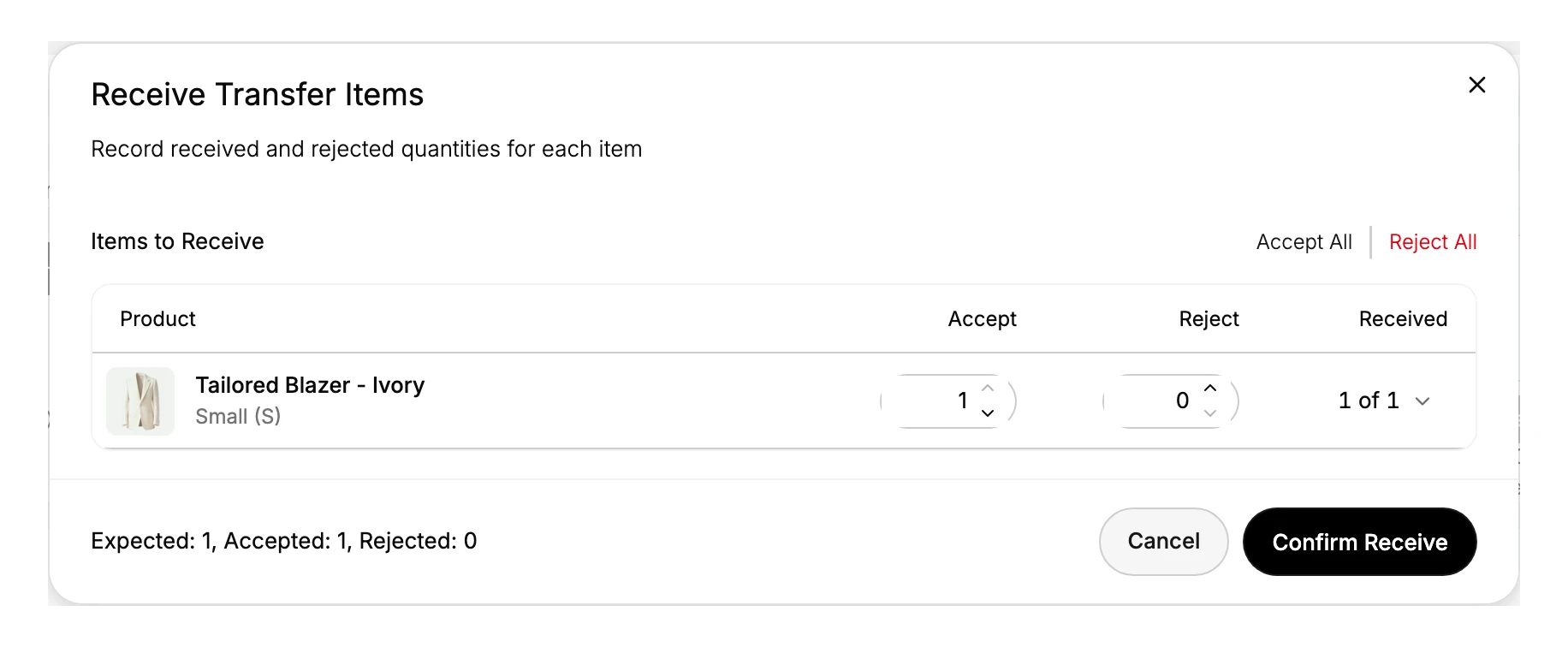
- Count the boxes before you open the dialog. The numbers you enter should come from the shelf, not from the transfer. Reading the expected quantity first and counting to it is how a short delivery gets confirmed as complete.
- Enter what you are taking in. Put the arrived quantity for each item in Accept. Accept All fills every line to its expected quantity, which is the quick path when the delivery is complete; adjust any line that came up short afterwards.
- Put anything unusable in Reject. Damaged or wrong items go in the Reject column and are not added to stock. The Received count and the summary update as you go, so the shortfall is visible before you commit to it.
- Read the summary, then confirm. The footer totals Expected, Accepted and Rejected. When those match what you counted, select Confirm Receive. The accepted units are added to the destination's on-hand quantity and taken out of in transit.
Rejecting is not a complaint, it is the record
Accepting damaged goods to save a step costs you twice. The units go into Available, so the store offers them for sale, and the loss surfaces later as an unexplained shortfall with nothing pointing at where it came from.
Rejecting instead puts the gap on the transfer, where it can be taken up with the origin, the carrier or whoever packed it. A pattern of rejected lines on the same route is a problem you can actually fix; the same units silently written off are not.
When only part of it turns up
Accept fewer units than were sent and the transfer stays open, so the rest can be received when it arrives. Once everything is in, the status becomes Transferred.
An open transfer is easy to forget, and while it is open the destination reads as short. Make it a habit to finish partial transfers rather than leaving them for whoever notices.
Verify the result
- The destination location's on-hand quantity has gone up by the accepted amount. See Inventory by Location.
- The transfer's status has moved to Transferred once every item is received, or stays In Transit with a partial count if some is still outstanding.
- The in-transit quantity for those items has dropped by what you received.
Best practices
- Count before you confirm, so the accepted figure is the real arrived quantity, not the shipped quantity.
- Use the Reject column for discrepancies such as damage or a wrong item, rather than silently accepting less, so the shortfall is on record.
- Receive promptly at the destination, so its on-hand count reflects what is really on the shelf.
- Investigate any rejected or short line against the origin, the carrier, or the packing, so the same gap does not repeat.
Common mistakes
- Confirming without counting, which locks in the shipped quantity even if less arrived.
- Accepting damaged stock instead of rejecting it, so unsellable units inflate your available count.
- Leaving a partial transfer open and forgetting the outstanding units, so the destination looks short.
If something goes wrong
- There is no Receive items button. The transfer is not In Transit yet. Open it and use Move to in transit first.
- The destination count did not change. Confirm you selected Confirm Receive, not just entered quantities, and that you accepted rather than rejected the units.
- The count is higher than what arrived. Accept All was probably used on an incomplete delivery. Correct the difference with an adjustment and give the reason, as Adjusting Inventory Quantities describes.
- Permission denied. Your role lacks the Manage inventory transfers permission.
Next steps
Related articles
Still stuck?
- Ask Tanqory AIAsk in your own words. It answers from these articles and links the ones it used.
- Ask in your adminThe assistant in your Tanqory admin answers and makes the change for you once you confirm.
- Contact TanqoryWrite to our privacy, security or legal teams, or talk to sales about a plan or a move.