Transfers
A transfer moves stock from one location to another, and the Transfers page lists them all with their status and how much has been received. You track each transfer from draft through to received in one place. This is where you see and manage stock moving between your locations.
On this page
A transfer records stock moving from one of your locations to another, so the origin location gives up the stock and the destination location receives it. The Transfers page brings every transfer together in a list, showing where each one is going, its status, and how much has arrived, so you can follow stock as it moves without opening each transfer. This is the page you use to see all your transfers and to start a new one. You reach it under Products > Transfers in your admin.
Before you begin
- In your admin, select Products in the left navigation, then open Transfers to reach the Transfers page.
- You have more than one location, since a transfer moves stock from one location to another.
- Your role includes View products, and Manage inventory transfers to create or receive one.
The Transfers page
At the top, Transfer Metrics count your transfers by status, and status tabs filter the list. The list itself shows each transfer with its route, status, and receiving progress, and Create Transfer starts a new one.
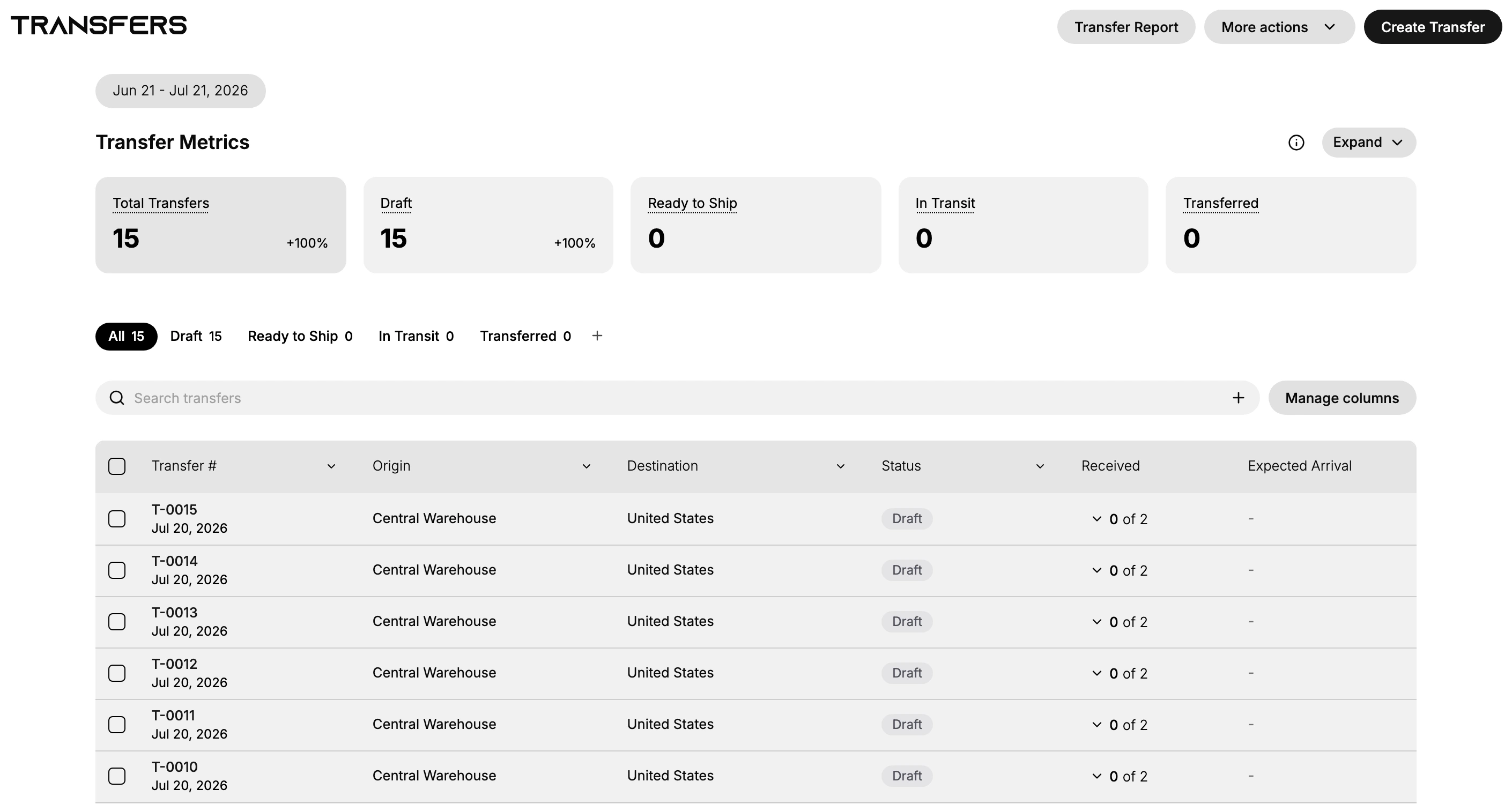
The transfer list
Each row is one transfer, with these columns:
| Column | What it is |
|---|---|
| Transfer number | The transfer's identifier and its date, such as T-0015 |
| Origin | The location the stock is moving from |
| Destination | The location the stock is moving to |
| Status | Where the transfer is, such as Draft |
| Received | How many items have arrived, shown as a count such as 0 of 2 |
| Expected Arrival | When the transfer is due to arrive, when set |
Transfer status
A transfer moves through a set of statuses, which the tabs and the Transfer Metrics also count:
- Draft is a transfer you are still preparing and have not sent.
- Ready to Ship is a transfer prepared and waiting to leave the origin.
- In Transit is a transfer that has left the origin and is on its way.
- Transferred is a transfer whose stock has been received at the destination.
Use the tabs above the list to show only one status, such as Draft, when you have many transfers.
Finding and organizing transfers
Search transfers finds a transfer by its details, and Manage columns chooses which columns the table shows. The Transfer Metrics at the top give a count for each status, so you can see in one place how many transfers are in draft or on their way.
Starting and receiving transfers
Select Create Transfer to begin a new transfer and set its origin, destination, and items. From a transfer's page you then edit it while it is a draft, send it on its way, and duplicate, delete, or cancel it; when stock arrives you receive it to add it to the destination. These steps are covered in Create an Inventory Transfer, Manage an Inventory Transfer, and Receive an Inventory Transfer.
Best practices
- Filter by status. Use the tabs to focus on transfers that need action, such as In Transit.
- Check the Received column. It shows how much of each transfer has arrived, so you can spot ones still to receive.
- Search for a specific transfer. Use the search box rather than scrolling a long list.
- Keep locations named clearly. Clear origin and destination names make the list easy to read.
If something goes wrong
- A transfer is missing from the list. Check the status tab you are on, since it may be under a different status.
- The Received count is not what you expect. Open the transfer to see which items have been received.
- You cannot create a transfer. You may have only one location; a transfer needs an origin and a destination.
- You cannot see transfers. Your role may not include Manage inventory transfers. Ask an owner or admin.
Next steps
Related articles
Still stuck?
- Ask Tanqory AIAsk in your own words. It answers from these articles and links the ones it used.
- Ask in your adminThe assistant in your Tanqory admin answers and makes the change for you once you confirm.
- Contact TanqoryWrite to our privacy, security or legal teams, or talk to sales about a plan or a move.