Manage an Inventory Transfer
After you create a transfer it opens as a draft. From its page you edit it while it is a draft, send it on its way with Move to in transit, and duplicate, delete, or cancel it. This is everything between creating a transfer and receiving it.
On this page
When you create an inventory transfer it opens as a Draft, and nothing has moved yet. From the transfer's own page you review and change it while it is a draft, send it on its way with Move to in transit, and track it until the destination receives it. This article covers everything in between creating a transfer and receiving it: editing a draft, sending it, and the Duplicate, Delete, and Cancel options. Creating one is covered in Create an Inventory Transfer, and receiving it in Receive an Inventory Transfer.
The statuses a transfer moves through
The Status column on the Transfers list shows where each transfer is in its life:
| Status | What it means |
|---|---|
| Draft | Created but not sent. It is fully editable, and no stock has moved. |
| Ready to Ship | Prepared and waiting to be sent. |
| In Transit | Sent. The stock has left the origin and is on its way, counted at neither location until it arrives. |
| Transferred | Received at the destination. The moved units are now part of the destination's stock. |
Before you begin
- Your role includes Manage inventory transfers.
- You have a transfer to work with. If you need to make one first, follow Create an Inventory Transfer.
- Open Products > Transfers, then open the transfer you want.
Open the transfer
On the Transfers list, click the transfer's number, such as T-0015, to open it. The page header shows the transfer number and its current status, so you can tell at a glance whether it is still a draft or already on its way.
What the transfer page shows
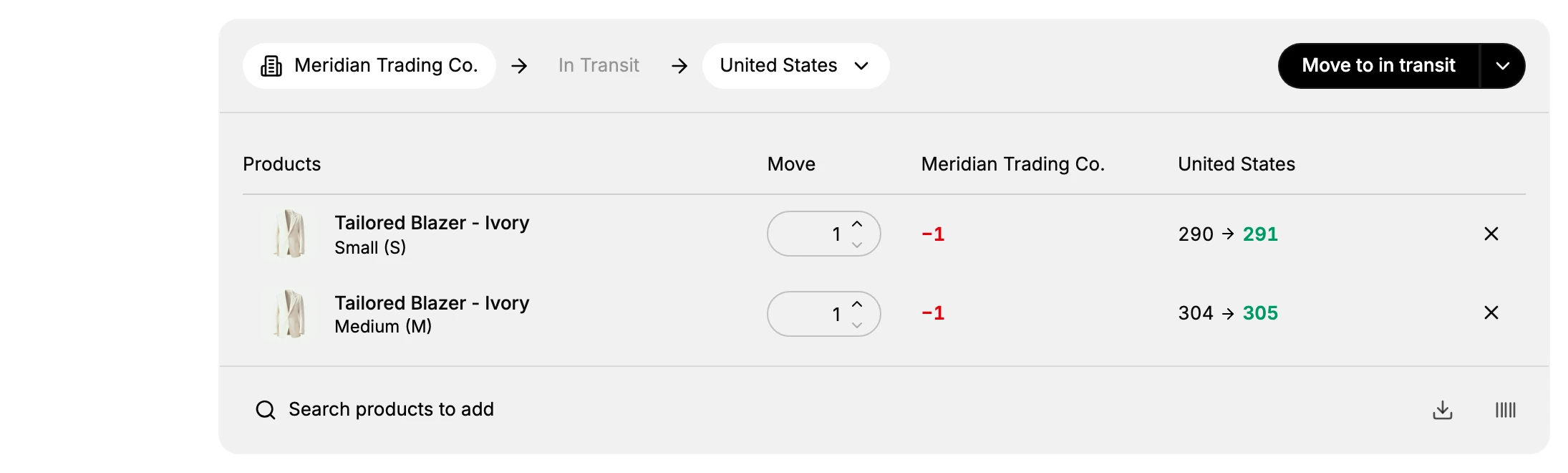
The page is laid out top to bottom:
- The route, at the top: the origin the stock leaves, an In transit step for the journey, and the destination it arrives at.
- Products: each product and variant in the transfer, the Move quantity, and how that quantity changes stock at the origin and the destination.
- Details: the date, a reference name, a note, and tags.
- Timeline: a running log of what has happened to the transfer, with a comment box that only you and your staff can see.
Edit a draft
While a transfer is a Draft, you can change anything on it, since no stock has moved yet:
- Set how much to move. Enter the Move quantity on each product. The origin column shows the units leaving (for example, -1), and the destination column shows its stock before and after (for example, 290 → 291), so you can see the effect before you send it.
- Add or remove products. Use Search products to add to add another product from the origin, or the X at the end of a row to take one off the transfer. Only products with stock at the origin can be added.
- Update the details. Change the date, the reference name (such as a purchase-order number), the note, or the tags.
Make all your changes while the transfer is a draft, before you send it, since sending it commits the move.
Send the transfer: Move to in transit
When the transfer is ready, select Move to in transit at the top-right. The status changes to In Transit: the units leave the origin and are tracked as in transit - stock that has left one location but not yet arrived at the other, so it counts at neither. The transfer then waits on the Transfers list until someone at the destination receives it. Until you do this, the transfer stays a draft and no stock moves.
Duplicate, delete, or cancel a transfer
More actions, at the top-right, holds three options:
- Duplicate creates a copy of the transfer that you can edit and send on its own. It saves rebuilding the same move from scratch when you repeat it between two locations.
- Delete removes the transfer. Use it to clear out a draft you no longer need.
- Cancel Transfer cancels the transfer instead of carrying it out.
Delete and Cancel Transfer are shown in red because they end the transfer, so check you have the right one open before you choose either.
Track and receive the transfer
Back on the Transfers list, the Status column shows where each transfer is, and the Received column shows how many units have arrived, such as 0 of 2 while it is on its way or 5 of 5 once it is complete. You can follow a transfer here from draft through to transferred without opening it.
The last step, turning In Transit into Transferred, happens at the destination when someone confirms what actually arrived, which Receive an Inventory Transfer covers.
Best practices
- Get the draft right before you send it, since Move to in transit commits the move and the stock then leaves the origin.
- Give the transfer a reference name so it is easy to find on the list later.
- Duplicate a recurring transfer instead of rebuilding the same move each time.
- Delete only the drafts you are sure you will not need, so you keep a record of real moves.
Common mistakes
- Trying to change a transfer after sending it. Make your edits while it is still a draft.
- Deleting a transfer you meant to cancel, or the reverse. Both end the transfer, so read the menu before you click.
- Forgetting to receive. A transfer sits In Transit until the destination receives it, and its stock is not available to sell until then.
If something goes wrong
- You cannot change the transfer. Only a draft can be edited; if it is already In Transit, the move has been committed.
- Move to in transit is greyed out. The transfer needs an origin, a destination, and at least one product with a quantity to move.
- You cannot manage transfers. Your role may not include Manage inventory transfers. Ask an owner or admin to grant it.
Next steps
Related articles
Still stuck?
- Ask Tanqory AIAsk in your own words. It answers from these articles and links the ones it used.
- Ask in your adminThe assistant in your Tanqory admin answers and makes the change for you once you confirm.
- Contact TanqoryWrite to our privacy, security or legal teams, or talk to sales about a plan or a move.