Purchase Orders
A purchase order makes incoming stock visible before it arrives, so nobody reorders what is already on its way. What the three statuses mean, how to raise one, and why the count only moves when you receive it.
On this page
A purchase order records what you are buying from a supplier. Until the goods turn up it is a statement of intent rather than stock, which is precisely its value: the store knows what is coming, what it will cost and roughly when, before any of it exists on a shelf.
Without one, incoming stock is invisible. Nobody can see that the thing you are almost out of is already on a truck, so it gets ordered again, and the first anyone knows about either delivery is when it arrives.
You work on the Purchase Orders page, where the top summarizes everything open as Total Orders, Ordered, Partial and Received.
The life of a purchase order
| Status | Meaning |
|---|---|
| Ordered | The PO is placed with the supplier and stock is on its way. |
| Partial | Some of the ordered units have arrived and been received. |
| Received | Every ordered unit has arrived and been received. |
The status is driven by receiving, not by time passing. A PO stays at Ordered however long it has been outstanding, and only moves when someone records that the goods came in.
Before you begin
- You have the Manage inventory transfers permission.
- You have a supplier to order from. You can pick an existing one or use Create new supplier inside the form.
- You know which location the stock should arrive at, since that is where the quantities will land.
- Open Products > Purchase Orders in the admin sidebar.
Raising one
On the Purchase Orders page, click Create purchase order.
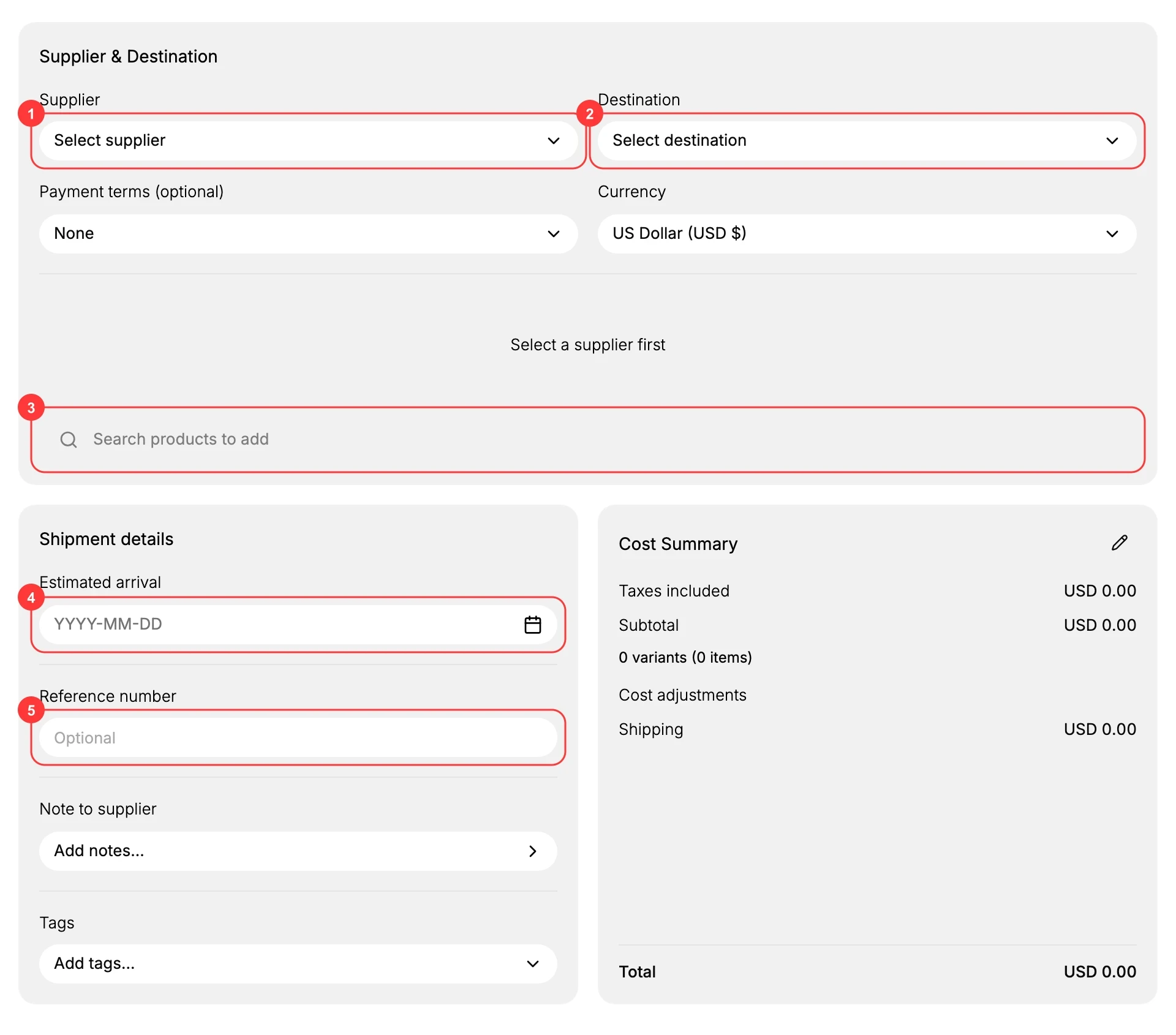
- Choose the supplier and destination. Under Supplier & Destination, pick the Supplier (1) you are ordering from, for example Meridian Trading Co., and the Destination (2) location the stock will arrive at. Payment terms, such as Net 30, and the Currency are set here too. The destination is worth a second look on a multi-location store, since stock received into the wrong building cannot fulfill the orders waiting at the right one.
- Add the products and their cost. Use Search products to add (3) for each product you are buying, then set its quantity and unit cost. The Cost Summary on the right keeps a running subtotal and total, so the figure you are committing to is visible while you build the order rather than after.
- Set the shipment details. Estimated arrival (4) is the date you expect the goods, which is what makes planning around the delivery possible. Reference number (5) ties the PO to the supplier's own paperwork, and is what turns reconciling an invoice weeks later into a lookup instead of an investigation. A note to the supplier and tags can be added here as well.
- Save. The PO is created with the status Ordered and joins the list. From that moment the ordered units count as Incoming against your inventory, which is the whole point of raising it.
Create a Purchase Order walks the form in more detail.
Receiving is when the stock actually exists
Nothing about a purchase order changes an on-hand count. That happens only when the delivery is received against the PO, which adds the units to the destination location and moves the status to Partial or Received.
Receive shipments as they land rather than waiting for the order to be complete. A part-delivery that sits unreceived is stock you own, in your own building, that the store believes you do not have and will not sell. See Receive a Purchase Order for how a delivery is booked in.
Verify the result
- The PO shows in the Purchase Orders list with the right status.
- After receiving, the destination location's On hand count goes up by the amount received.
- The Cost Summary total matches what you expect to pay the supplier.
Best practices
- Raise the PO as soon as you decide to reorder, so the incoming stock is visible to the whole team.
- Set a realistic Estimated arrival so planning around the delivery is accurate.
- Use the Reference number to tie the PO to the supplier invoice, which makes reconciling costs easier.
- Receive in parts as shipments arrive rather than waiting for everything, so stock is usable sooner.
Common mistakes
- No purchase order at all, so incoming stock is invisible until it shows up.
- The wrong destination, which lands the stock at a location that cannot fulfill the orders.
- Forgetting to receive the PO, so the inventory count never reflects the stock that arrived.
If something goes wrong
- Stock arrived but the count did not move. The delivery was not received against the PO. Open it and receive the units.
- The supplier is not in the list. Use Create new supplier in the form, then select it.
- The stock is at the wrong location. Check the Destination on the PO, since that is where received units are added.
- The total does not match the invoice. Compare the Cost Summary against the supplier's paperwork using the Reference number you recorded.
- Permission denied. Your role lacks the Manage inventory transfers permission.
Next steps
Related articles
Still stuck?
- Ask Tanqory AIAsk in your own words. It answers from these articles and links the ones it used.
- Ask in your adminThe assistant in your Tanqory admin answers and makes the change for you once you confirm.
- Contact TanqoryWrite to our privacy, security or legal teams, or talk to sales about a plan or a move.